
The HRMS mobile app allows employees to view leave entitlements, including Brought Forward (BF), Entitled, Credited, Expired, and Taken leave. Employees can also apply for leave anytime and anywhere via the app.
Steps to View Leave Balance:
1. Go to Leave.
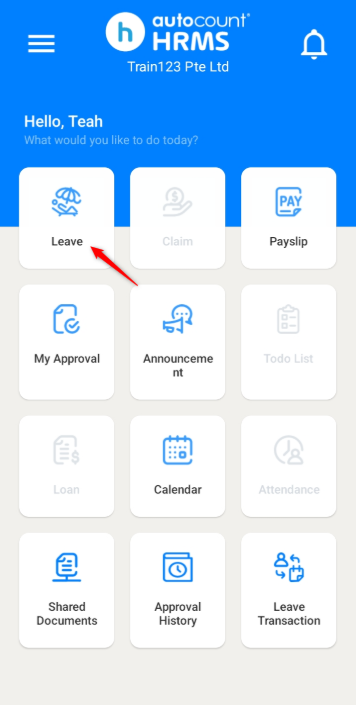
2. Click See Details >.
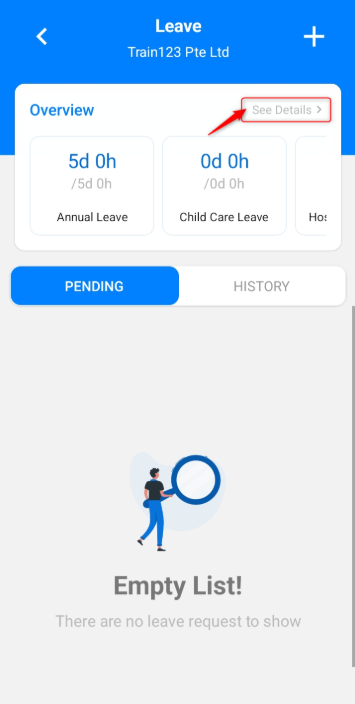
3. Swipe to the right to view balances for different leave types.
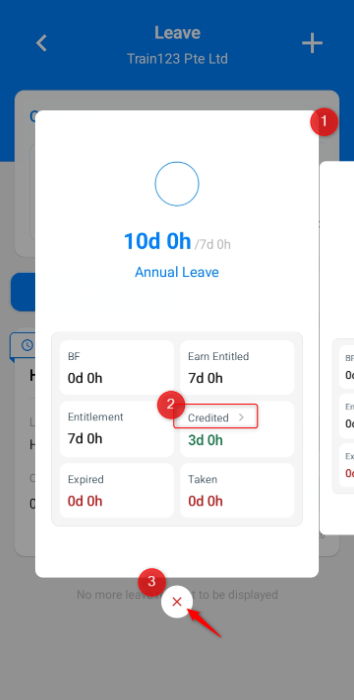
4. Click on the > icon next to Credited to view Leave Credits expiring within 30 days.
5. Click the × icon to close.
Steps to Apply for Leave via Mobile App:
1. Click Leave.
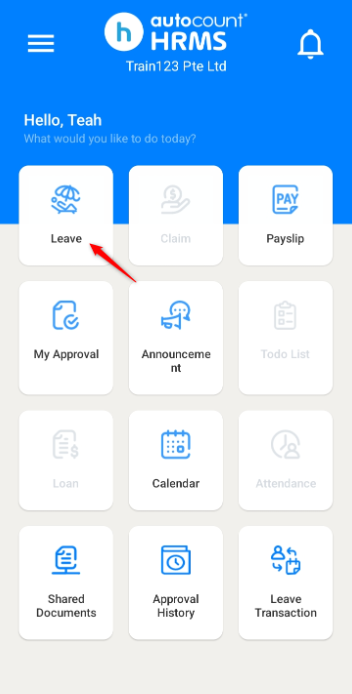
2. Click the + icon on the top right corner.
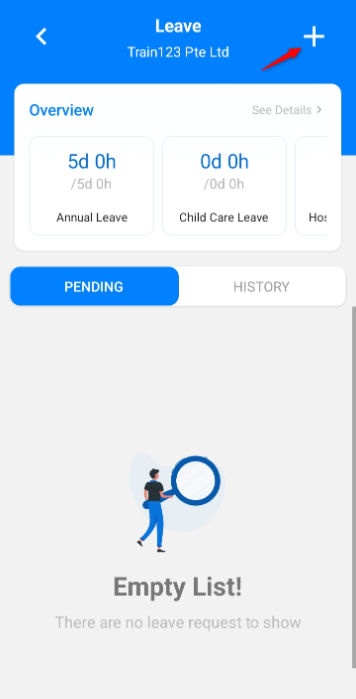
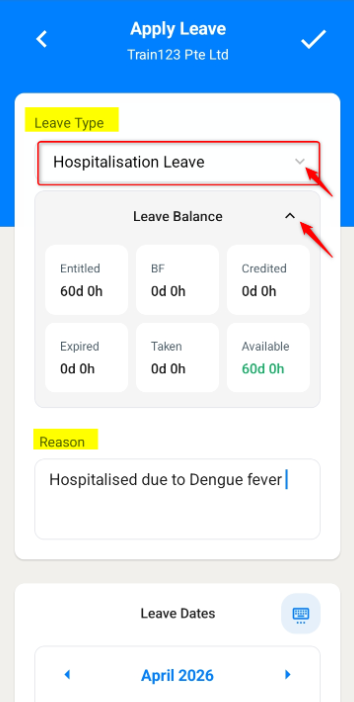
3. Select a Leave Type from the dropdown list.
ℹ️ Note: The leave balance of the selected leave type will be displayed. Click the arrow icon to expand or collapse.
4. Enter the reason for the leave.
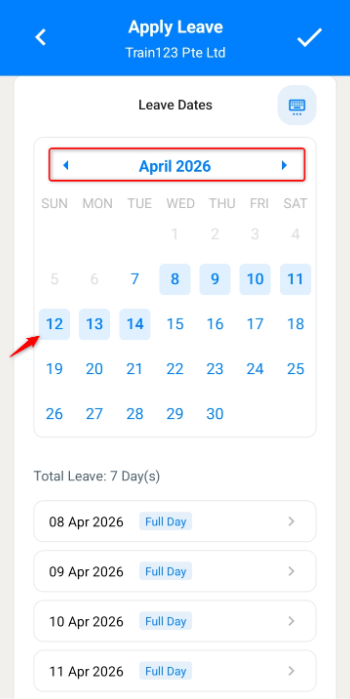
5. Scroll down to select Leave Dates. There are two ways to enter your dates:
- Click the dates manually.
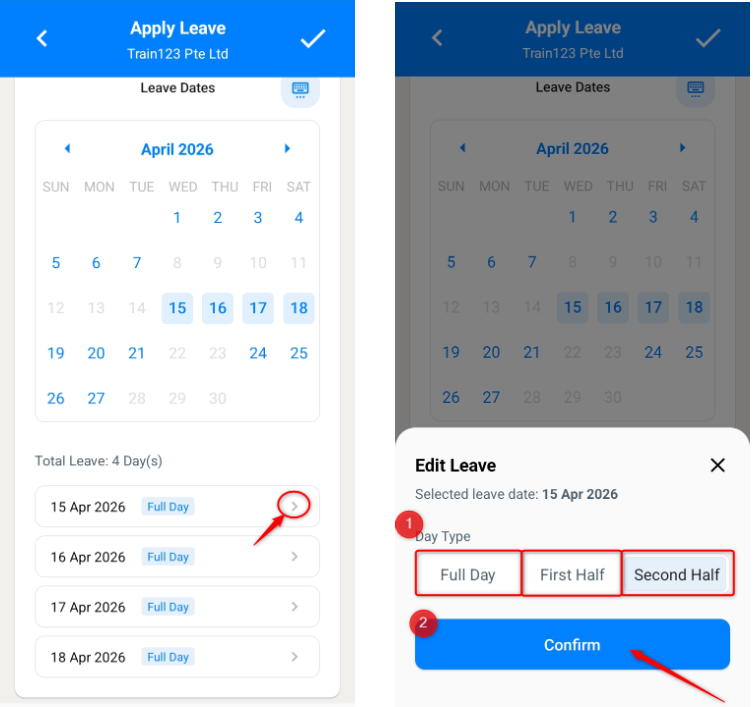
- Click the keyboard icon, enter the Start Date and Number of Days. The dates will be auto-populated.
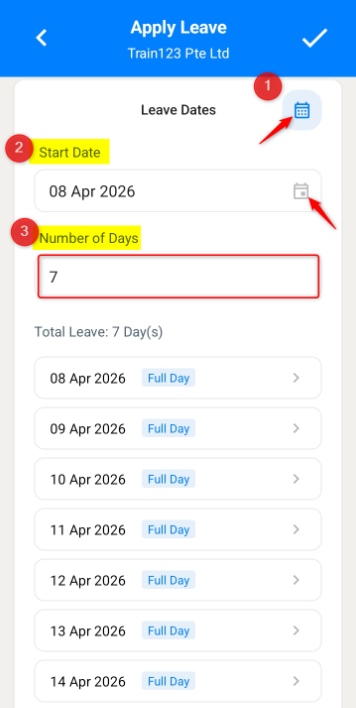
ℹ️Note: Click on the > icon next to the dates to change the leave Date Type (e.g., Full Day, First Half, Second Half). Click Confirm to save.
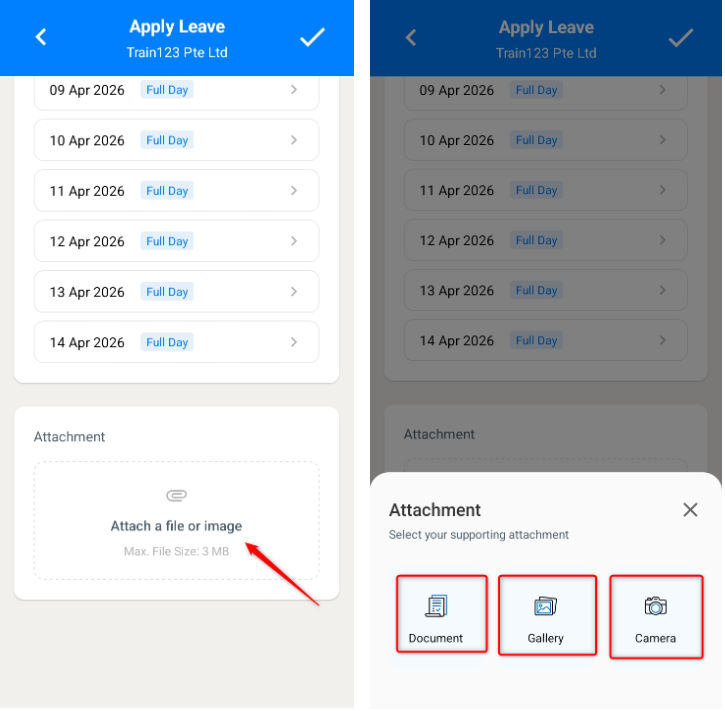
6. Click on Attach a file or image to upload an attachment.
- Document – Select a document from your device to upload.
- Gallery – Browse and select a photo from your device to upload.
- Camera – Take a photo and click the tick icon to upload. Click the cross icon to retake the photo.
ℹ️ Note: The files or photos to be uploaded cannot exceed 3 MB.
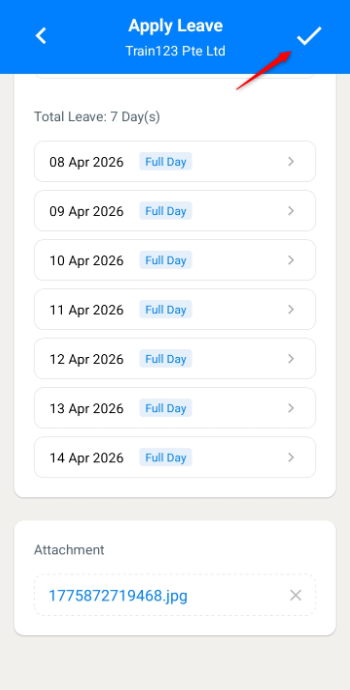
7. Click on the tick icon on the top right corner to submit.
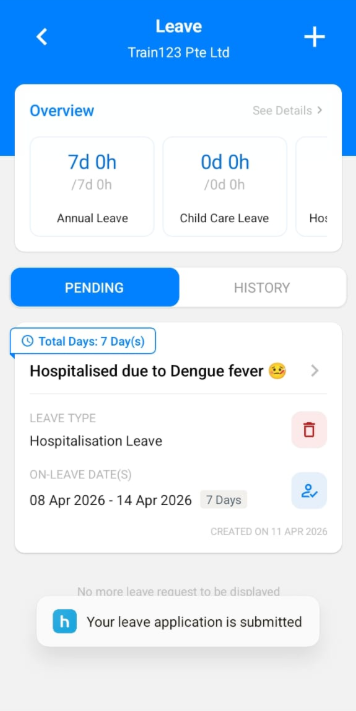
8. Your leave application will be submitted successfully.
Steps to Edit a Pending Leave Application:
1. Go to the Pending page.
2. Click the > icon next to your leave reason.
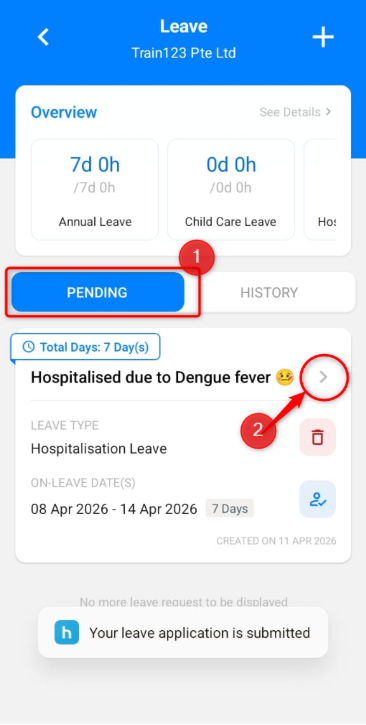
3. Make the necessary changes and click the tick icon to save.
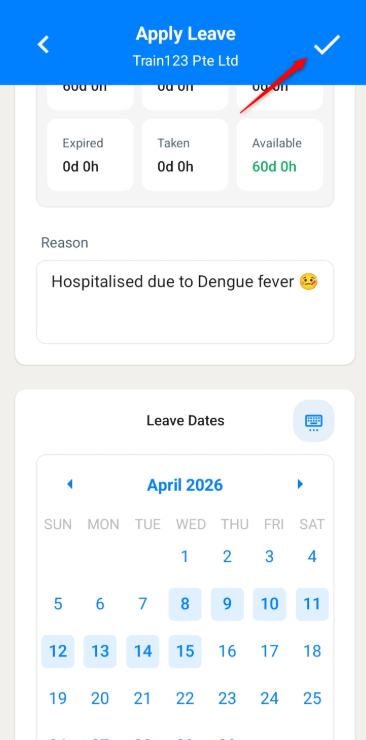
4. The updated application will be submitted successfully.
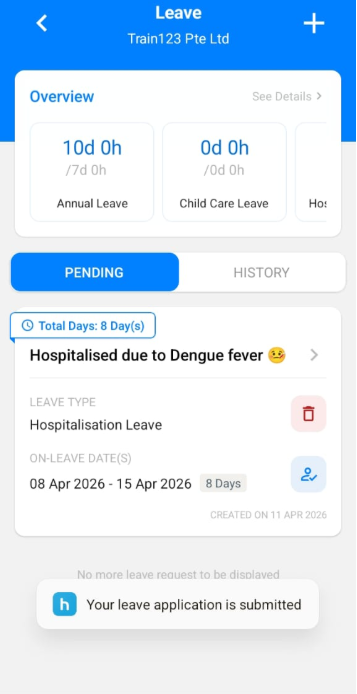
ℹ️Note: Click on the Status icon next to On-Leave Date(s) to view the Approval Status.
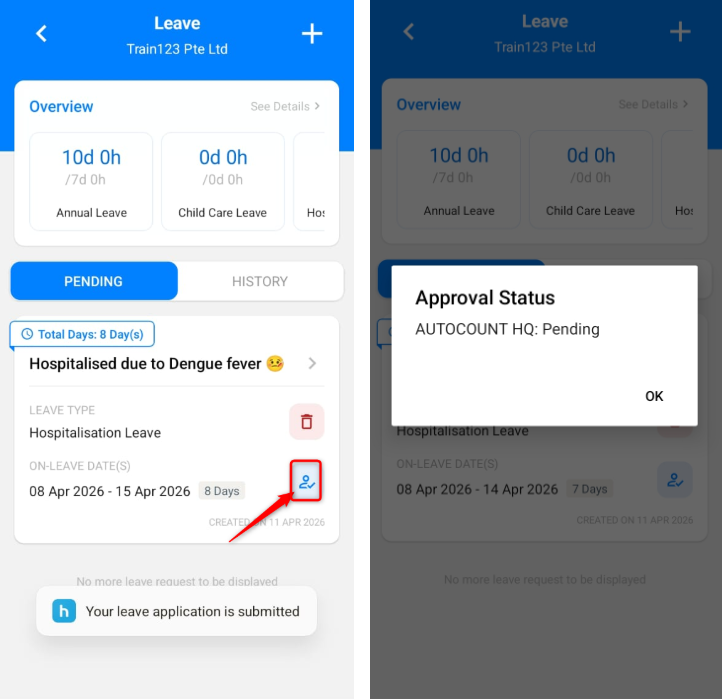
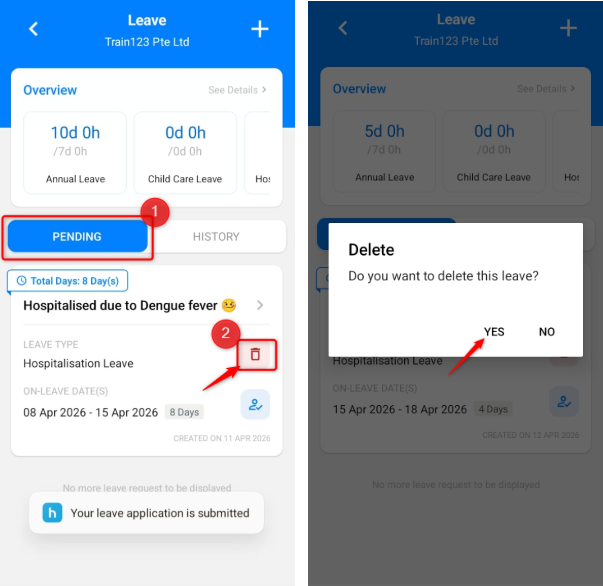
Steps to Delete a Pending Leave Application:
1. Go to the Pending page.
2. Click the trash bin icon.
3. Click Yes to confirm deletion.
4. The leave application will be deleted successfully.
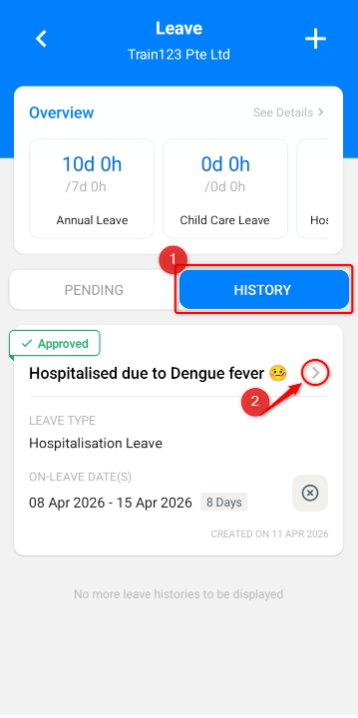
Steps to Cancel Approved Leave(s):
1. Go to the History page.
2. Click the × icon next to On-Leave Dates.
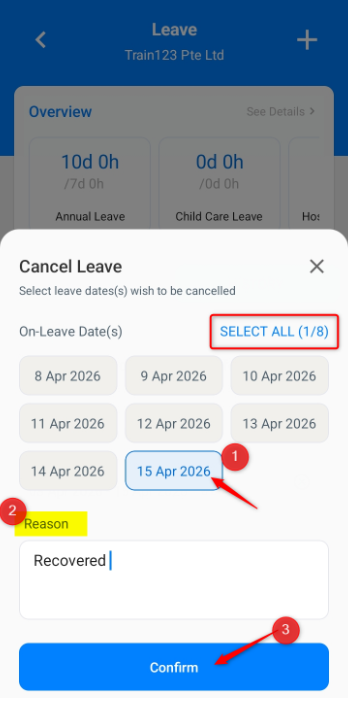
3. Select the date(s) to be cancelled. You may click SELECT ALL to cancel all applied dates.
4. Enter the Reason for cancellation.
5. Click Confirm.
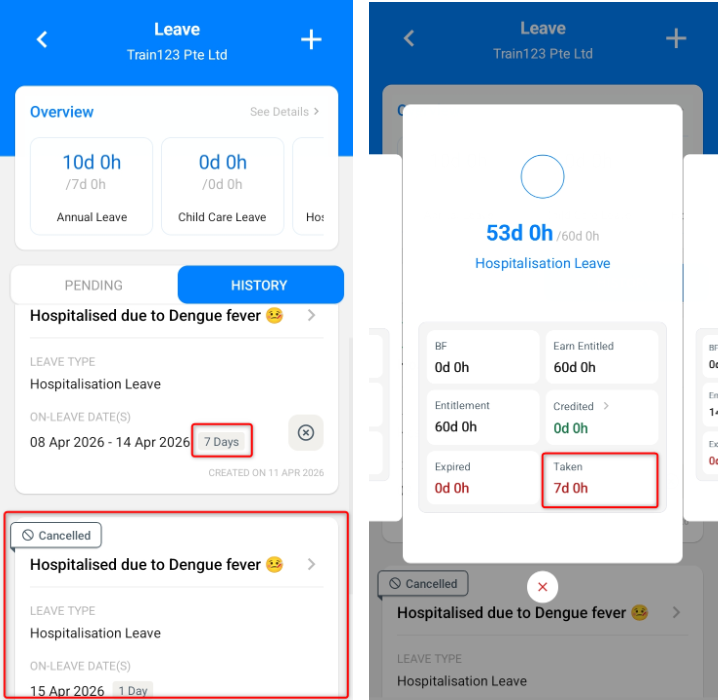
6. The select dates will be cancelled and reflected in the Leave History page.
Written by: Teah Rui Harn (20260411)
Reviewed by: Tek Ee Lin (20260417)