
A Leave Type defines the categories of leave that employees can apply for according to entitlements and company’s policies—for example, Annual Leave, Sick Leave, Maternity Leave, and Unpaid Leave.
Each leave type may follow different rules for eligibility, balance calculation, usage, and flexibility.
Steps to Create a New Leave Type:
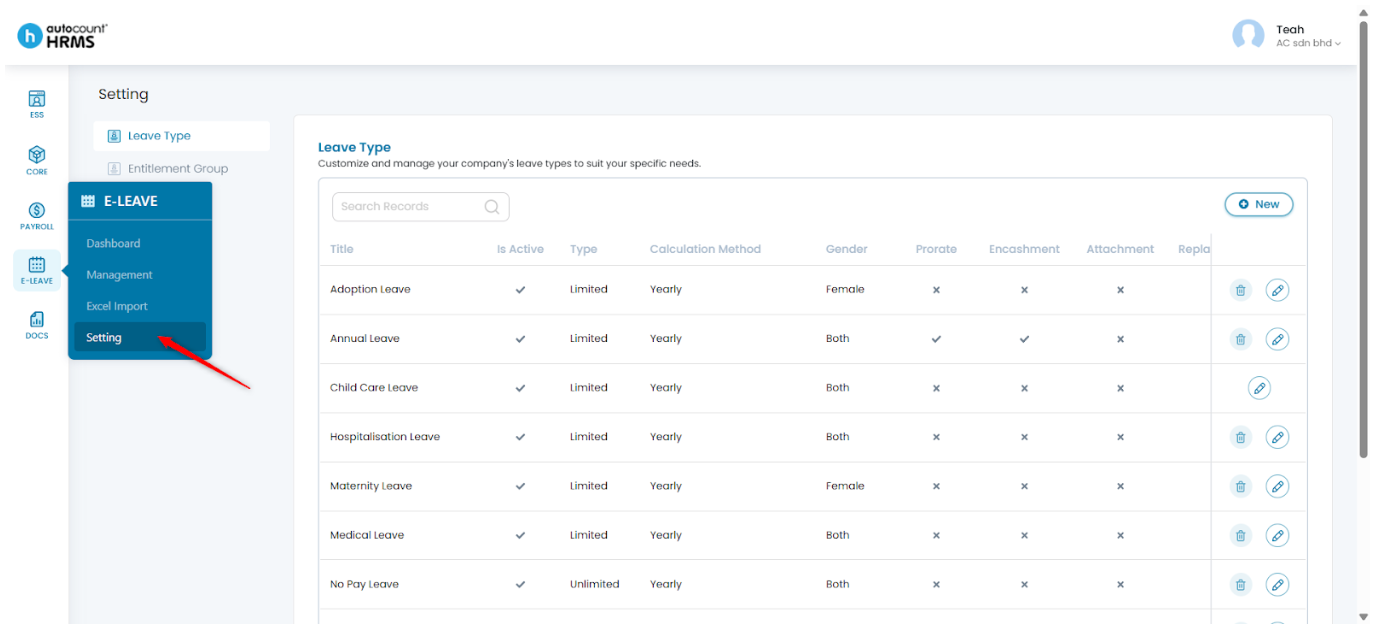
1. Go to E-Leave > Setting.
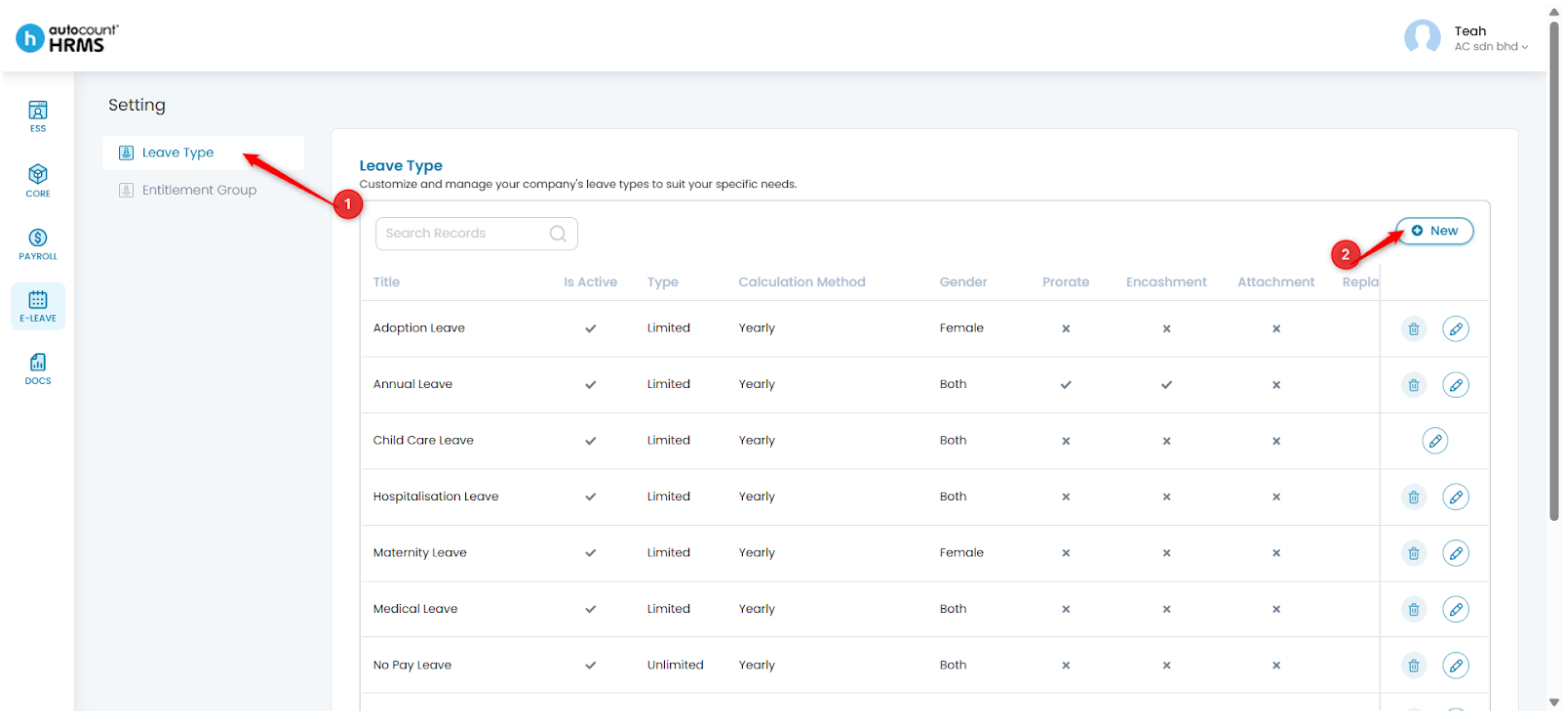
2. Under Setting, select Leave Type, then click New.
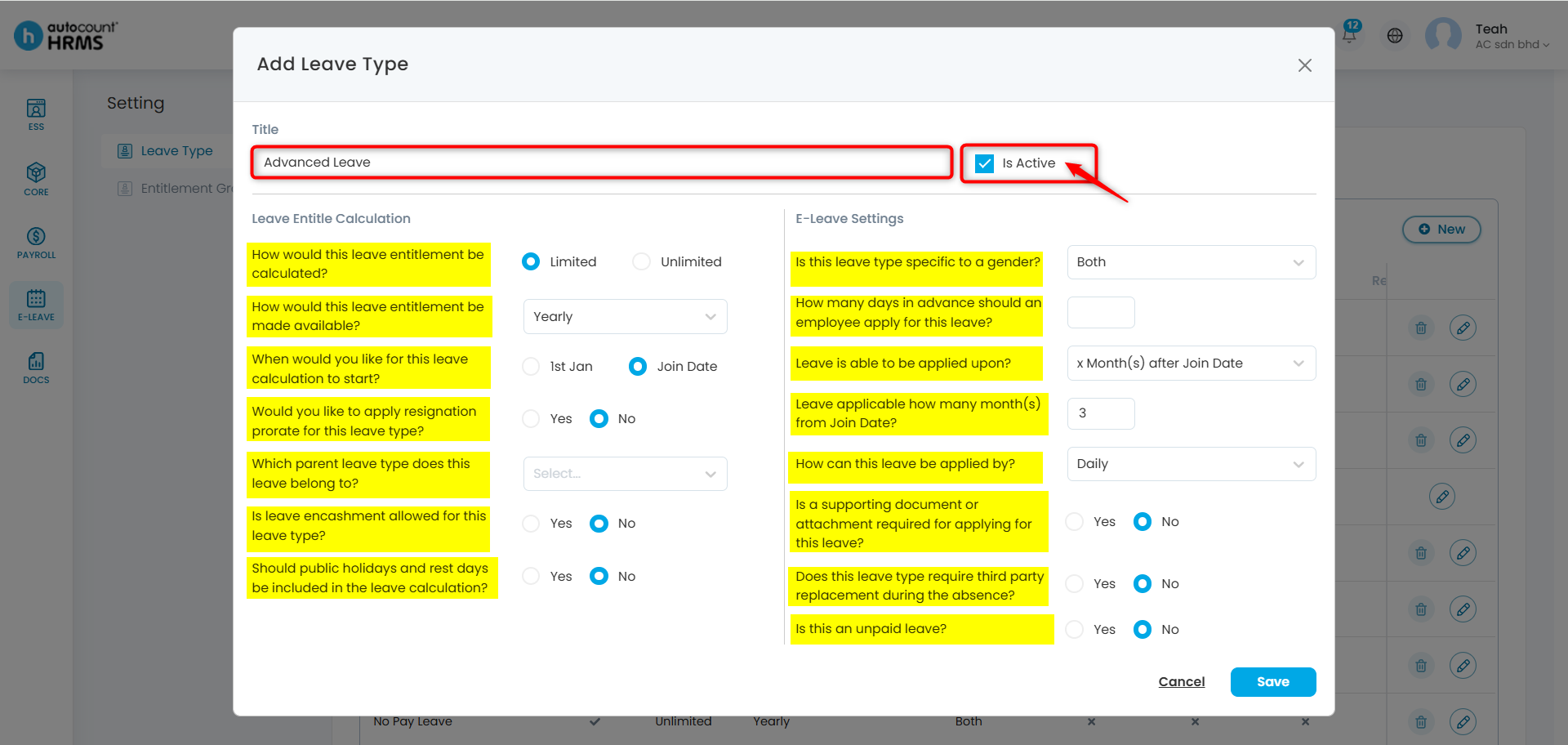
3. Enter the Basic Information:
- Title – Enter the name of the leave type.
- Is Active –Tick to enable this leave type; untick to prevent employees from applying for it.
4. Configure Leave Entitle Calculation Settings:
i. How would this leave entitlement be calculated?
- Limited – Employees can apply according to their entitled leave days. You may also enable resignation prorate and select a parent leave type.
- Unlimited – No entitlement limit; employees may apply without restriction. Resignation prorate and parent leave type settings are not applicable.
ii. How would this leave entitlement be made available?
- Yearly – The full leave entitlement for the calendar year is provided upfront.
- Monthly – Leave is accrued monthly and becomes available only after each month is completed.
- Monthly Advance – Leave is allocated monthly in advance at the beginning of each month.
iii. When would you like for this leave calculation to start?
- 1st of Jan – The leave entitlement is calculated based on the full calendar year, regardless of the employee’s join date.
- Join Date – The leave entitlement is prorated based on the employee’s join date within the calendar year.
iv. Would you like to apply resignation prorate for this leave type?
- Yes – Leave will be prorated based on months worked in the resignation year.
- No – Leave will not be prorated.
v. Which parent leave type does this leave belong to? – Select a parent leave type if needed. When selected, the parent leave type will be deducted at the same time if the main leave type is applied. (Optional)
vi. Is leave encashment allowed for this leave type?
- Yes – Untaken leave can be converted to salary; select the Leave Encashment Payroll Item.
- No – Leave cannot be encashed.
vii. Should public holidays and rest days be included in the leave calculation?
- Yes – They are counted as part of the leave.
- No –They are excluded.
Tip: For further examples and scenarios explaining the calculation and provision methods (question ii & iii), refer to Leave Type Scenario.
5. Configure E-Leave Settings:
i. Is this leave type specific to a gender?
- Male
- Female
- Both
ii. How many days in advance should an employee apply for this leave?
- Enter the number of days. (Optional)
iii. Leave is able to be applied upon?
- Join Date – Leave can be applied immediately upon joining.
- Confirmation Date – Leave can only be applied after confirmation.
- Months after Join Date – Leave becomes applicable only after a specified number of months from the join date. Enter the number of months required.
iv. How can this leave be applied by?
- Weekly – Leave must be applied by week.
- Daily – Leave can be applied by day.
v. Is a supporting document or attachment required for applying for this leave?
- Yes – Employees must attach a supporting document when applying for the leave type.
- No – No supporting document is needed.
vi. Does this leave type require third party replacement during the absence?
- Yes – Another employee must be assigned to cover duties.
- No – No replacement is required.
vii. Is this an unpaid leave?
- Yes – Select the corresponding Unpaid Leave Payroll Item.
- No –This is a paid leave type.
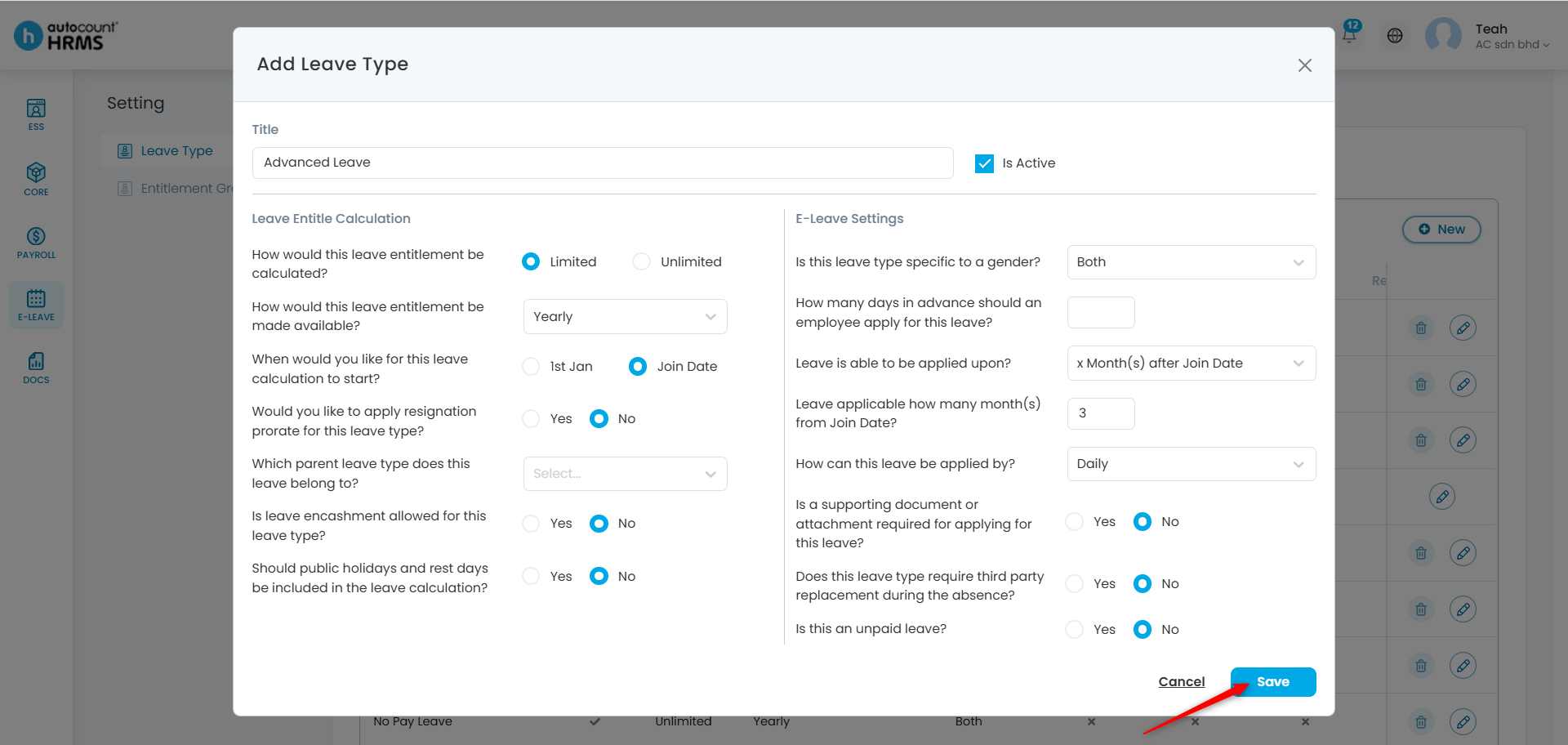
6. Click Save.
7. You may view all leave types in the Leave Type list:
- To edit, click the pencil icon, make necessary changes, then click Save.
- To delete, click the trash bin icon, then click Delete to confirm.
Written by: Teah Rui Harn (20251212)
Reviewed by: Tek Ee Lin (20251215)