
The Leave Entry function allows employers to apply leave on behalf of employees and adjust their leave entitlements when necessary. It is commonly used to correct leave balances, award additional leave, or deduct leave for specific reasons.
There are two types of Leave Entry:
- Append Leave – Increases or adjusts an employee’s leave entitlement. Changes will appear under the Leave Balance Entitled column.
- Deduct Leave – Reduces an employee’s accrued or entitled leave. Changes will appear under the Leave Balance Taken column.
Steps to Add a New Leave Entry:
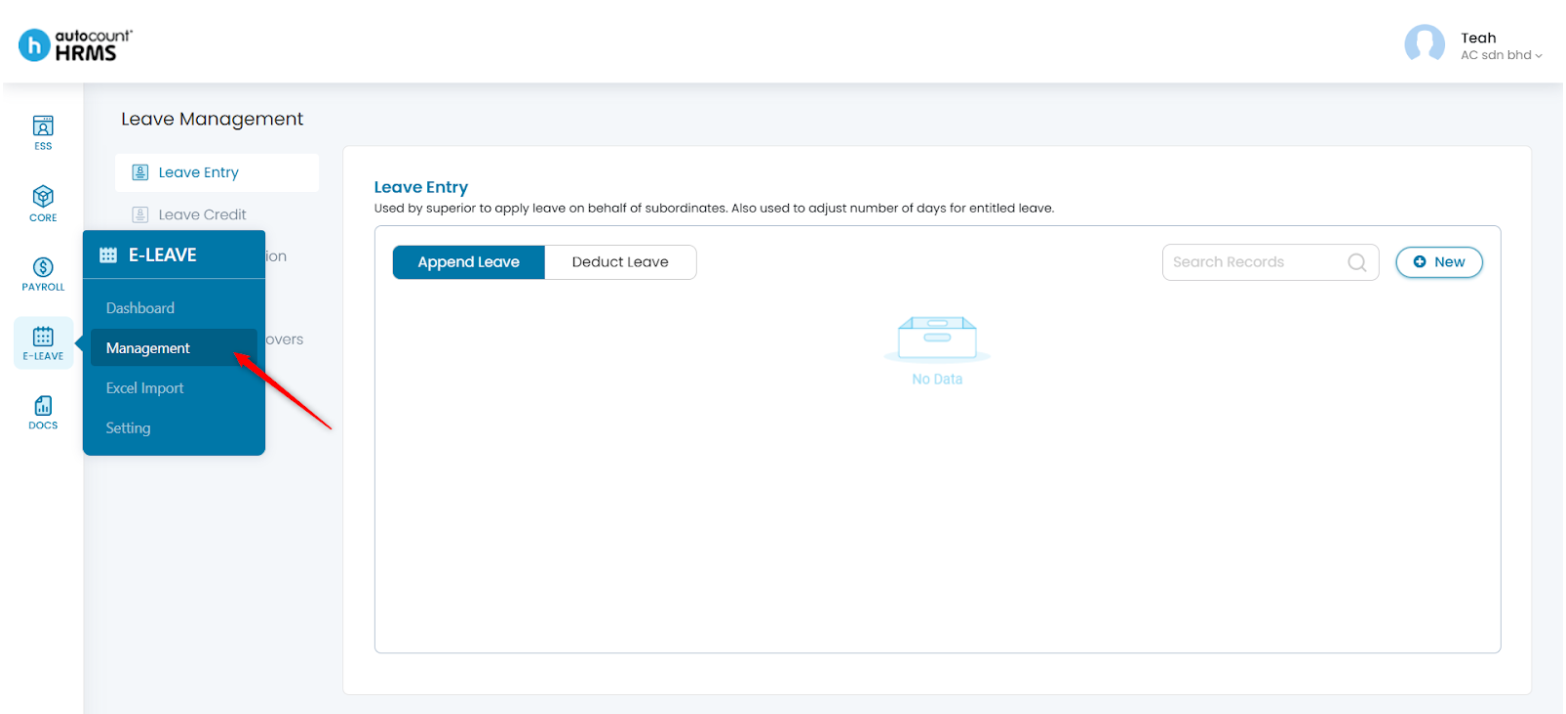
1. Go to E-Leave > Management.
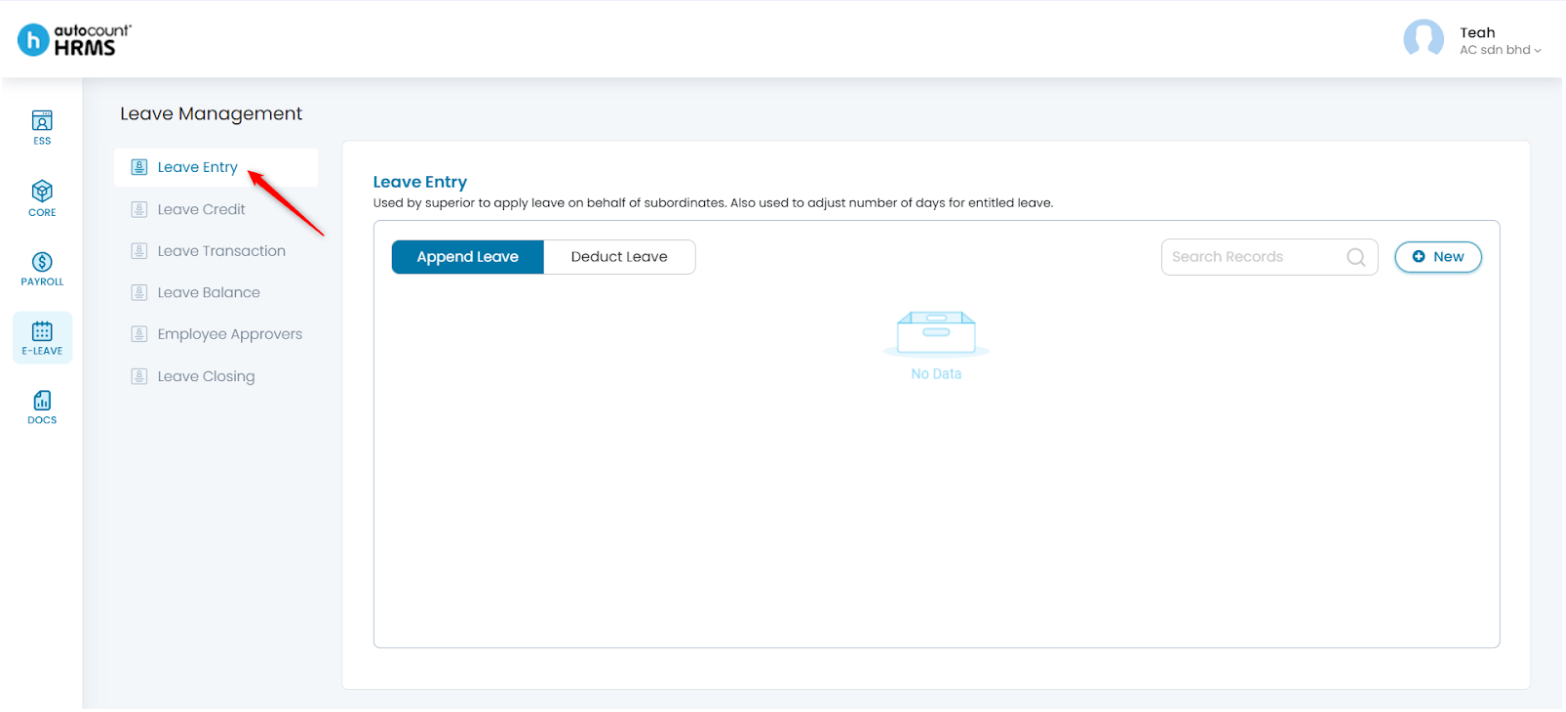
2. Under Leave Management, select Leave Entry.
A. Append Leave
Use this to increase or adjust employees’ entitled leave.
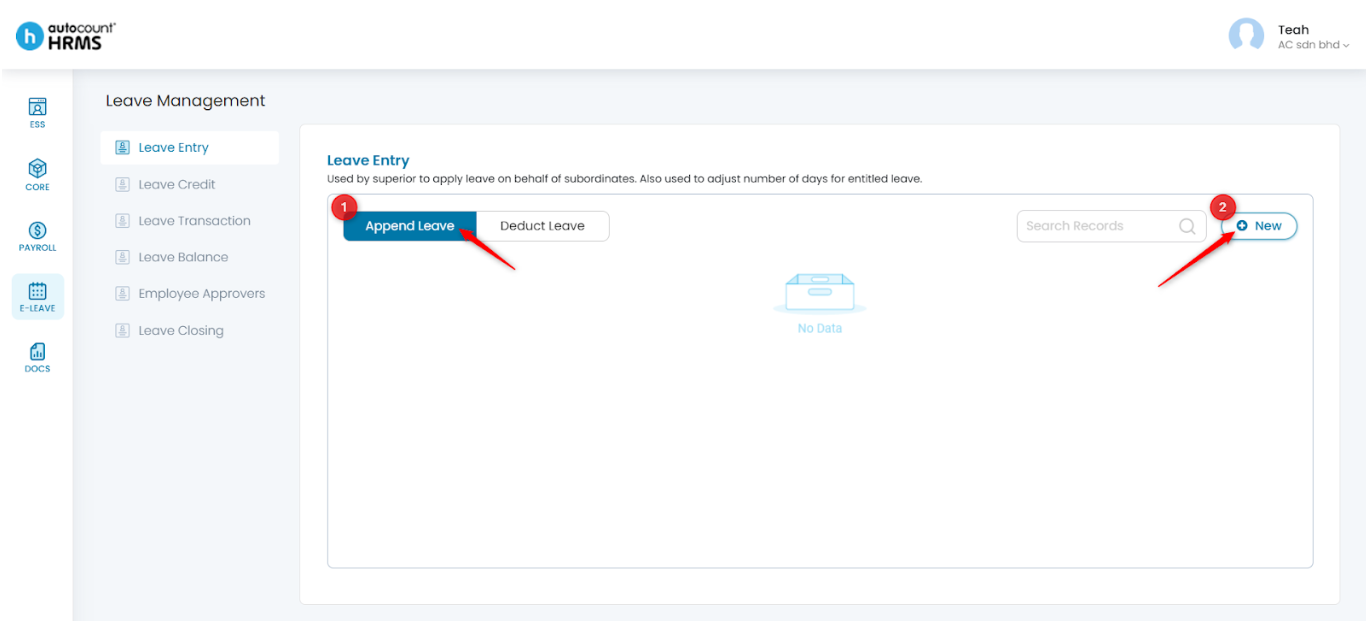
1. Under Leave Entry, select Append Leave. Then, click New.
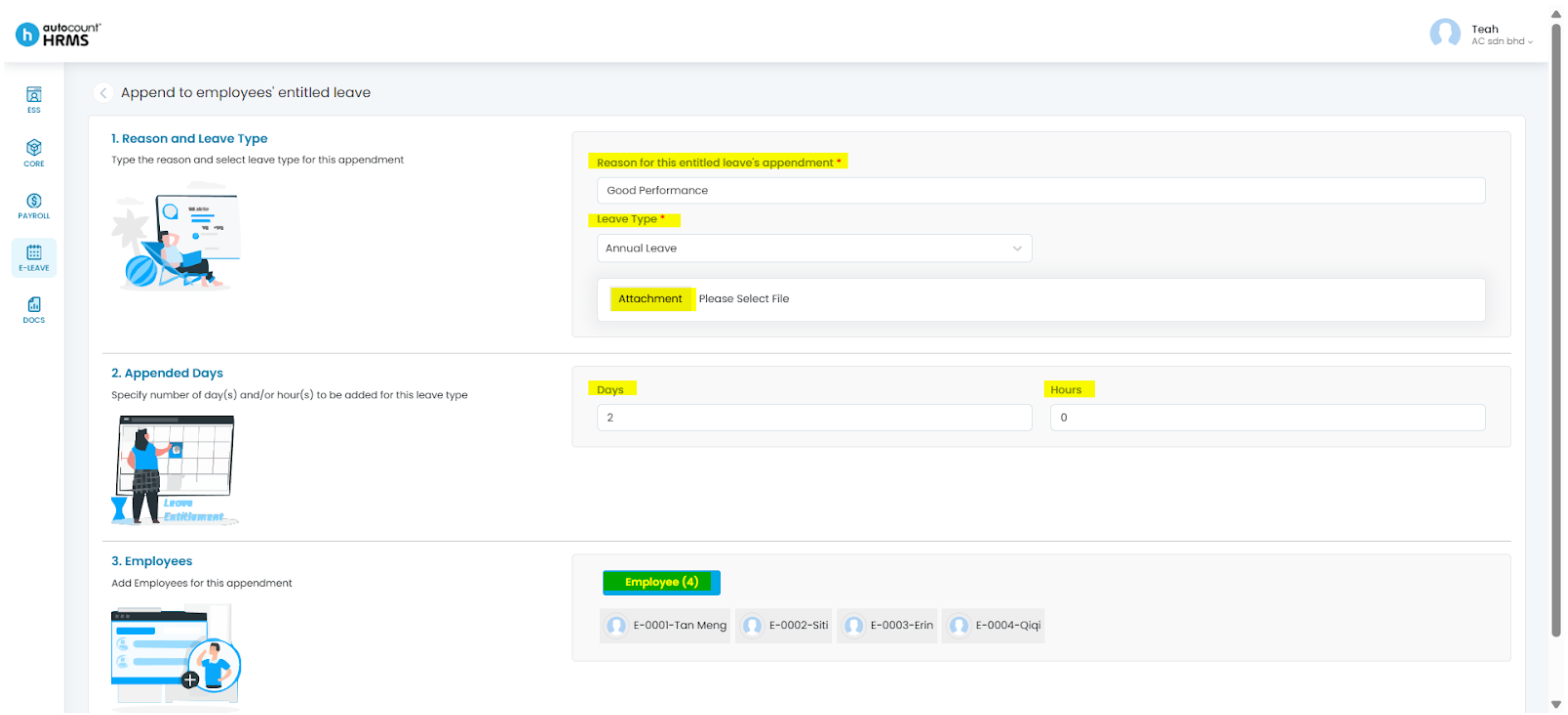
2. Fill in the required information:
- Reason for this entitled leave’s appendment – Provide a clear reason.
- Leave Type – Select the applicable leave type (e.g., Annual Leave, Maternity Leave).
- Attachment – Upload supporting documents, if any. (Optional)
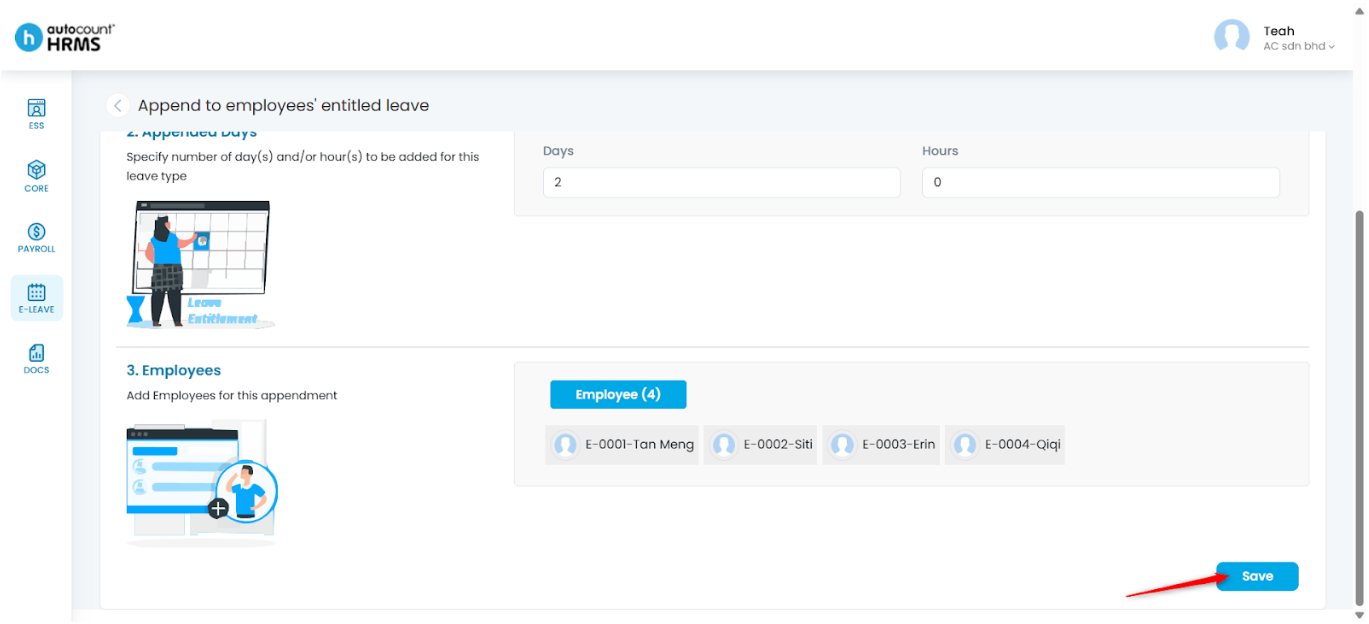
- Number of Day(s) / Half Day(s) / Hour(s) – Enter the entitlement amount. You may change the leave unit (e.g., Full Day, Half Day, Hourly) at Core > Company > Leave Unit. (See Apply Leave Unit)
- Employee(s) –Select the employees receiving the leave adjustment.
3. Click Save.
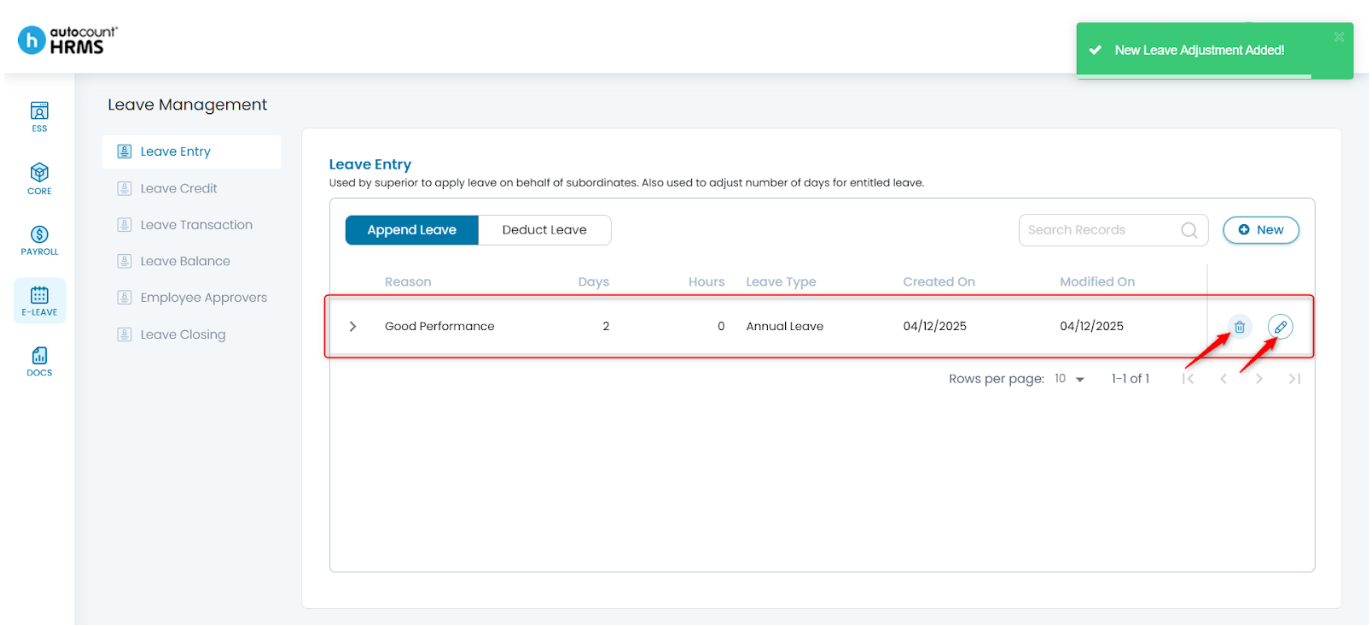
4. You may view all appended leave entries:
- To edit, click the pencil icon.
- To delete, click the trash bin icon.
B. Deduct Leave
Use this to apply leave on behalf of employees.
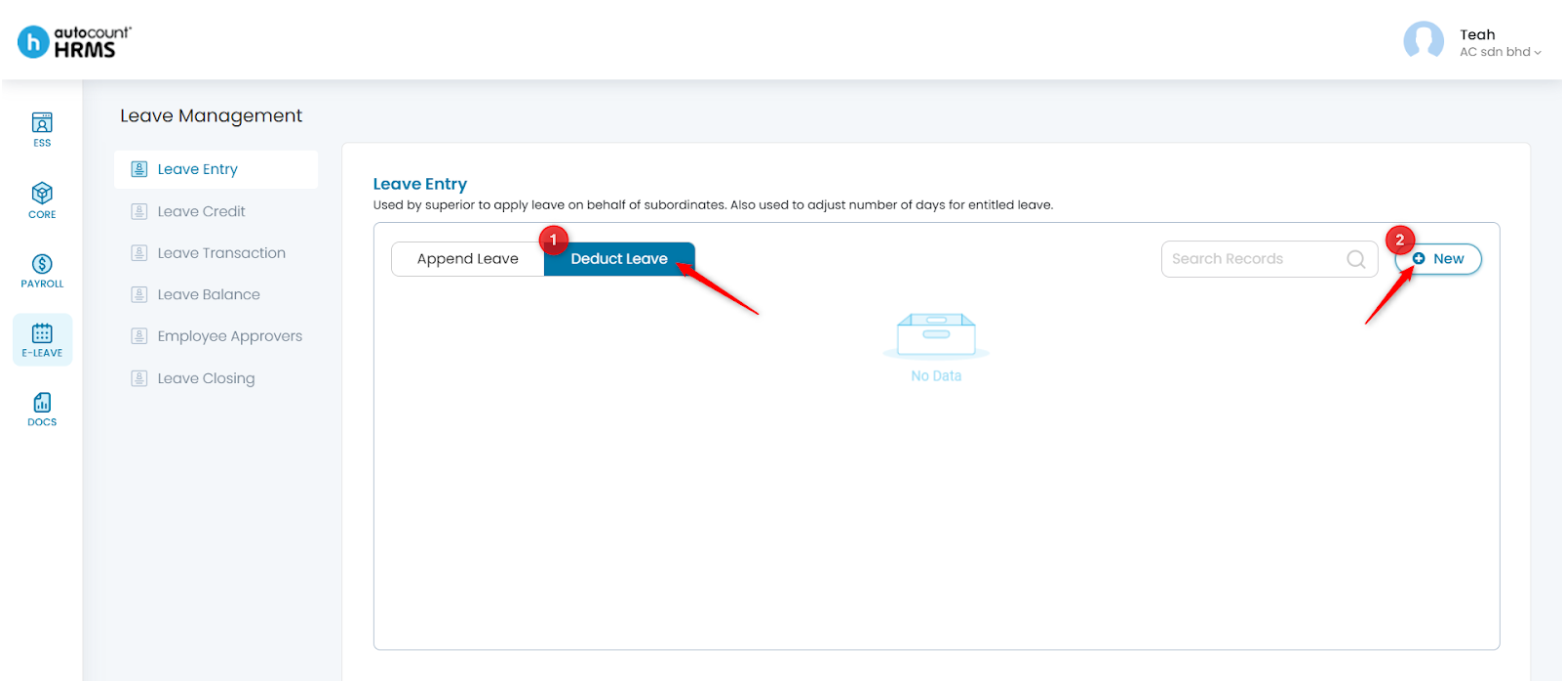
1. Under Leave Entry, select Deduct Leave, then click New.
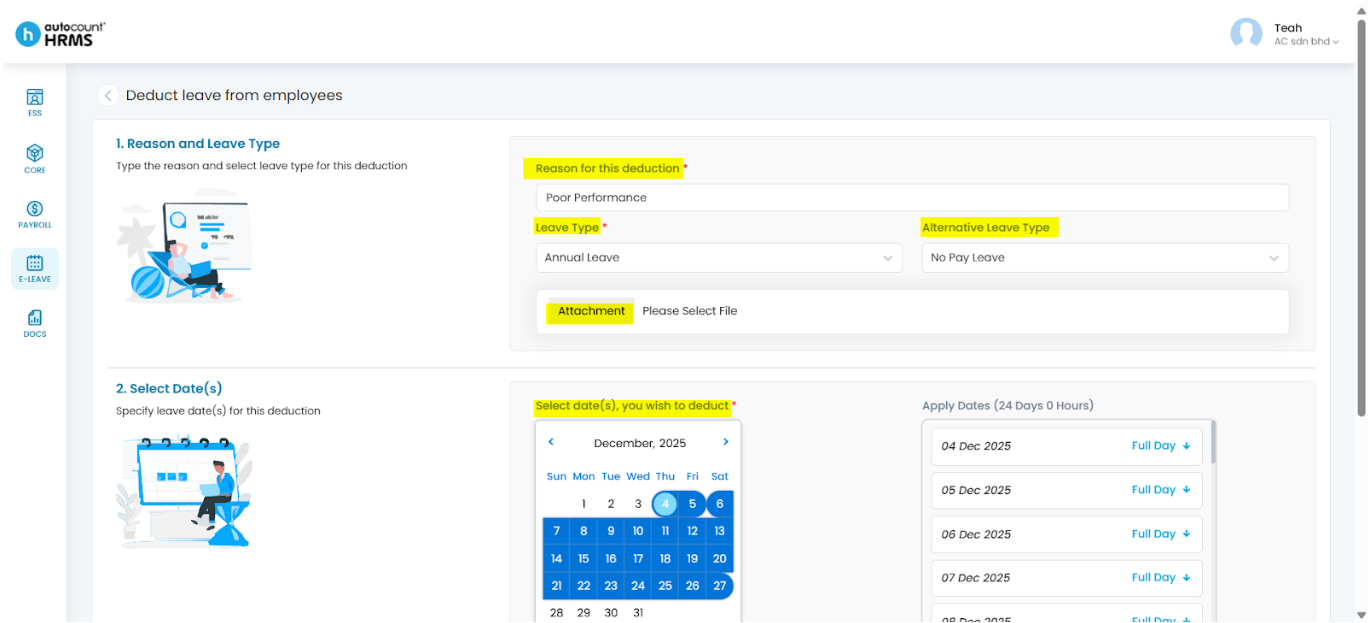
2. Fill in the required details:
- Reason for this deduction – Provide a clear reason.
- Leave Type – Select the leave type for deduction (e.g., Annual Leave).
- Alternative Leave Type – Automatically filled based on the selected Leave Type; you may change it if needed.
- Attachment – Upload supporting documents, if any. (Optional)
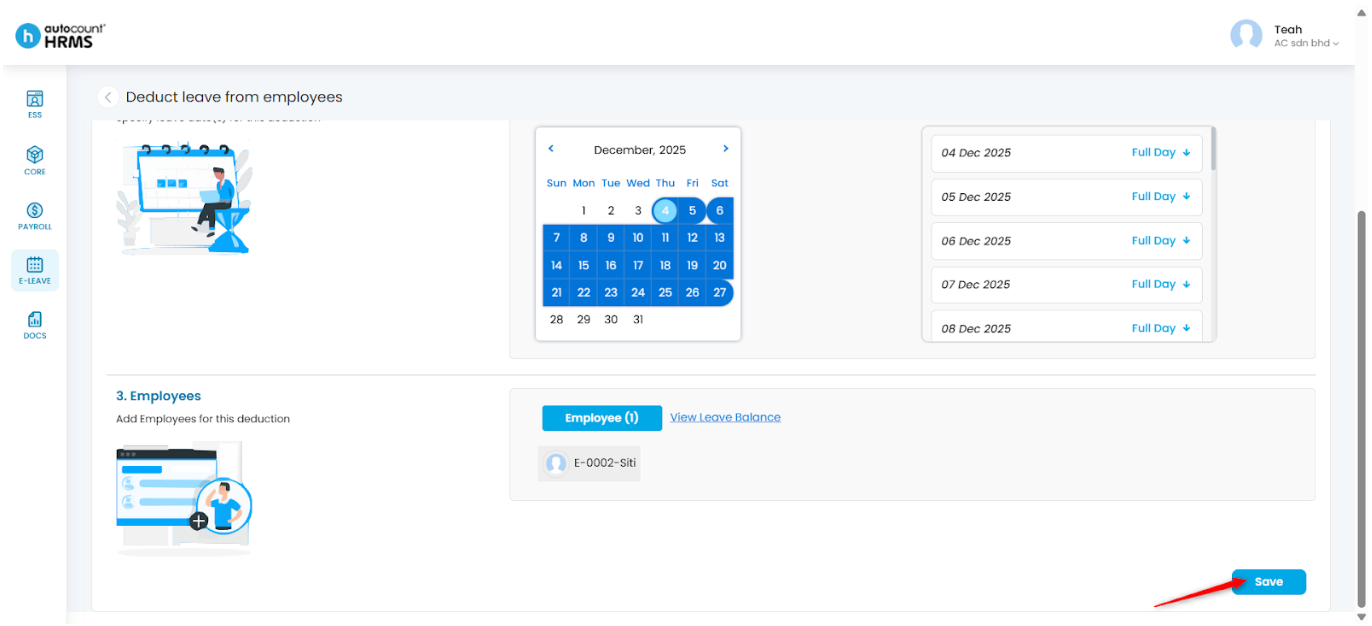
- Select date(s) – Choose the leave dates to deduct.
- Employee – Select employees who require leave deduction. Click View Leave Balance to check remaining leave.
3. Click Save to proceed.
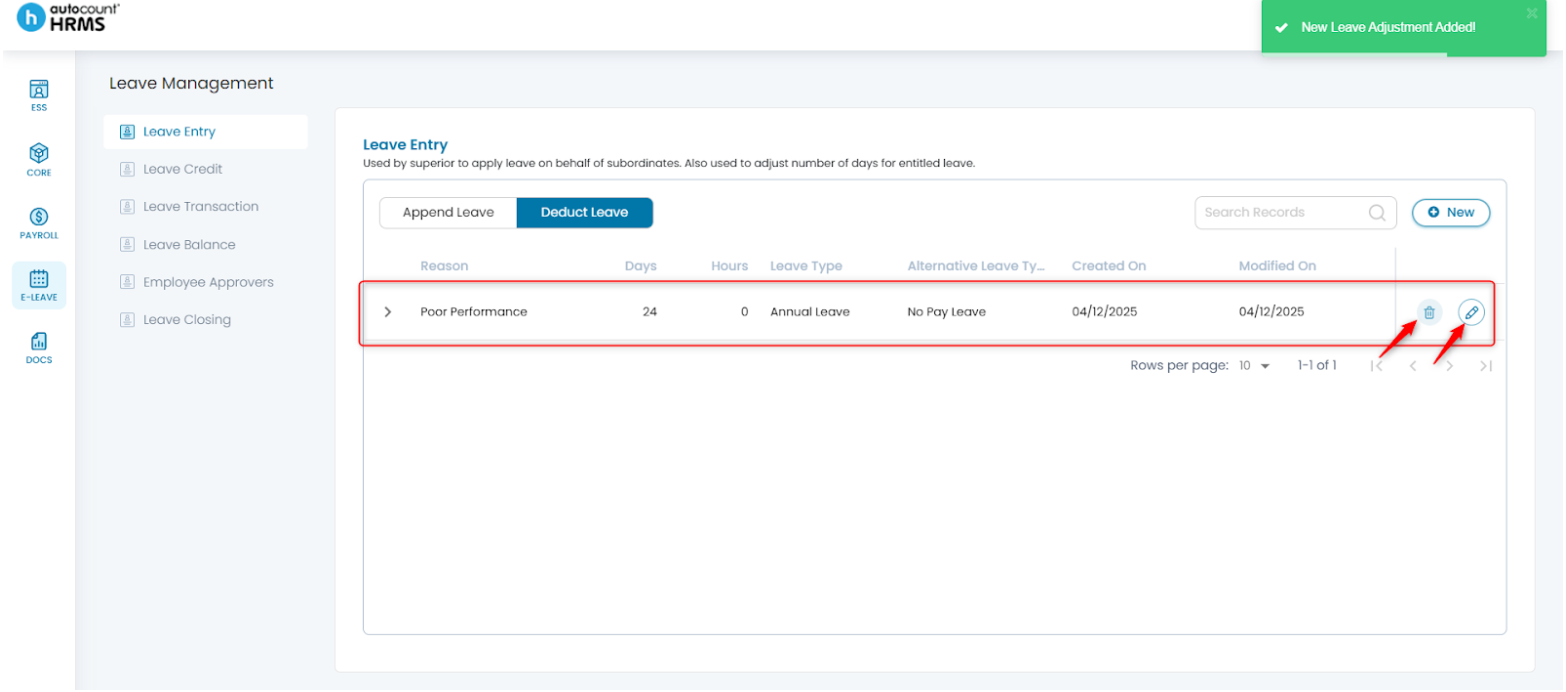
4. You may view all deducted leave entries:
- To edit, click the pencil icon.
- To delete, click the trash bin icon.
Written by: Teah Rui Harn (20251208)
Reviewed by: Tek Ee Lin (20251209)