
Leave Credit functions similarly to Leave Entry Append Leave but includes an expiry date. It is used to grant employees additional leave entitlements that must be used before a specified date.
All credited leave will appear under the Leave Balance Credits column.
Steps to Add a New Leave Credit:
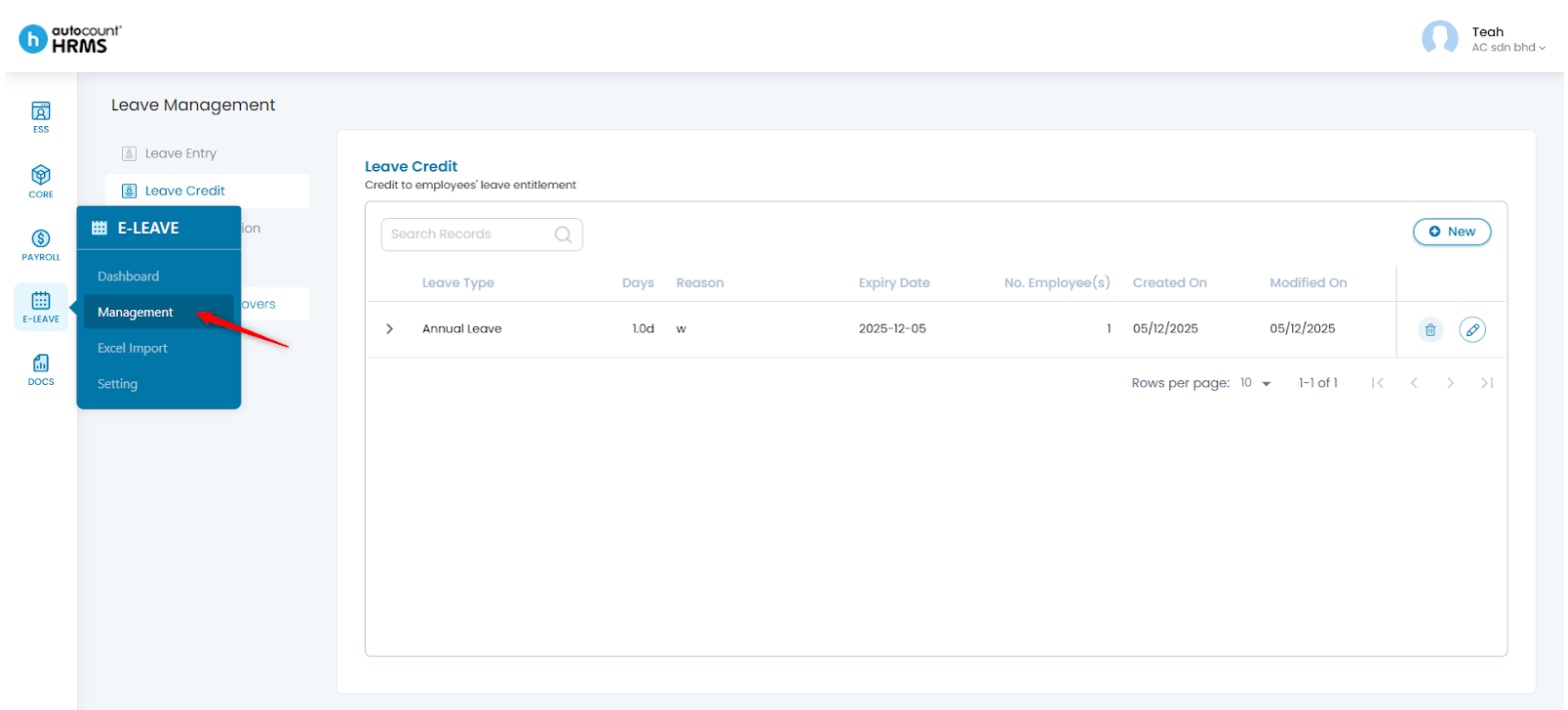
1. Go to E-Leave > Management.
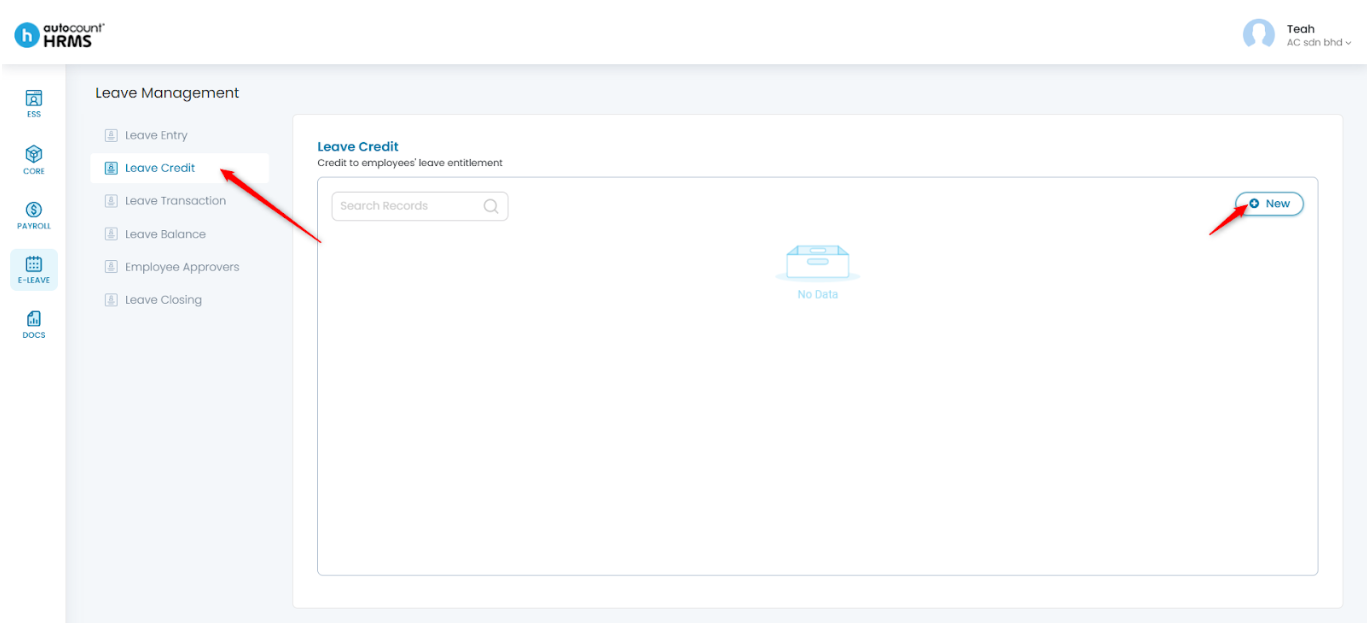
2. Under Leave Management, select Leave Credit, then click New.
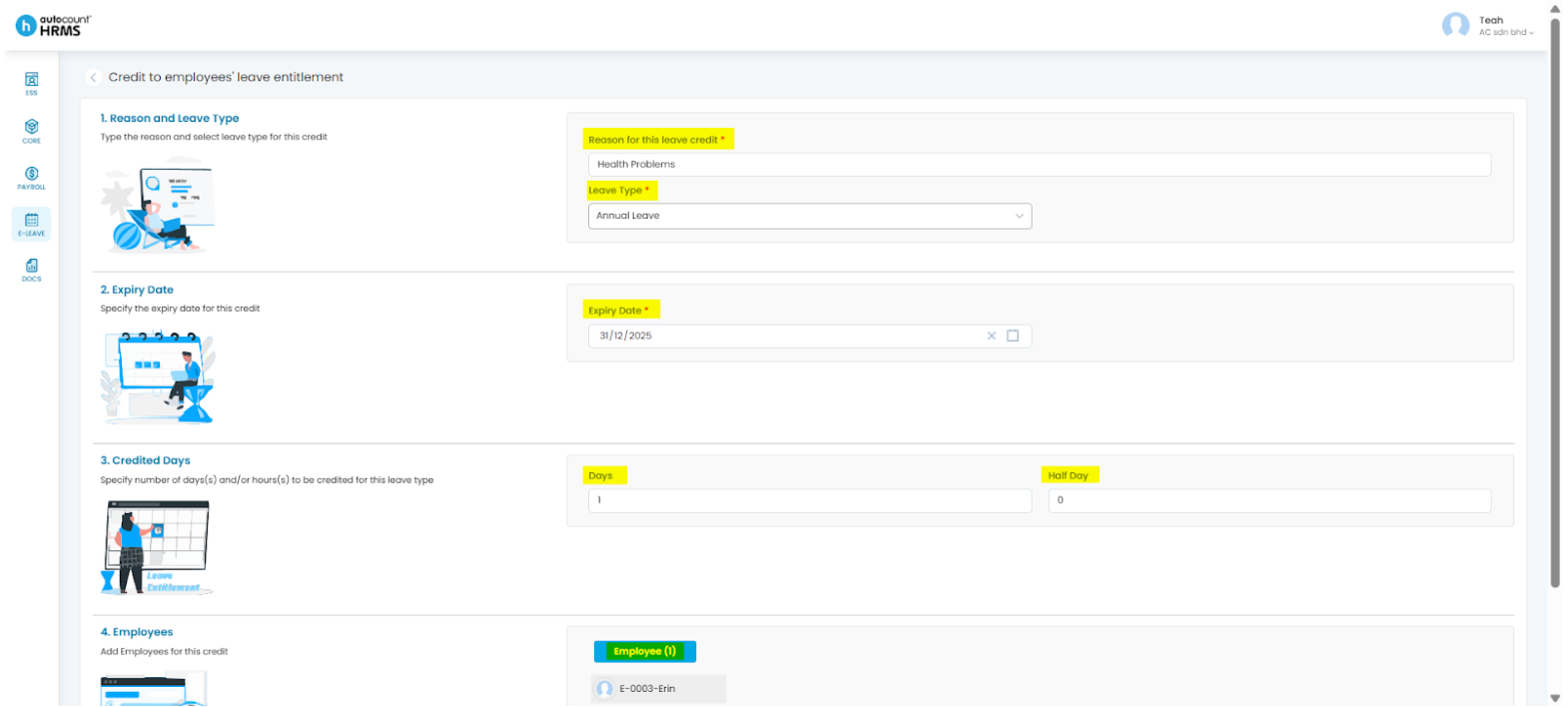
3. Fill in the required details:
- Reason for this leave credit – Provide a brief reason.
- Leave Type – Select the type of leave to be credited (e.g., Annual Leave).
- Expiry Date – Set the final date by which the employee must utilise the credited leave.
- Number of Day(s) / Half Day(s) / Hour(s) – Enter the amount of leave credited. You may change the leave unit (e.g., Full Day, Half Day, Hour) at Core > Company > Leave Unit. (See Apply Leave Unit)
- Employee(s) – Click on Employee(s) and select the employees who will receive the leave credit.
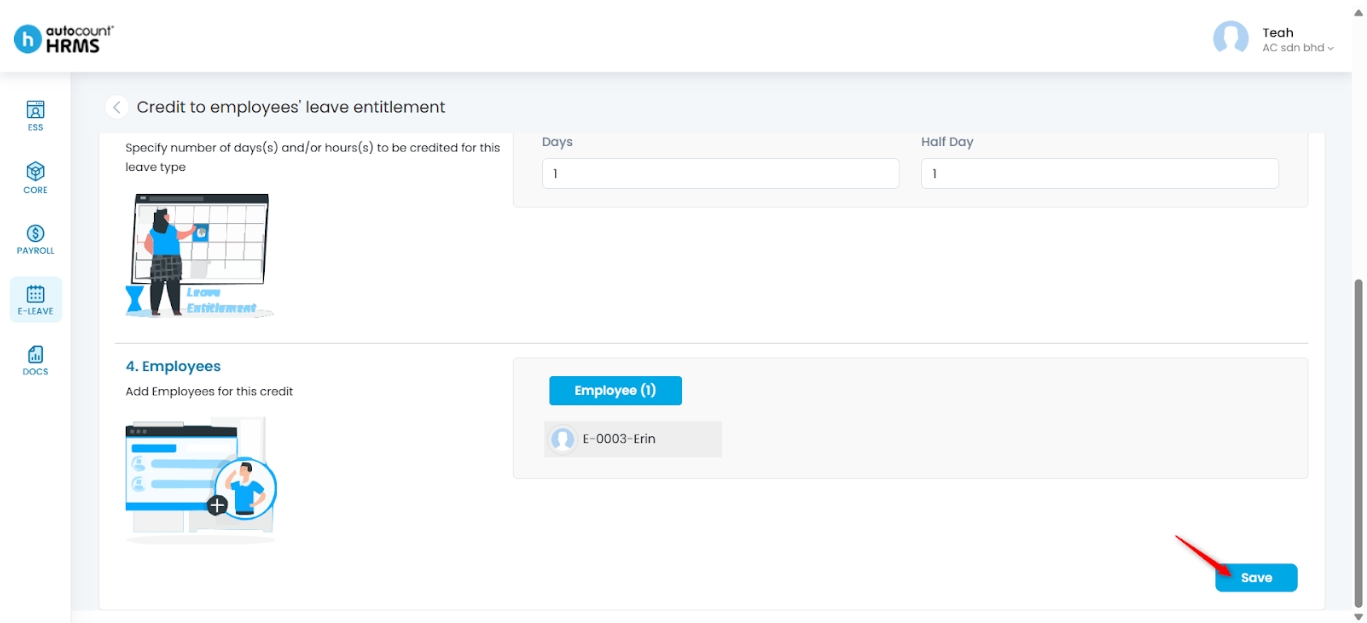
4. Click Save.
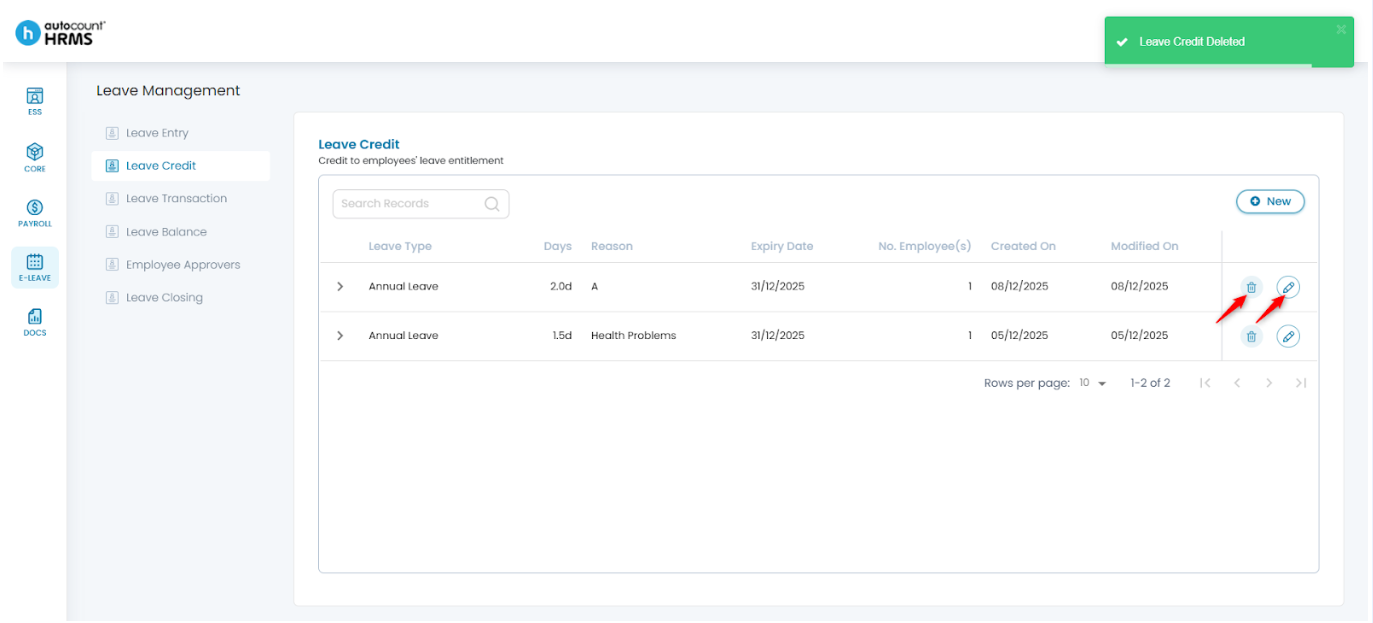
5. All credited leave entries will be displayed on the page.
- To edit, click the pencil icon, make the necessary changes, and click Save.
- To delete, click the trash bin icon, then click Yes to confirm.
Written by: Teah Rui Harn (20251209)
Reviewed by: Tek Ee Lin (20251209)