
Leave Closing is used to finalise employees’ leave balances at the end of the year. This process calculates remaining leave, performs leave encashment, and manages Brought Forward (BF) actions to prepare leave balances for the new year.
Steps to Close Leave Balance:
1. Go to E-Leave > Management.
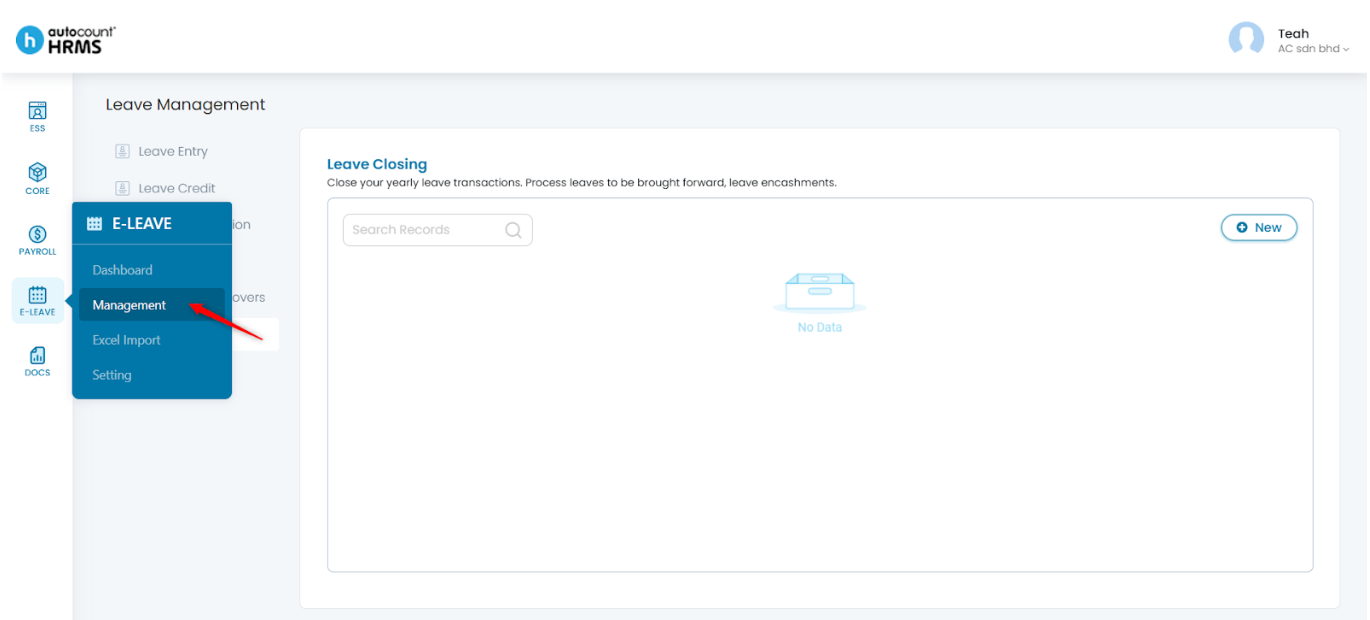
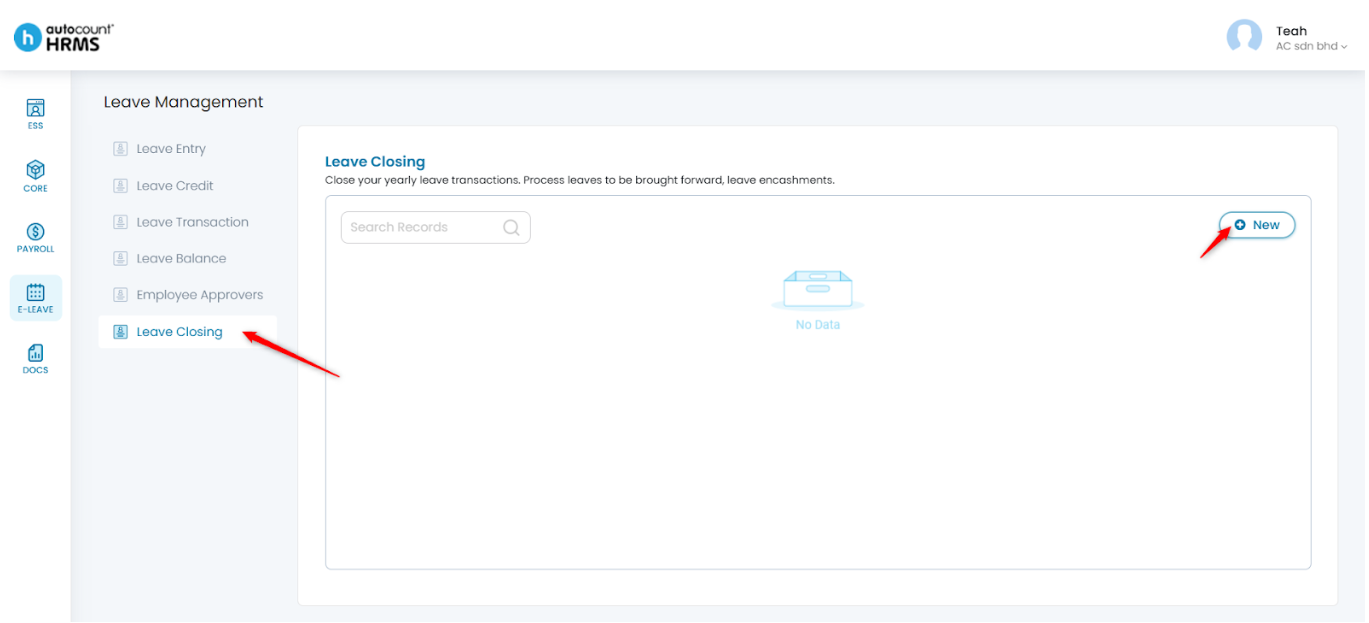
2. Under Leave Management, select Leave Closing, then click New.
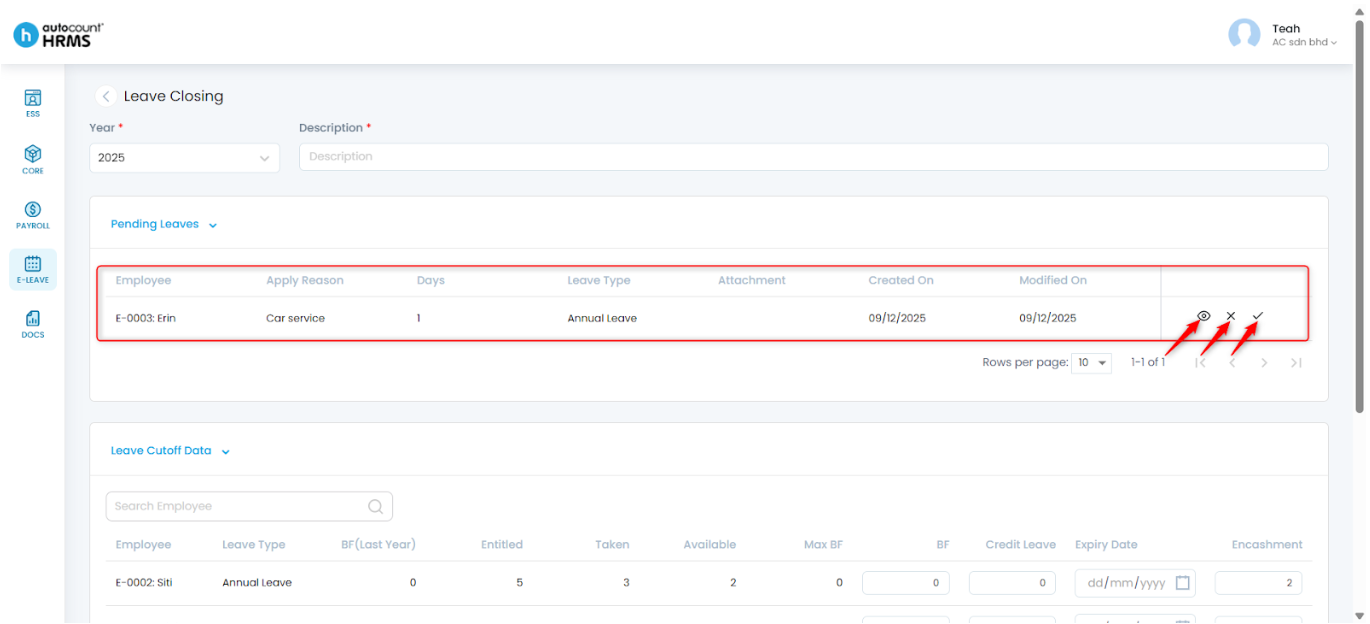
3. Select the Year and enter a Description. Clear any Pending Leave(s):
- Click the eye icon to view pending leave details.
- Click the Tick icon to Approve.
- Click the Cross icon to Reject.
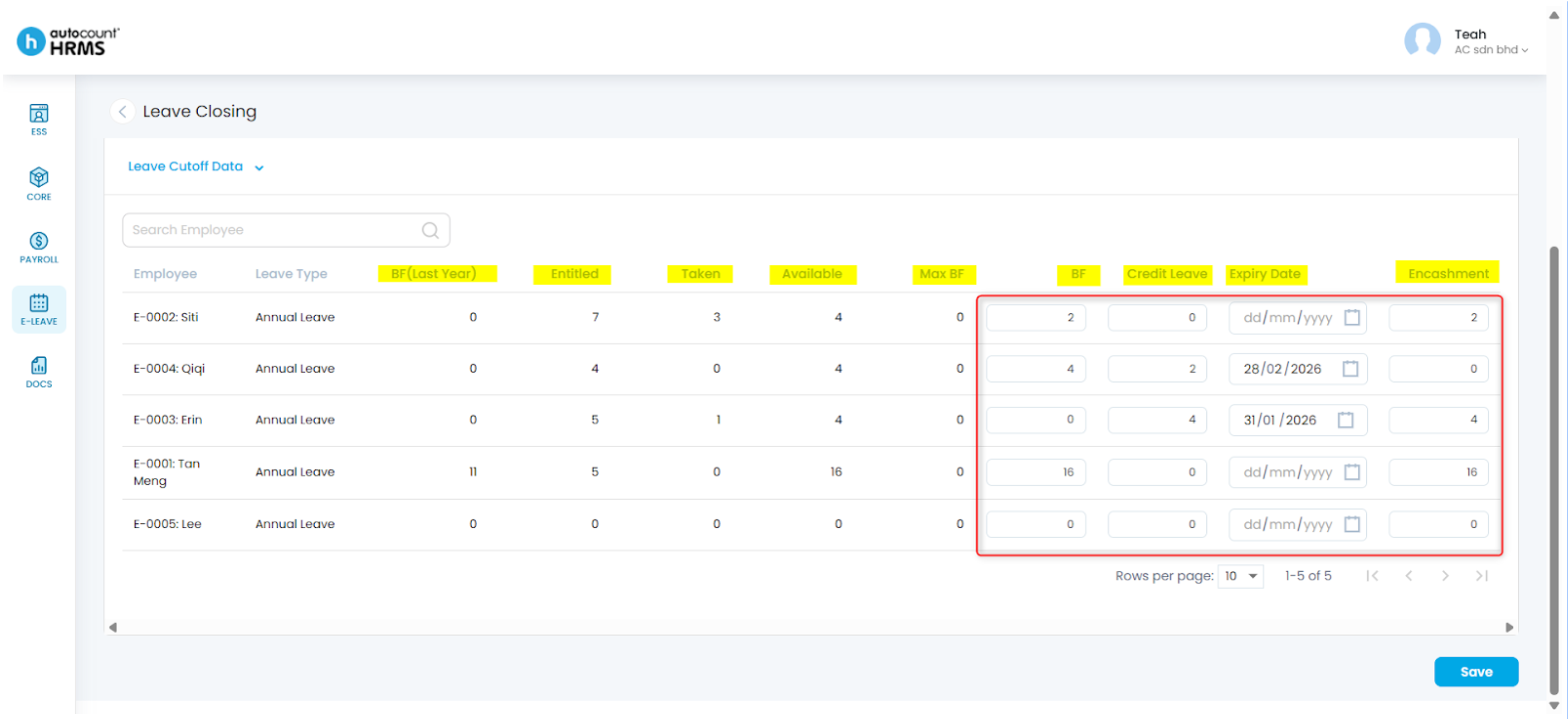
4. Review the following information:
- BF (Last Year) – Leave carried over from the previous year.
- Entitled – Total leave allocated for the year.
- Taken – Leave already utilised.
- Available – Remaining leave balance.
- Max BF – Maximum leave allowed to be carried forward.
Then, enter the required Leave Cutoff Data:
- BF – Number of leave days to carry forward to the next year.
- Credit Leave – Portion of the BF leave that comes with an expiry date.
- Expiry Date – Deadline for employees to use their BF credit leave.
- Encashment – Number of unused leave days to convert into salary.
5. Click Save to proceed.
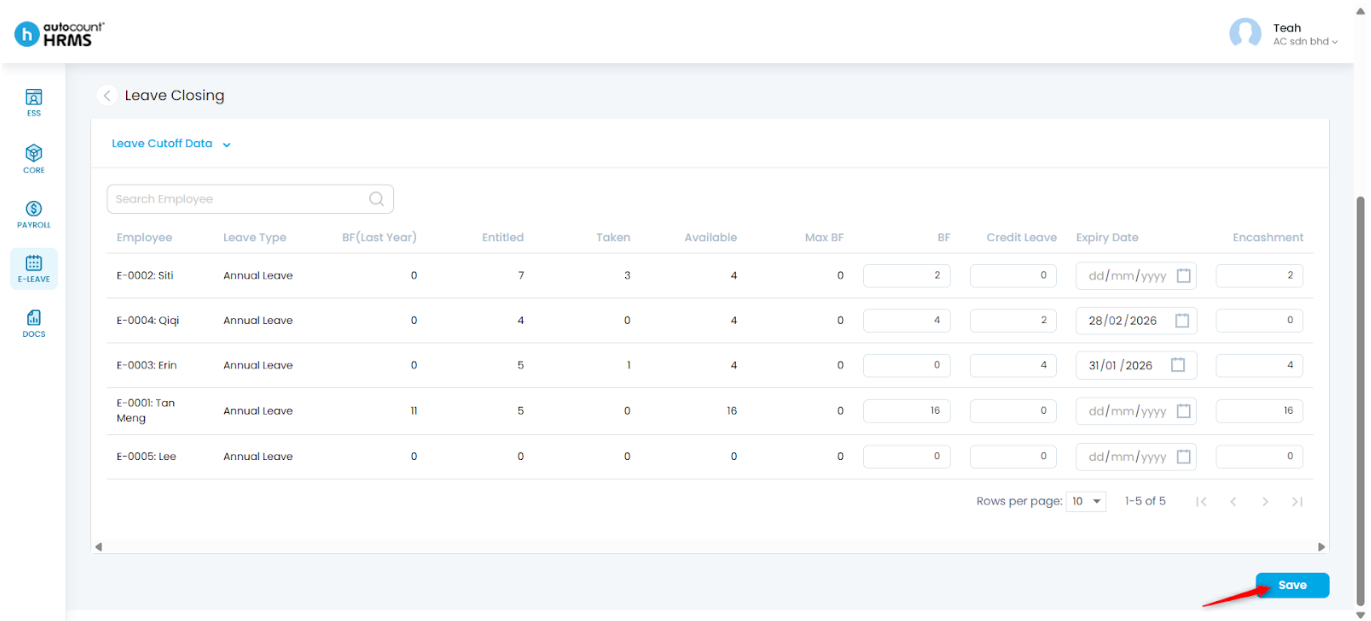
6. Click Yes to confirm.
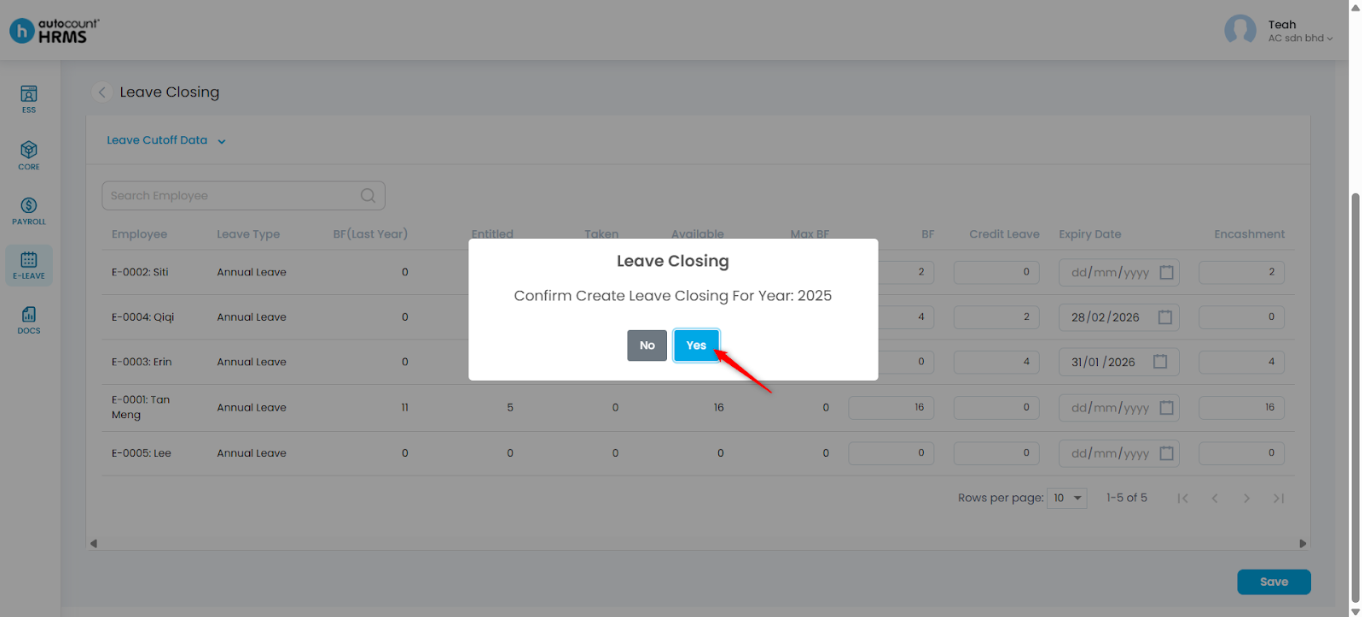
7. The Leave Closing will be created successfully.
- To edit, click the pencil icon.
- To delete, click the trash bin icon.
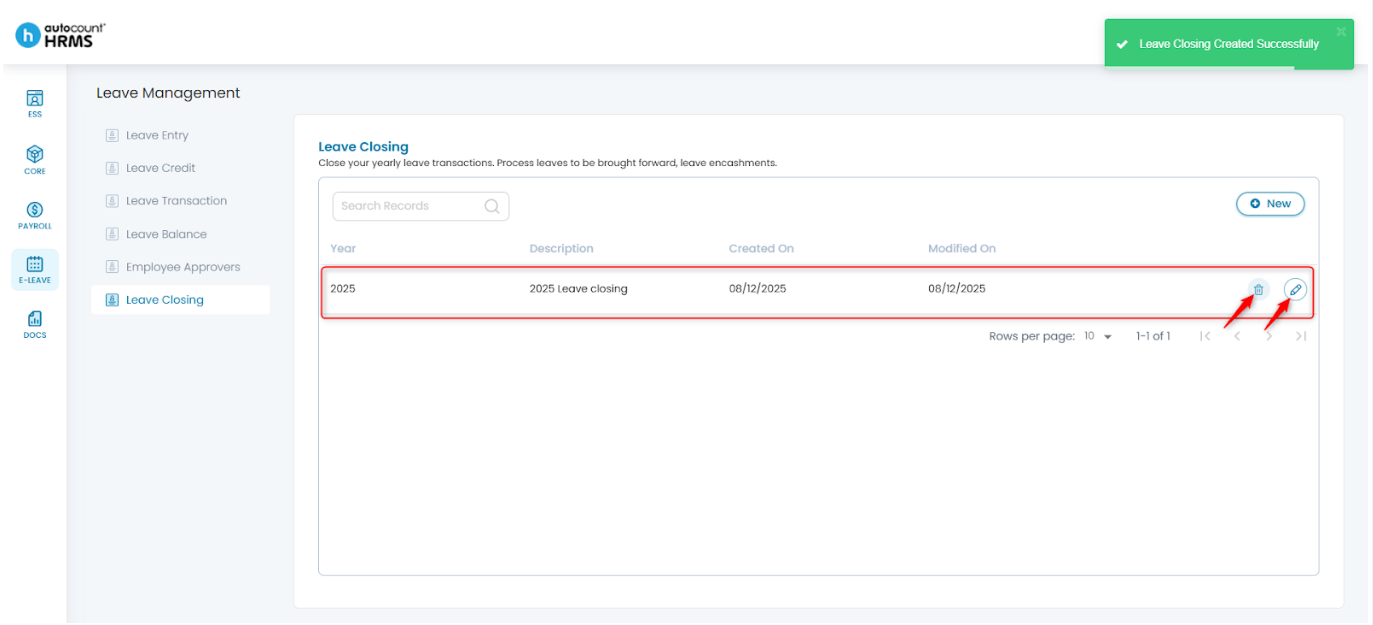
Note: Once Leave Closing is completed, leave applications and adjustments for that year will no longer be allowed.
Written by: Teah Rui Harn (20251209)
Reviewed by: Tek Ee Lin (20251209)