
The Leave Balance module provides a real-time overview of employees’ utilised and remaining leave.
Steps to View Leave Balance:
1. Go to E-Leave > Management.
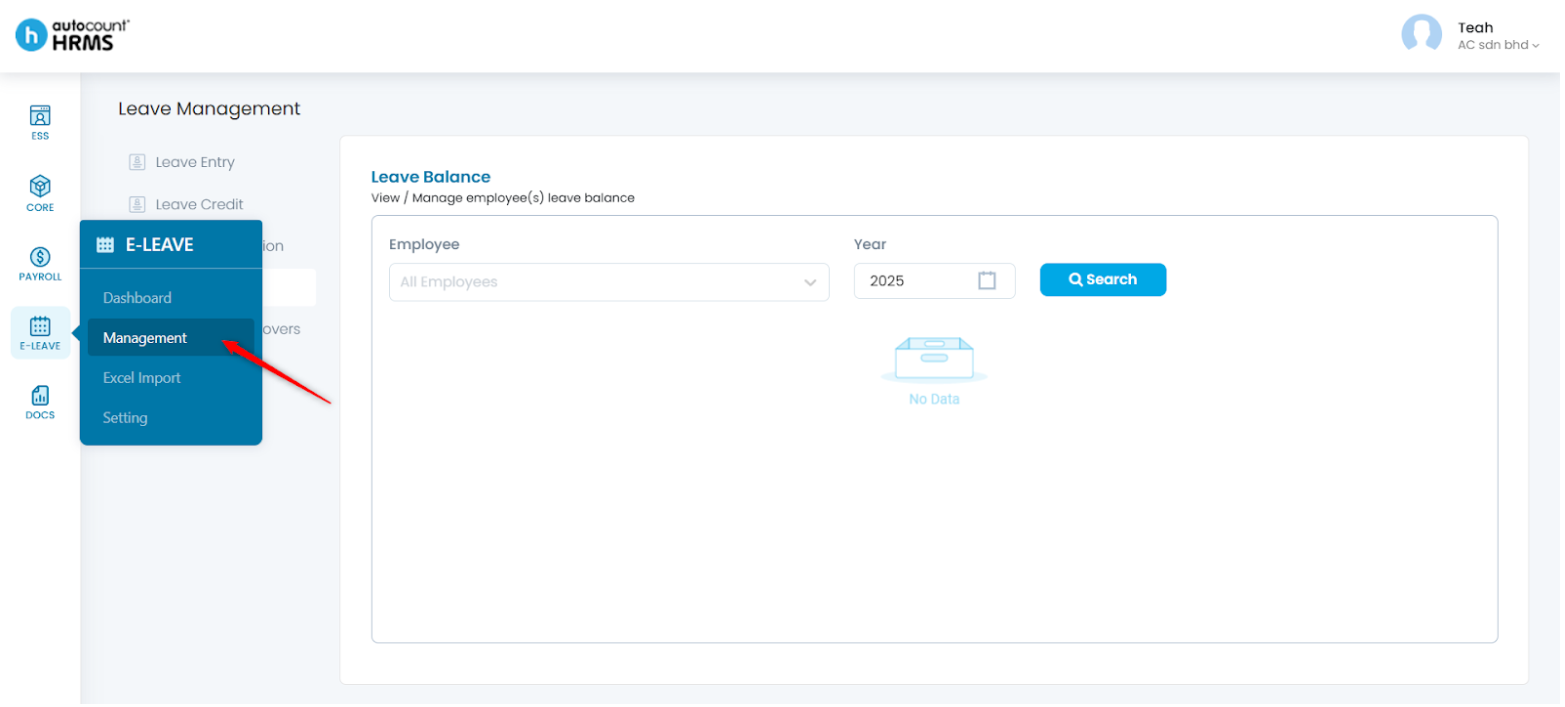
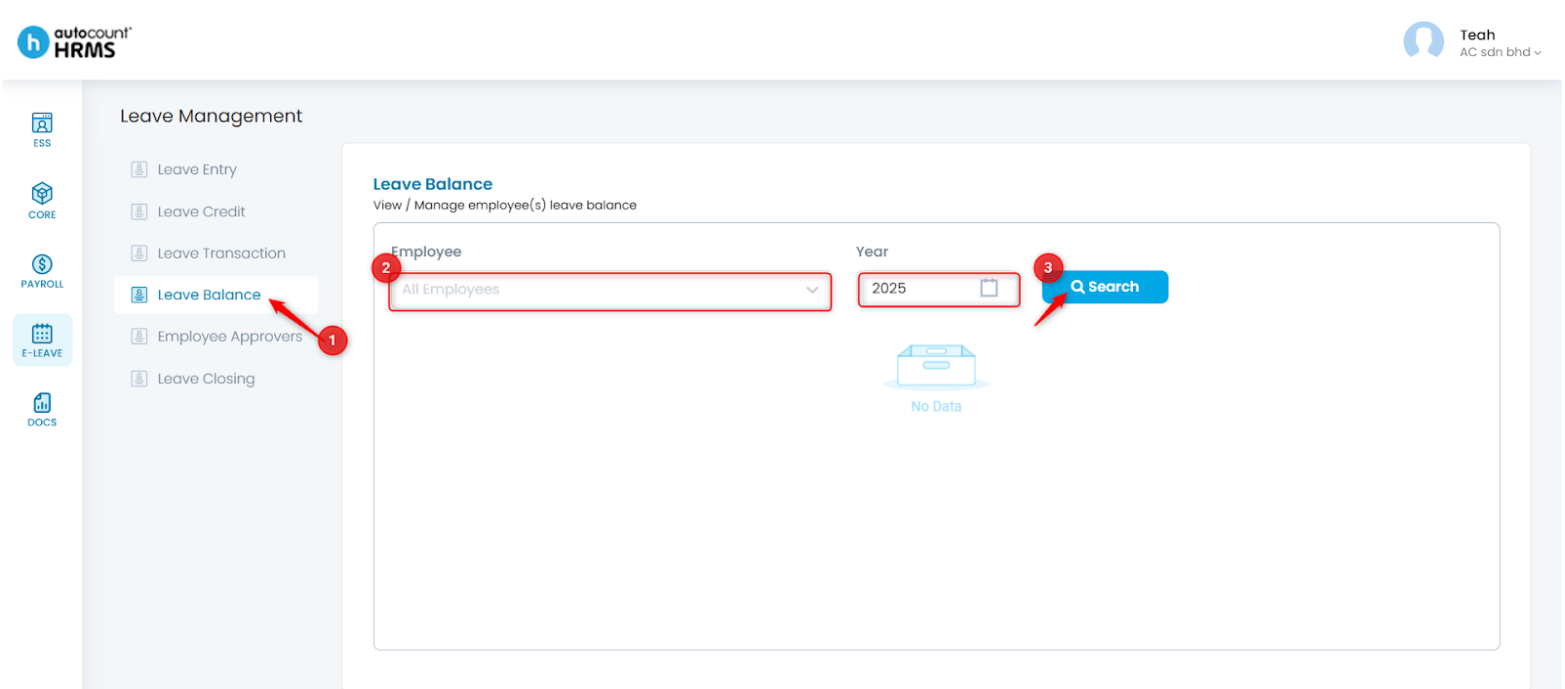
2. Under Leave Management, select Leave Balance. Filter by Employee and/or Year as needed, then click Search to display results.
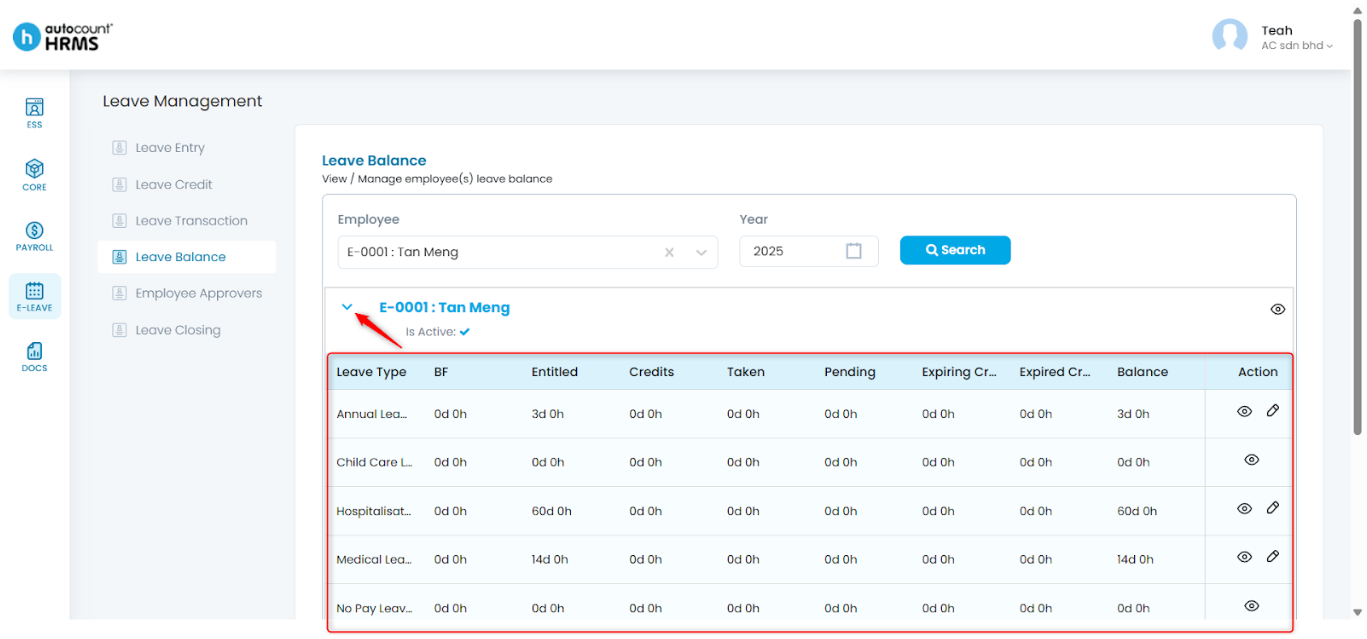
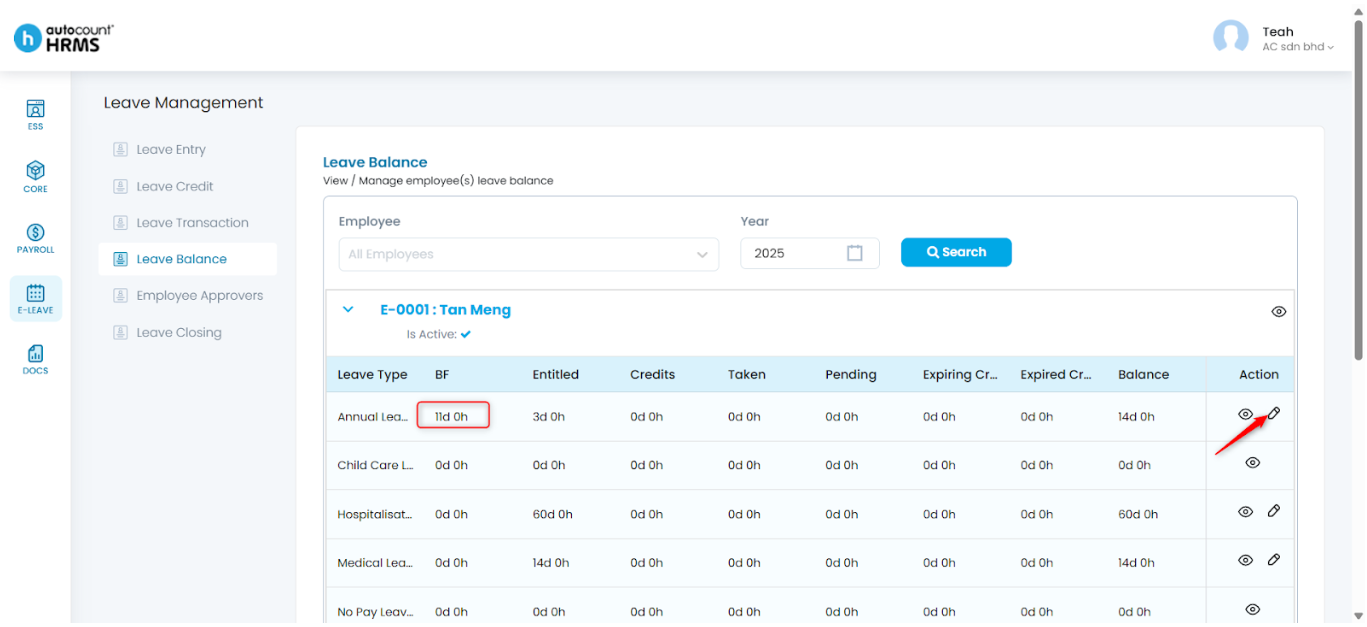
3. Click the > icon to expand and view detailed leave information for the selected employee. The table displays leave information in day(s) and hour(s) across the following categories:
- Brought Forward (BF) – Leave carried over from the previous year.
- Entitled – Leave allocated to employees. Can be adjusted via Leave Entry > Append Leave.
- Credits – Leave with an assigned expiry date. Can be managed via Leave Credit.
- Taken – Leave that has already been used.
- Pending – Leave requests awaiting approval.
- Expiring Credits – Leave credits that will expire within a month.
- Expired Credits – Leave credits that have already expired.
- Balance – Remaining available leave.
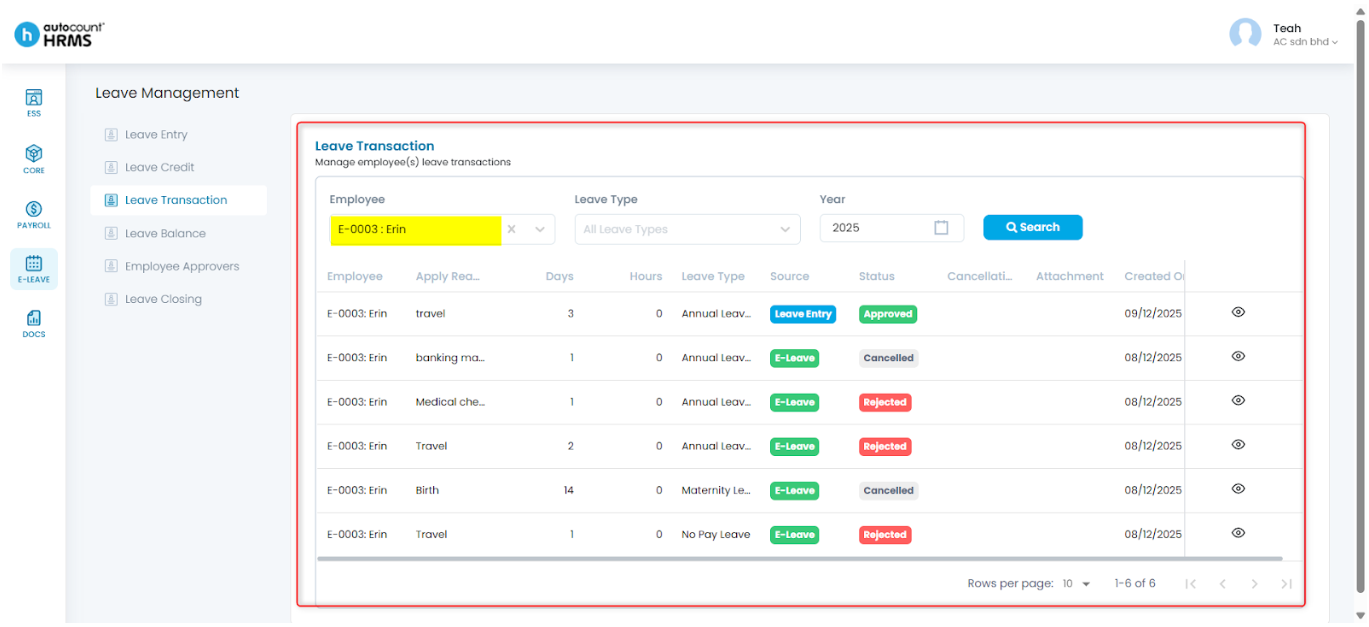
4. Click the eye icon next to a leave type to view the employee’s specific leave type details. You will be redirected to the Leave Transaction page to review the leave records.
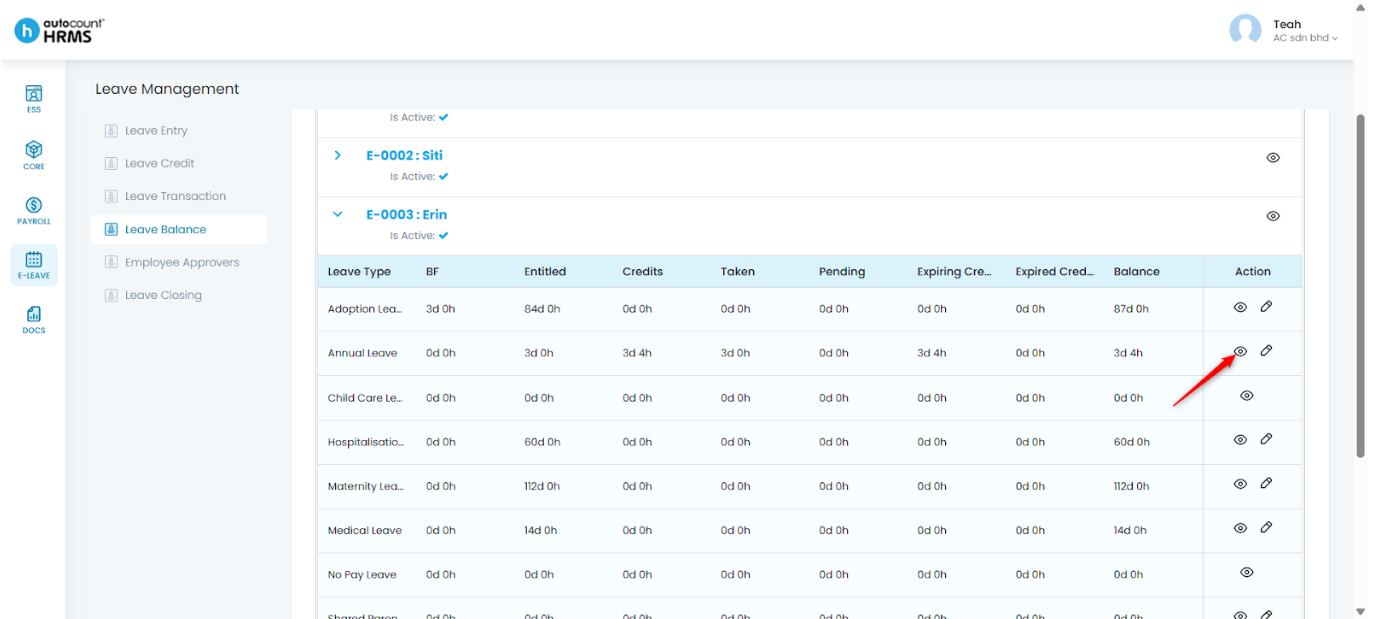

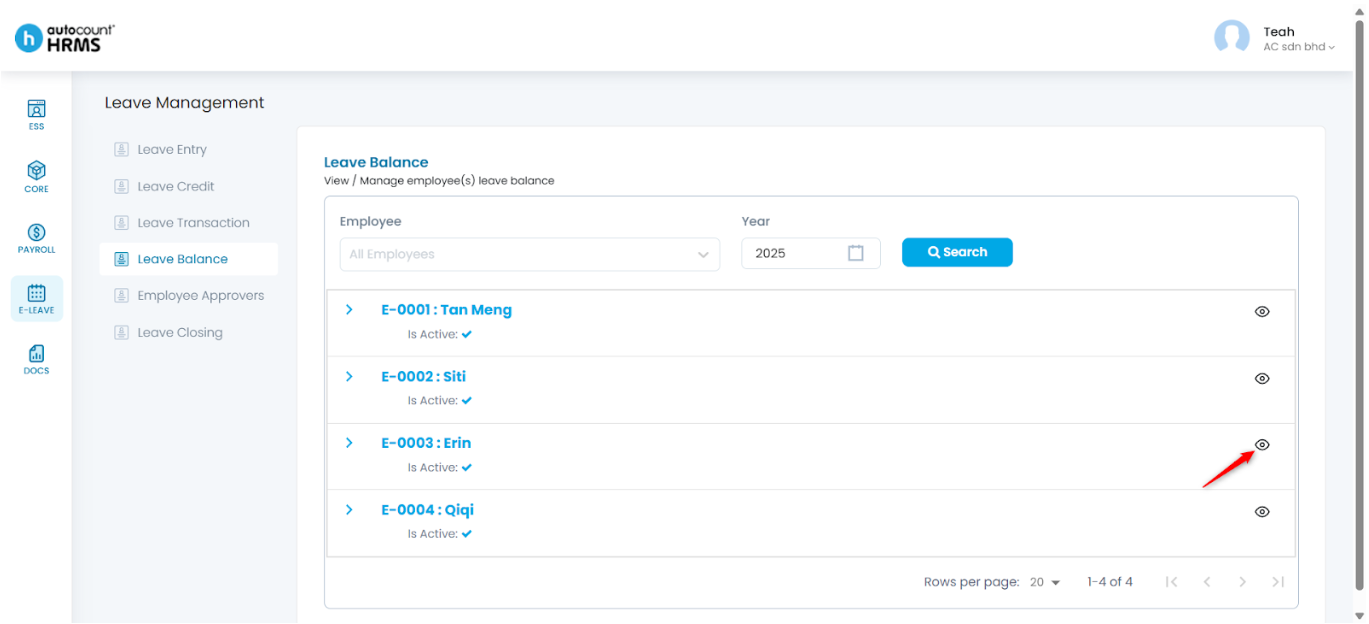
5. Click on the eye icon next to an employee to preview a specific employee’s leave transaction details. You will be redirected to the Leave Transaction page.
6. Click the pencil icon next to a leave type. Edit the BF value as needed, then click the tick icon to save.
Written by: Teah Rui Harn (20251209)
Reviewed by: Tek Ee Lin (20251209)