
If an employee was present at work despite having an approved leave—whether the leave was applied via ESS (Employee Self Service), uploaded through Excel Import, or recorded earlier—you may cancel the leave to ensure accurate leave balances and payroll calculations at Leave Transaction.
Note: Leave applied on behalf of an employee via Leave Entry > Deduct Leave must be cancelled by deleting the record directly from the Leave Entry page.
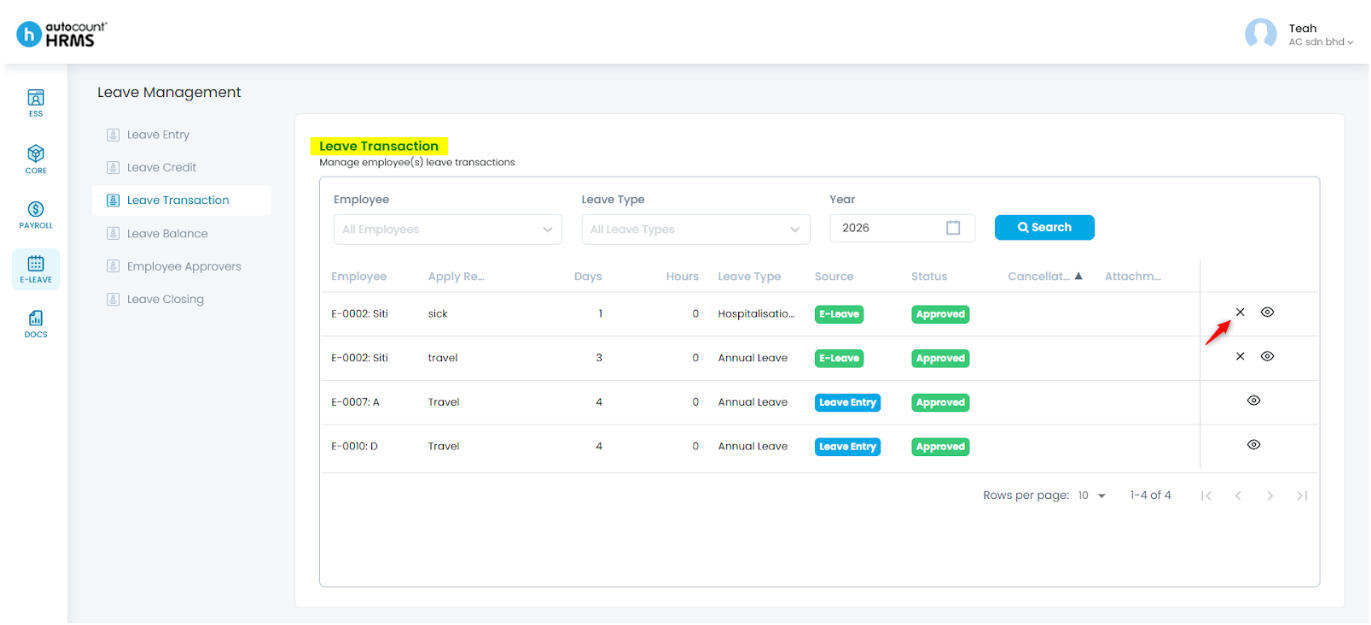
Steps to Cancel an Approved Past Date Leave applied:
- Go to E-Leave > Management.
- Under Leave Management, select Leave Transaction.
- Apply filters by Employee or Leave Type if required and select the Year using the calendar icon.
- Click Search.
- Click the Cross (✕) icon next to the approved leave record.
- Tick the leave date(s) to be cancelled and enter a cancellation reason if any.
- Click Cancel Selected Leave(s), then click Yes to confirm.
Written by: Teah Rui Harn (20260102)
Reviewed by: Tek Ee Lin (20260112)