
The Month Overview feature enables employers to track payroll activity, monitor the completeness of payroll processes, and manage payment-related tasks efficiently. Through this feature, employers can download payroll files and submit CPF contributions directly.
The Month Overview consists of three key sections:
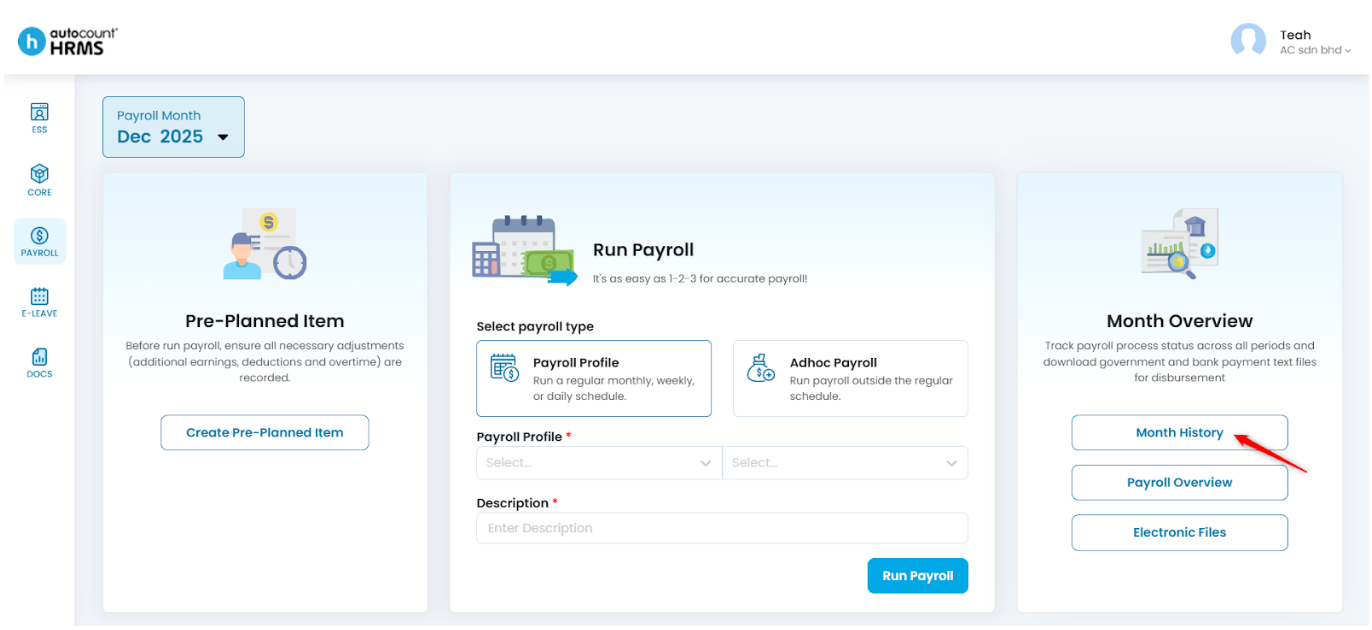
- Month History – View all payroll processes completed for the selected month.
- Payroll Overview – Review individual employee payroll progress and identify incomplete records.
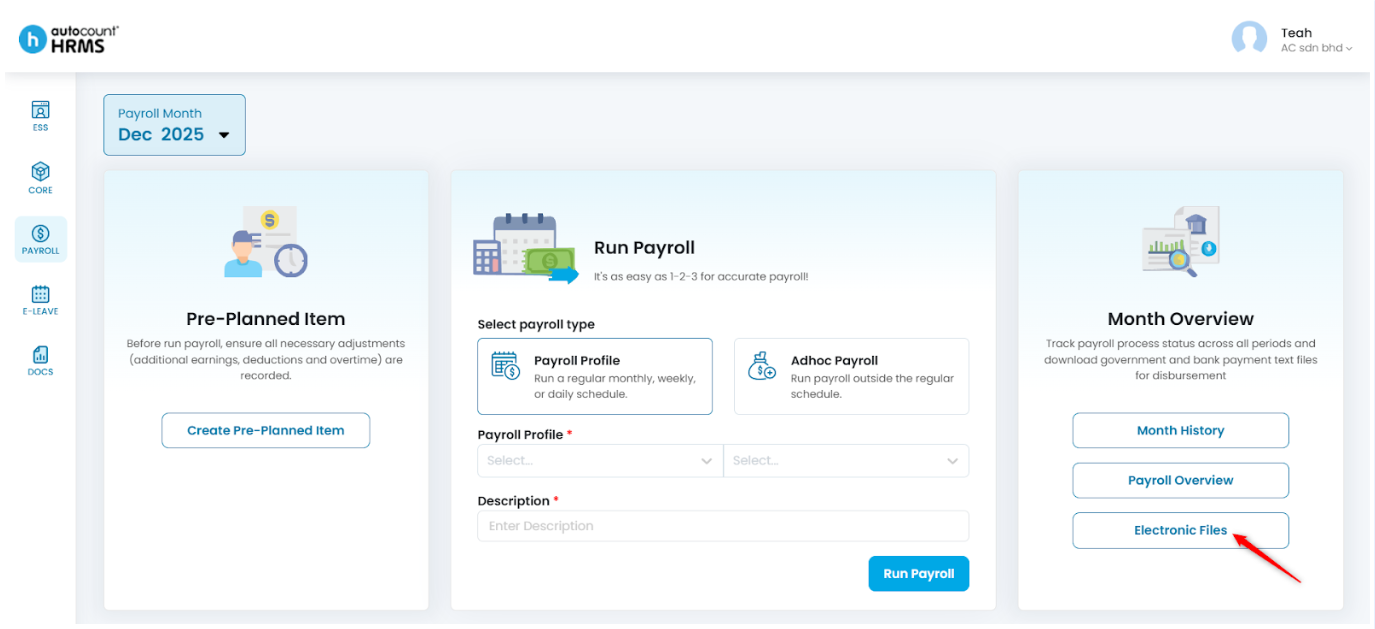
- Electronic Files – Download CPF and bank payment files and proceed with CPF online submission.
Steps to Navigate Payroll Month Overview:
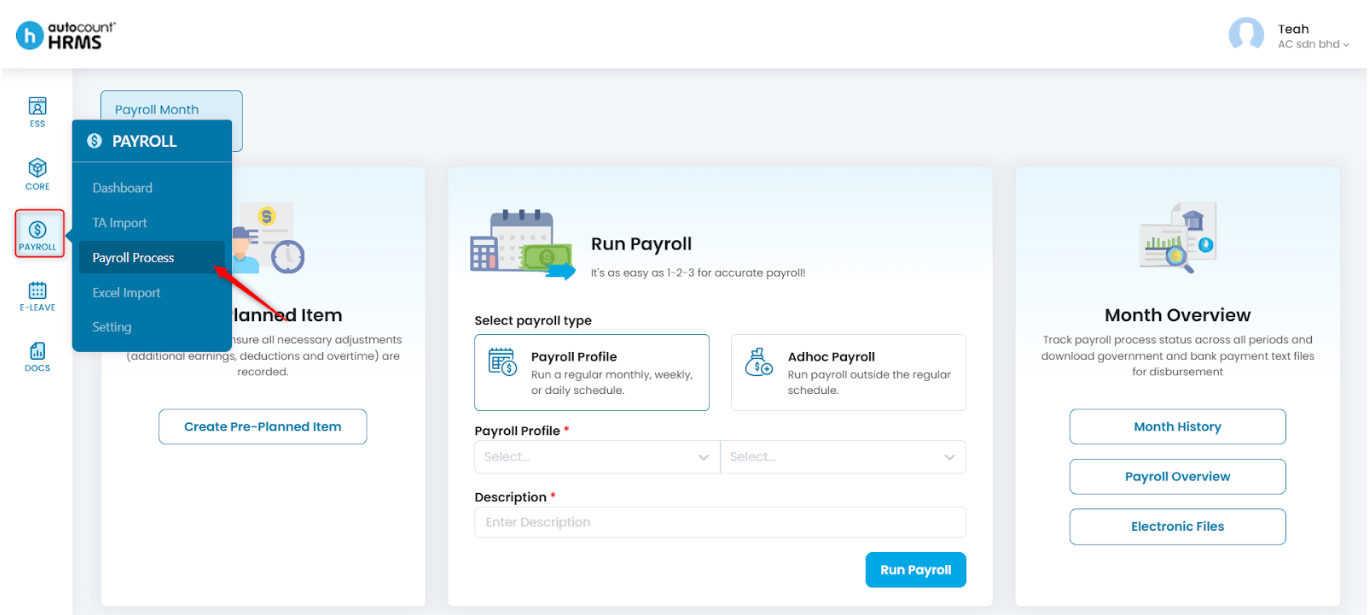
1. Go to Payroll > Payroll Process.
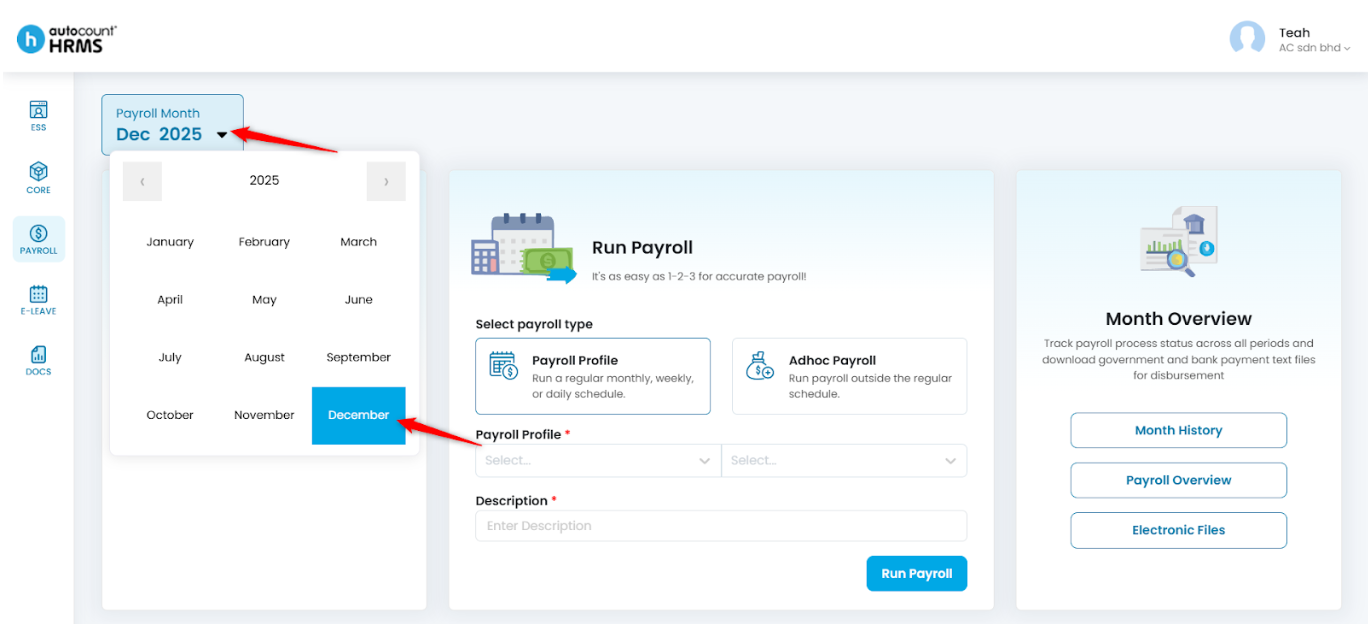
2. Click on the Payroll Month field and select the month and year you want to view or process.
A. Month History
To view completed payroll processes for the selected month.
1. Select Month History.
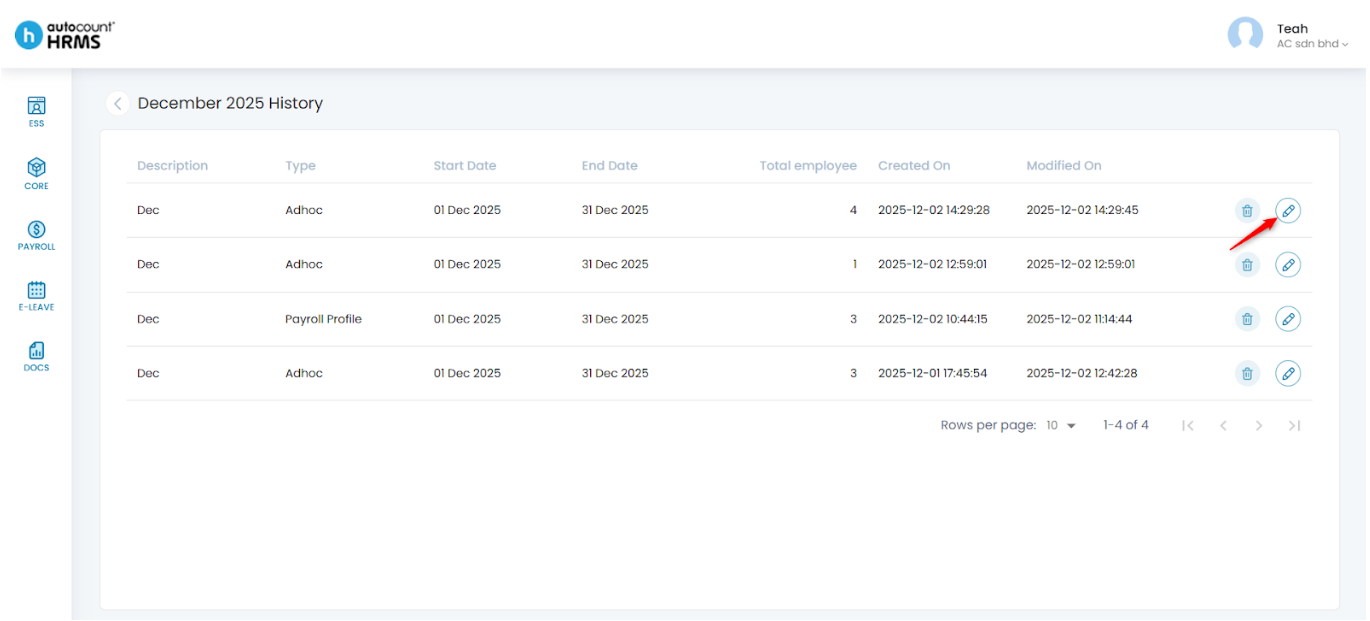
2. A list of all payroll processes completed for the selected month will be displayed.
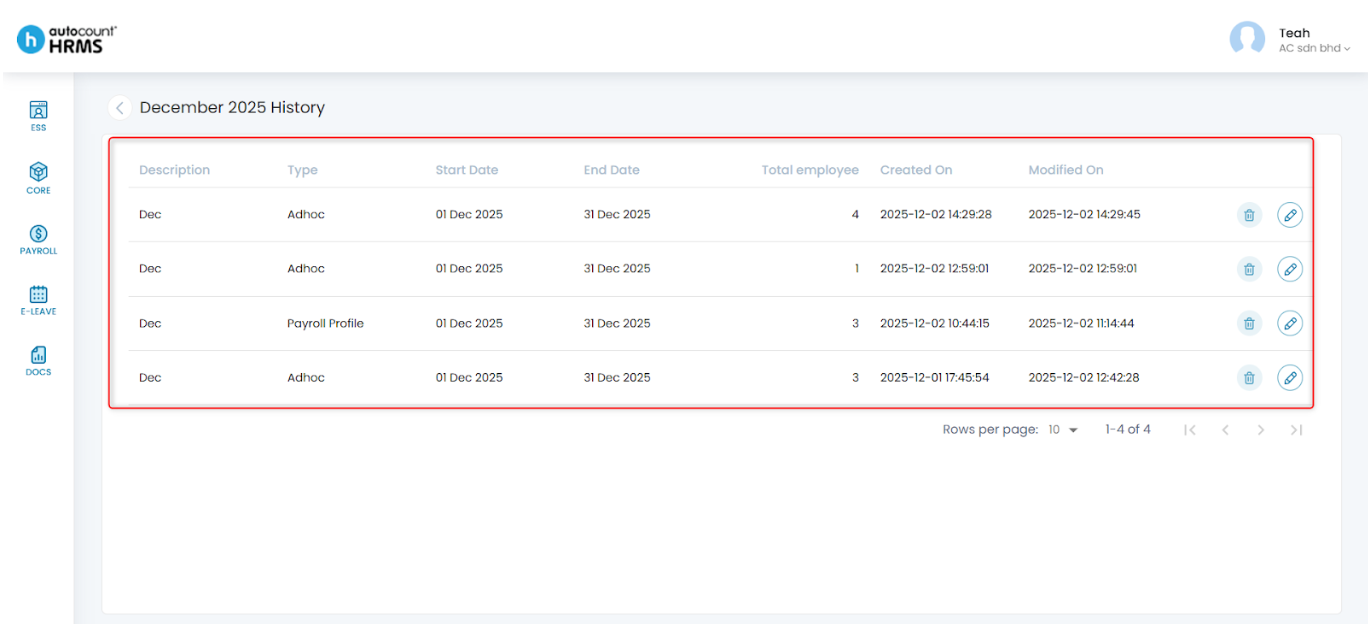
3. To view or edit a record, click the pencil icon.
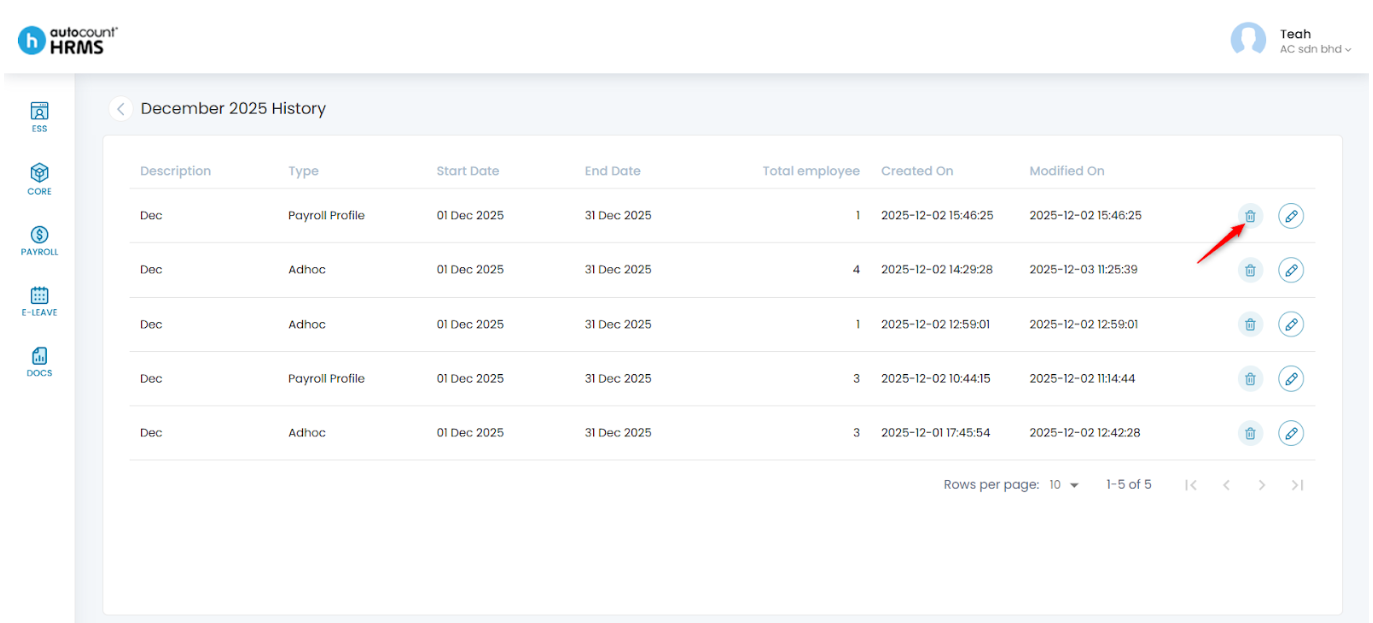
4. To delete a record, click the trash bin icon.
B. Payroll Overview
To track payroll progress by employee.
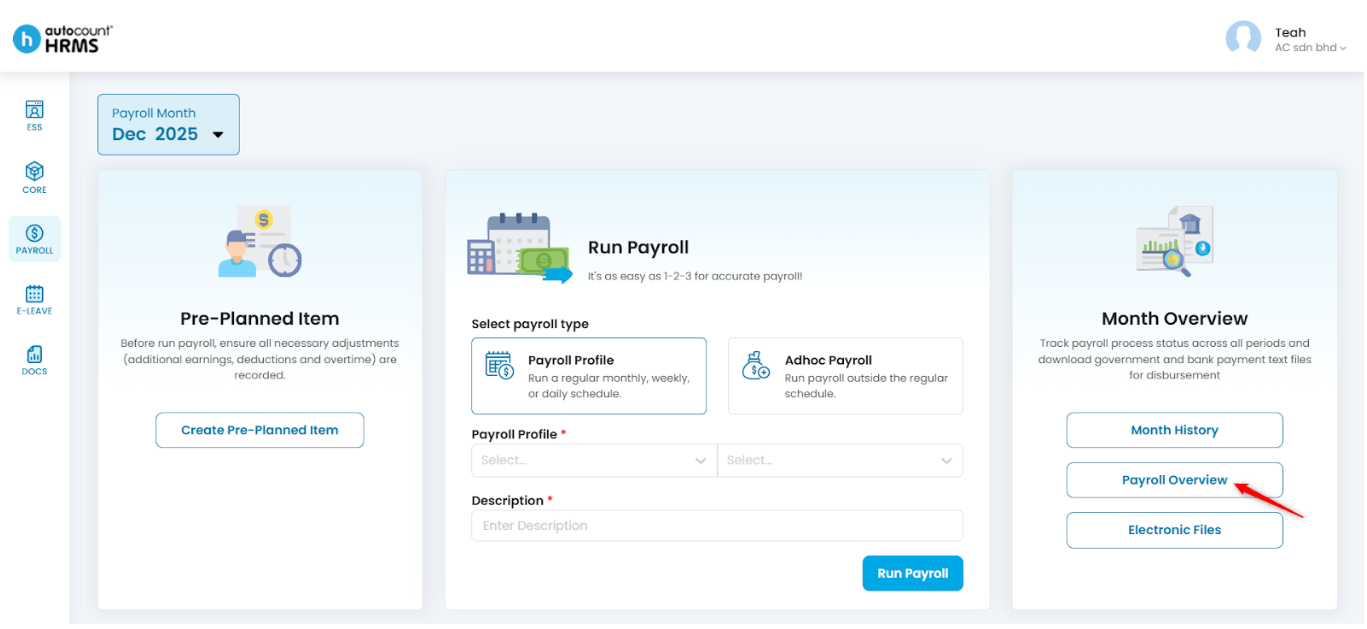
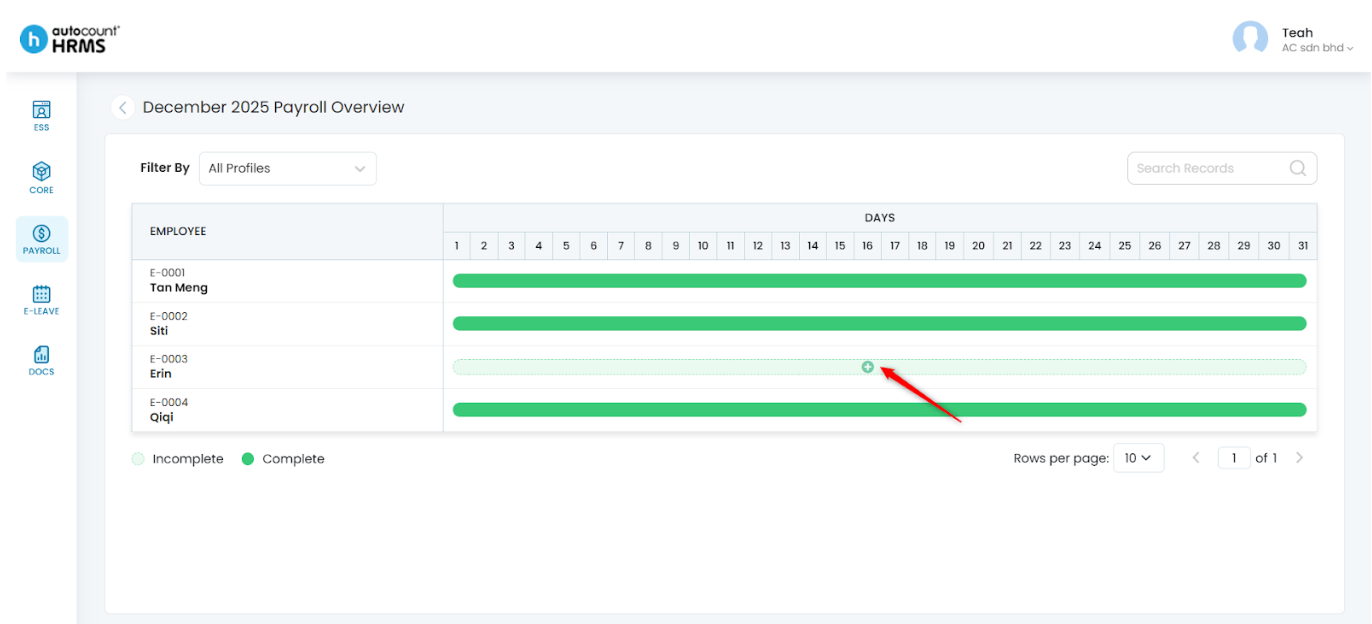
1. Select Payroll Overview.
2. Review the payroll progress for each employee:
- Dark Green – Completed
- Light Green – Incomplete
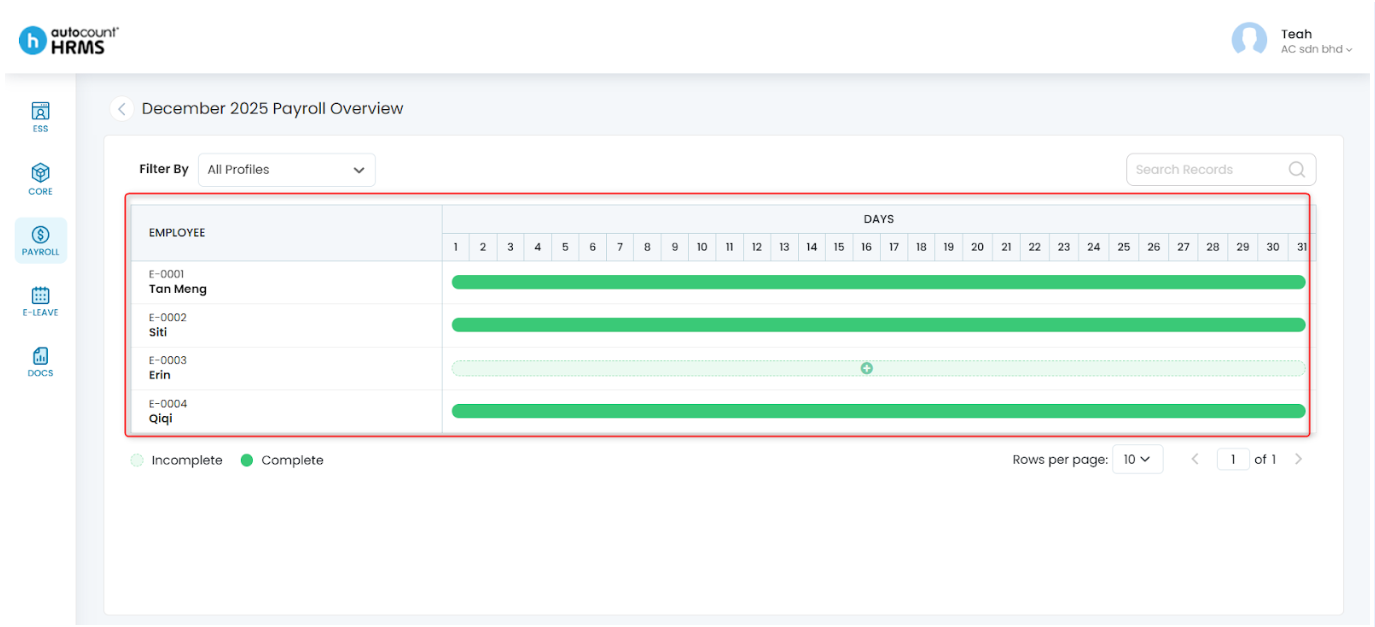
3. To complete an incomplete payroll, click the Add (+) icon beside the employee.
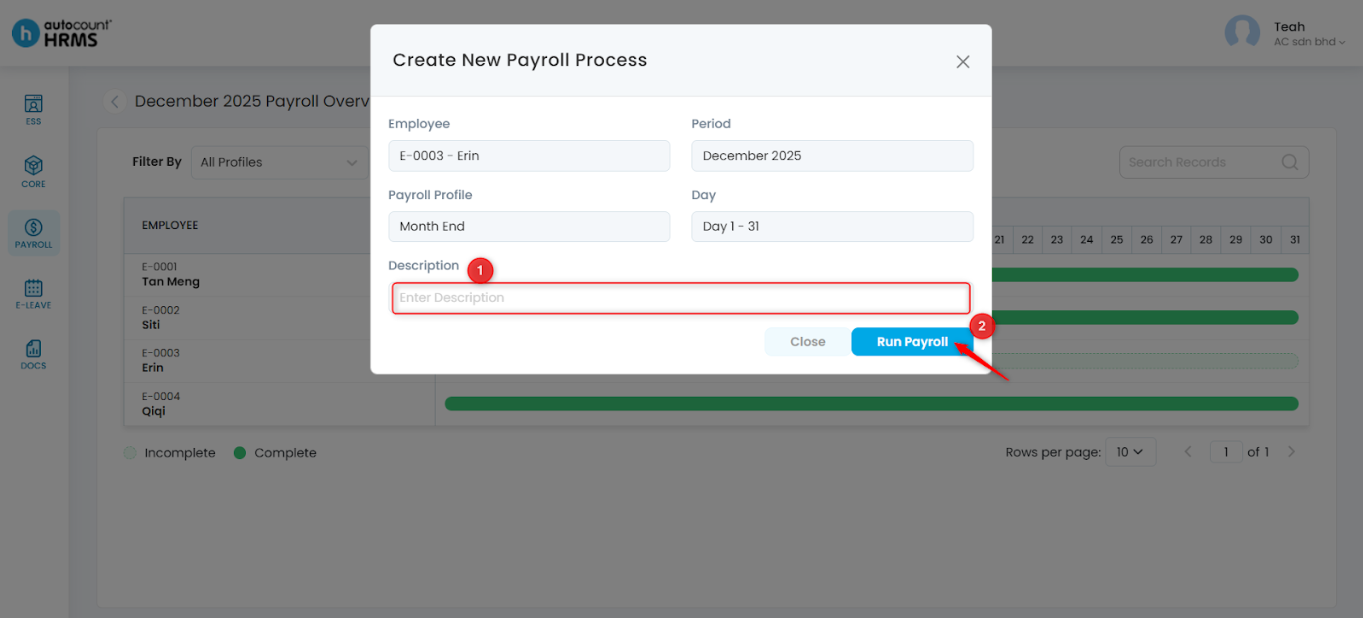
4. A Create New Payroll Process panel will appear. Verify the employee details and date period, enter a Description, and click Run Payroll.
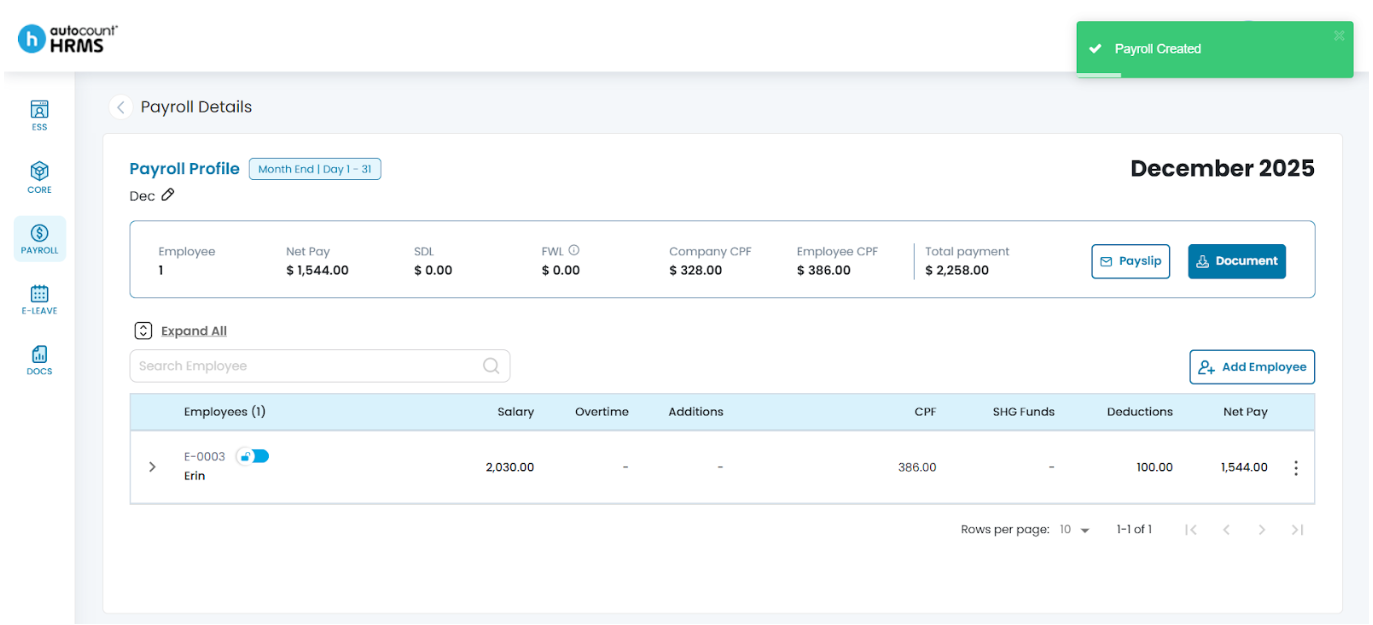
5. A new payroll process will be created for that employee.
C. Electronic Files
To download payment files or perform CPF submission.
1. Select Electronic Files.
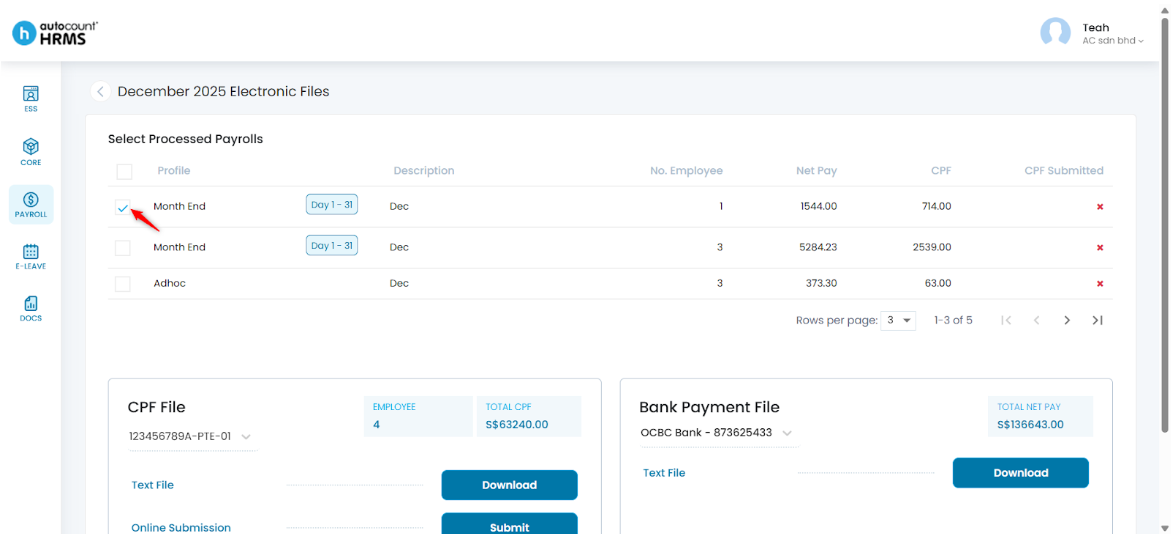
2. Tick the processed payroll(s) you want to use.
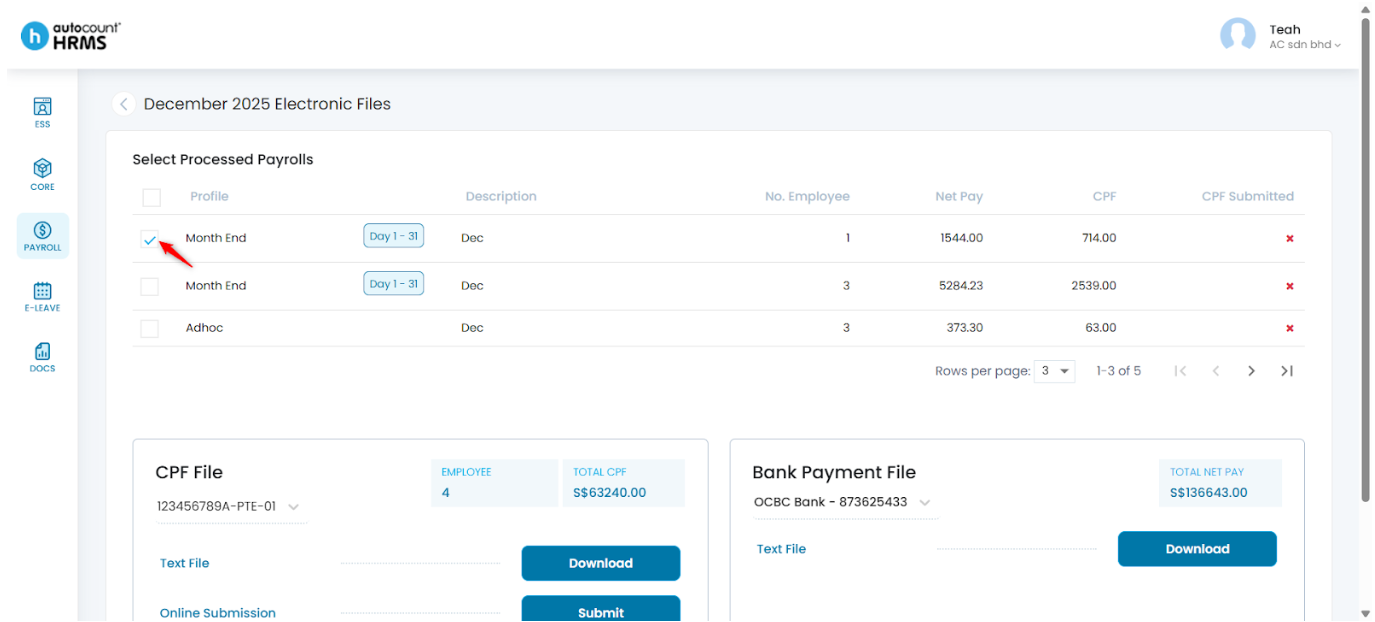
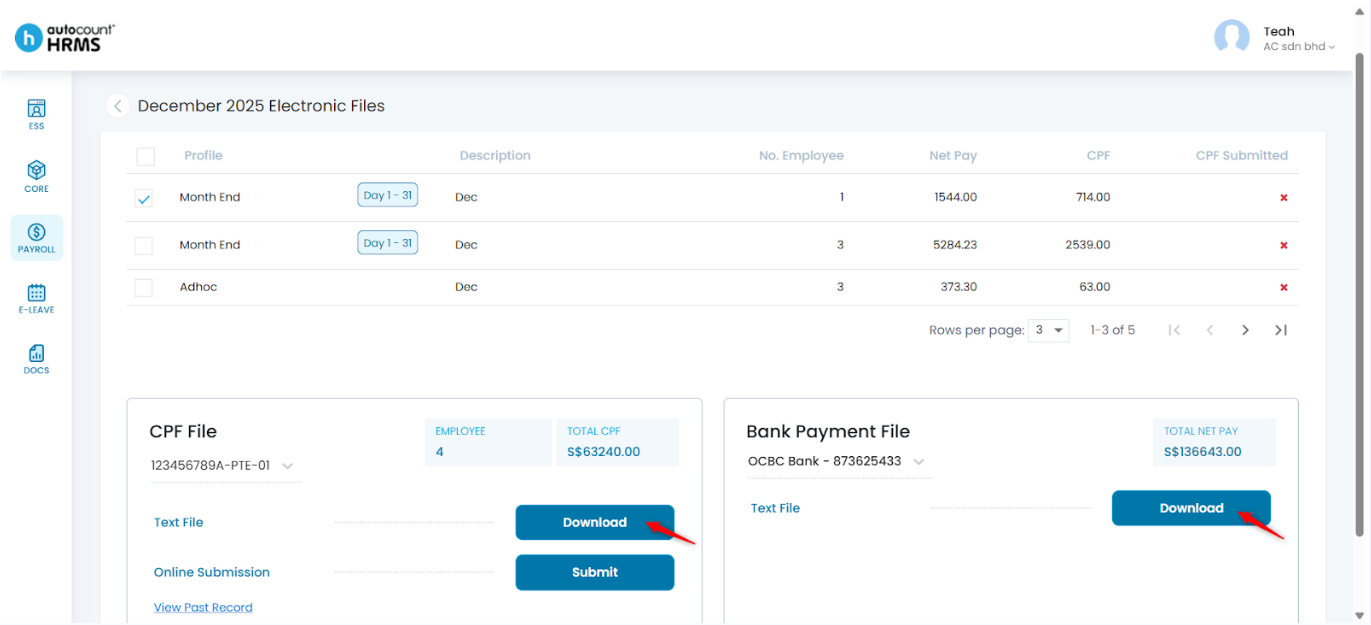
3. Click Download to download the text file for CPF or Bank Payment.
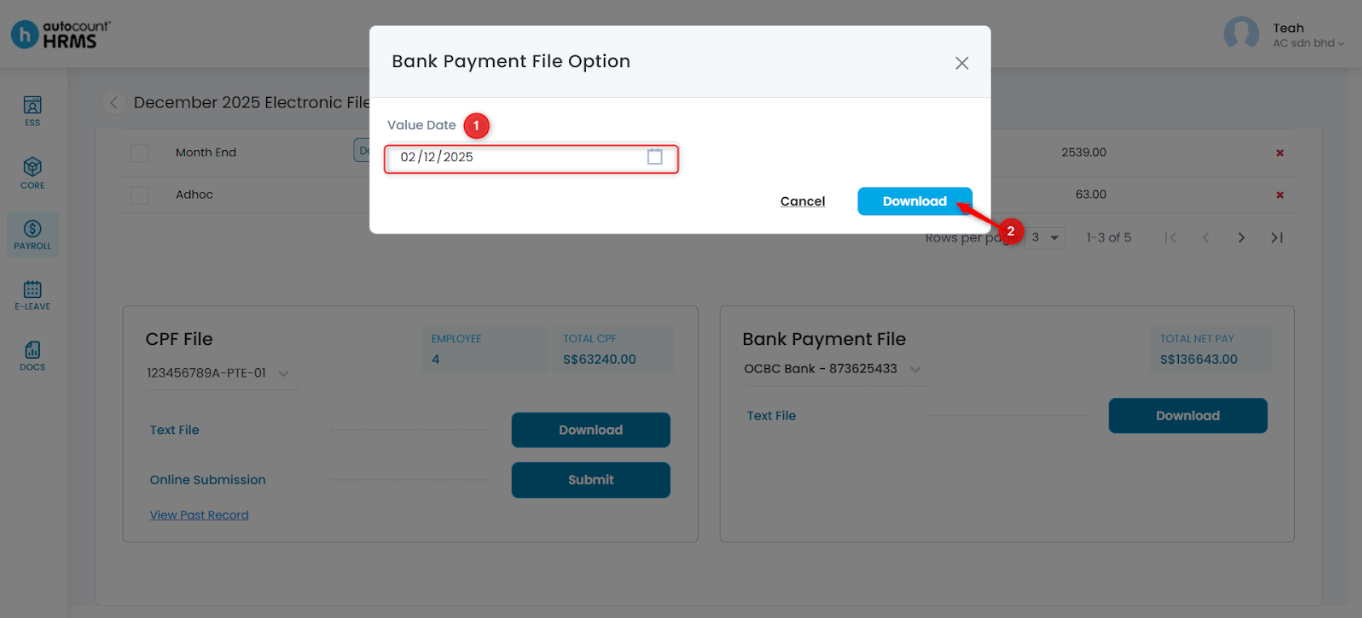
- For Bank Payment, a Bank Payment File Option panel will appear. Select the Value Date (the date of when the transaction becomes effective) and click Download.
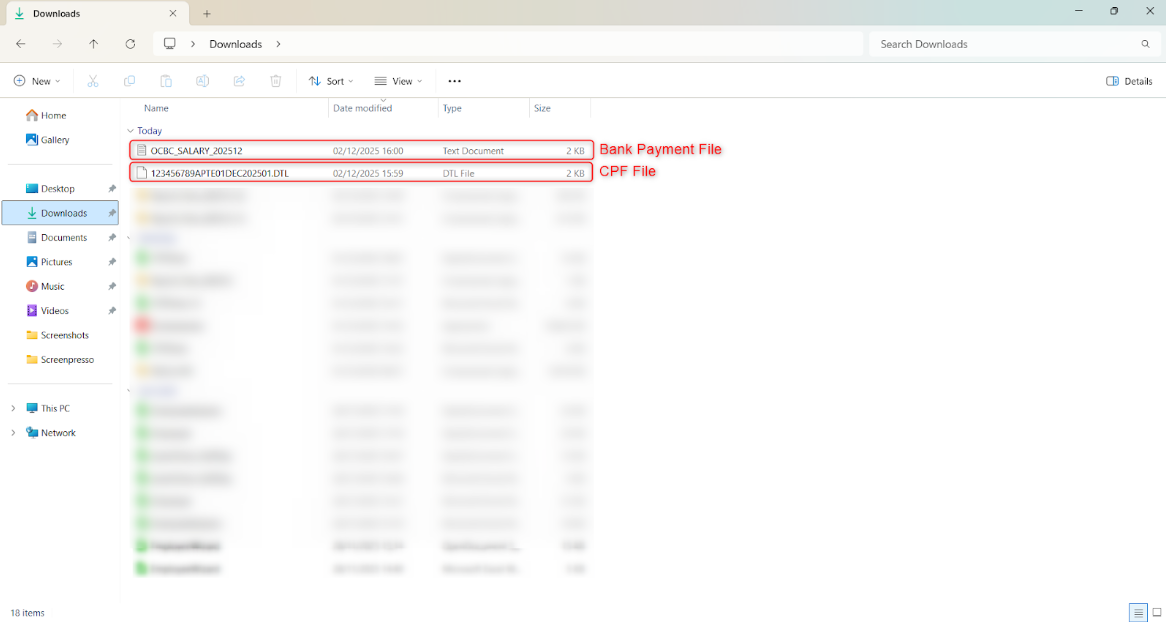
4. The electronic files will be saved to your device’s local folder.
5. To submit CPF files, tick the processed payrolls you want to submit.
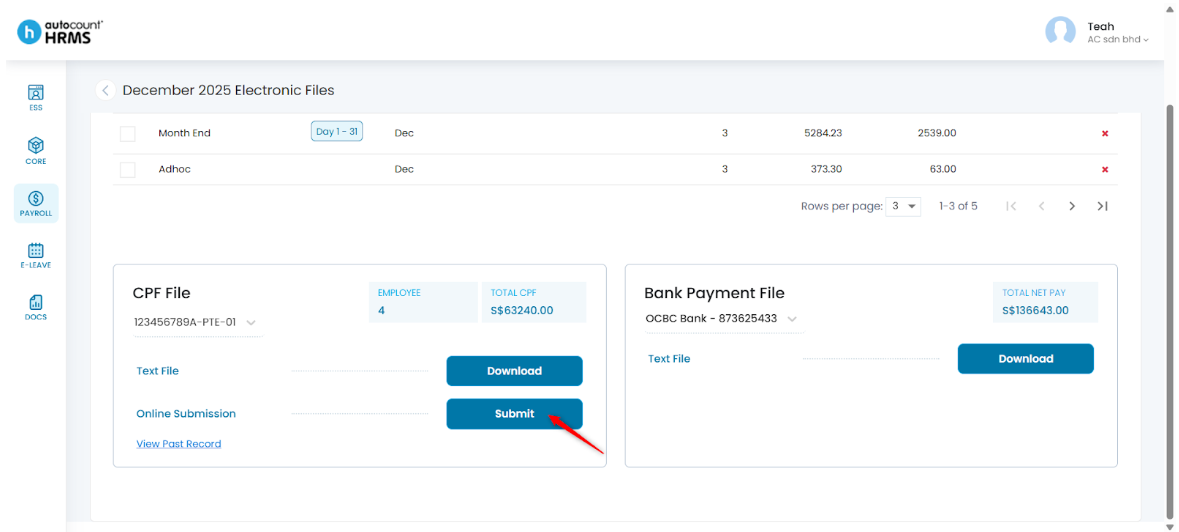
6. Click Submit.
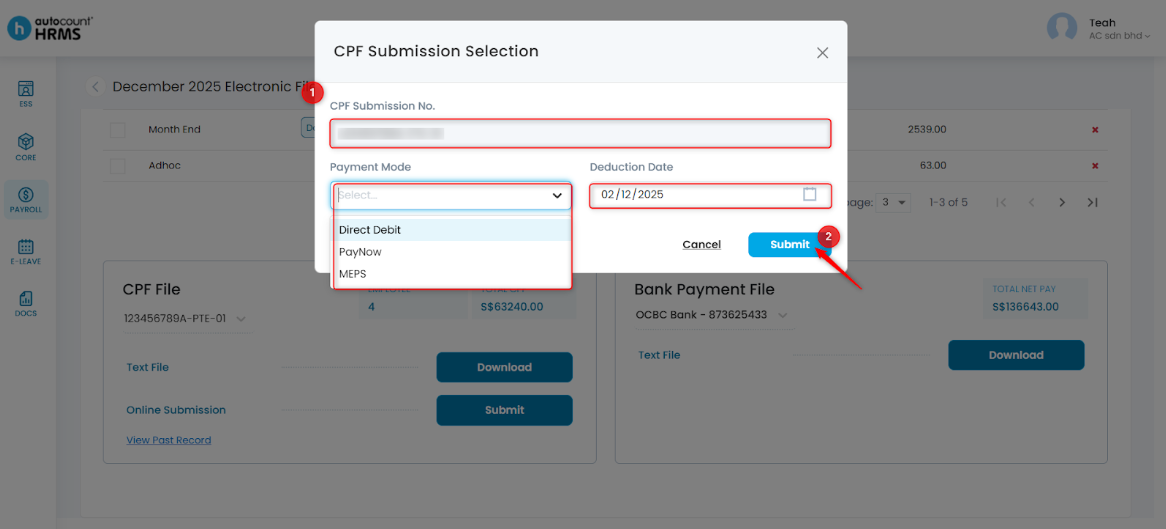
7. In the CPF Submission Selection panel, confirm your CPF Submission No., select the Payment Mode, and choose the Deduction Date. Then, click Submit.
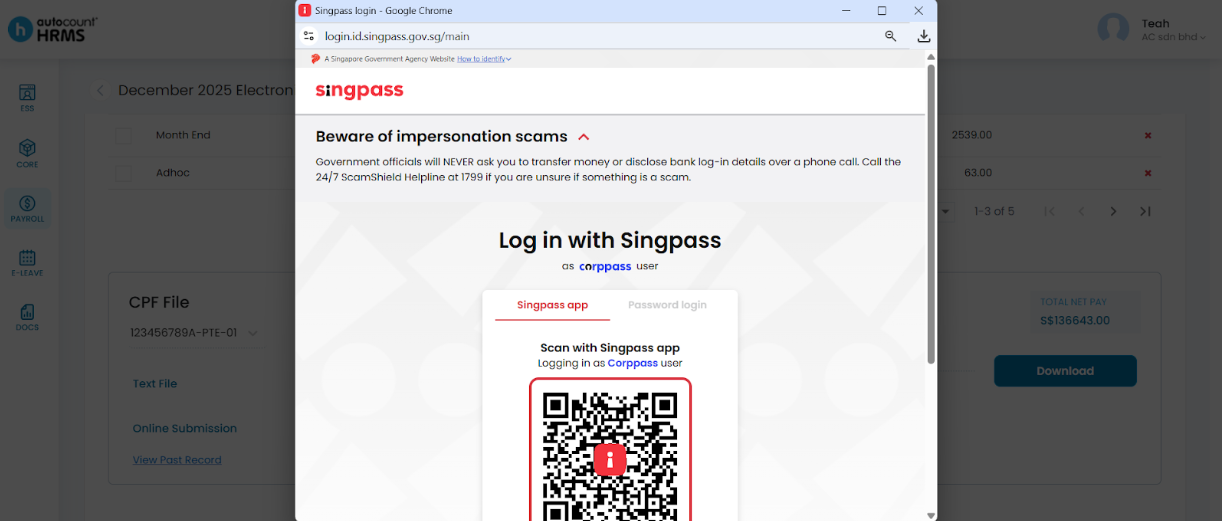
8. A login window will appear — sign in using your Corppass (Singpass) account.
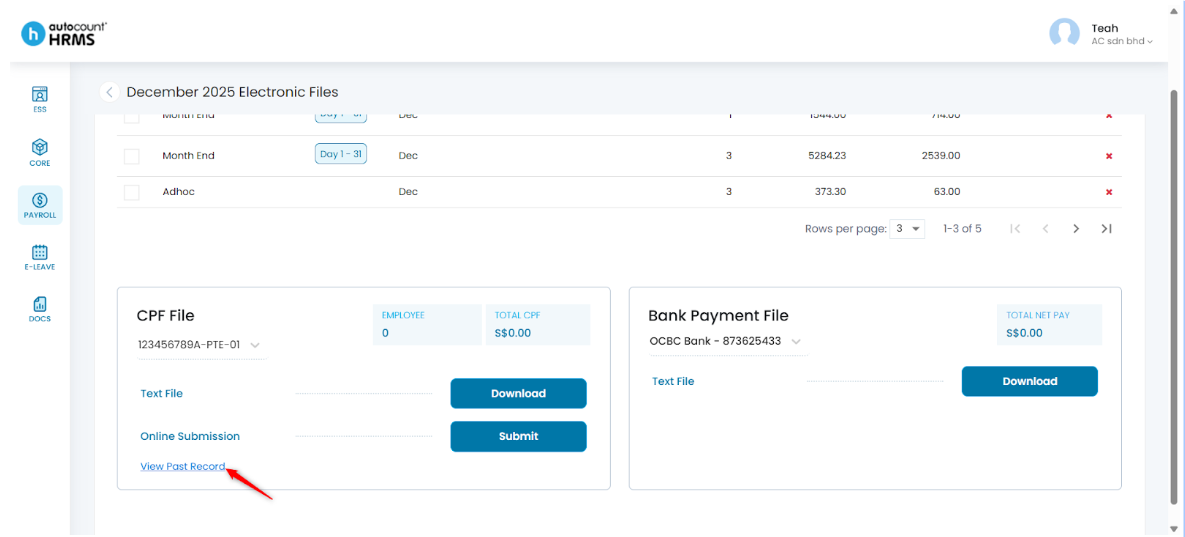
Note: To view past CPF file records, click View Past Record.
Written by: Teah Rui Harn (20251202)
Reviewed by: Tek Ee Lin (20251204)