
The ESS (Employee Self-Service) dashboard allows employees to create and manage their personal To-Do List, helping them stay organised and keep track of important tasks. In addition to managing to-dos, employees can also access their payslips and view their leave information.
Employees can set, update and delete their To-Do List directly through the To-Do List overview on the dashboard.
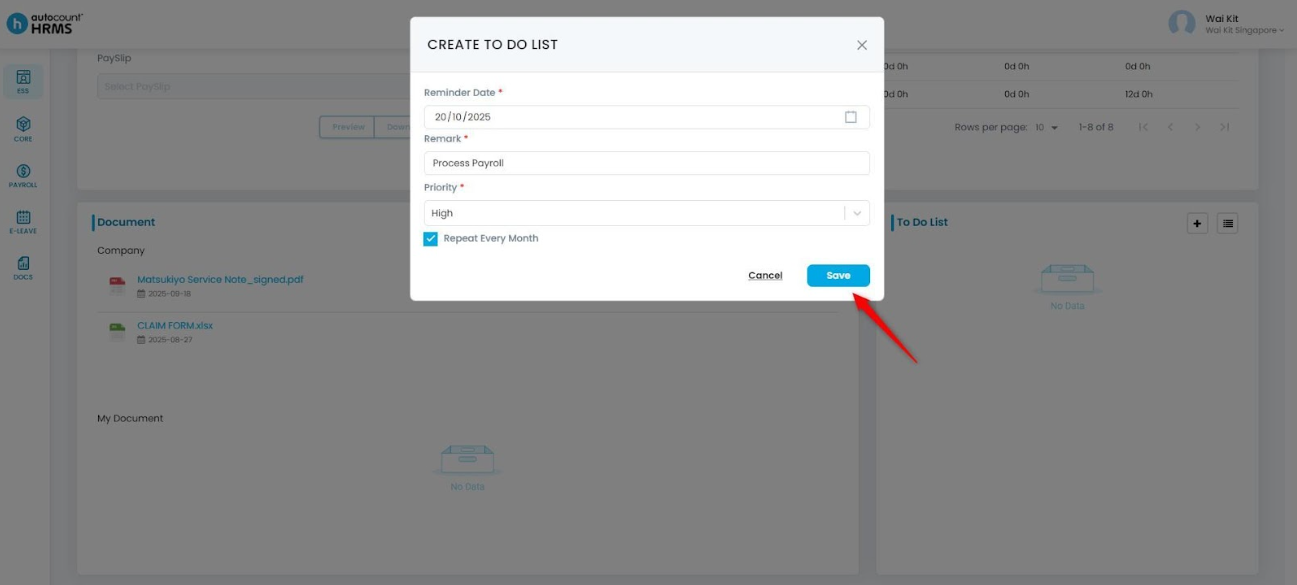
For example, reminders such as “Process Payroll” or “Submit Claim Report” can help employees manage their workload effectively.
Steps to Create To-Do List Item:
1. Ensure that you are in the ESS (Employee Self-Service) module, then scroll down.
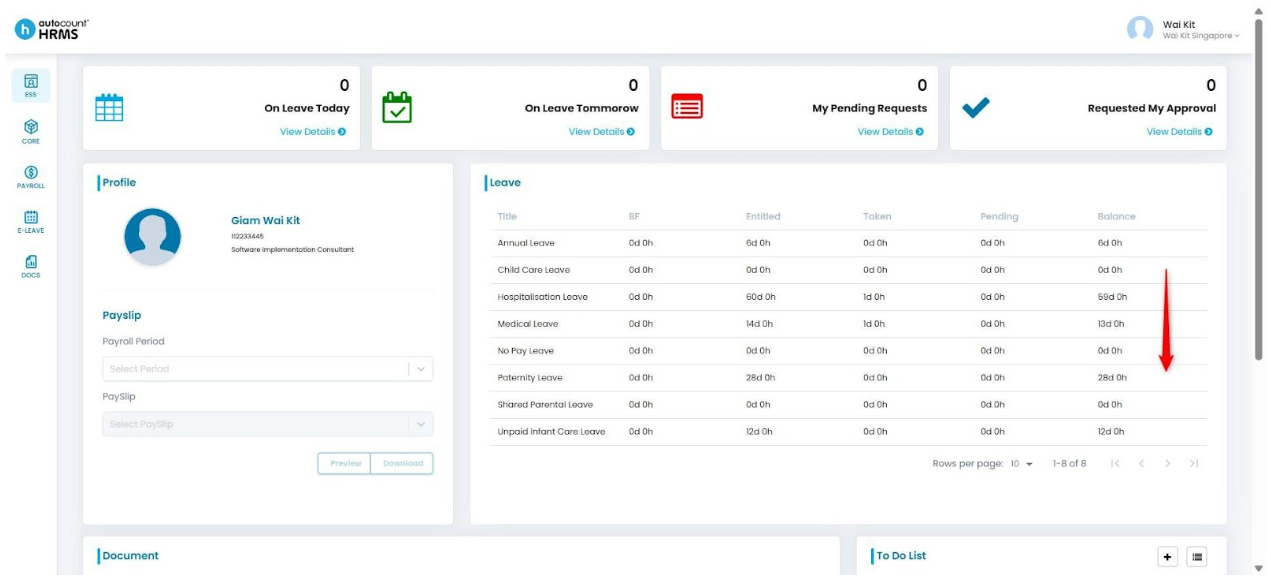
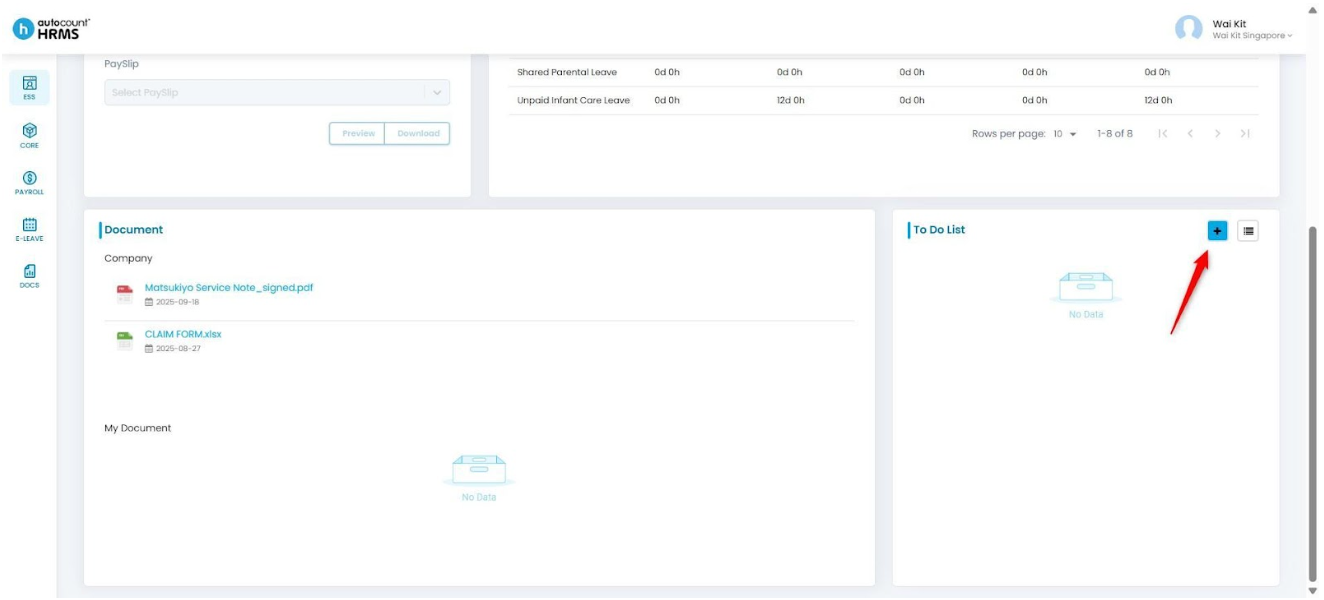
2. On the bottom-right section of the dashboard, locate the To-Do List and click the plus (+) icon to add a new item.
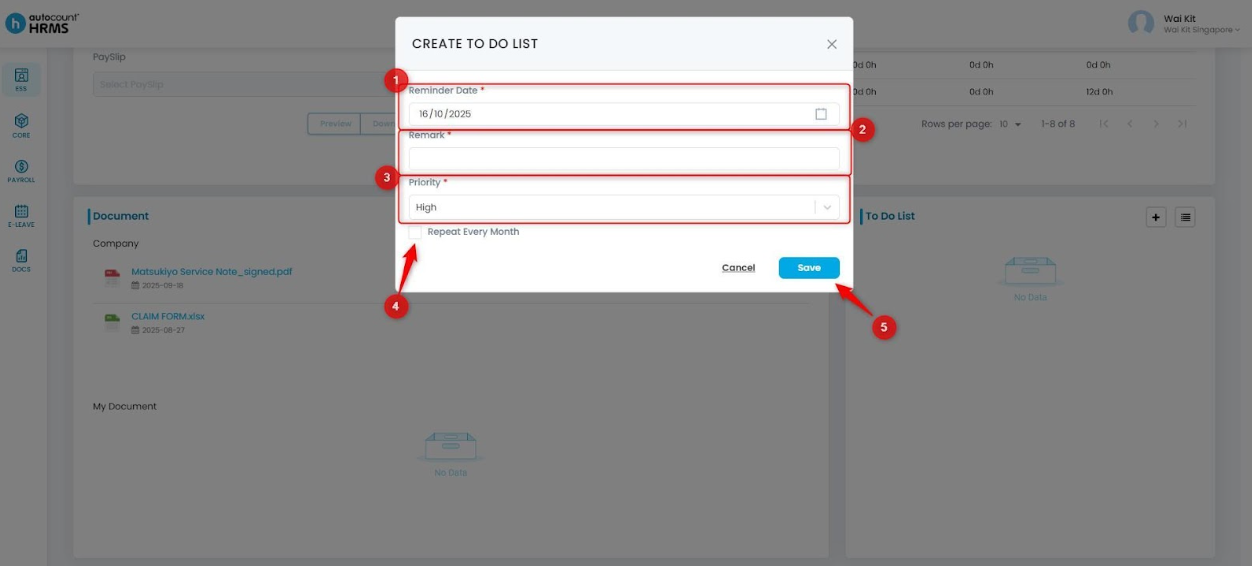
3. A Create To-Do List panel will appear. Fill in the following details:
- Reminder Date: Select the date for the reminder
- Remark: Enter a short description of the task
- Priority: Choose High, Low, or Normal based on task importance
- Repeat Every Month: Tick this box if the task is recurring monthly
4. Once all information is entered, click Save to create the To-Do List item.
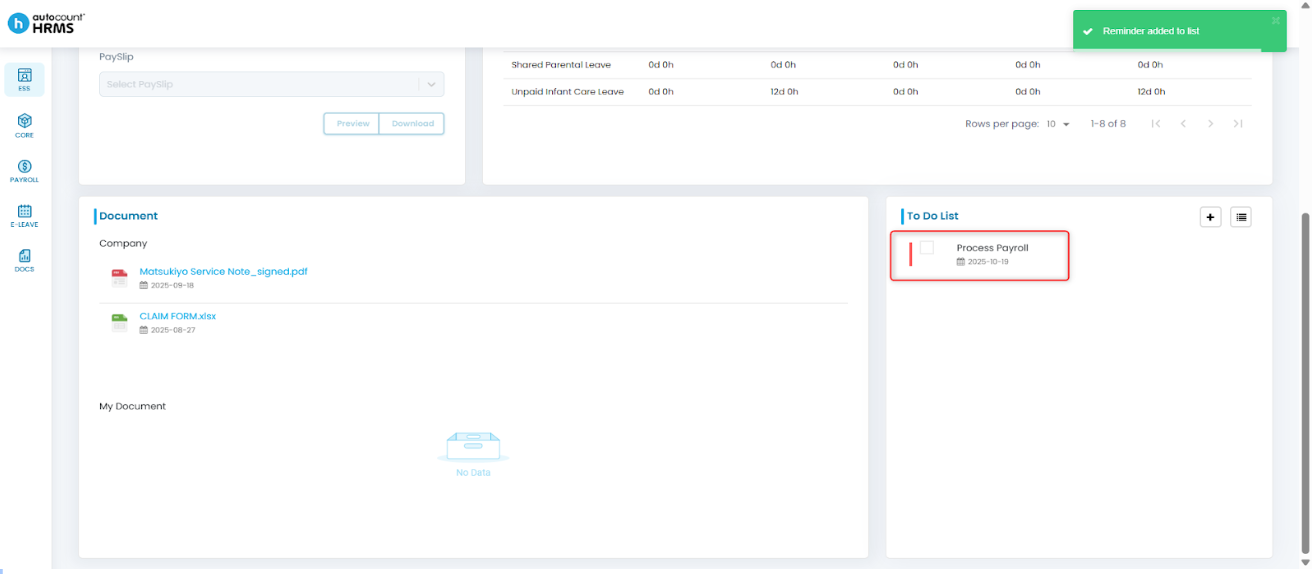
Note: Employees may also create a To-Do List item through My Calendar: Set To-Do List in ESS My Calendar
Steps to Edit To-Do List Item:
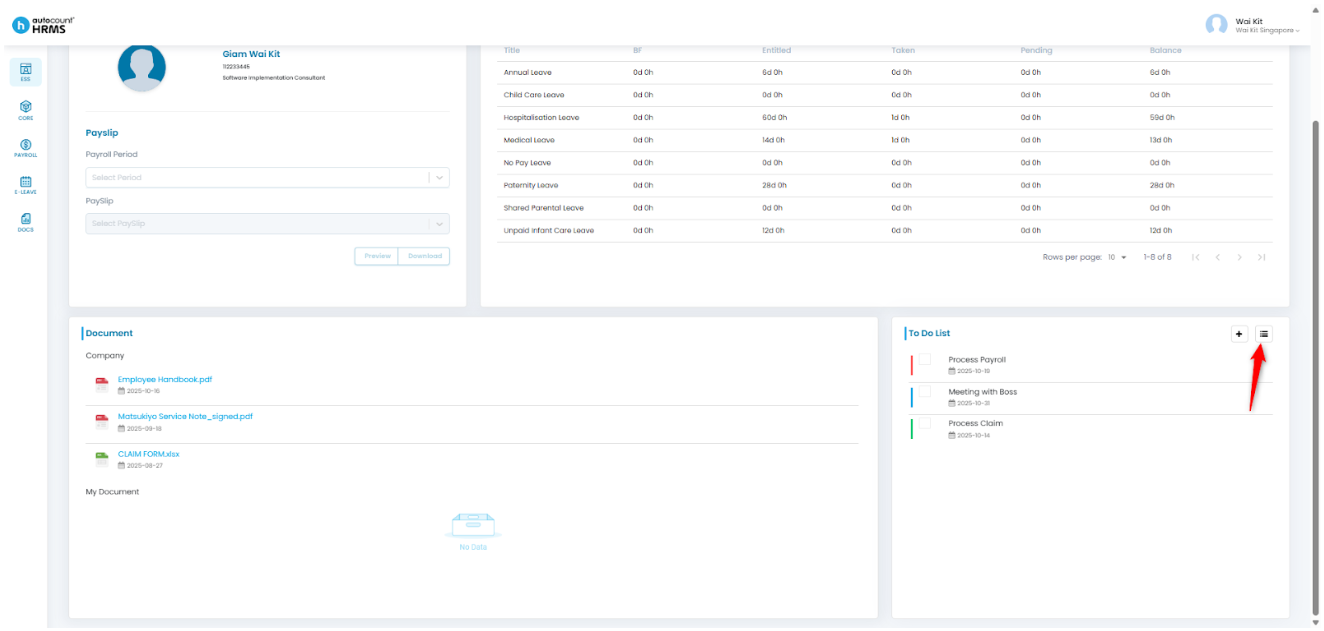
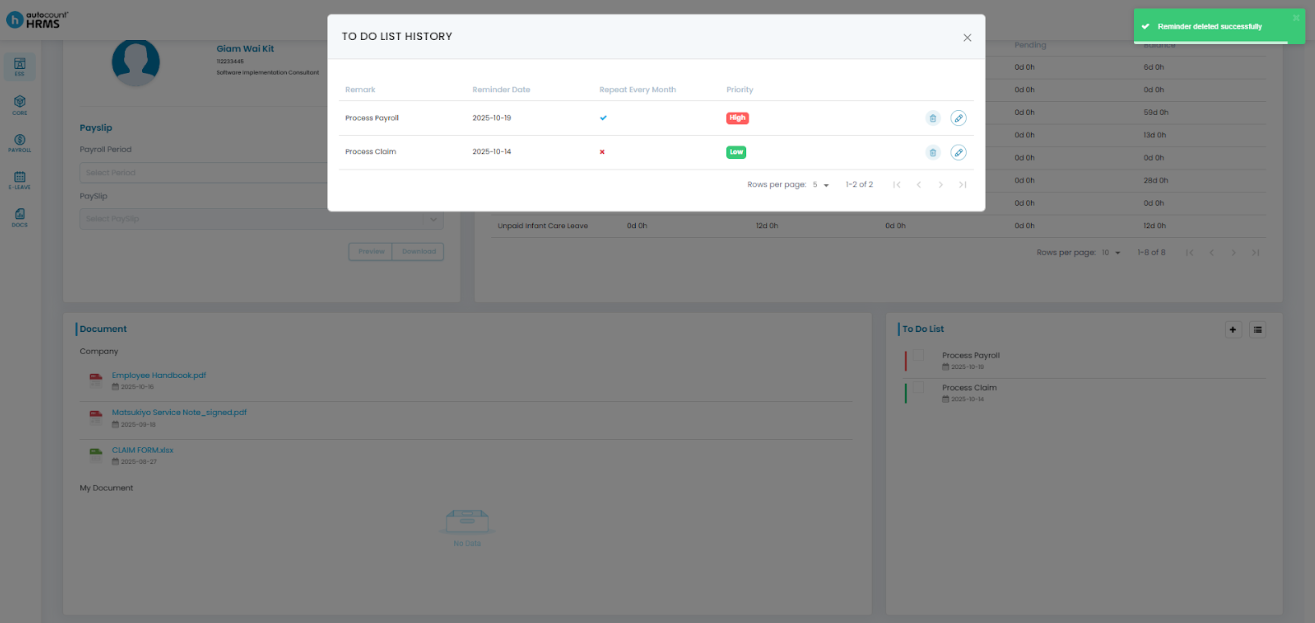
1. In the To-Do List section, click the three horizontal line icon to view all To-Do List items.
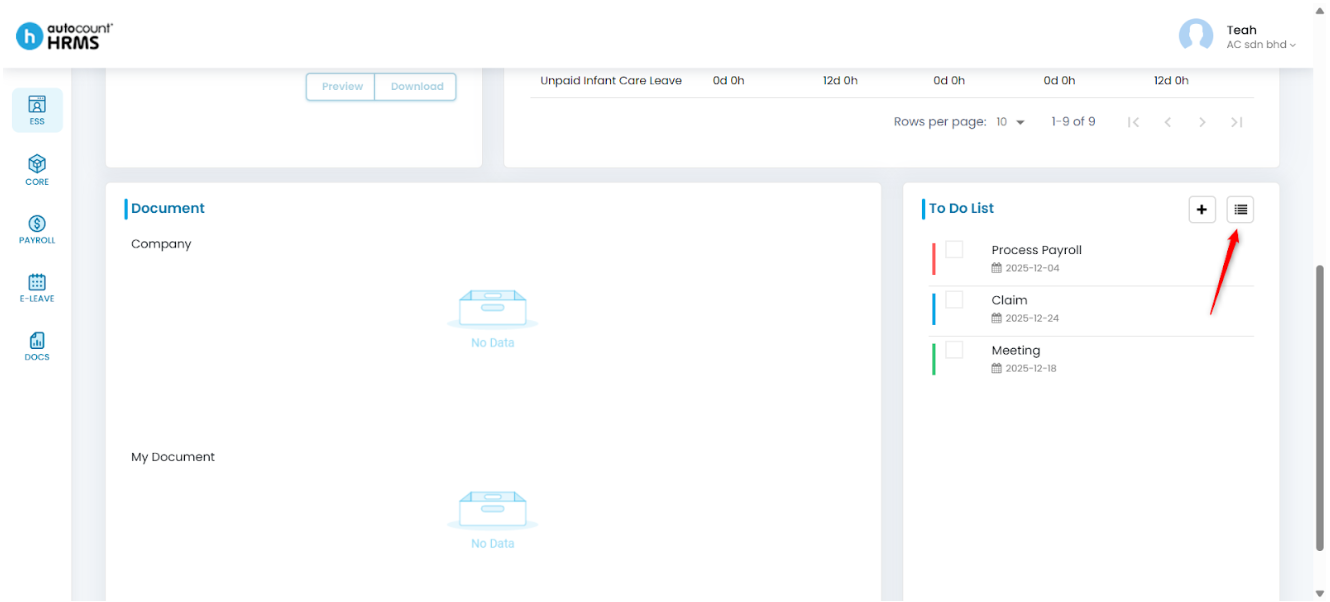
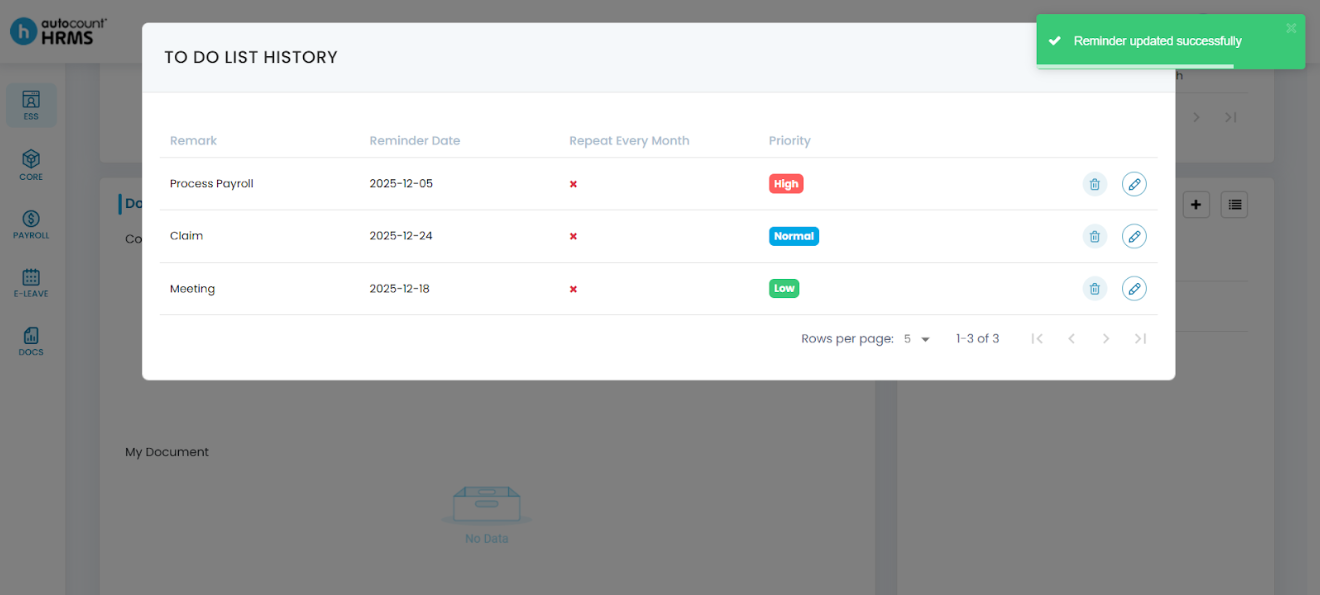
2. A To-Do List History panel will appear. Locate the item you wish to edit and click the pencil icon.
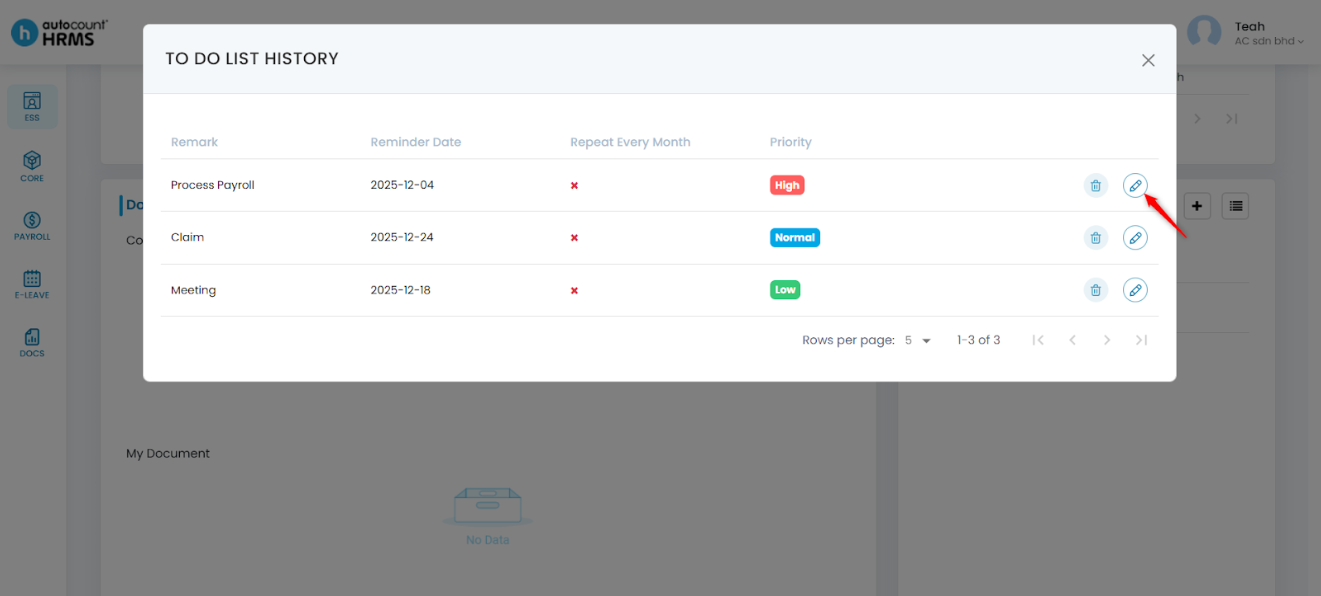
3. Modify the details as needed, then click the tick icon to save the changes.
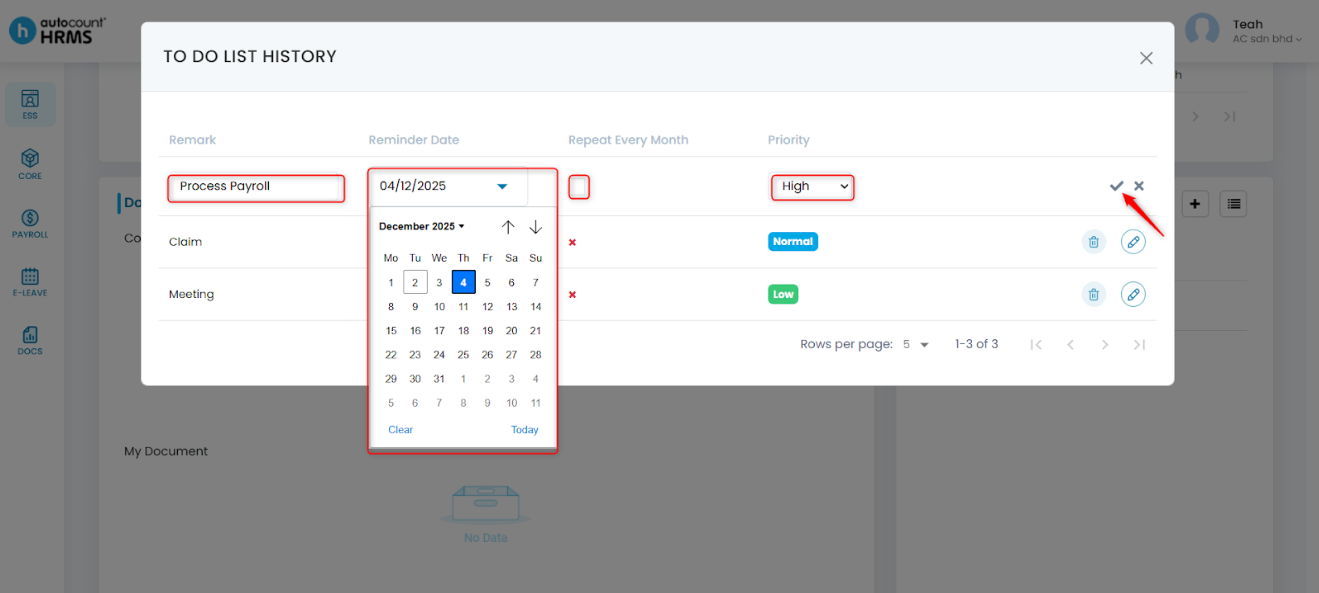
4. The selected To-Do List item will be updated successfully.
Steps to Delete To-Do List Item:
1. In the To-Do List section, click the three horizontal line icon to view all To-Do List items.
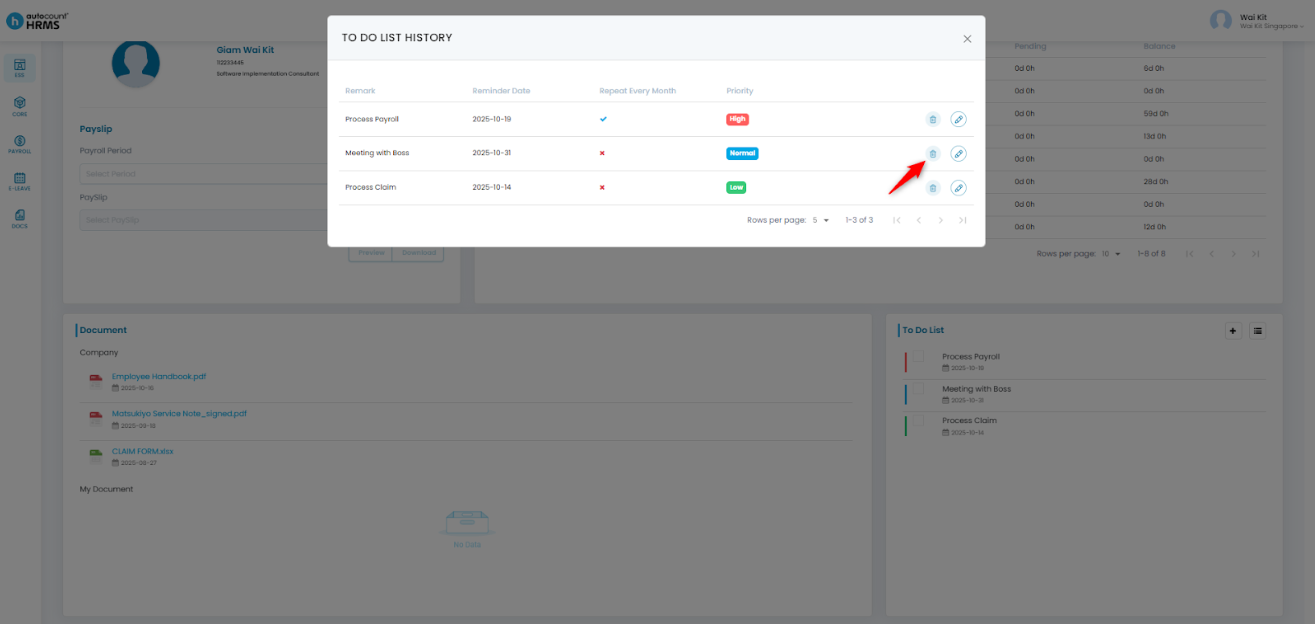
2. In the To-Do List History panel, locate the item you wish to delete and click the trash bin icon.
3. When the confirmation panel appears, click Yes to confirm deletion.
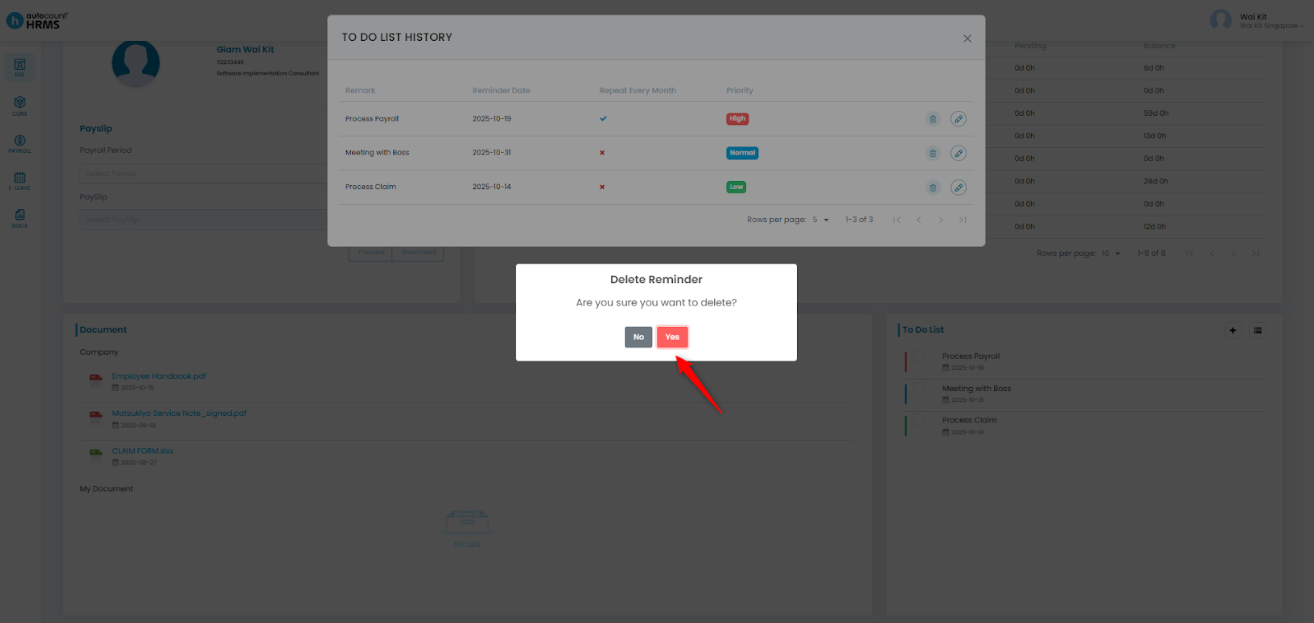
4. The selected To-Do List item will be permanently removed.
Written by: Giam Wai Kit (20251022)
Modified by: Teah Rui Harn (20251201)
Reviewed by: Tek Ee Lin (20251202)