
The Payroll Process helps companies calculate, manage, and distribute employee compensation—including wages, salaries, bonuses, and deductions—while ensuring compliance with statutory requirements such as tax regulations, Self-Help Group (SHG) Funds, Skills Development Levy (SDL), and Central Provident Fund (CPF) obligations.
HRMS provides two types of payroll runs:
1. Payroll Profile – Follows a regular, predefined payroll schedule.
2. Adhoc Payroll – Used for irregular payroll runs without salary calculation, via either of the 2 methods:
- Pre-Planned – Payroll items are defined in advance.
- On Demand – Payroll items can be customised from scratch.
This guide covers how to process payroll using a predefined payroll schedule (Payroll Profile).
Steps to Run Payroll with Payroll Profile:
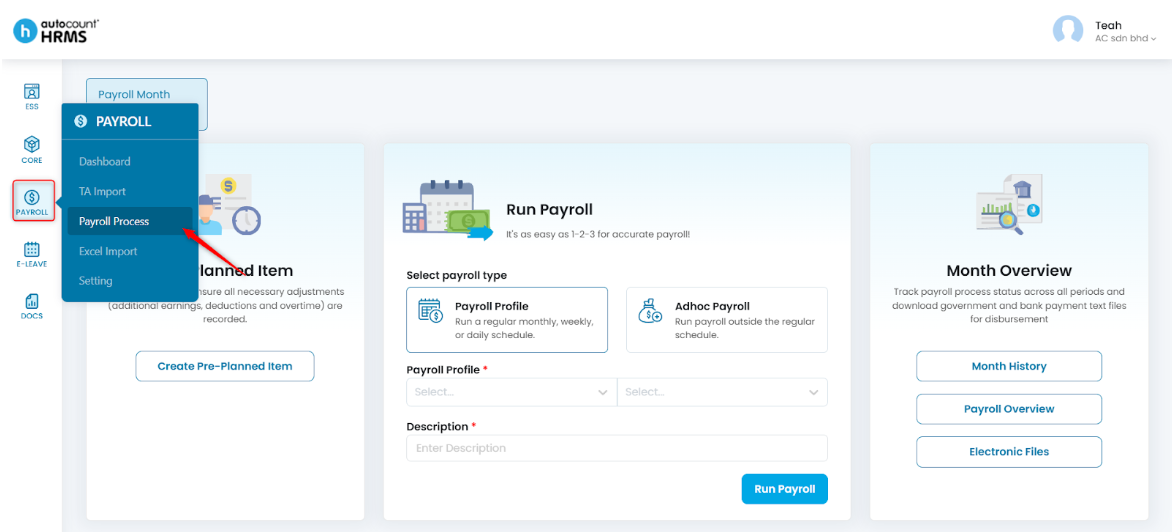
1. Go to Payroll > Payroll Process.
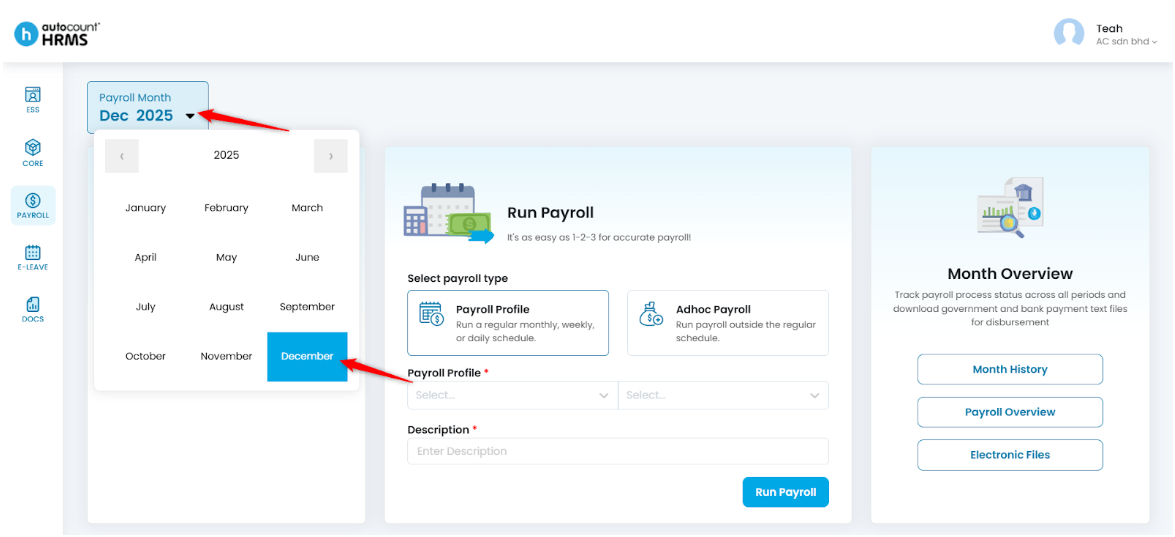
2. Click on the Payroll Month and choose the month and year of payroll you want to process. You may create Addition, Deduction, and Overtime items in advance (See Create Pre-Planned Item) or add items after processing payroll (See Add Payroll Details).
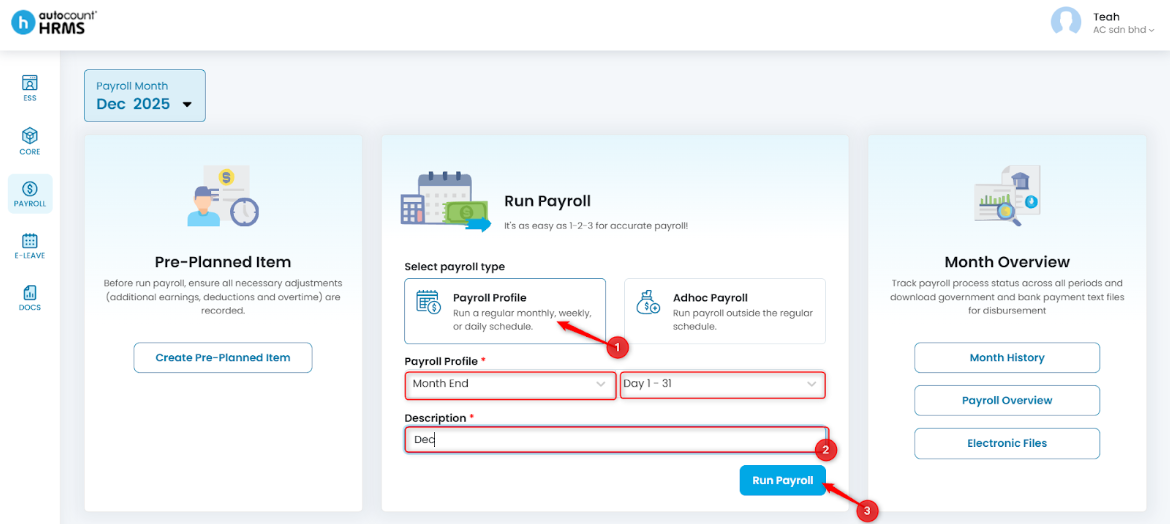
3. Under Run Payroll, select Payroll Profile and complete the following fields:
- Payroll Profile – Choose the payroll period (e.g., Month End) and confirm the date range shown on the right.
- Description – Enter a relevant description for the payroll run.
Click Run Payroll to proceed.
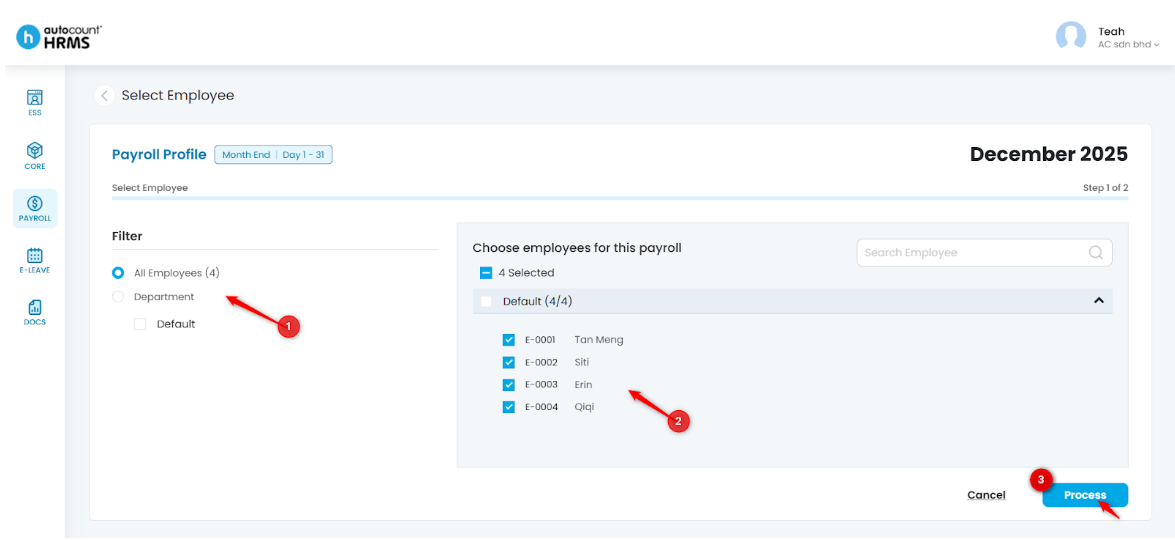
4. Filter employees as needed (e.g., by Department).
5. Select the employees to include in this payroll run, then click Process.
6. Payroll will be created successfully.
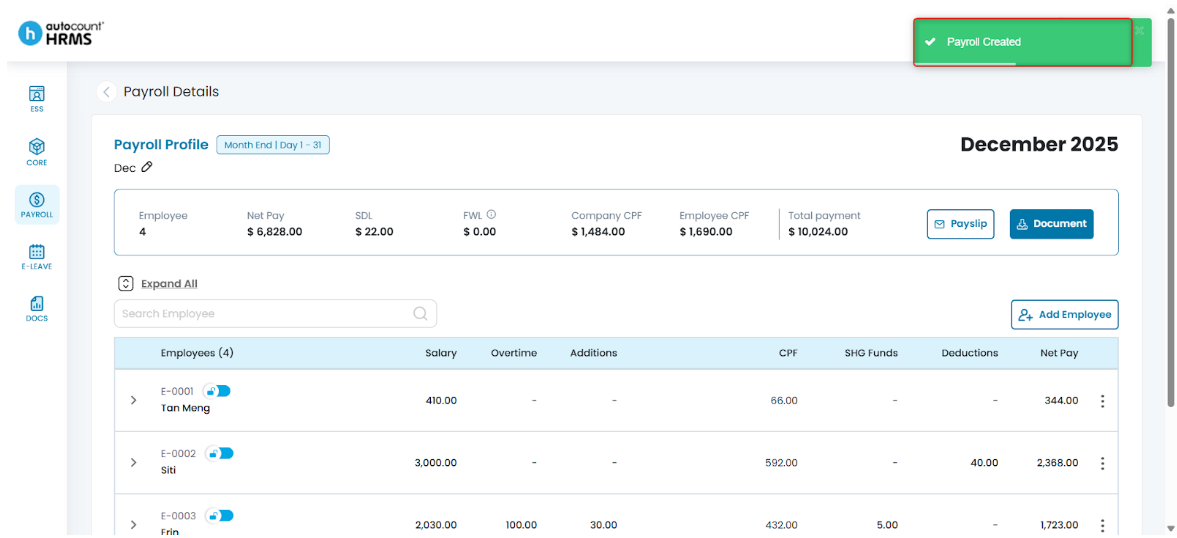
7. Review any pre-created items by clicking the > icon next to each employee.
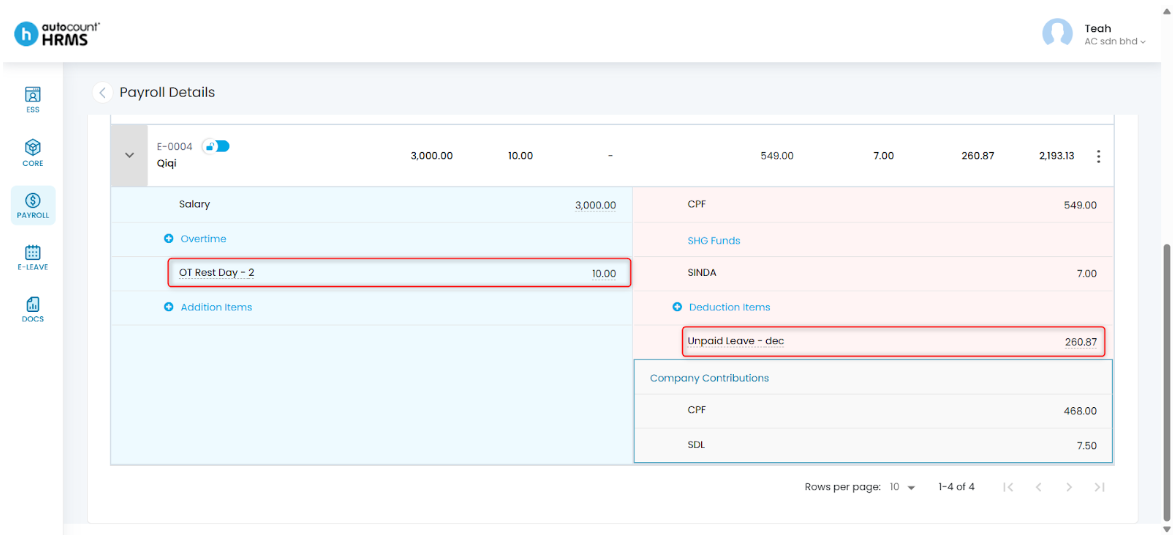
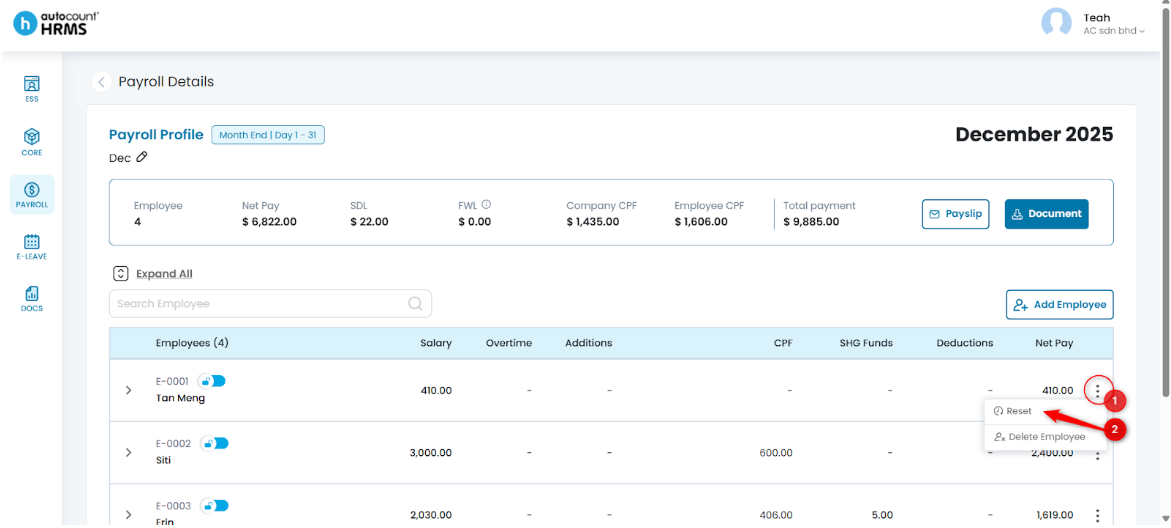
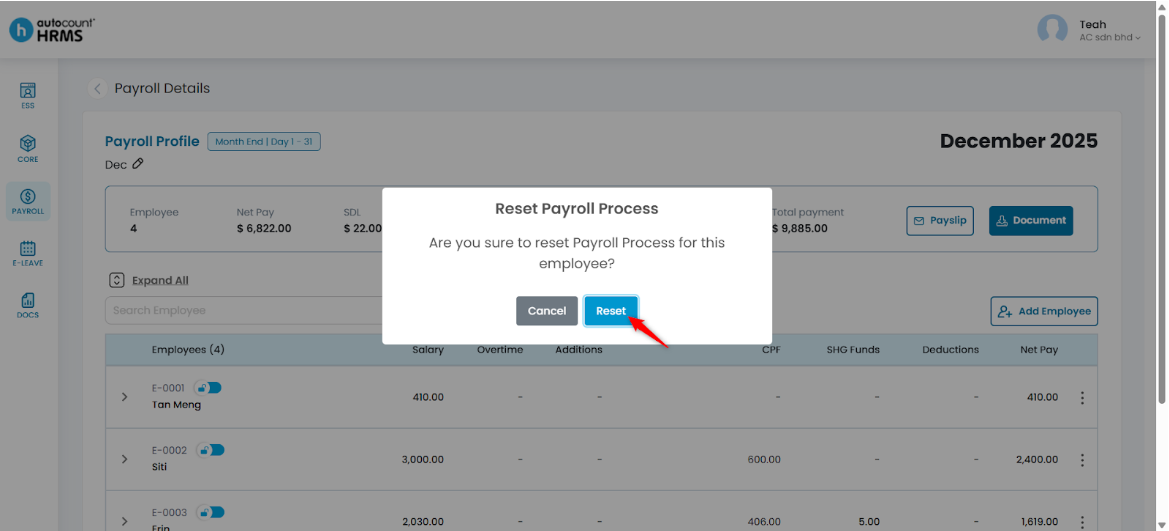
8. You can add additional items if needed. To remove added items, click the three-dot icon next to the employee, select Reset, and click Reset again to confirm.
Written by: Teah Rui Harn (20251202)
Reviewed by: Tek Ee Lin (20251205)