
A Manager Role refers to an employee’s job title or organisational position. However, it does not automatically grant approval rights in the system.
An employee’s email address has to be added as a user before they can be assigned as leave approvers.
The following shows how to update an employee’s job title as manager and how to add an employee as a user.
Steps to Update Manager Role (Job Title):
- Go to Core > Employee.
- Locate the employee you want to update and click the pencil icon.
Under Employee Details, go to Personal Info.
Scroll down and click the pencil icon next to Job Info.
Enter or update the Job Title, then click Save.
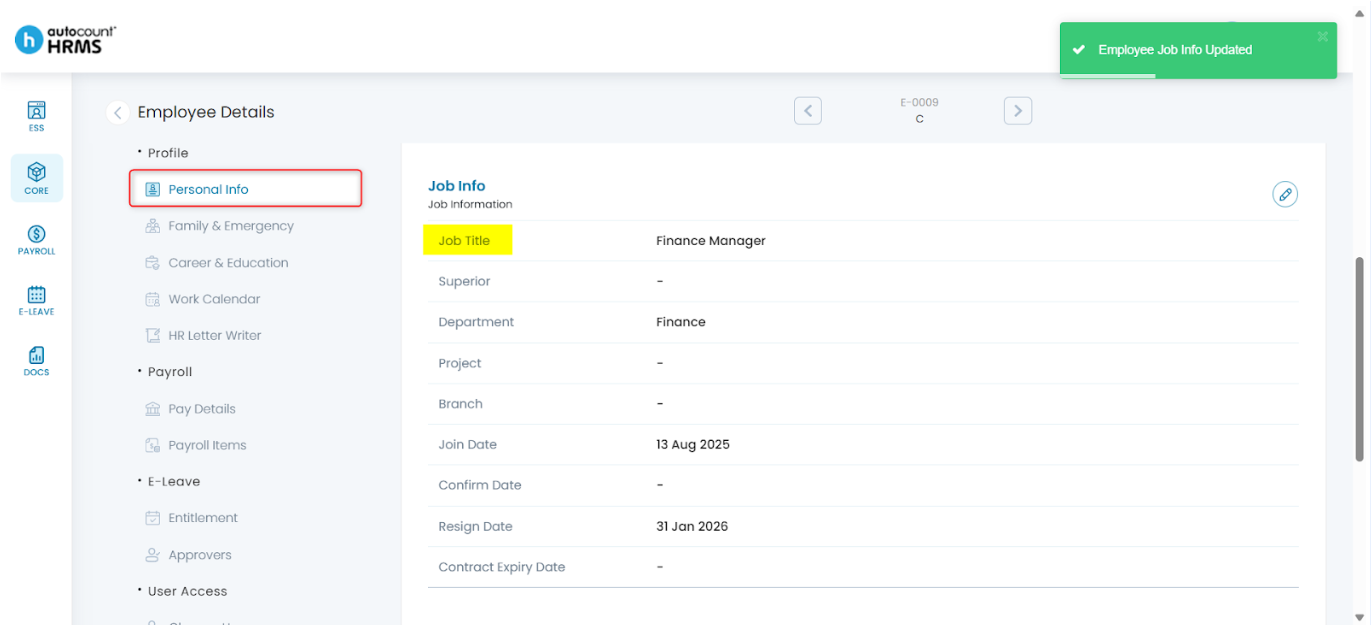
For detailed field explanations, refer to Personal Info – Job Info.
Steps to Add Employee as Employee User:
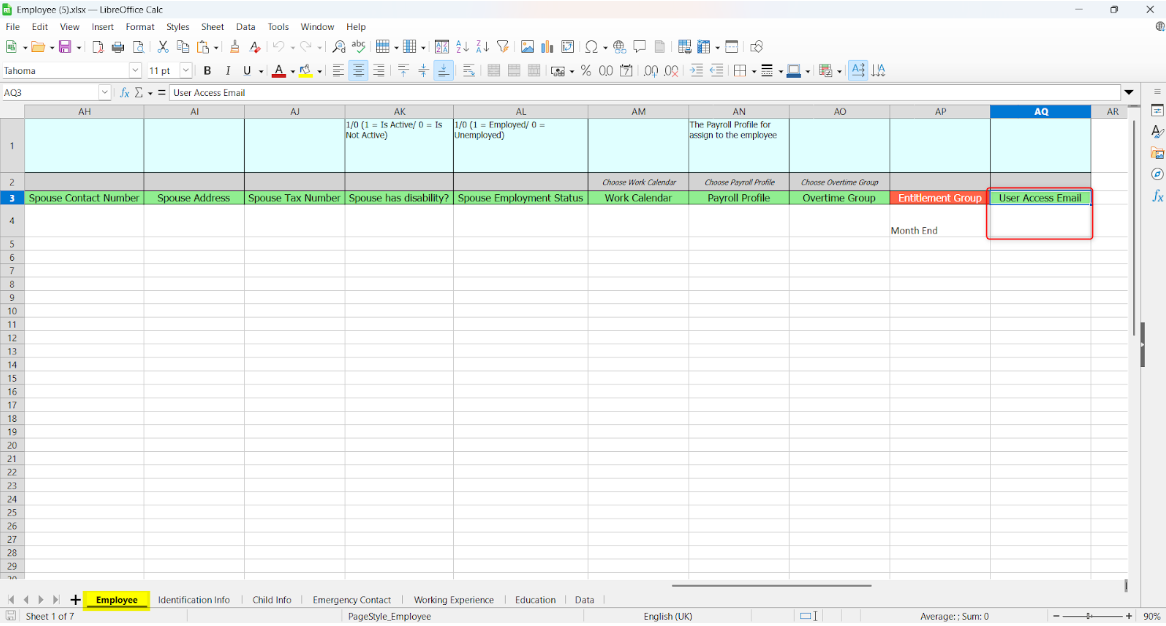
Method 1: Include the employee's email address in the User Access Email column when importing employee details via Excel Import (Employee template)
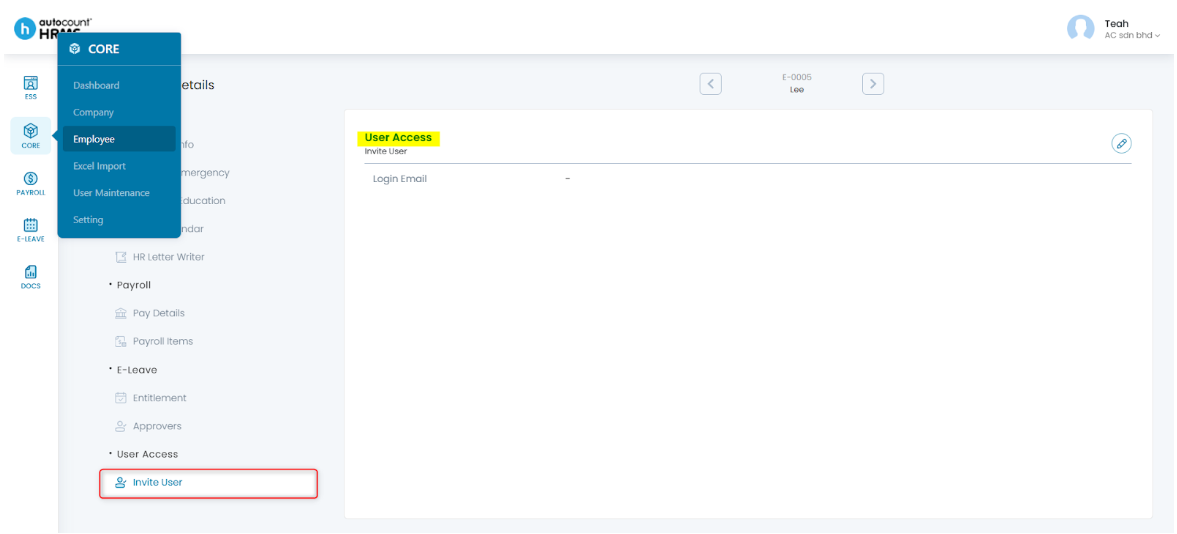
Method 2: Add the employee's email address in User Access for the existing employee record (Core > Employee > locate the employee and click pencil icon).
Method 3: Add the employee's email address in User Maintenance (Core > User Maintenance)
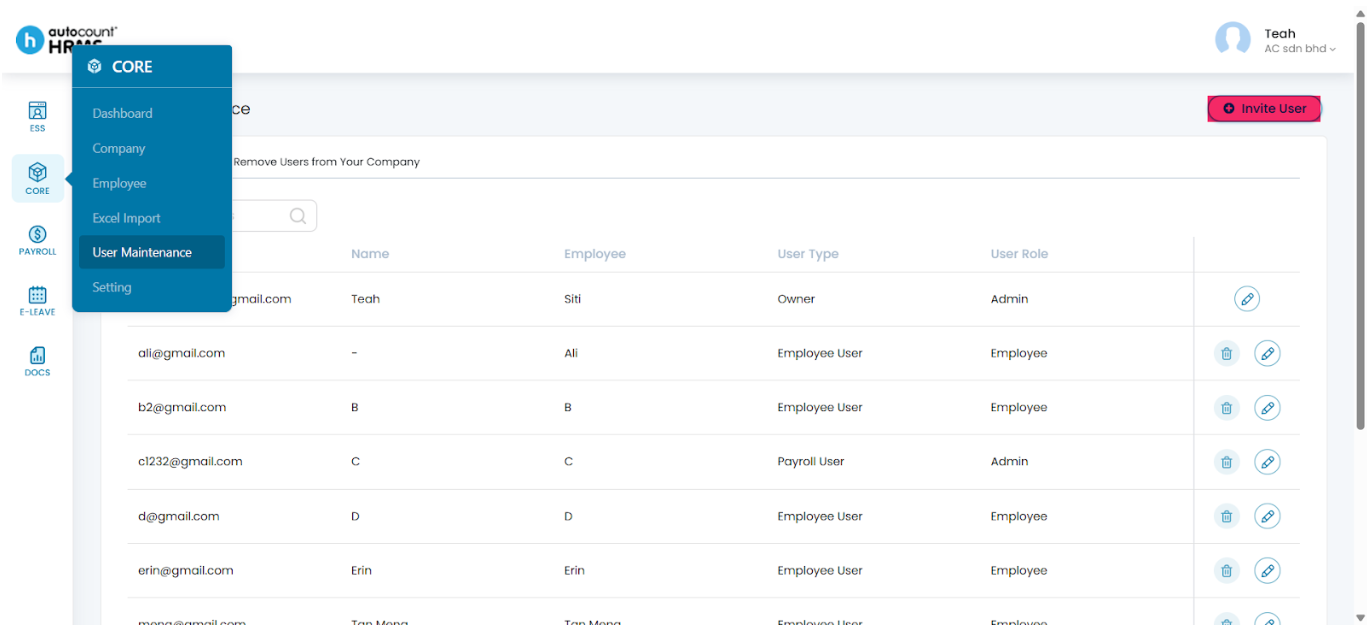
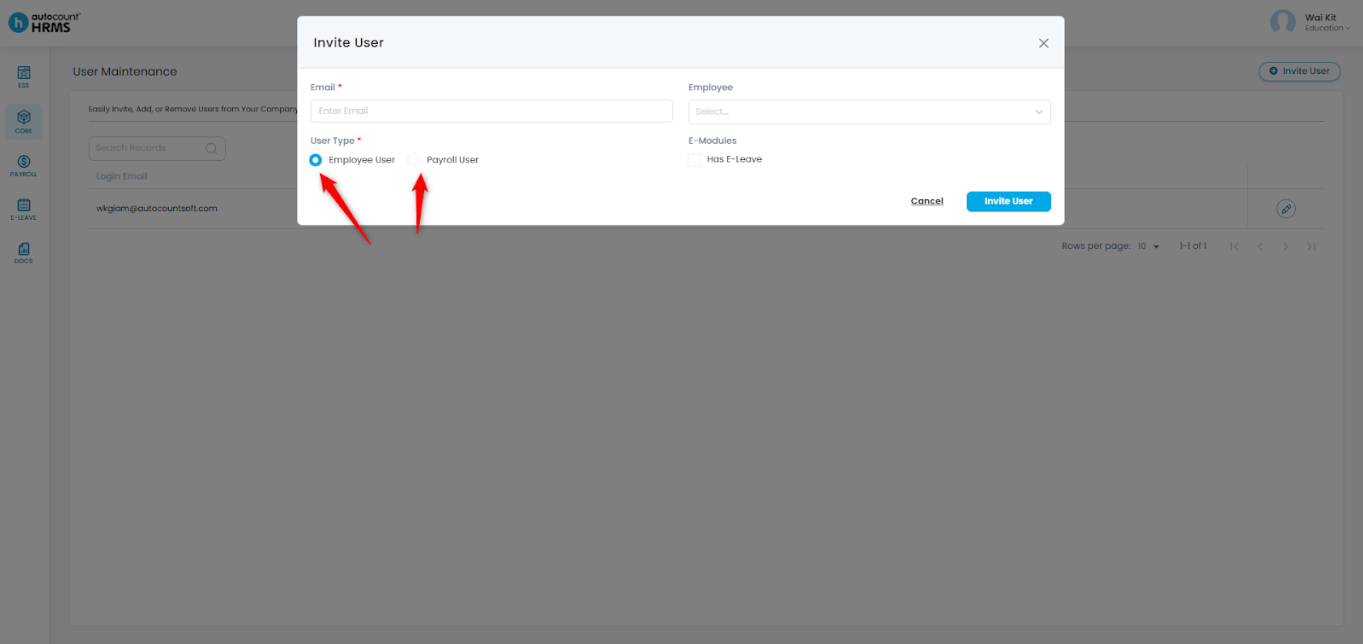
Once the employee is added as a user, you may assign them as a leave approver.
Written by: Teah Rui Harn (20251231)
Reviewed by: Tek Ee Lin (20260108)