
Payroll Items are used to maintain fixed or recurring allowances and deductions for employees. Once set up, these items will be automatically included in the employee’s payroll during each payroll run, ensuring consistent and accurate payroll processing.
Steps to Add a Fixed Payroll Item to an Employee:
1. Go to Core > Employee.
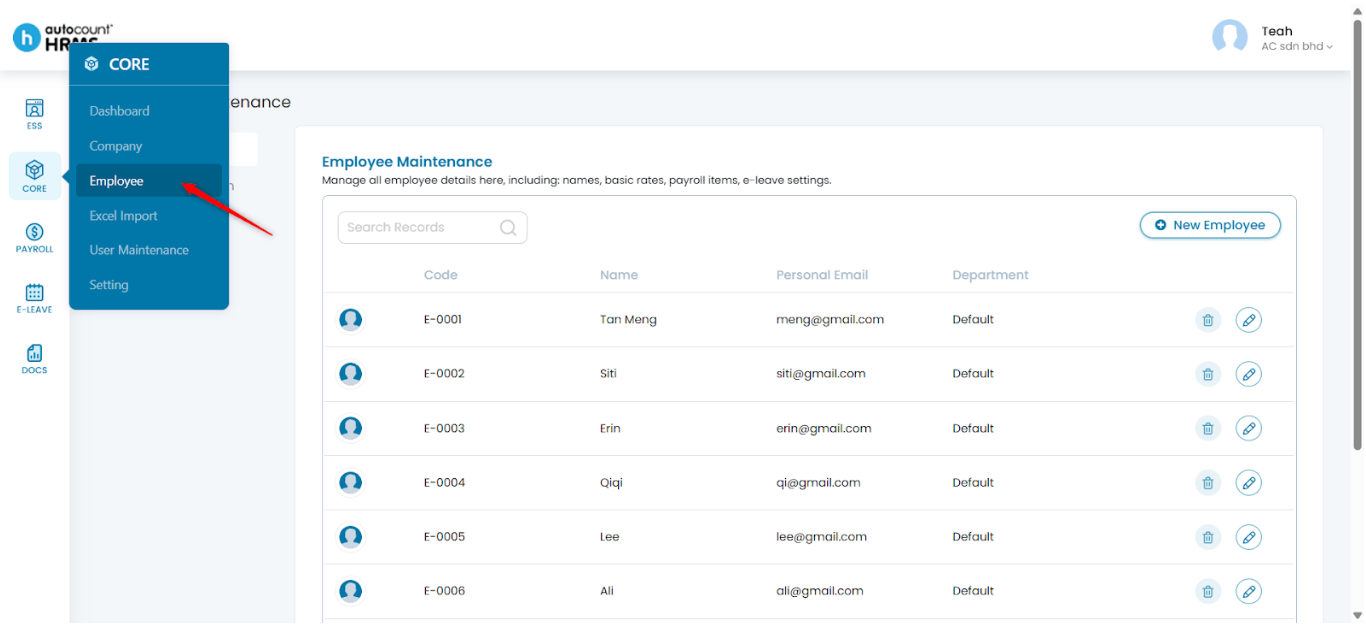
2. Under Employee Maintenance, click Employee.
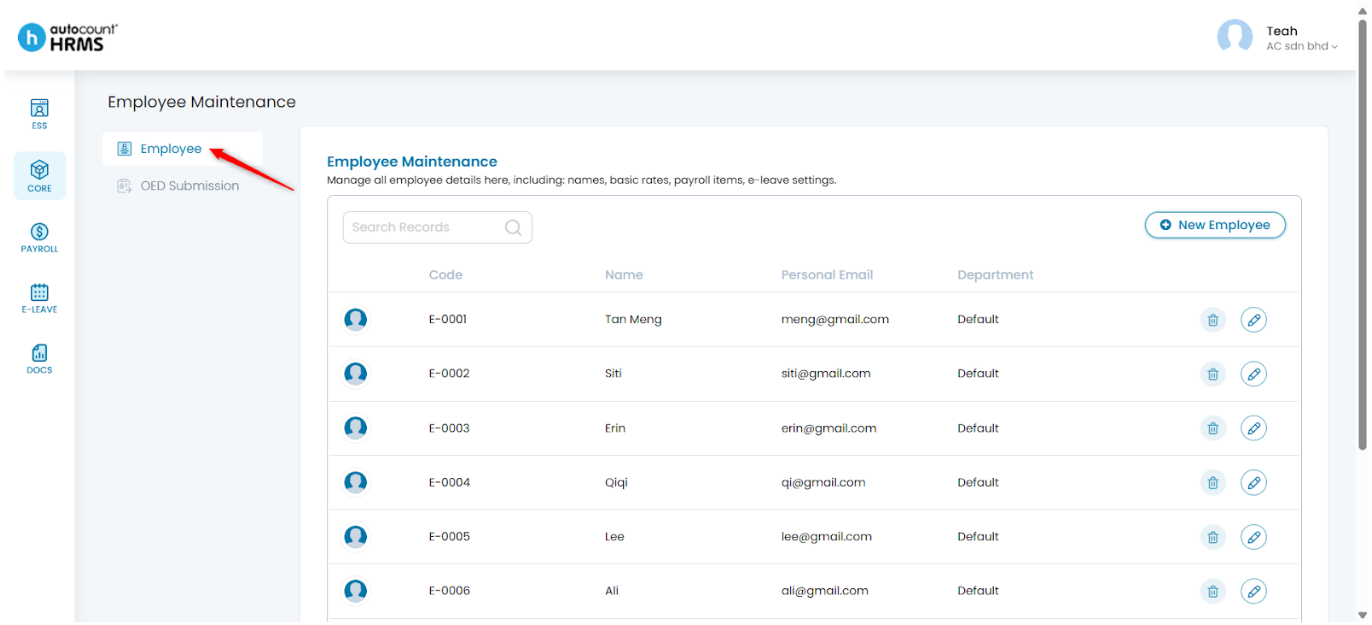
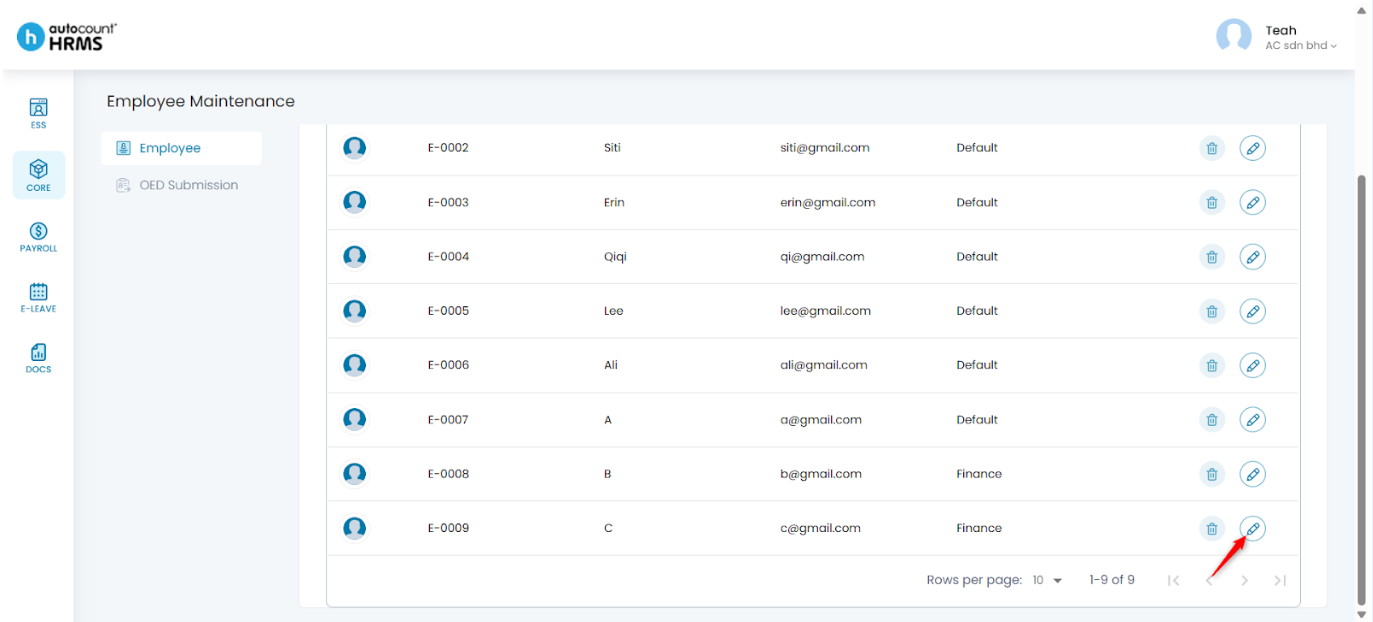
3. Locate the employee you want to update and click the pencil icon beside the employee’s name.
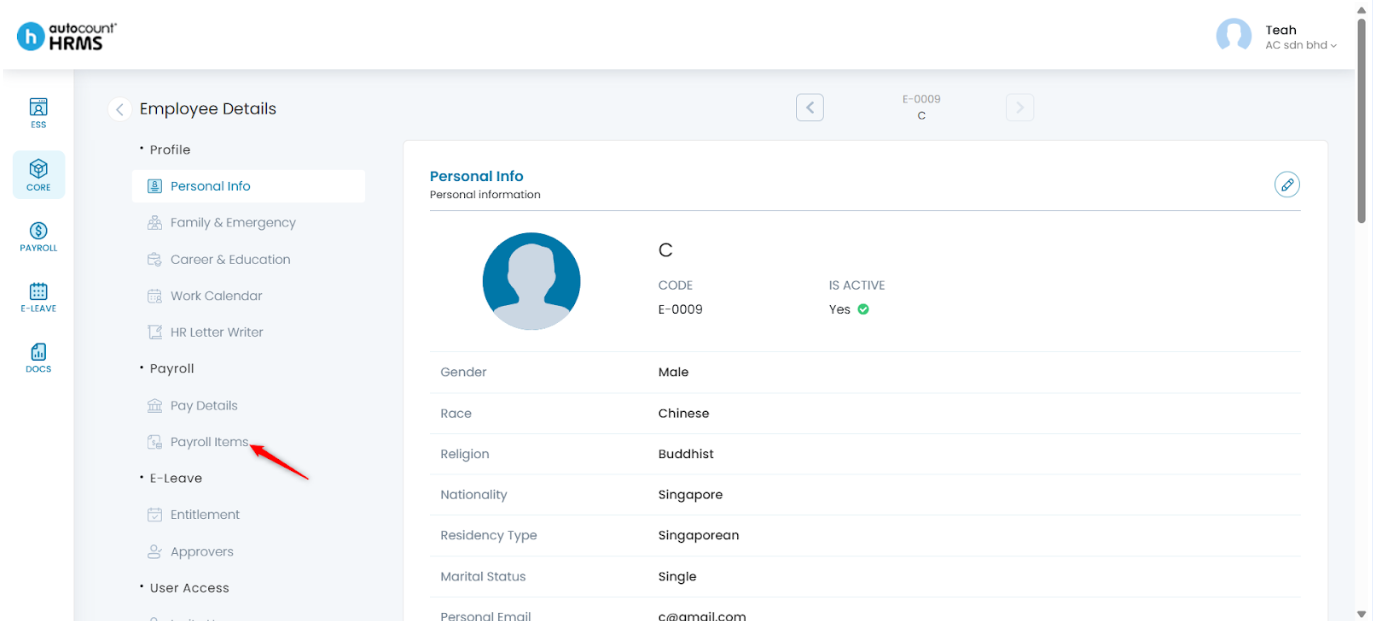
4. Under Employee Details, go to Payroll Items.
5. Navigate to Addition Items or Deduction Items accordingly.
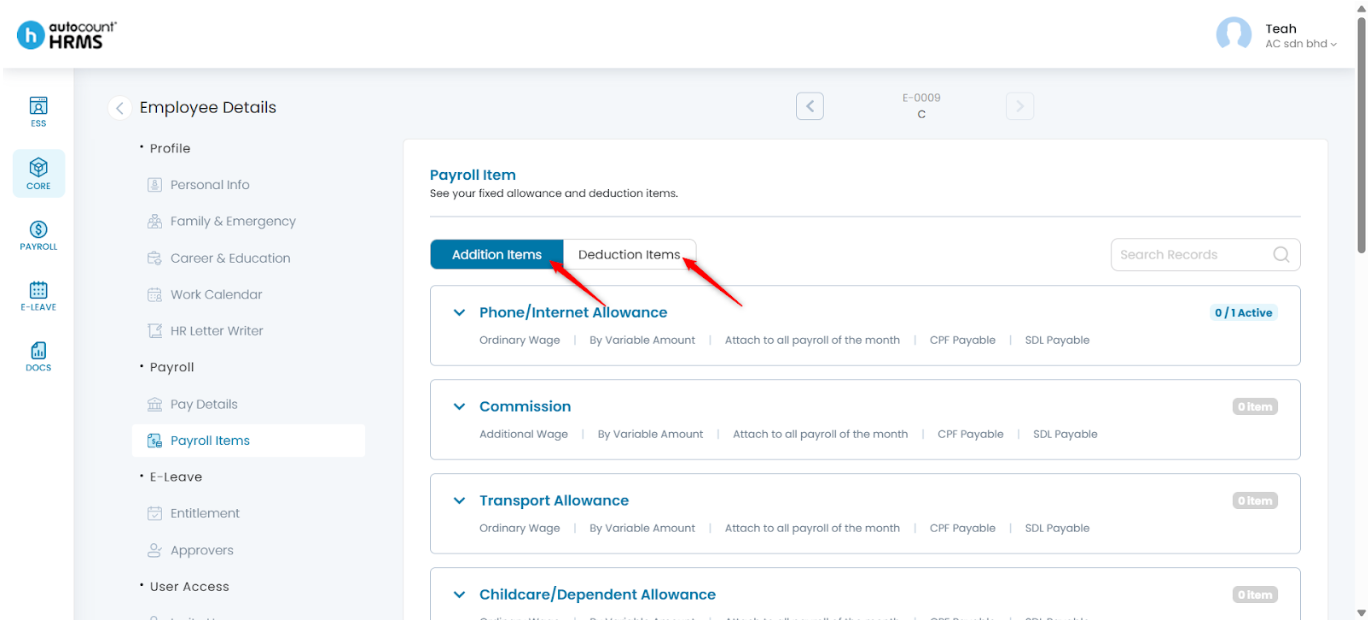
6. Click the downward arrow icon to expand the payroll item.
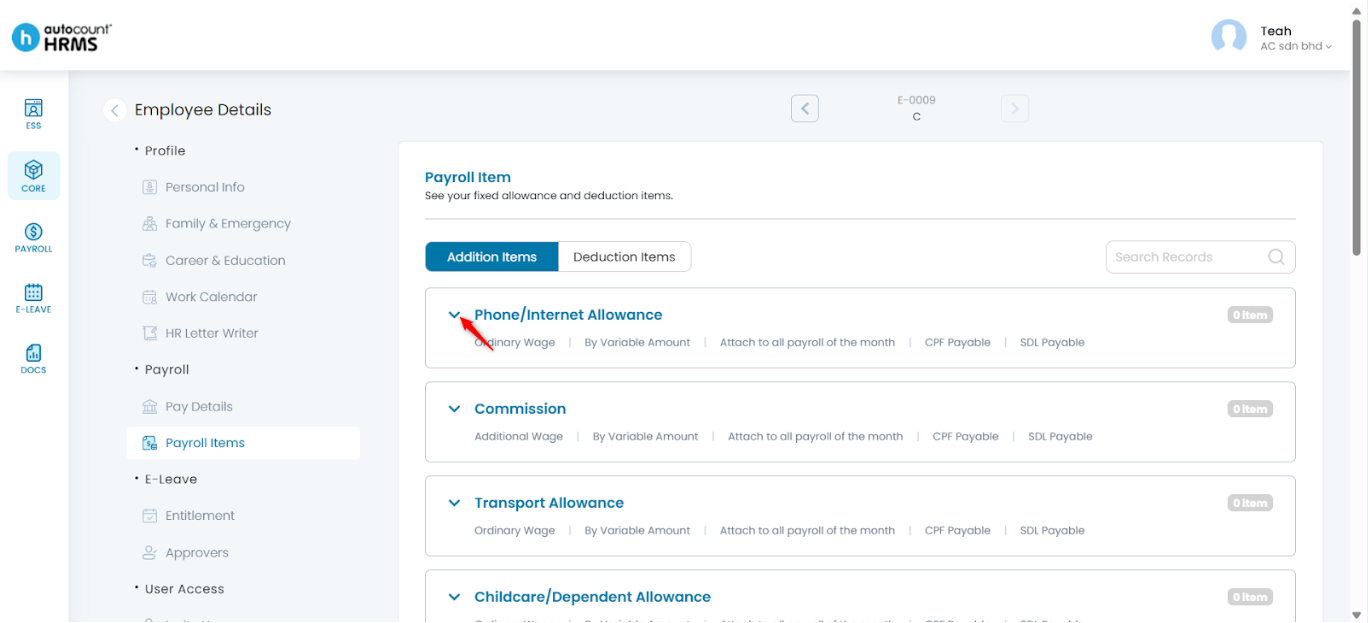
7. Click Add (+) Item.
8. Enter Payroll Item Details according to its amount types:
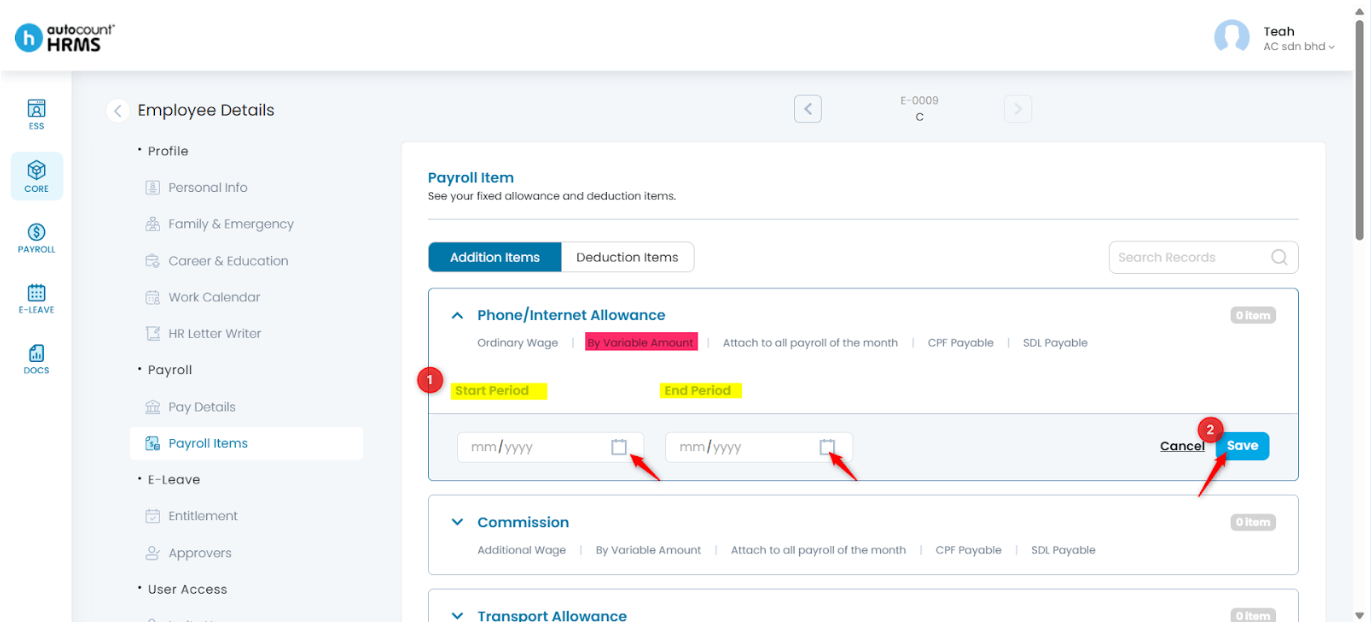
- Variable Amount
i. Select Start Period and/or End Period. (Optional)
ii. Click Save.
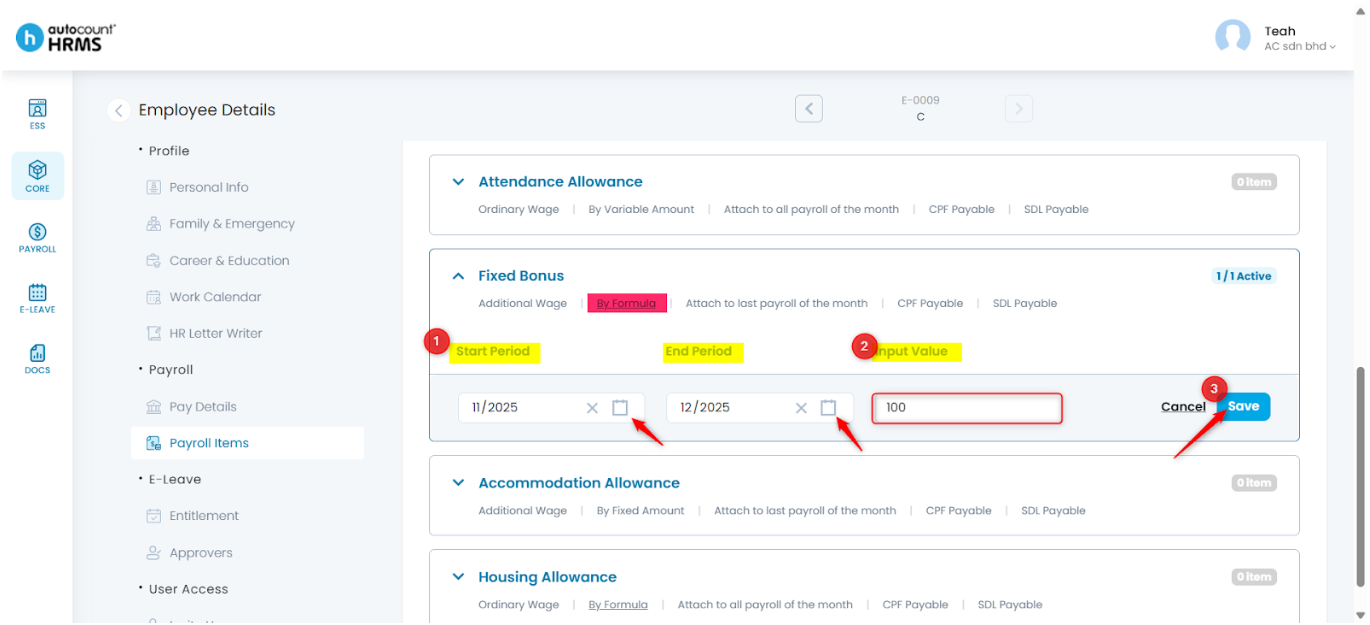
- Formula
i. Select Start Period and/or End Period. (Optional)
ii. Enter the Input Value.
iii. Click Save.
Tip: Hover over the By Formula text to view the calculation formula.
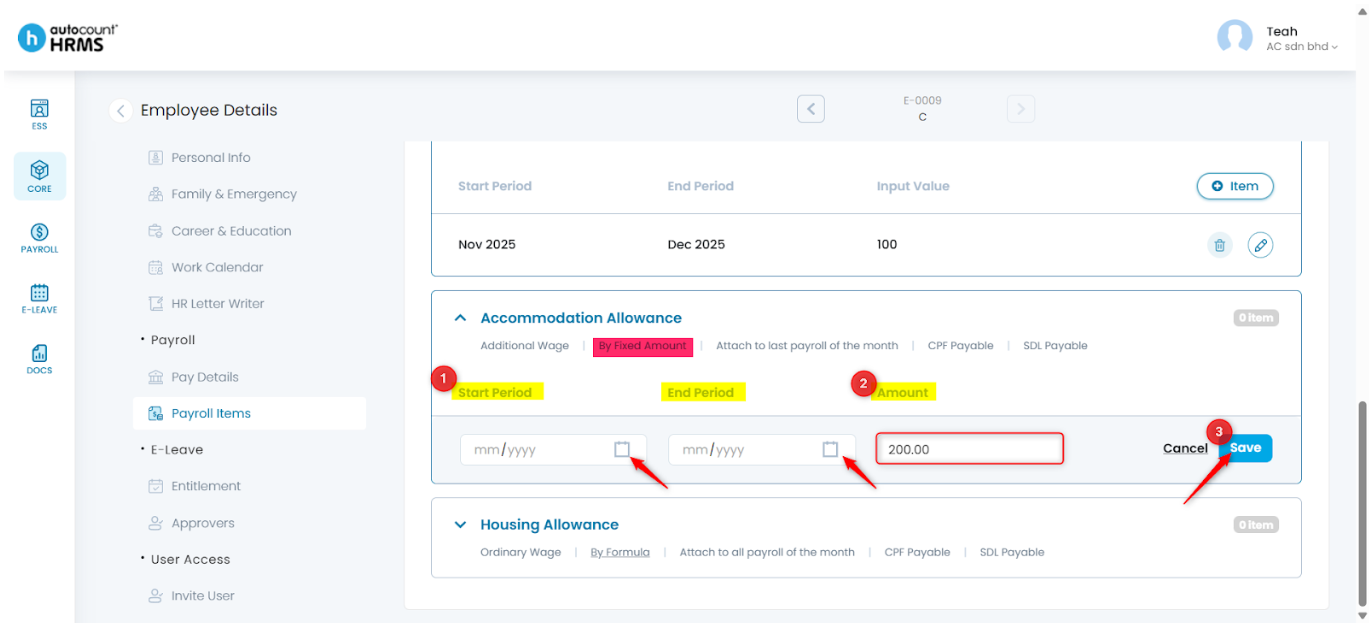
- Fixed Amount
i. Select Start Period and/or End Period. (Optional)
ii. Enter the Amount.
iii. Click Save.
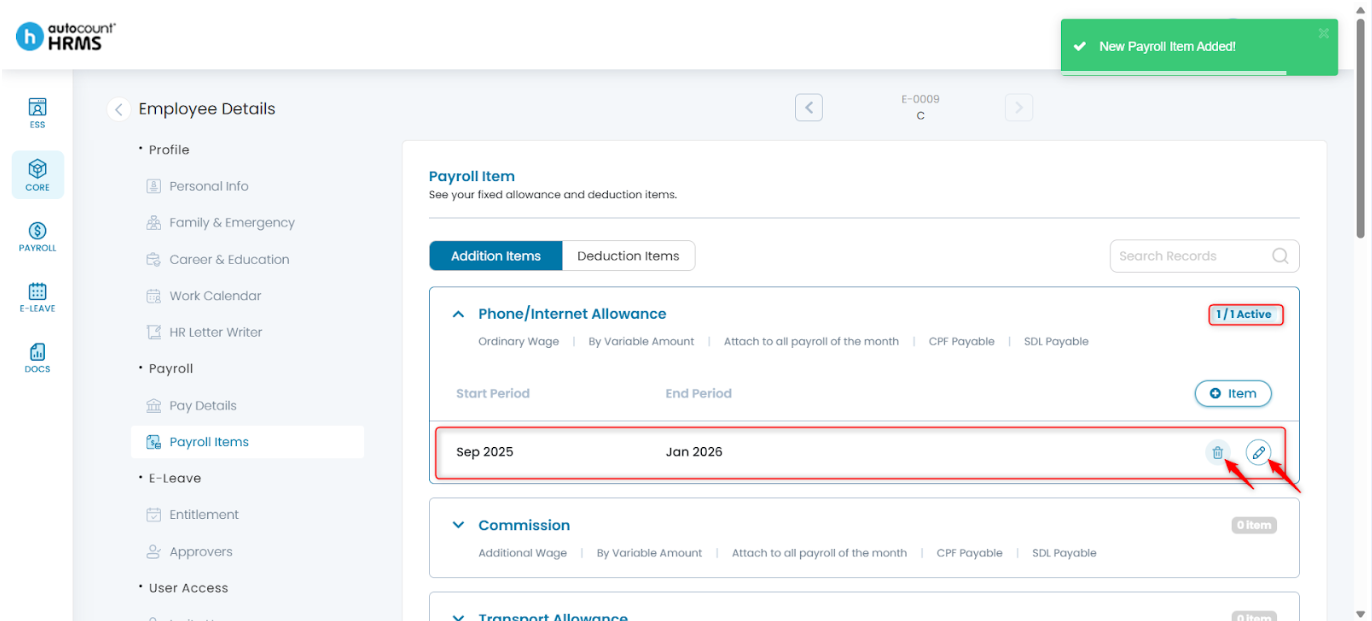
9. Added payroll items will be listed under the selected category.
- To edit, click the pencil icon, make necessary changes, then click Save.
- To delete, click the trash bin icon, then click Yes to confirm.
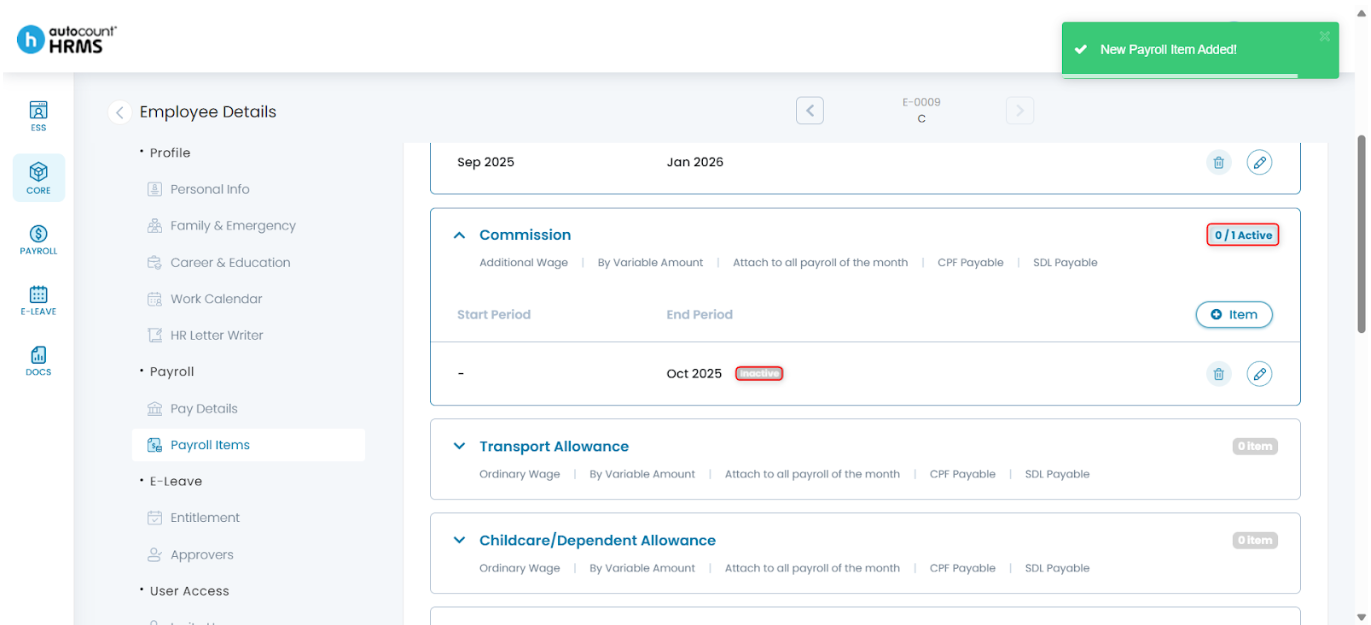
Note: Payroll items will automatically become inactive once the End Period has passed.
Written by: Teah Rui Harn (20251226)
Reviewed by: Tek Ee Lin (20260107)