
Keeping employee career history and educational background up to date in HRMS ensures accurate records for HR planning, compliance, and reporting. This guide walks you through the steps to maintain an employee’s career and education information.
Steps to Maintain Employees’ Career & Education History:
1. Go to Core > Employee.
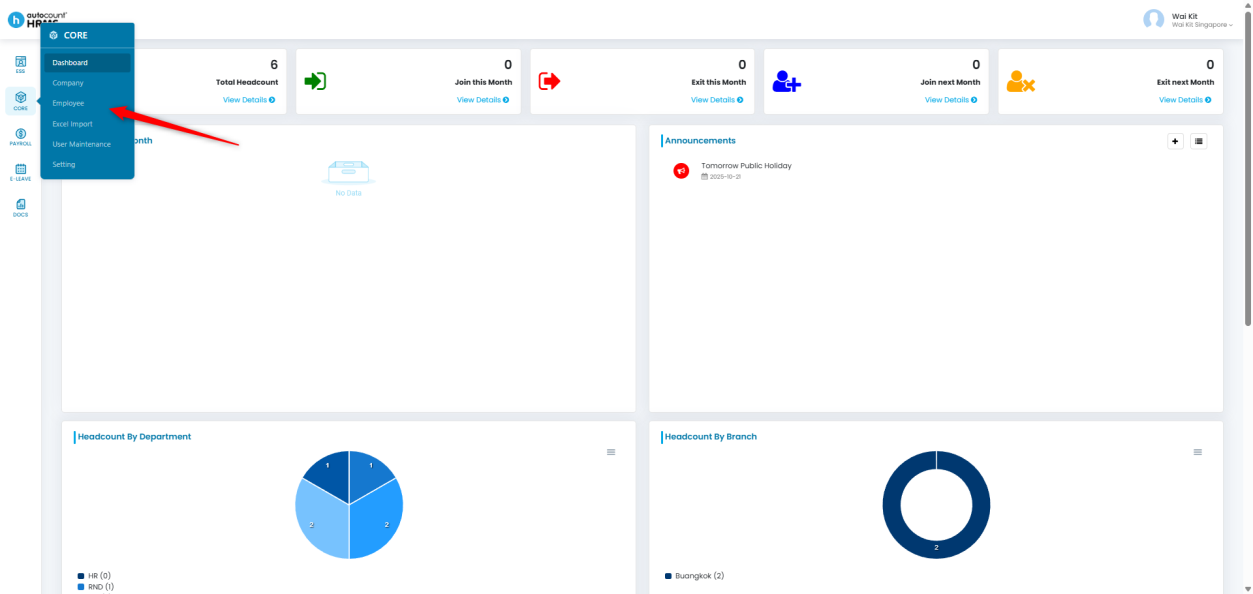
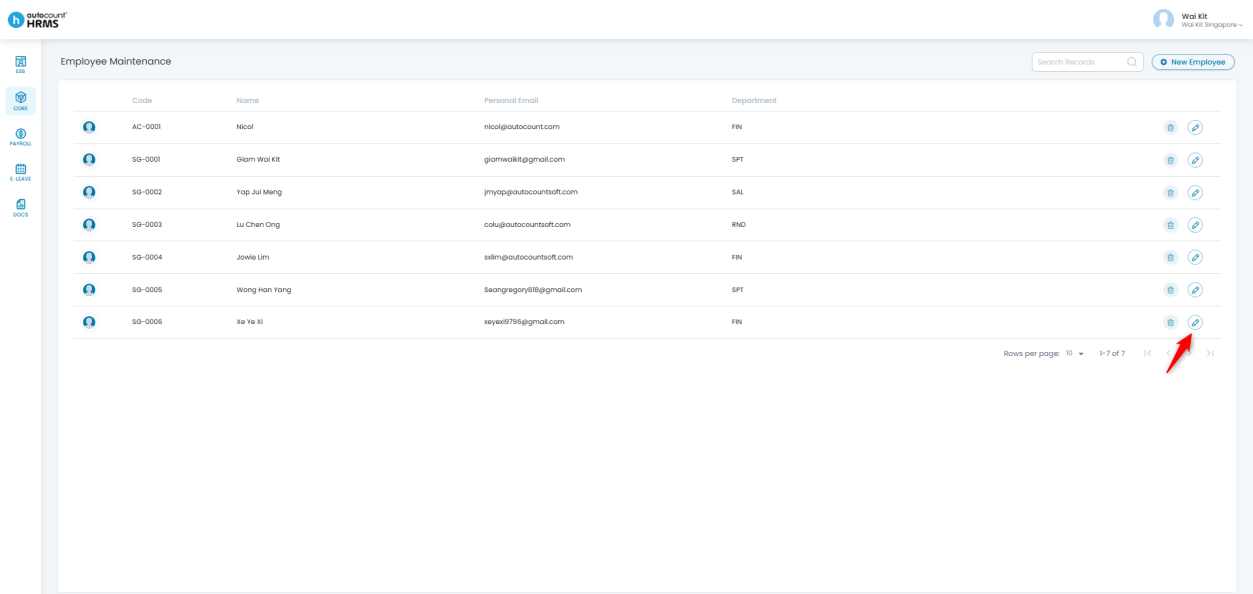
2. Locate the employee whose information you wish to update.
3. Click the pencil icon beside the employee’s name to open their Employee Profile.
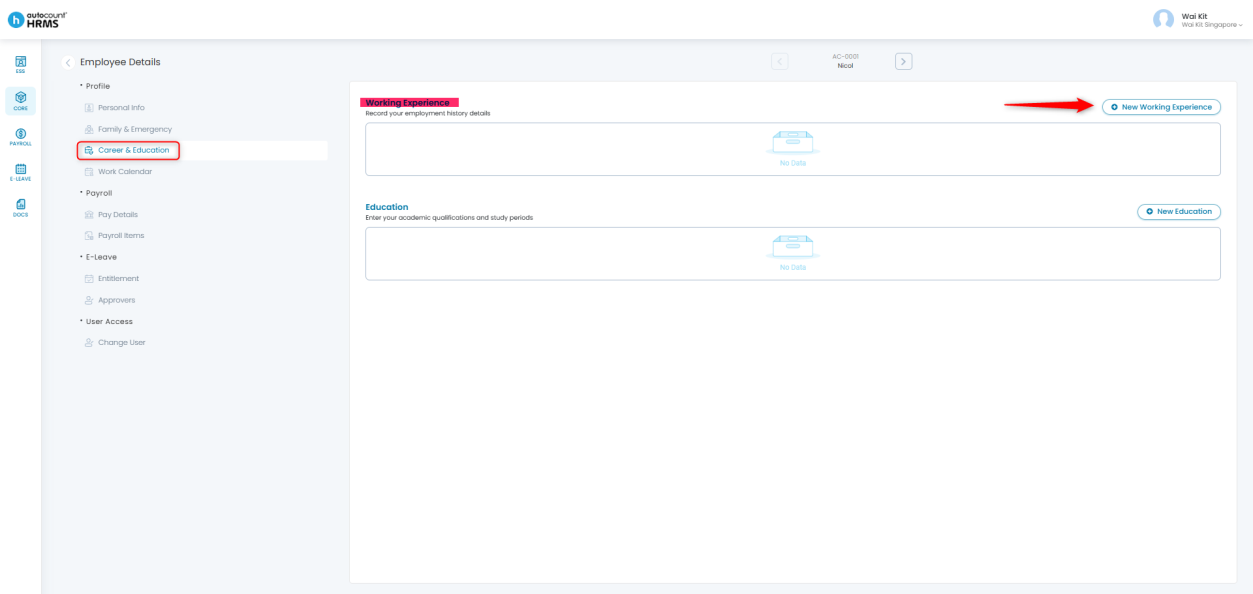
The Career & Education section includes two sub-categories:
- Working Experience
- Education
A. Working Experience
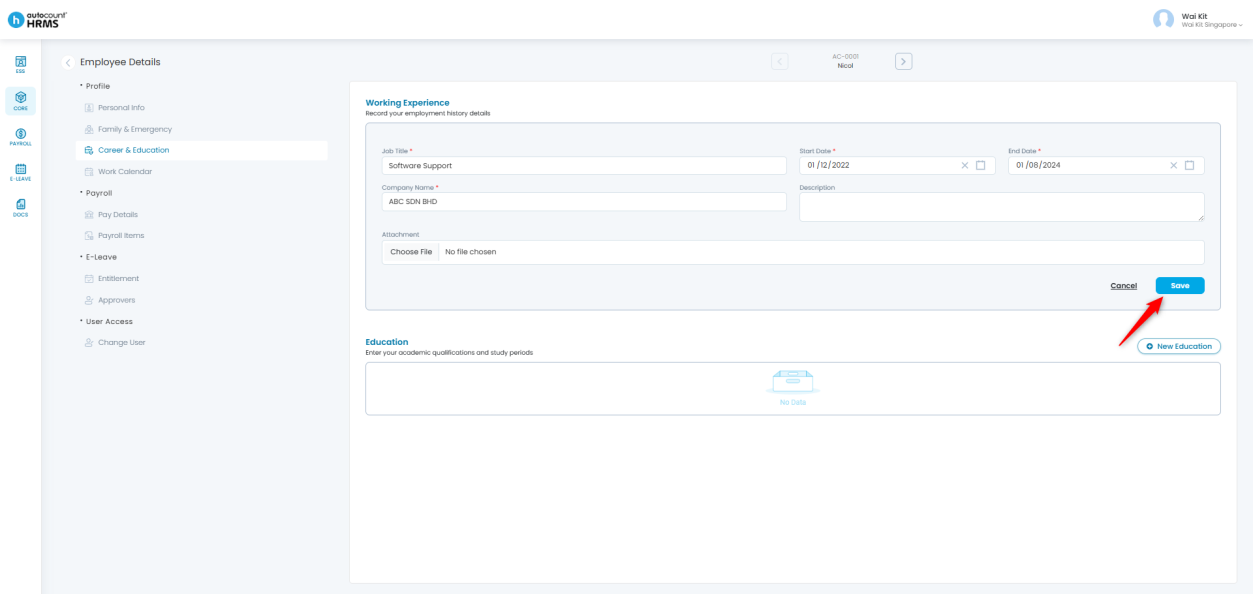
1. Go to the Working Experience section and click New Working Experience to add a new record.
2. Fill in the required fields.
- Fields marked with a red asterisk (*) are mandatory.
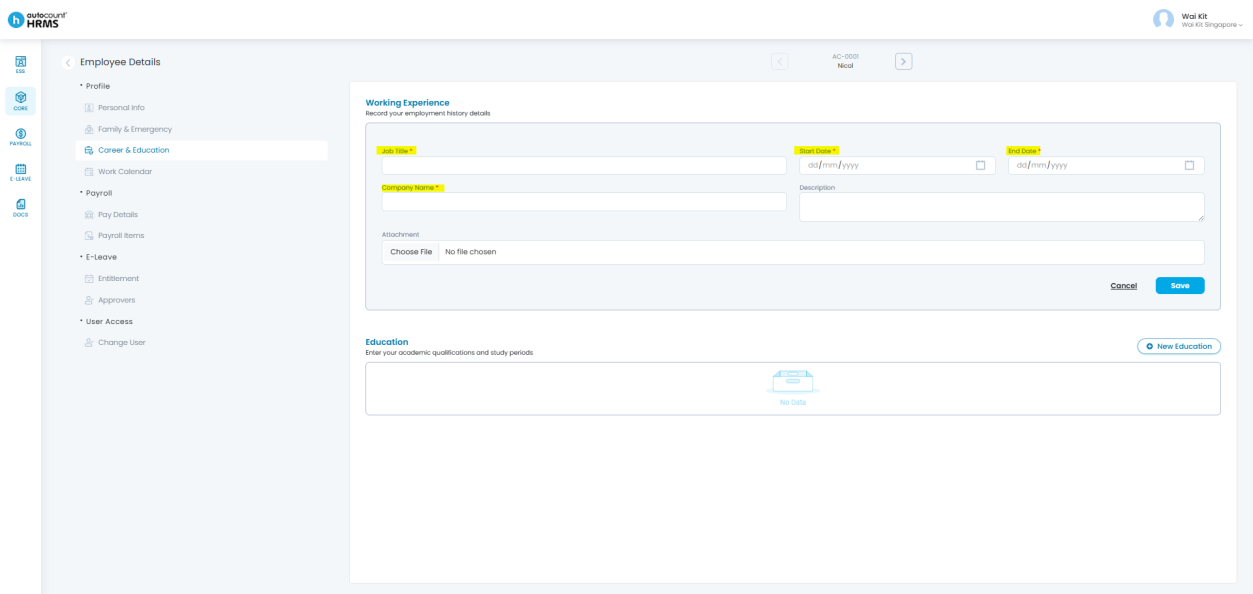
3. Click Save to confirm your changes.
Update an Existing Record
- Go to the working experience entry you want to update and click the pencil icon.
- Update the necessary details and click Save.
Delete a Record
- Locate the working experience entry you want to remove.
- Click the bin icon to delete it.
B. Education
1. Go to the Education section and click New Education to add a new record.
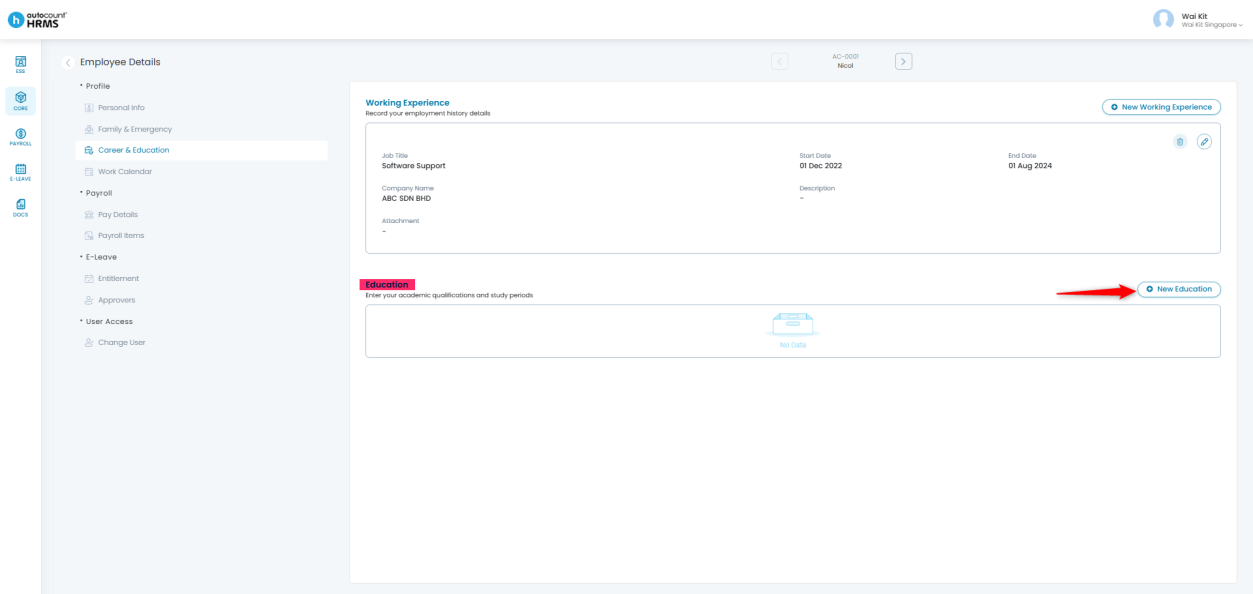
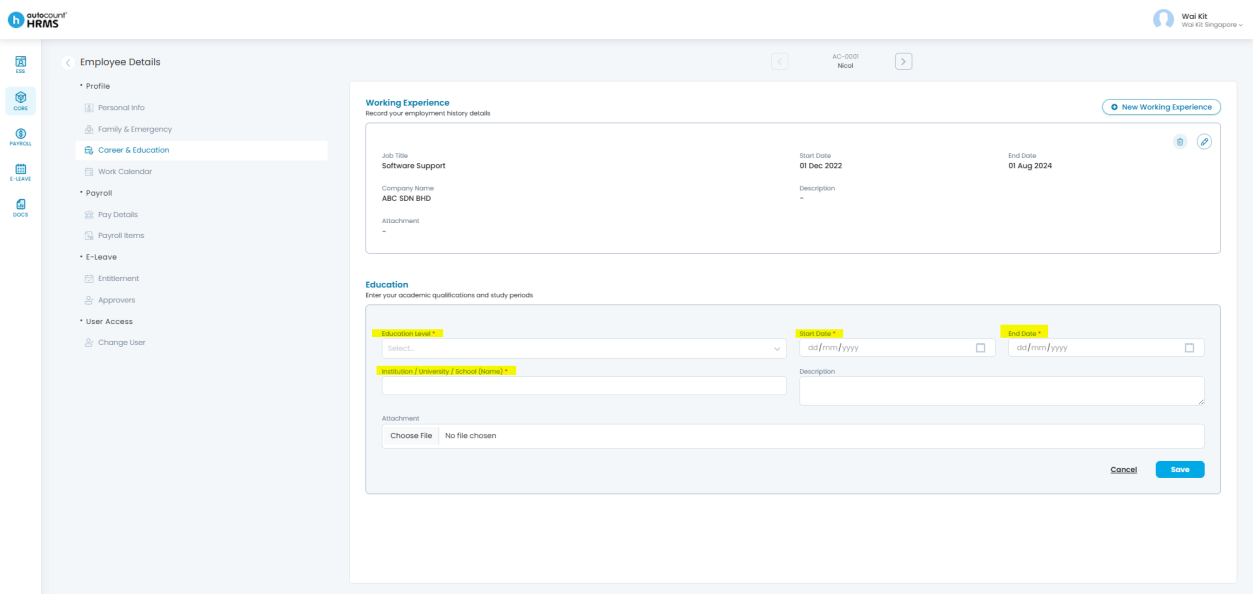
2. Enter the required information.
- Fields with a red asterisk (*) are mandatory.
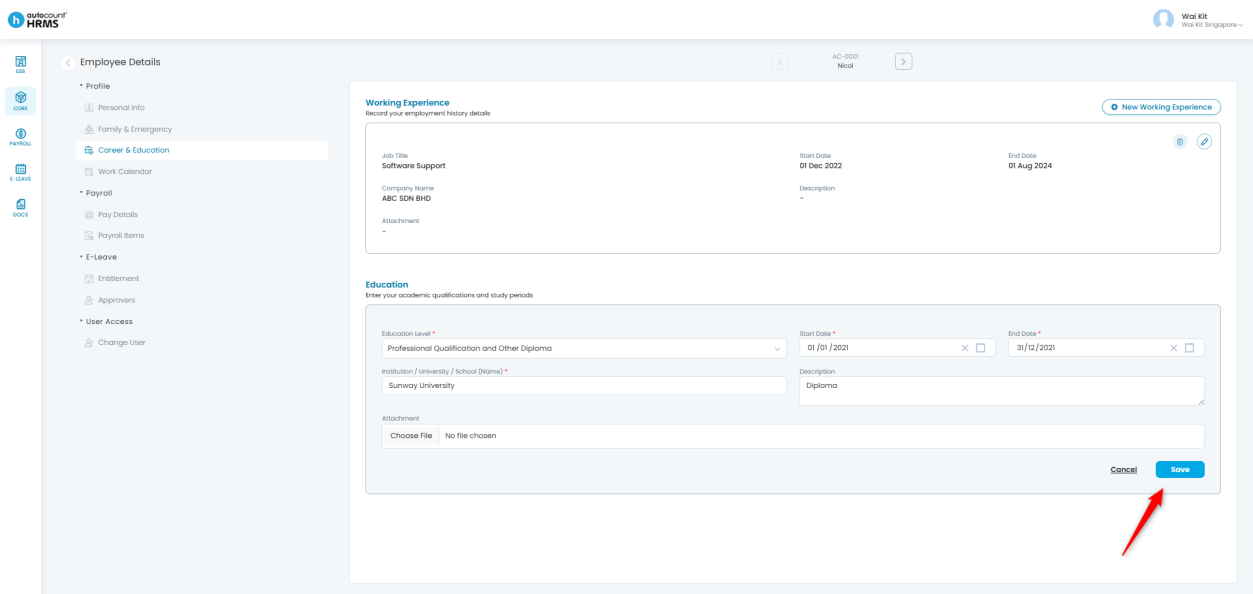
3. Click Save to apply the changes.
Update an Existing Record
- Go to the education entry you want to update and click the pencil icon.
- Make the changes and click Save.
Delete a Record
- Locate the education entry you want to delete.
- Click the bin icon to remove it.
Prepared by: Giam Wai Kit (20251114)
Reviewed by: Tek Ee Lin (20251119)