
Maintaining accurate employee pay details is essential for payroll processing in HRMS. These details are used to calculate salary payments, statutory contributions, and support statutory submissions such as CPF, SDL, and IRAS reporting.
Steps to Maintain Employees’ Pay Details:
1. Go to Core > Employee.
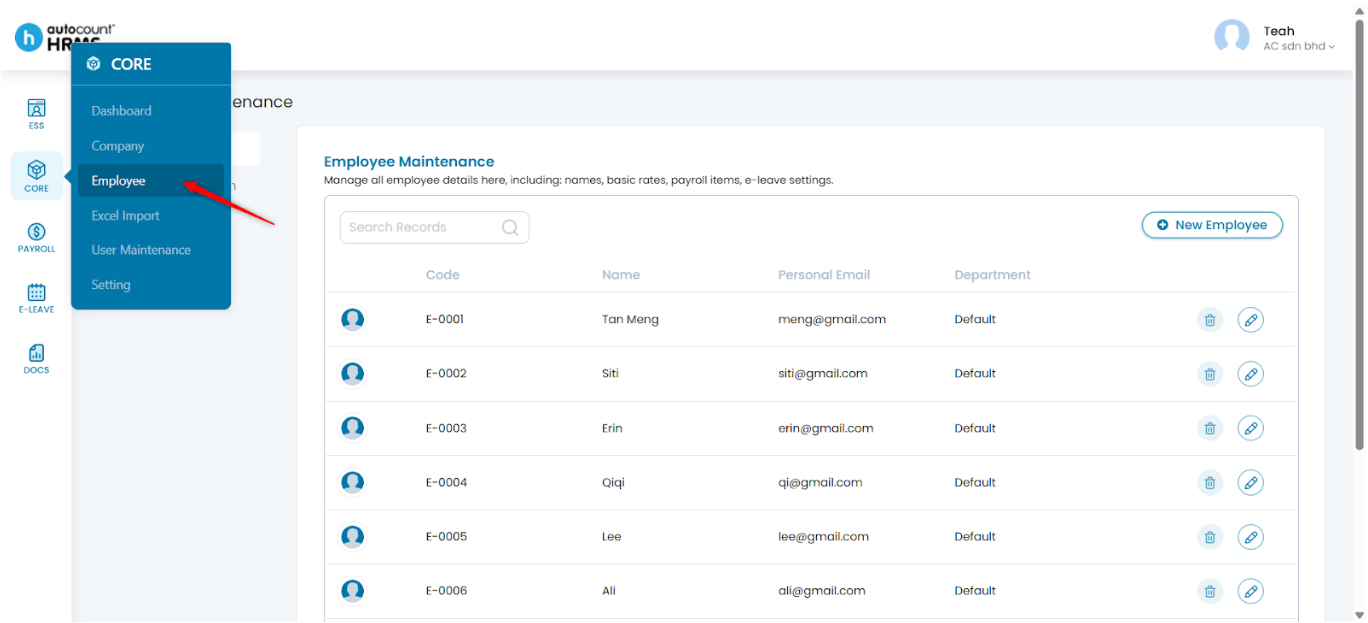
2. Under Employee Maintenance, click Employee.
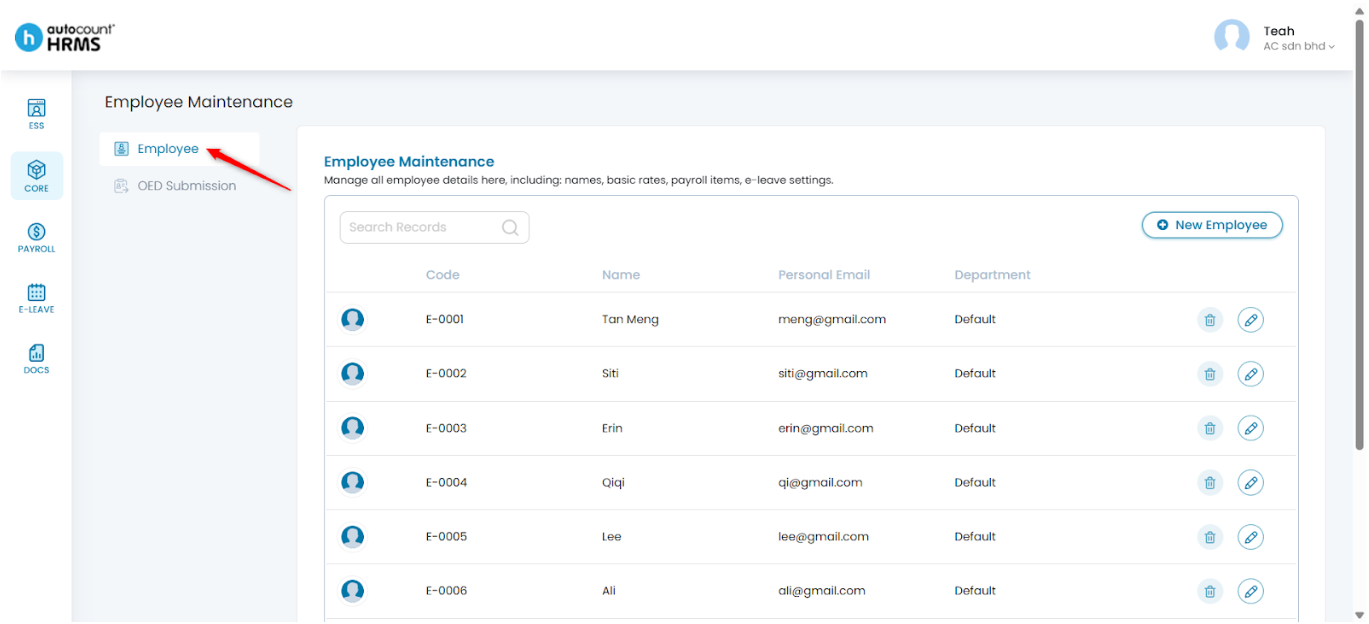
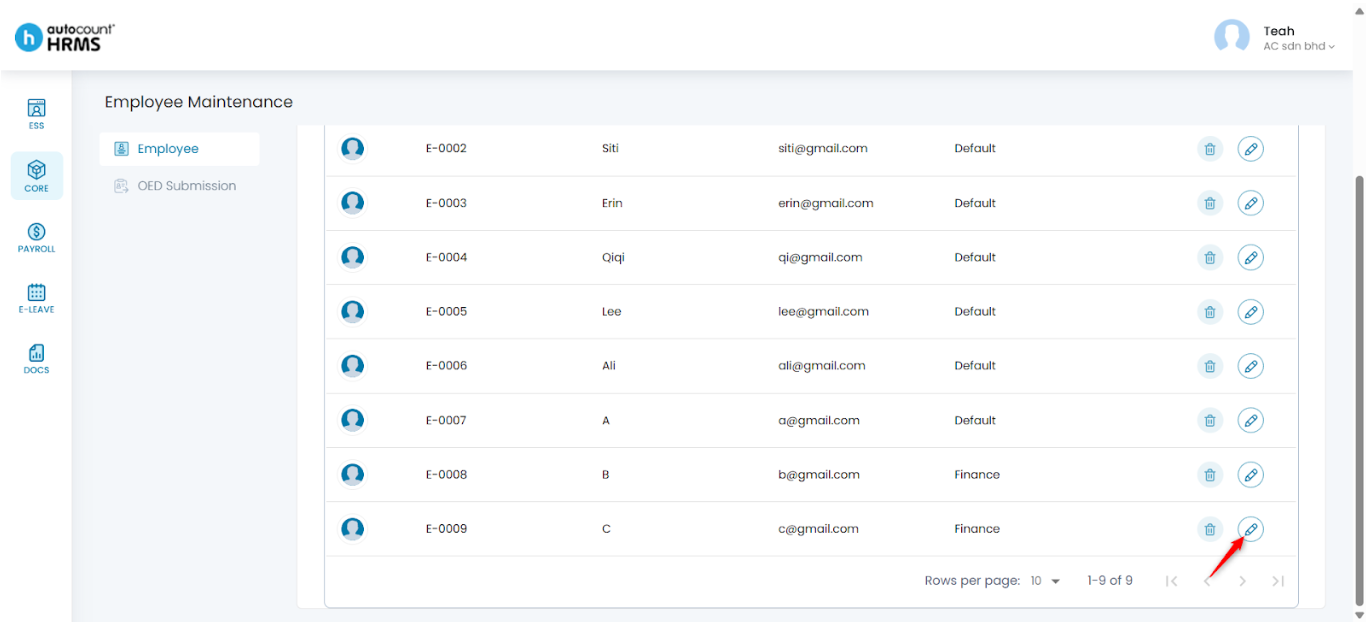
3. Locate the employee whose information you wish to update.
4. Click the pencil icon beside the employee’s name.
5. Under Employee Details, go to Pay Details.
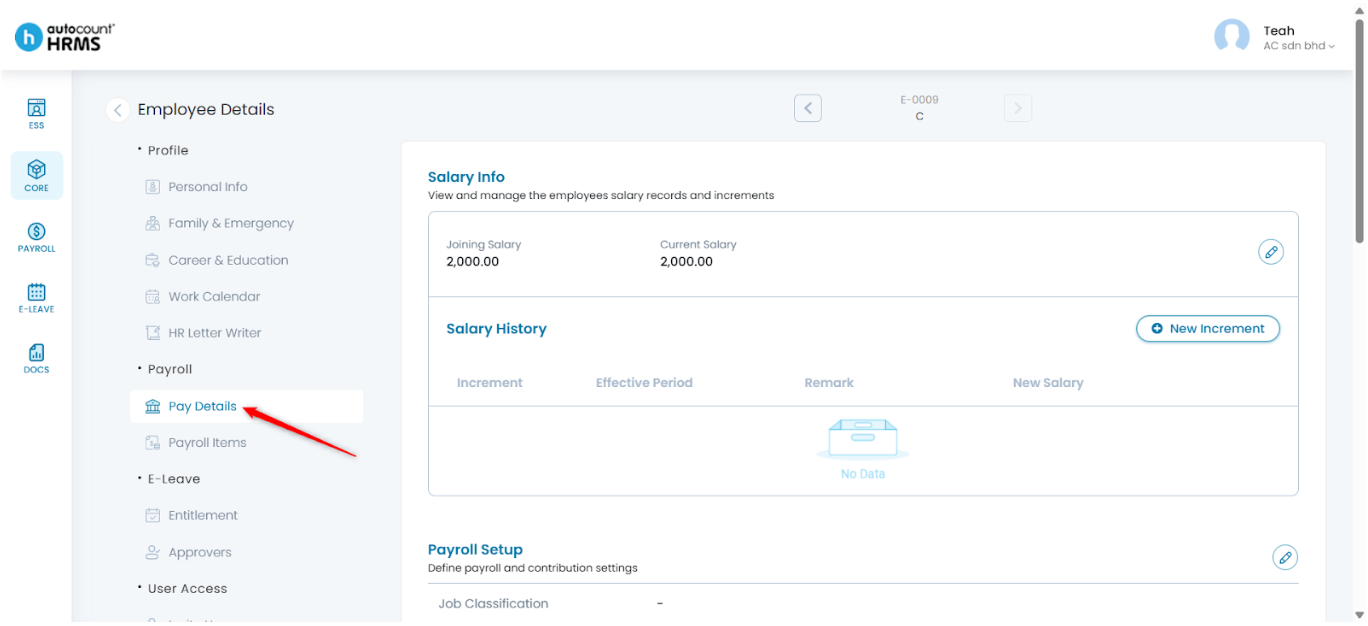
The Pay Details page consists of the following sub-categories:
- Salary Info
- Payroll Setup
- Bank Info
- Self-Help Groups Funds
- IRAS Submission Details
A. Salary Info
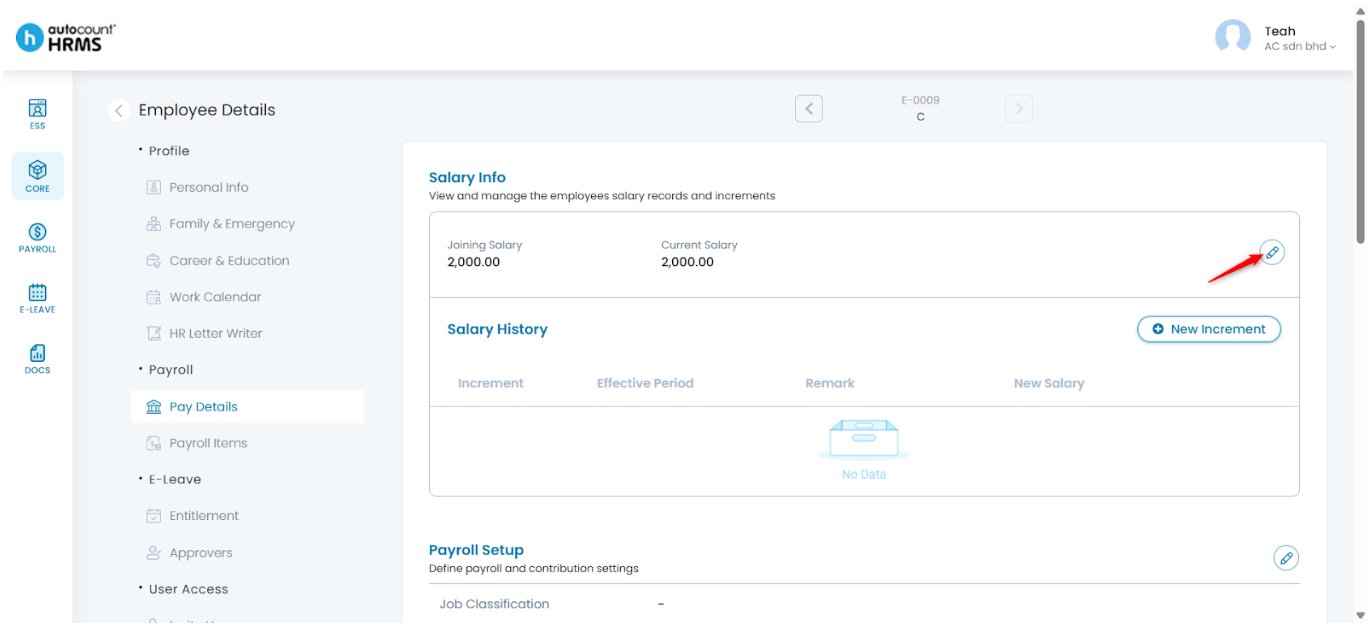
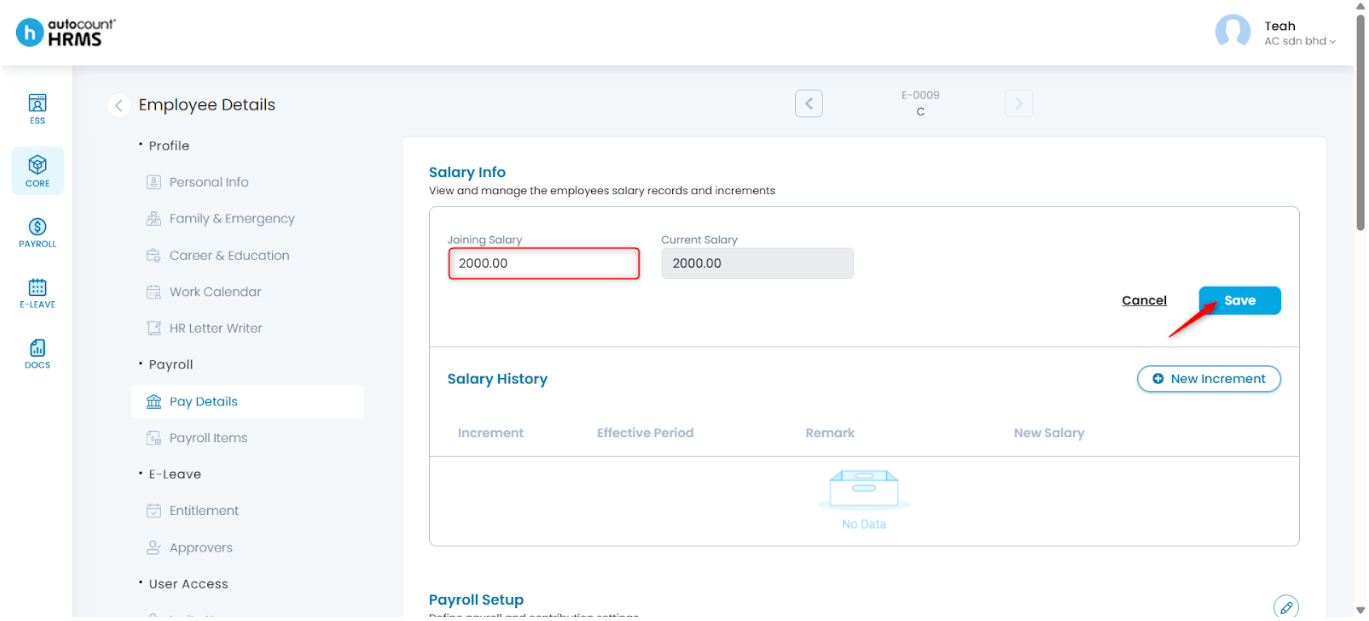
Steps to Edit an Employee’s Joining Salary:
1. Click the pencil icon in the Salary Info section.
2. Update the joining salary amount. Click Save.
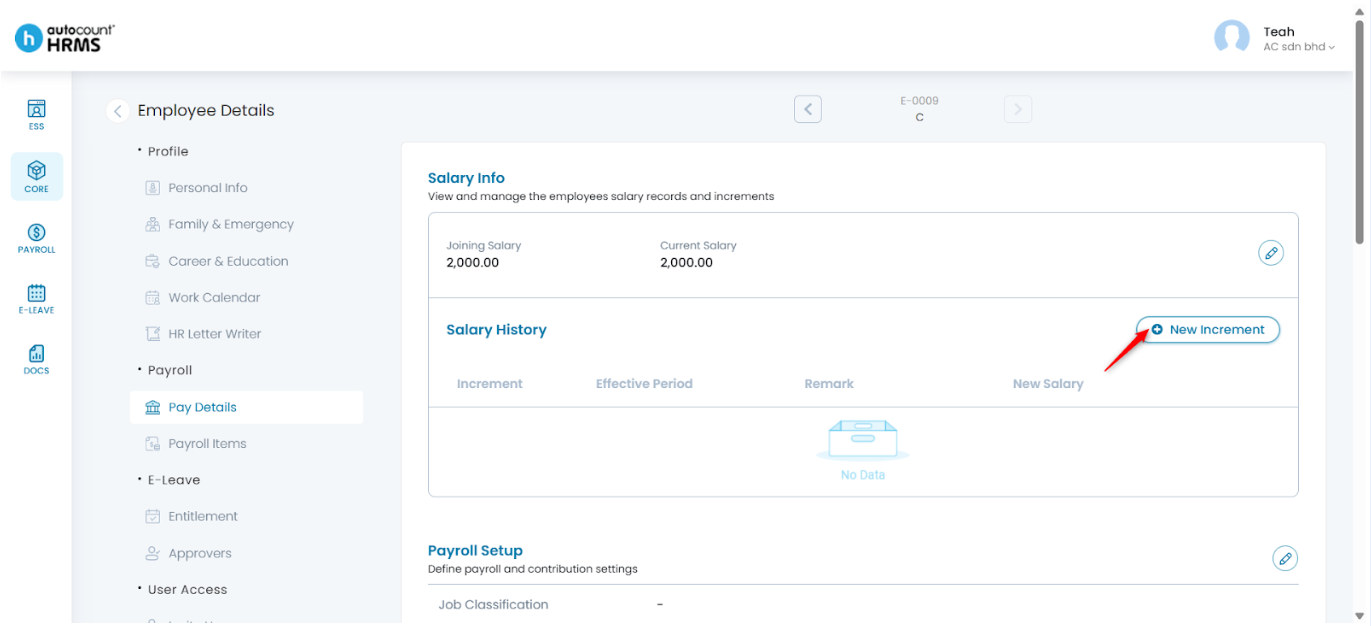
Steps to Increase an Employee’s Salary:
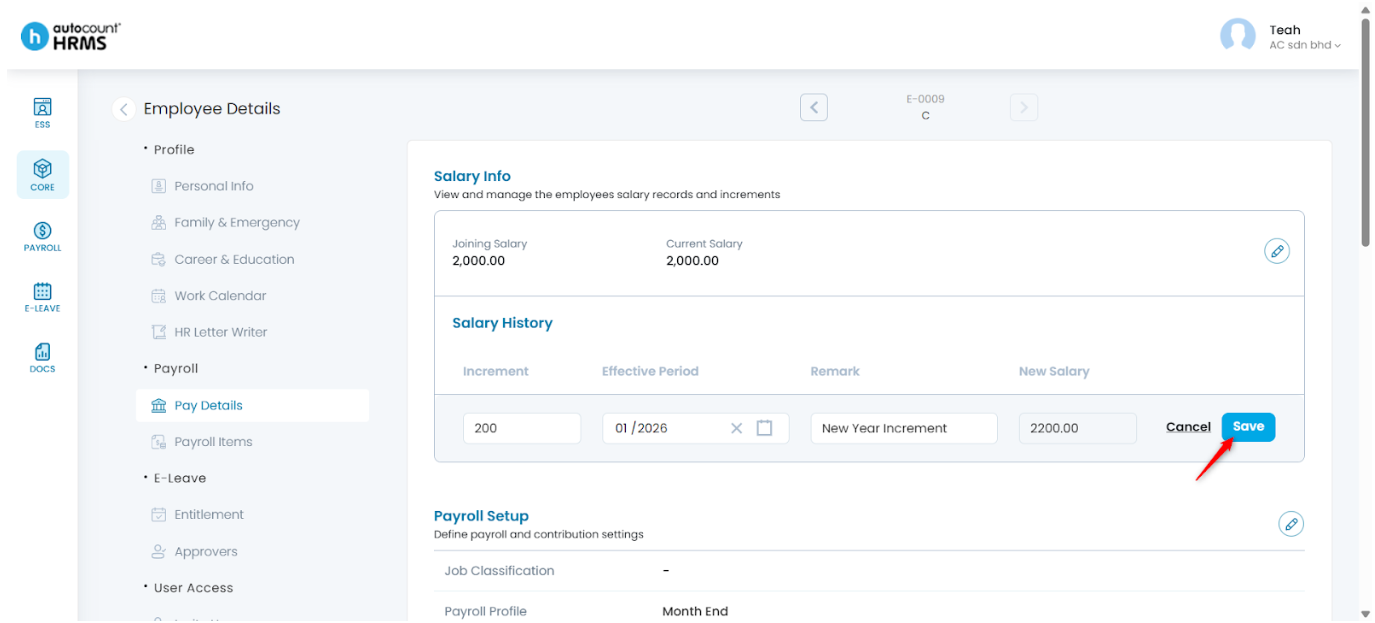
1. Click New Increment.
2. Enter and review the following details:
- Increment – Enter the increment amount.
- Effective Period – Select the starting month using the calendar icon.
- Remark – Enter a short description.
- New Salary – Review the amount calculated automatically by the system.
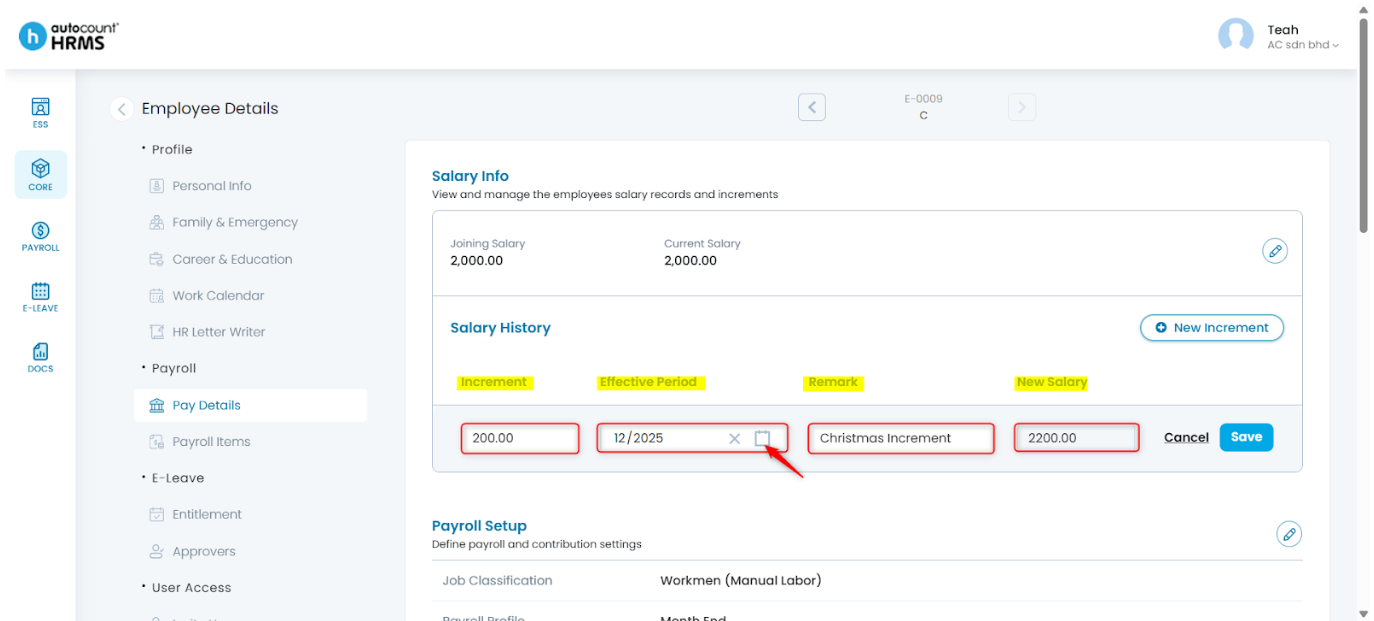
3. Click Save to apply the increment.
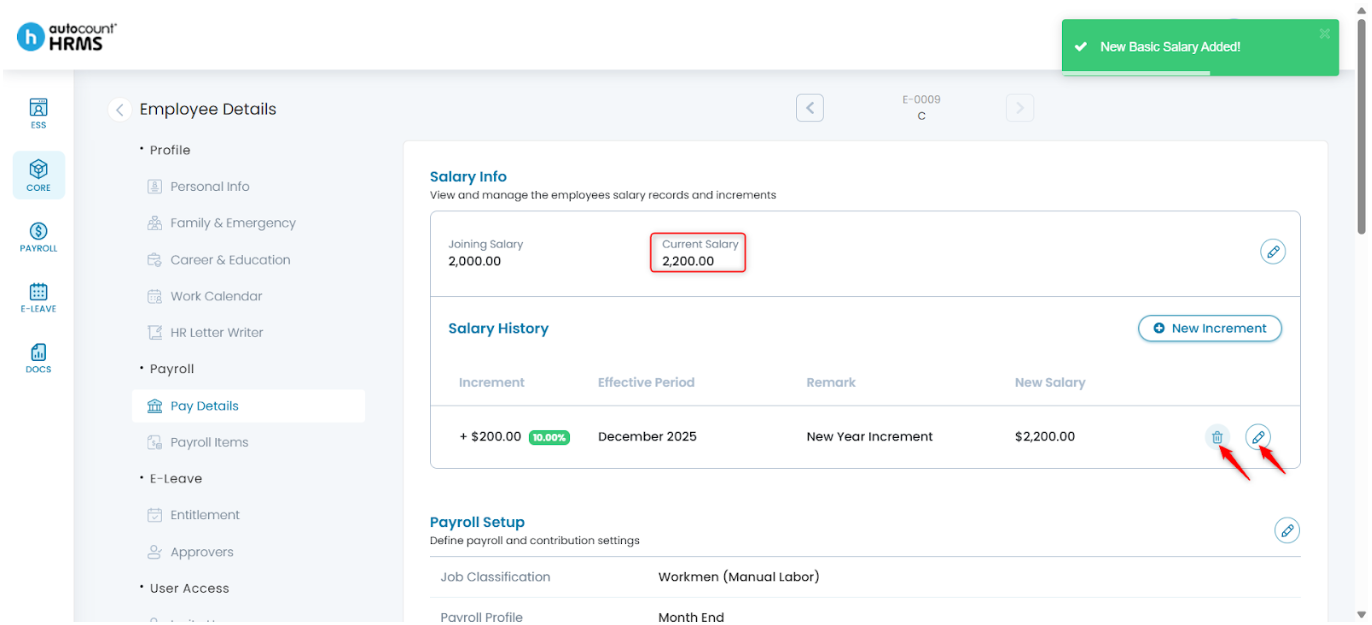
4. The Current Salary will update automatically during the effective period.
- To edit, click the pencil icon, make changes, then click Save.
- To delete, click the trash bin icon, then click Yes to confirm.
B. Payroll Setup
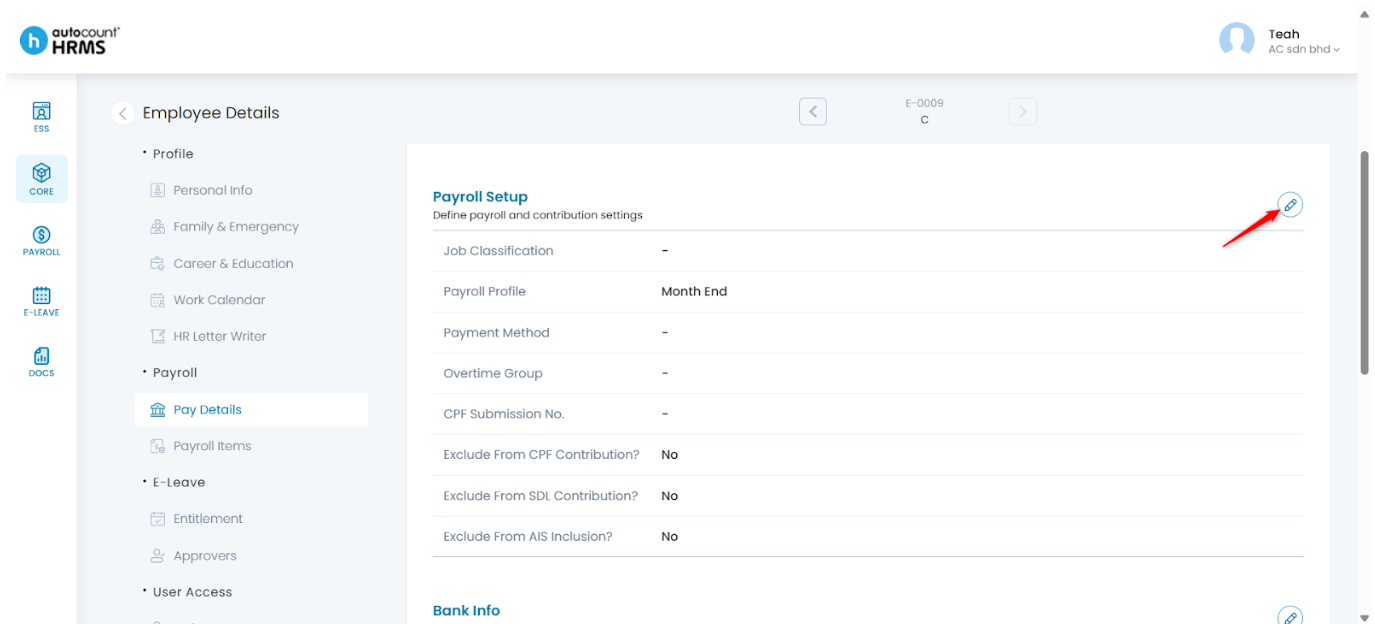
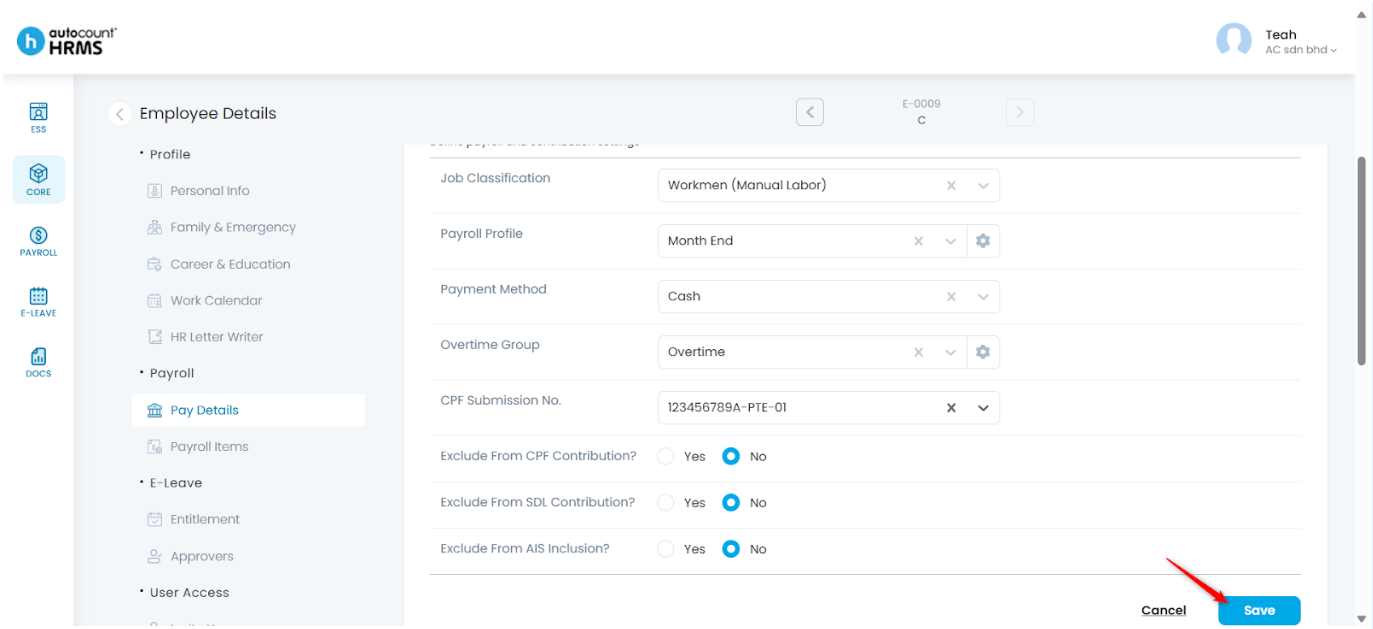
1. Click the pencil icon in the Payroll Setup section.
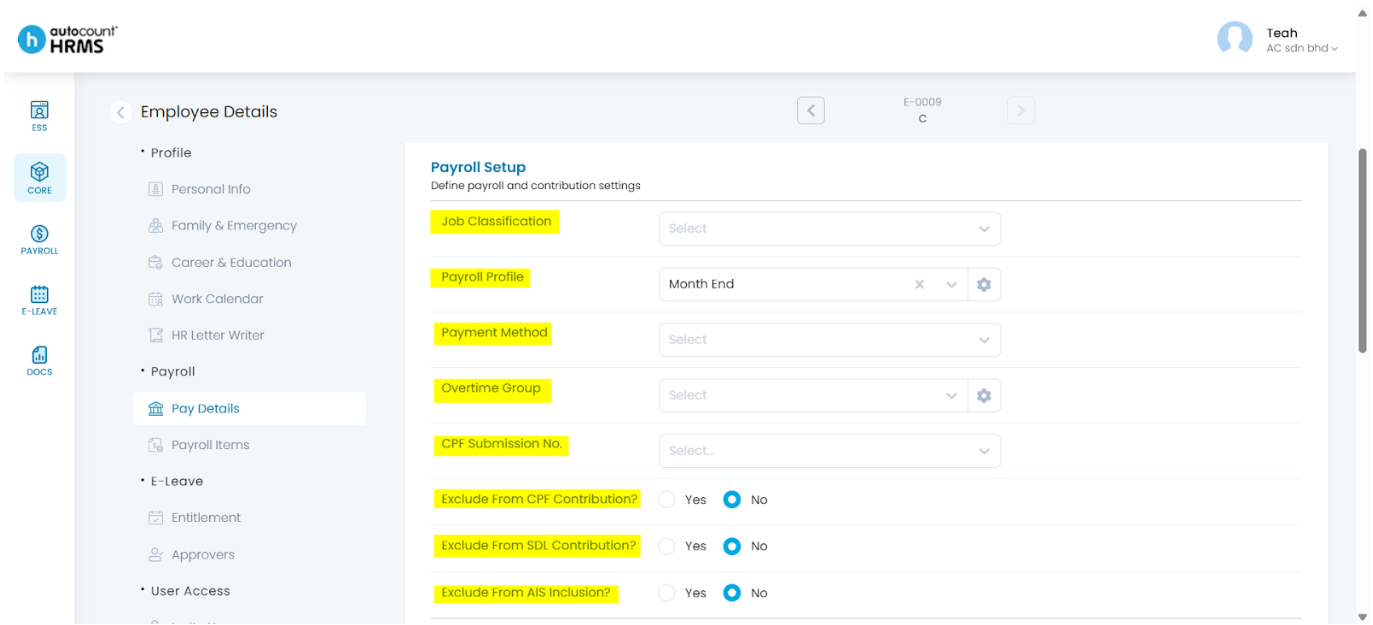
2. Complete the following fields:
- Job Classification – Select from the dropdown list.
- Payroll Profile – Select from the dropdown list. Click the setting icon, to modify options:
- Edit selected profile – Click the pencil icon. You will be redirected to the Payroll Profile page.
- Create a new profile – Click the add (+) icon. You will be redirected to the Payroll Profile page. Tip: Refer to Create a new Payroll Profile.
Refresh the dropdown list – Click the refresh icon.
Payment Method – Select Bank Transfer, Cash, or Cheque.
Overtime Group – Select from the dropdown list. Click the setting icon to manage overtime groups:
Edit selected group – Click the pencil icon. Modify details at the Update Overtime panel, then click Save.
Create a new group – Click the add (+) icon. Enter the details at the New Overtime panel, then click Save.
Refresh list – Click the refresh icon.
CPF Submission No. – Select the CPF submission number.
Exclude From CPF Contribution? – Select Yes or No.
Exclude From SDL Contribution? – Select Yes or No.
Exclude From AIS Inclusion? – Select Yes or No.
3. Click Save.
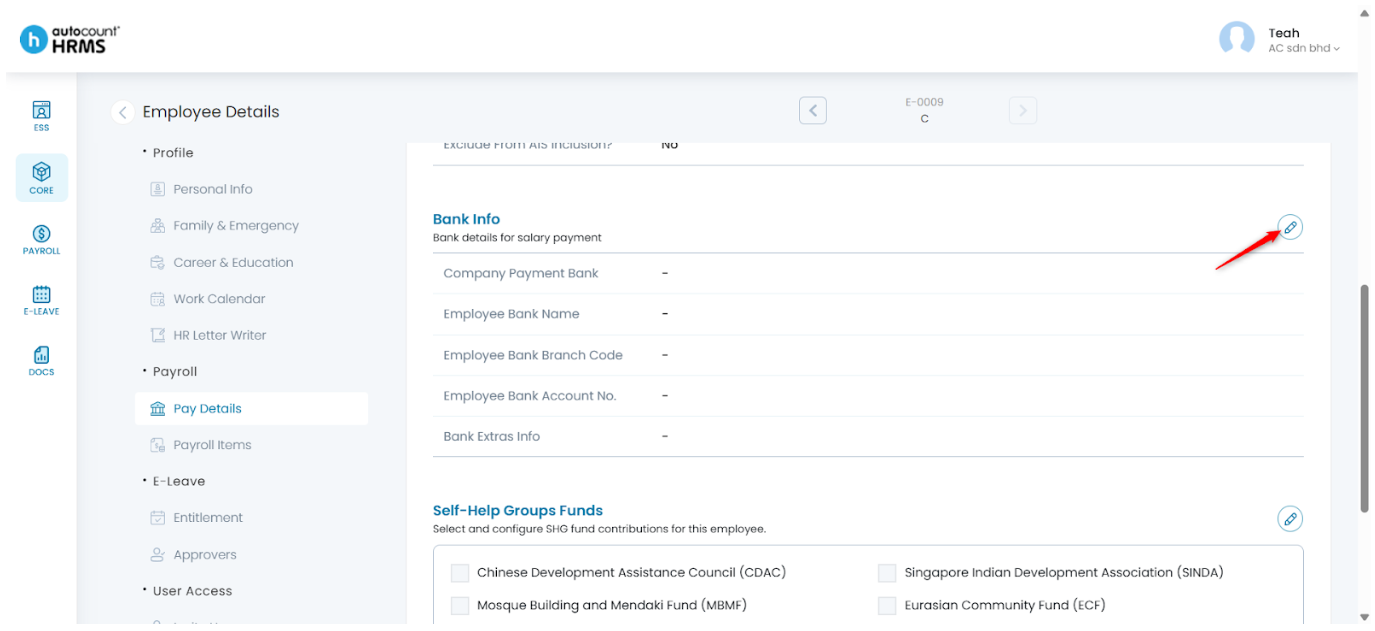
C. Bank Info
1. Click the pencil icon in the Bank Info section.
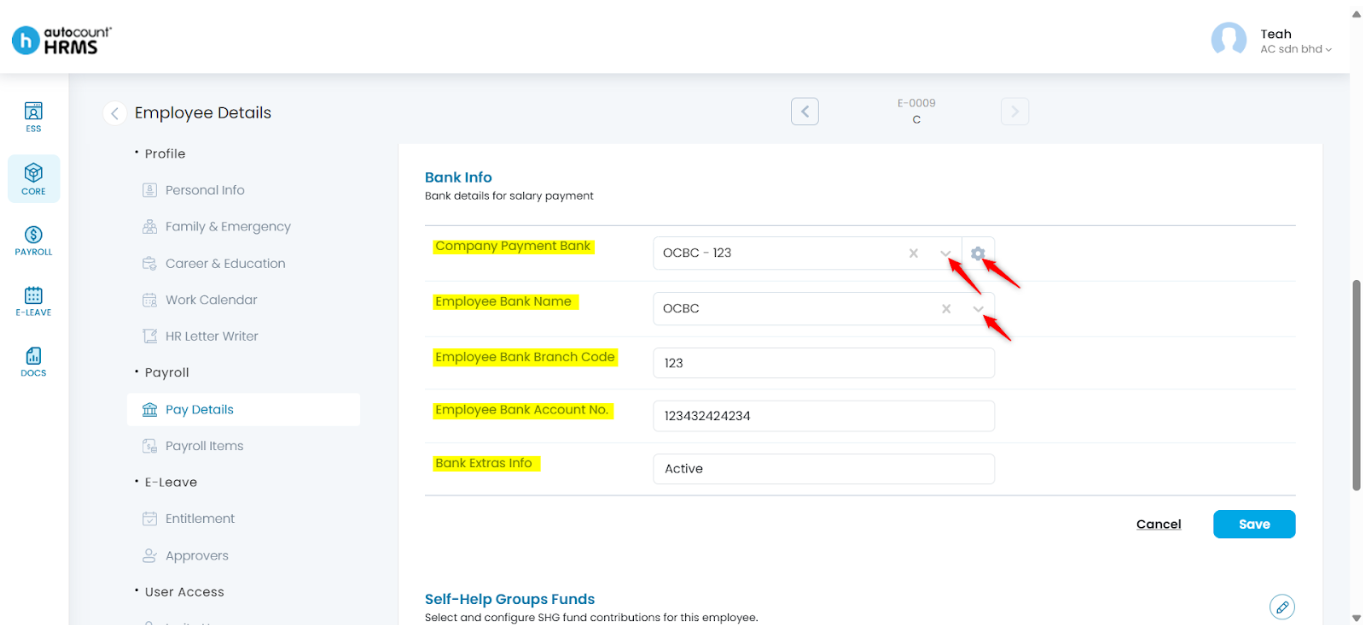
2. Enter or update the following details:
- Company Payment Bank – Select from the dropdown list. Click the setting iconto manage bank accounts:
- Edit selected account – Click the pencil icon. Modify the details at the Update Bank Account panel, then click Save.
- Add a new account – Click the add (+) icon. Enter details at the Add New Bank Account panel, then click Save.
- Refresh the dropdown list – Click the refresh icon.
- Employee Bank Name – Select the bank name.
- Employee Bank Branch Code – Enter the branch code.
- Employee Bank Account No. – Enter the account number.
- Bank Extra Info – Enter any additional bank information.
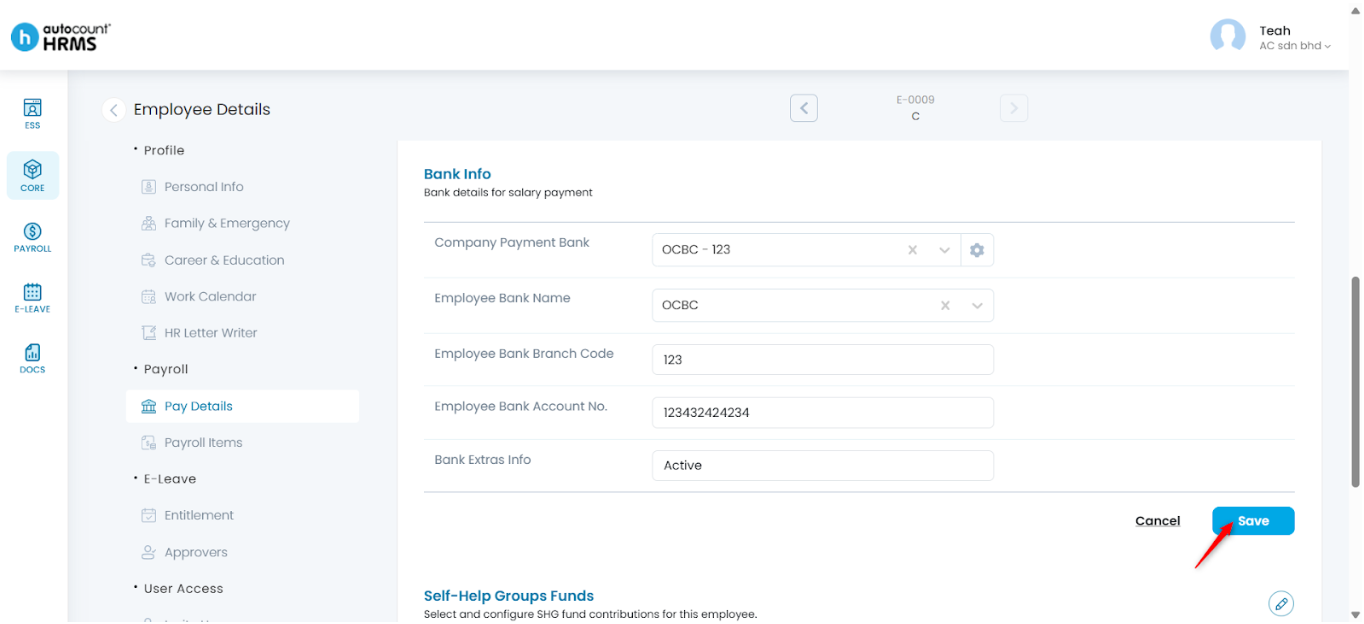
3. Click Save.
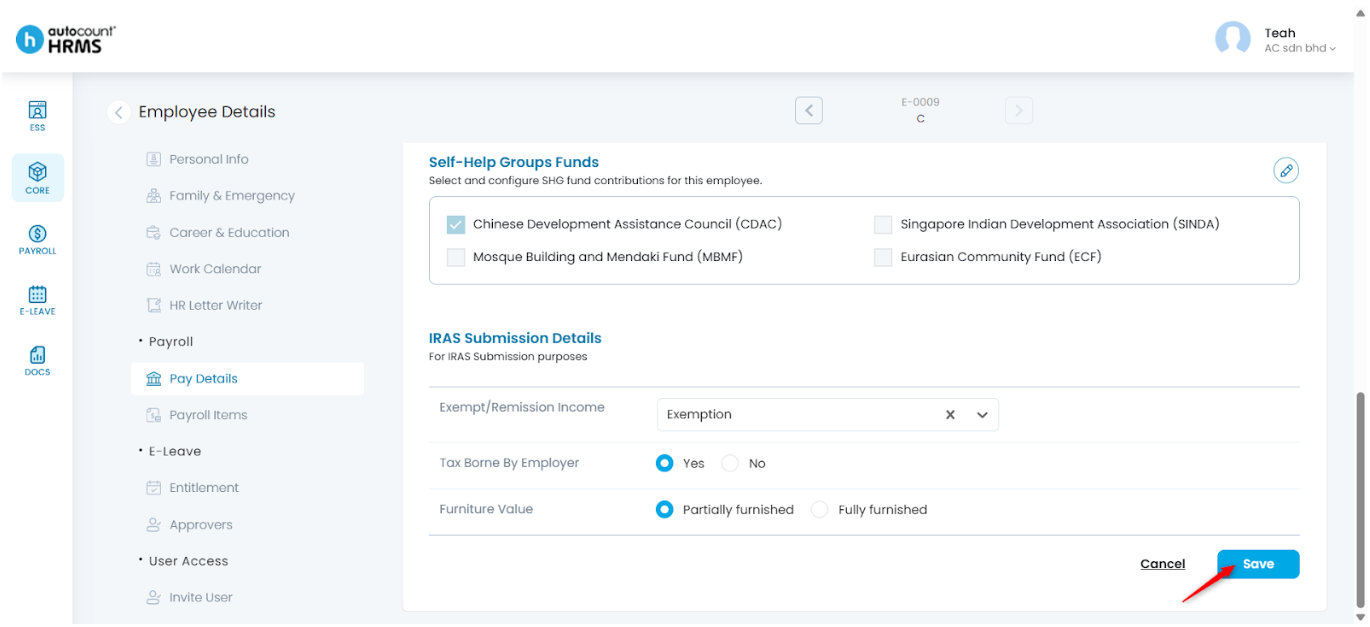
D. Self-Help Groups Funds
1. Click the pencil icon in the SHG Funds section.
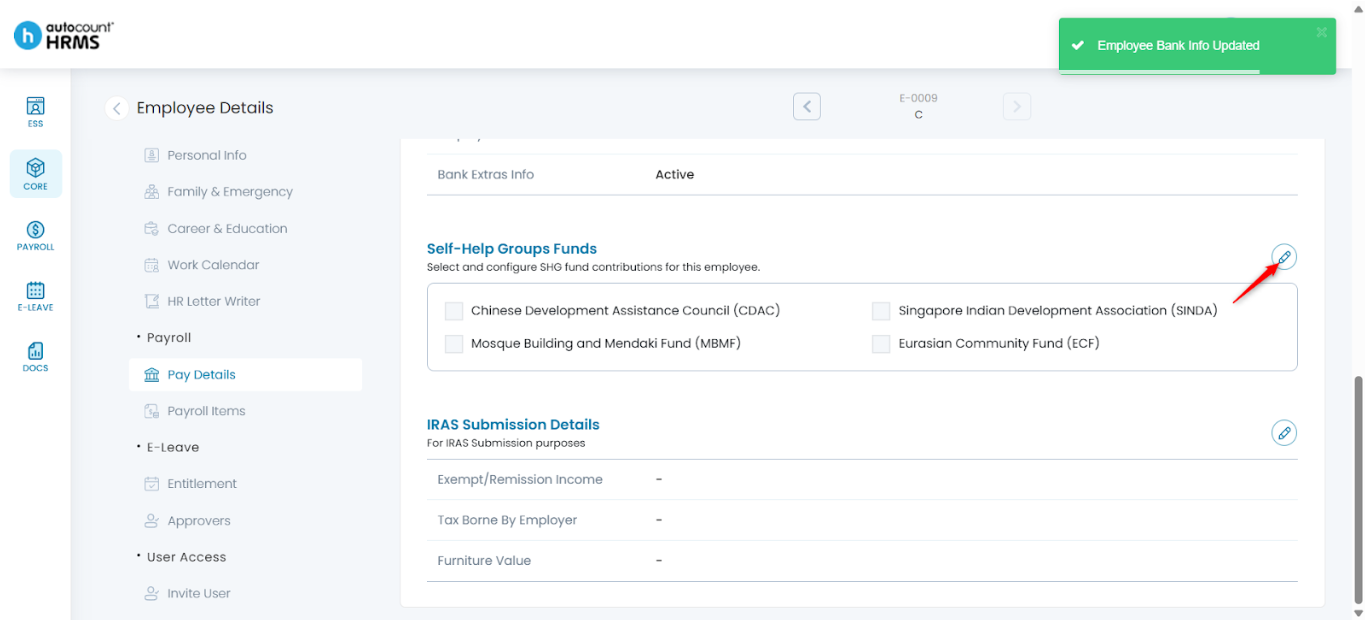
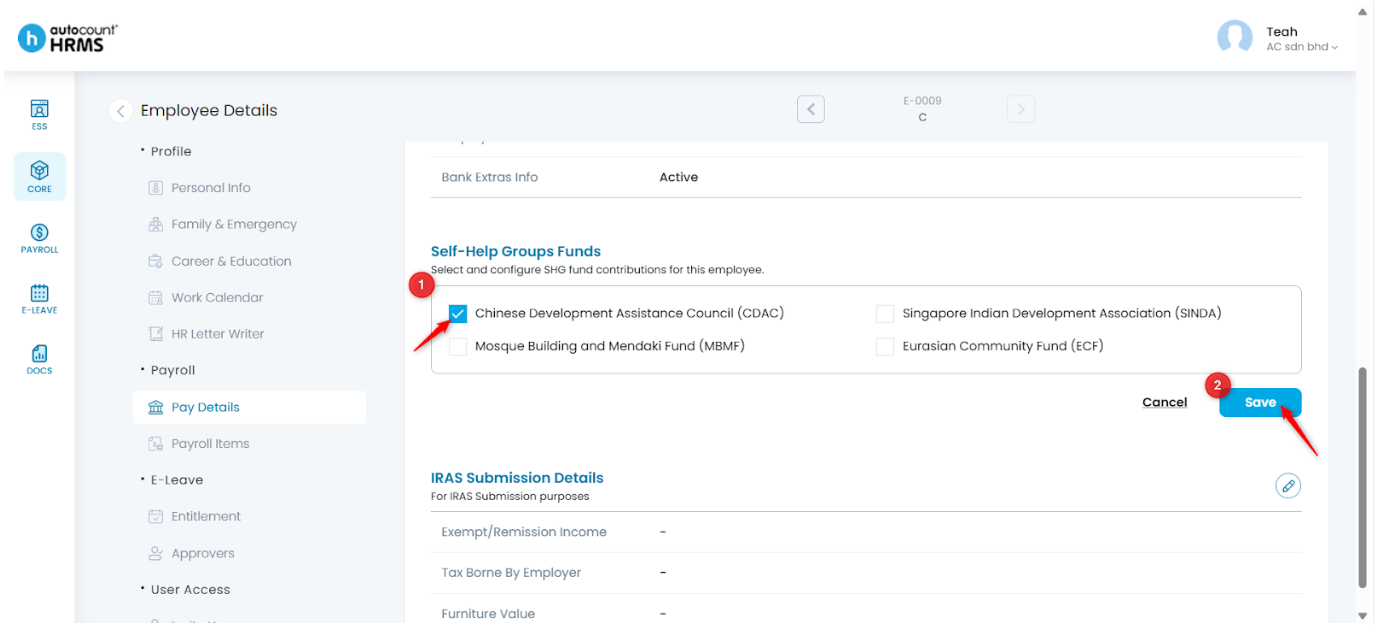
2. Tick the applicable SHG fund(s) for the employee. Click Save.
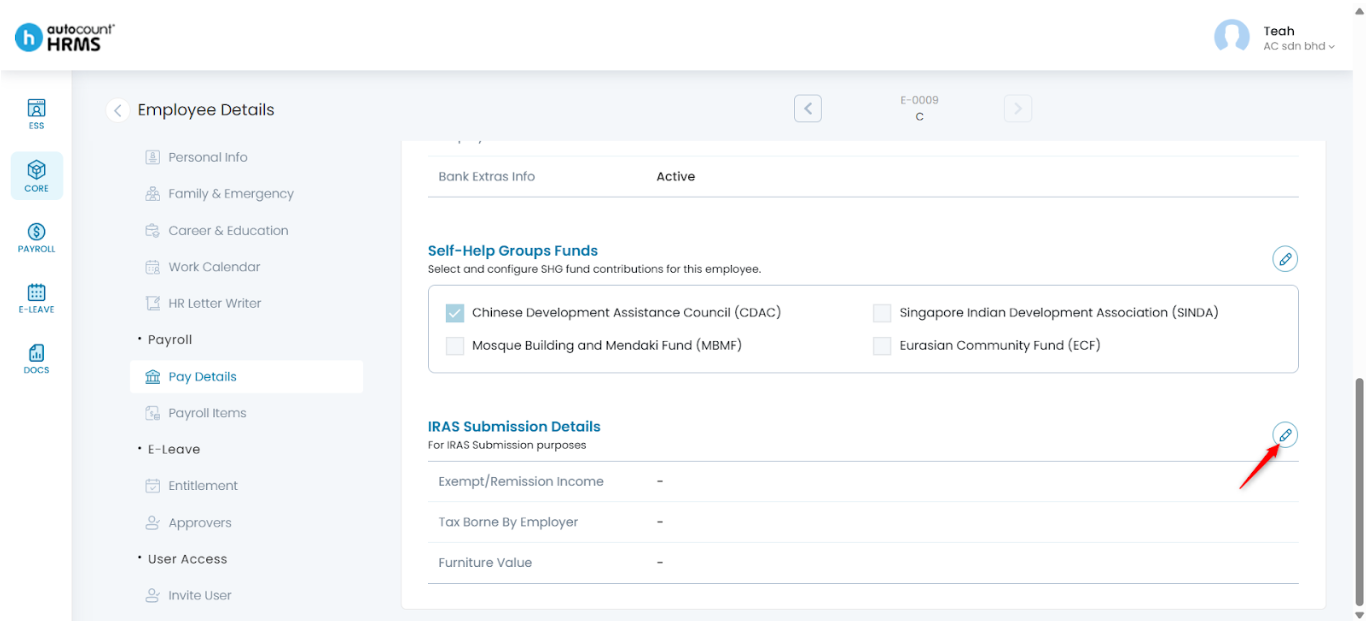
E. IRAS Submission Details
1. Click the pencil icon in the IRAS Submission Details section.
2. Complete the following fields:
- Exempt / Remission Income – Select from the dropdown list.
- Tax Borne by Employer – Select Yes or No.
- Furniture Value – Select Partially or Fully Furnished.
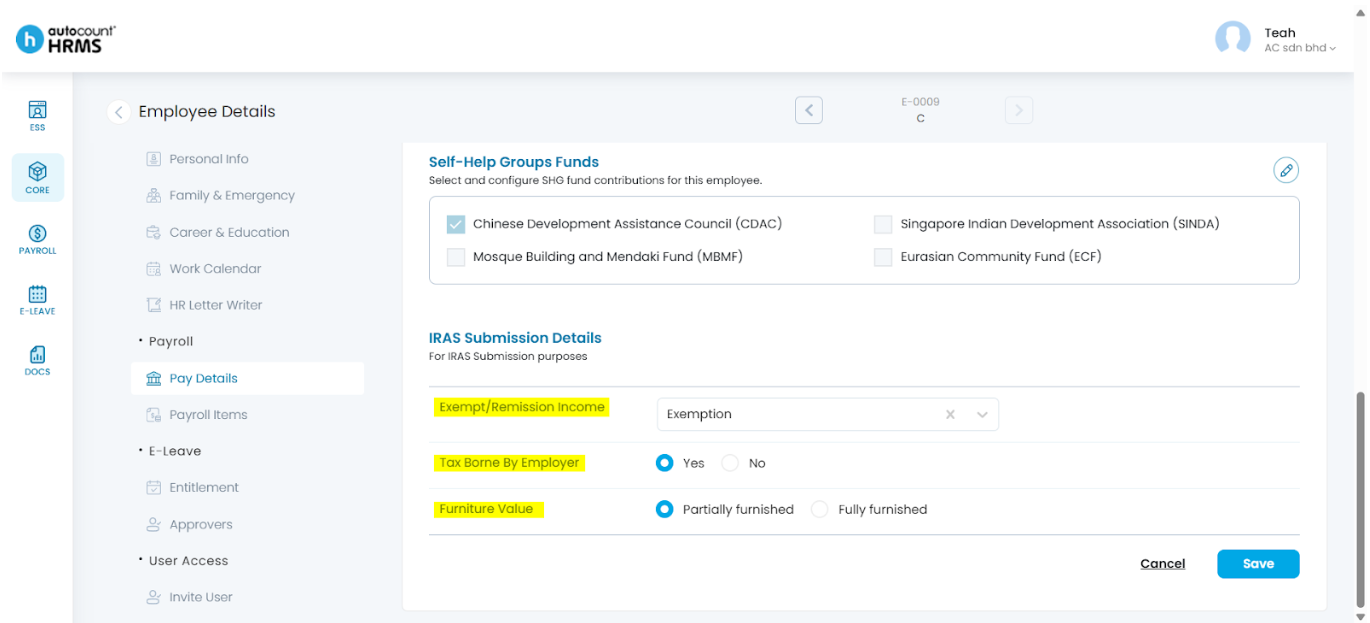
3. Click Save.
Written by: Teah Rui Harn (20251226)
Reviewed by: Tek Ee Lin (20260107)