
You can reset additional payroll items that were added after a payroll run when using the Payroll Profile method by clicking on Reset located at the three-dot icon next to an employee.
Please note that additions and deductions that are pre-planned and generated via Time Attendance (TA) Import cannot be reset.
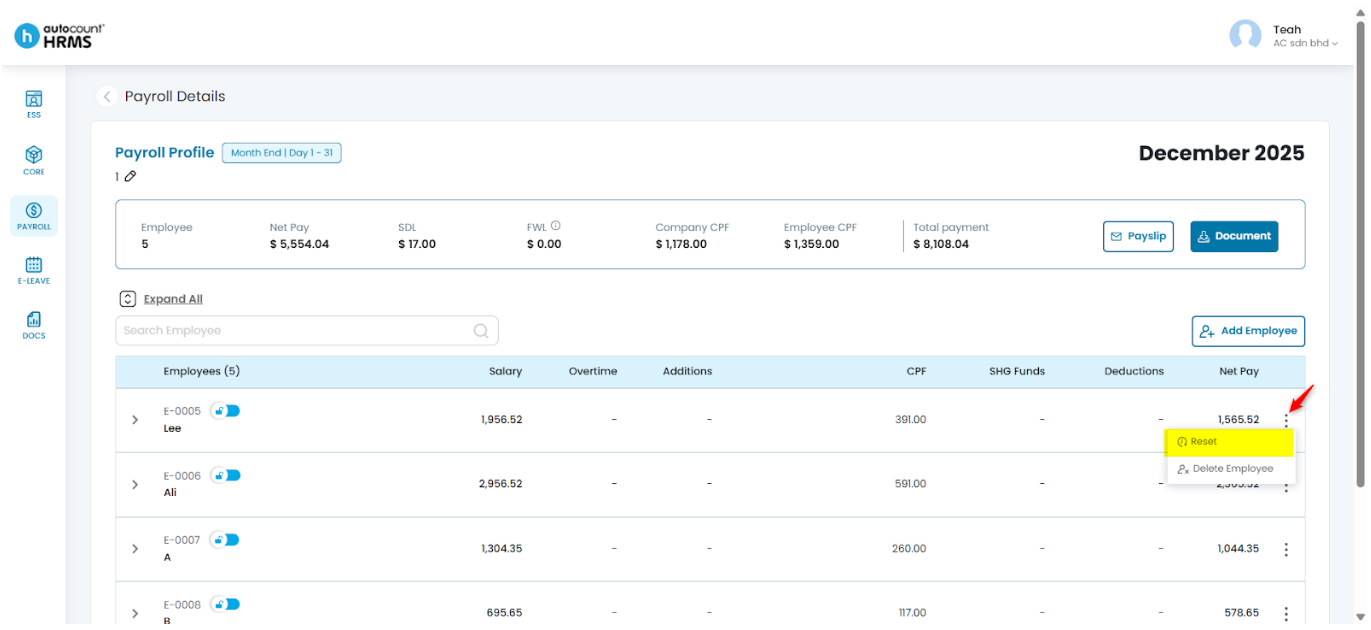
To reset a previously run payroll,
- Go to Payroll > Payroll Process.
- Click Payroll Month, select the relevant month and year, then open Month History.
- Click the pencil icon next to the payroll run to open the Payroll Process Details page.
- Click the three-dot icon next to the employee whose payroll you want to reset.
- Select Reset to remove the additional payroll items added after the payroll run.
- Click Reset again to confirm.
Written by: Teah Rui Harn (20251230)
Reviewed by: Tek Ee Lin (20260108)