
After finalising a payroll run and confirming that all payroll items are accurate, you can lock an employee’s payroll to prevent further changes at the Payroll Process details page.
Click the lock icon next to the employee’s payroll to lock it. Once locked, the lock icon will change from blue to grey, indicating that the payroll is no longer editable.
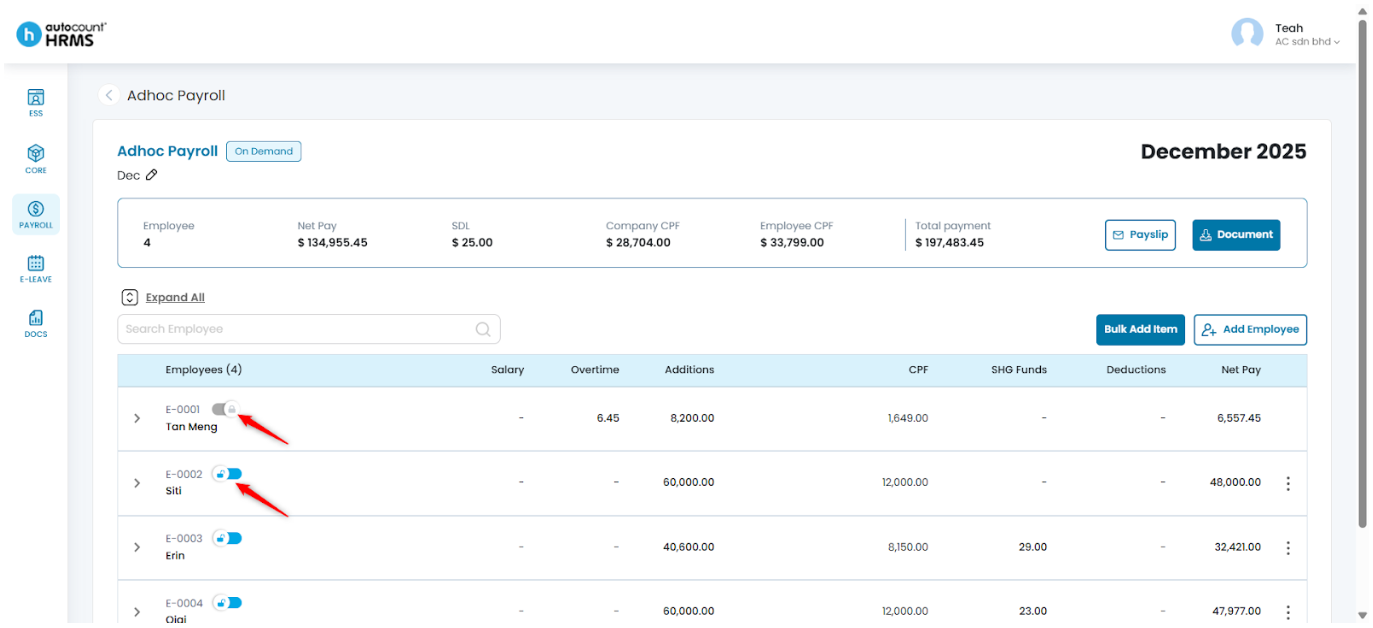
To lock the previously run payroll:
- Go to Payroll > Payroll Process.
- Click Payroll Month, select the required month and year, then open Month History.
- Click the pencil icon next to the relevant payroll run to open the Payroll Process Details page.
- Click the lock icon next to the employee’s payroll.
Written by: Teah Rui Harn (20251231)
Reviewed by: Tek Ee Lin (20260108)