
After a payroll run has been created, you can still include additional employees in the payroll through the Payroll Process details page.
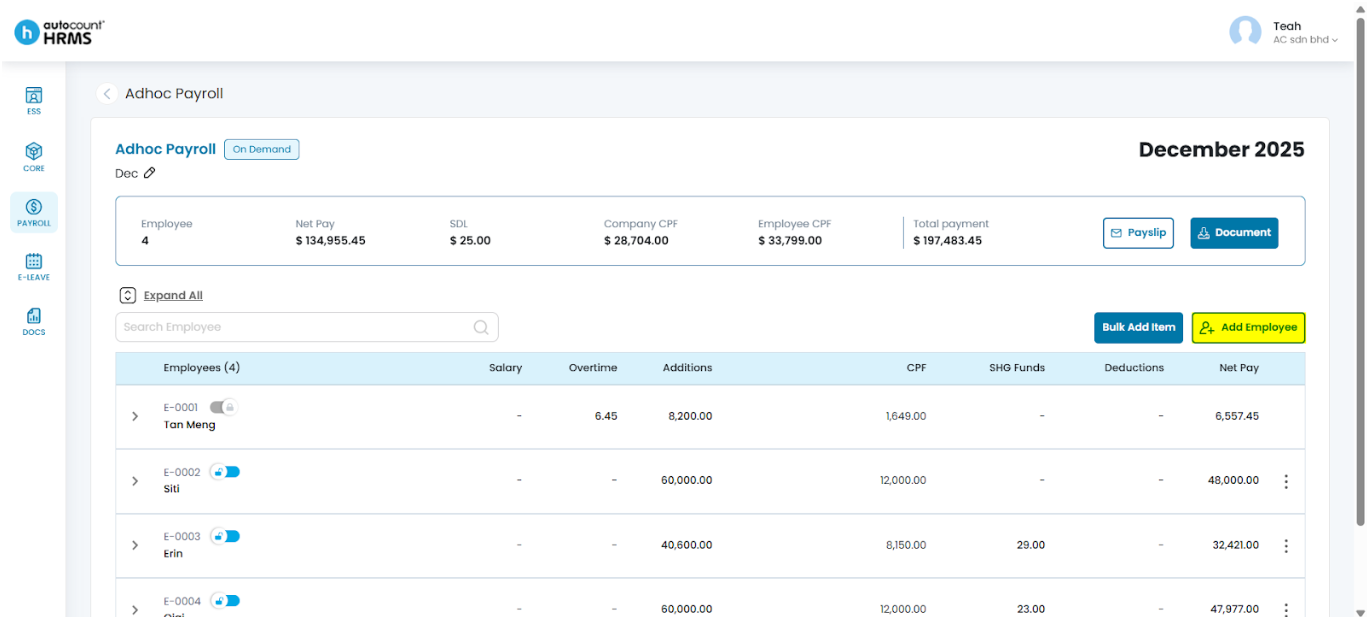
Steps to Add an Employee into the Payroll Process after Payroll Run:
If you are adding employees immediately after running payroll, remain on the Payroll Process Details page and proceed from Step 4.
If you are adding employees at a later time, follow the steps below from Step 1.
- Go to Payroll > Payroll Process.
- Click Payroll Month, select the relevant month and year, then open Month History.
- Click the pencil icon next to the payroll run to open the Payroll Process Details page.
- Click Add Employee.
- Select the employee(s) you want to include, then click Add Employee.
- Click Add to confirm.
Refer to Add and Remove Employee(s) for full instructions on managing employees in a payroll run, including removing employees after payroll processing.
Written by: Teah Rui Harn (20251231)
Reviewed by: Tek Ee Lin (20260108)