Singapore HRMS allows you to post payroll journal entries directly to AutoCount Cloud Accounting.
This guide will be separated into three parts:
- Part (A): Payroll Item Mapping – Assign an item type to each payroll item so the system knows how to categorise it for accounting.
- Part (B): API Key & Account Code Mapping – Generate an API key from Cloud Accounting and map each payroll item to its corresponding account code.
- Part (C): Monthly Payroll Posting – Post the payroll journal to Cloud Accounting after completing the monthly payroll run.
⚠ Important: The system posts all payroll data to Cloud Accounting as a single consolidated entry. Grouping by branch, department, or project is not currently supported.
Part (A): Payroll Item Mapping
Before payroll data can be posted to Cloud Accounting, each payroll item must be assigned an item type. This tells the system how to categorise the item (e.g., as an allowance, deduction, or contribution) when generating the journal entry.
Steps to Assign an Item Type to Payroll Items:
1. Go to Payroll > Setting > Payroll Items.
2. Navigate to the payroll item configuration screen.
3. Select the appropriate item type from the dropdown for each payroll item.
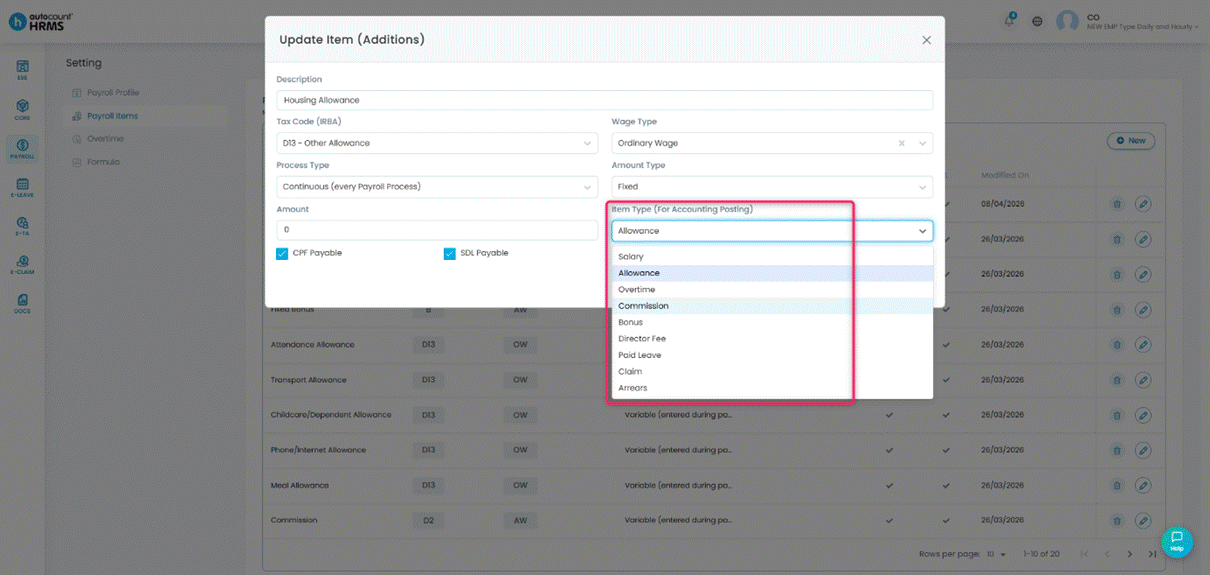
Part (B): Generate API Key & Map Account Codes
In this section, you will connect the HRMS system to your AutoCount Cloud Accounting instance by generating an API key, then map each payroll item to its corresponding account code.
Step 1: Open the Integration Settings
1. Go to Payroll > Integration > Cloud Accounting > Settings.
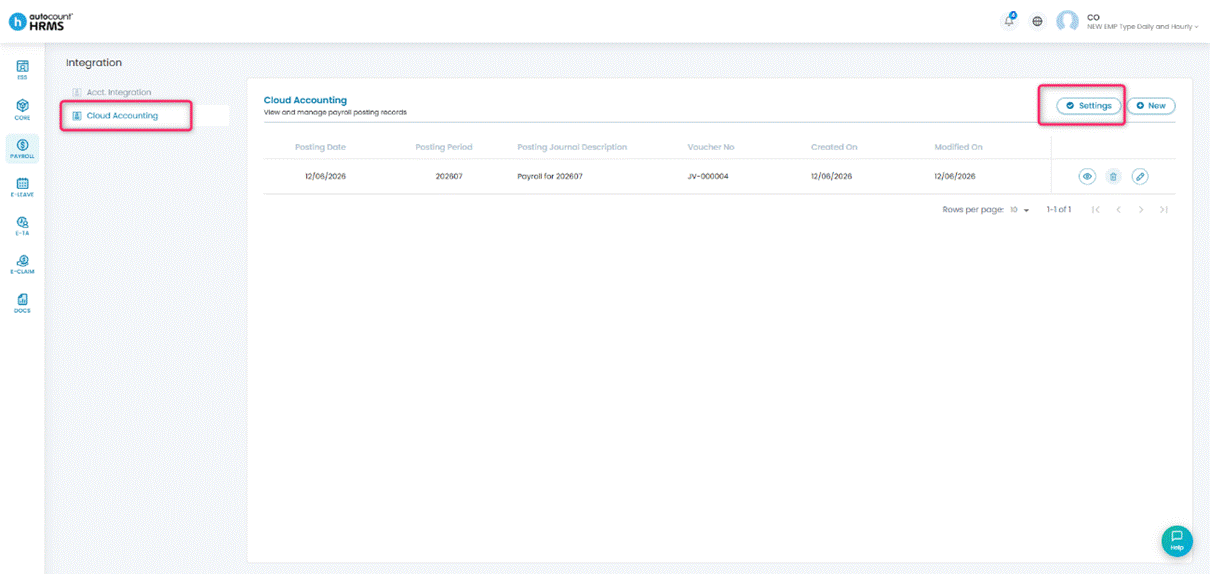
Step 2: Connect and Map Account Codes
Follow the steps below to establish the API connection and assign account codes to each payroll item:
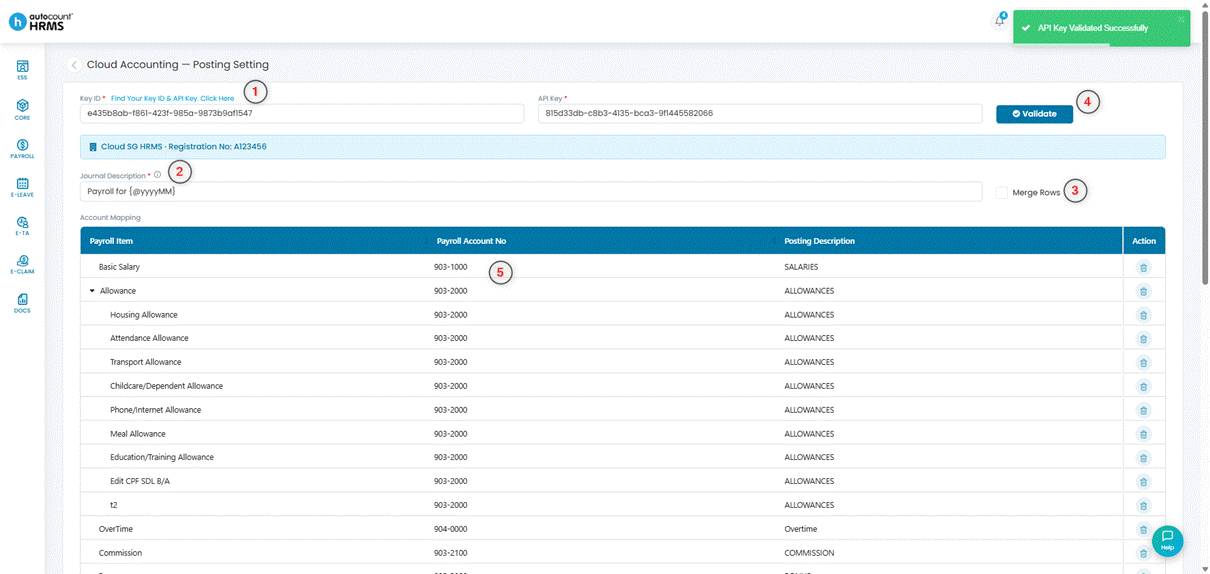
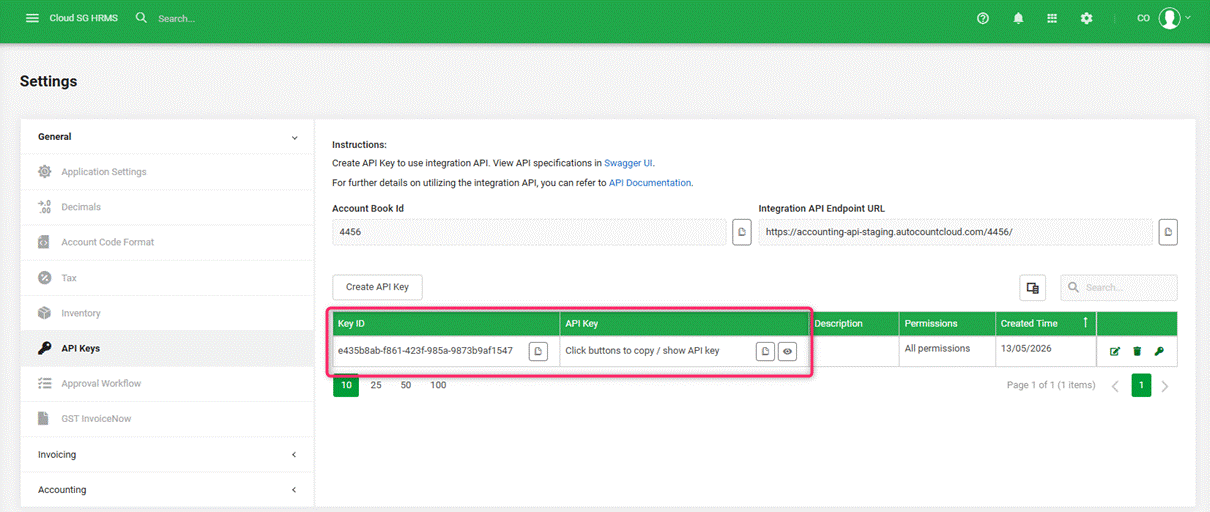
1. Click the provided link to open AutoCount Cloud Accounting and create a new API key.
2. Copy the Key ID and API Key from Cloud Accounting and paste them into the corresponding fields in HRMS.
3. Enter a Journal Description if needed (e.g., "Payroll Journal – March 2026"). This will appear on the journal entry in Cloud Accounting.
4. Enable the Merge Rows option if you want to consolidate similar line items into a single row.
5. Click Validate to verify the API connection. A success message will confirm the connection is active.
6. Once validation is successful, assign the appropriate Cloud Accounting account number to each payroll item listed below.
7. Click Save when all mappings are complete.
Part (C): Monthly Payroll Posting
Once the monthly payroll has been processed and finalised, use this section to post the payroll journal entry to Cloud Accounting.
Step 1: Create a New Posting
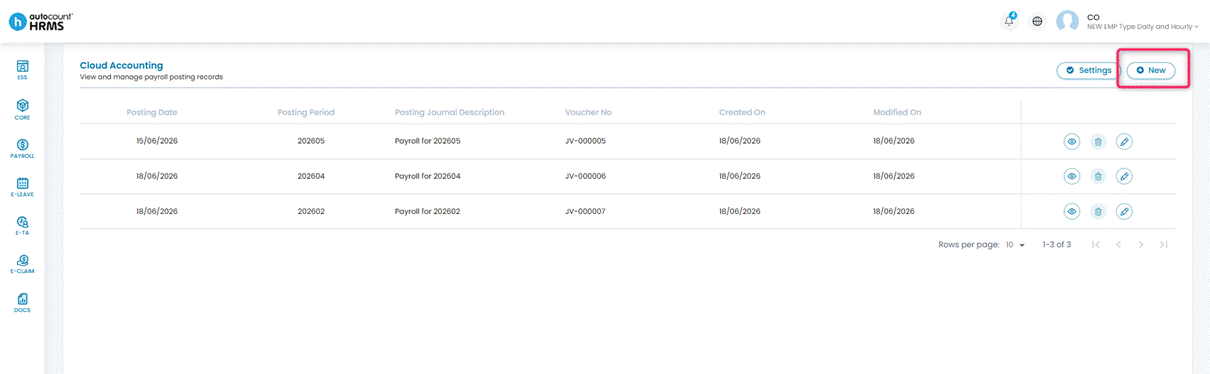
1. Go to Payroll > Integration > Cloud Accounting.
2. Click New.
Step 2: Configure and Post the Journal
Fill in the posting details and review the summary before submitting:
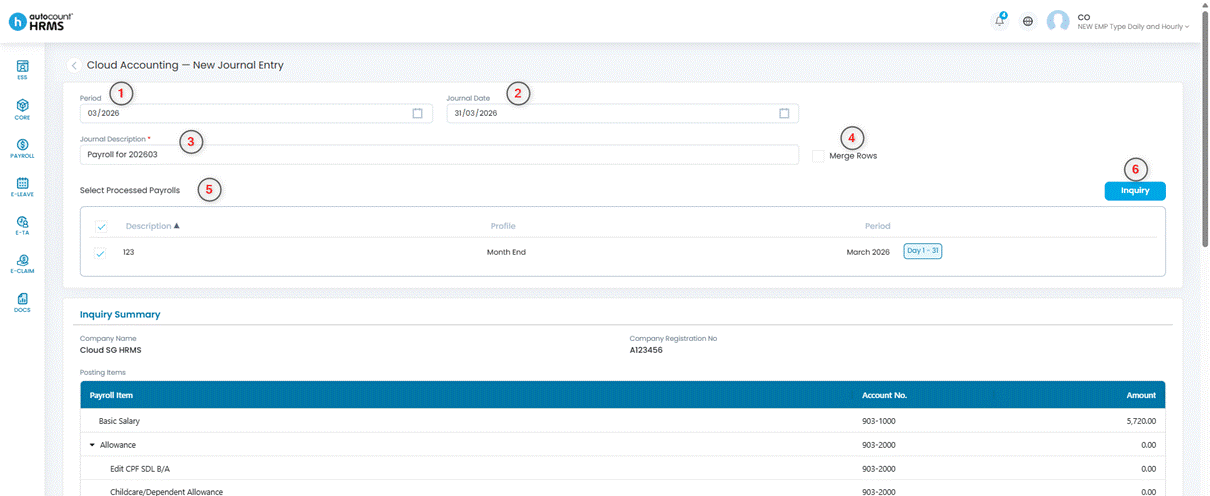

1. Select the posting period (e.g., March 2026).
2. Choose the journal posting date. This is the date that will appear on the journal entry in Cloud Accounting.
3. Enter a Journal Description to identify the posting (e.g., "Monthly Payroll – Mar 2026").
4. Enable Merge Rows if you want to consolidate similar items into a single journal line.
5. Select the processed payroll run(s) you wish to post.
6. Click Inquiry to generate a preview summary. Review the amounts carefully to ensure they are correct before proceeding.
7. Enter your preferred voucher numbering format (e.g., "PY-2026/03-").
8. Once you have verified all details, click Post Journal to submit the entry to Cloud Accounting.
Step 3: Verify the Posted Journal
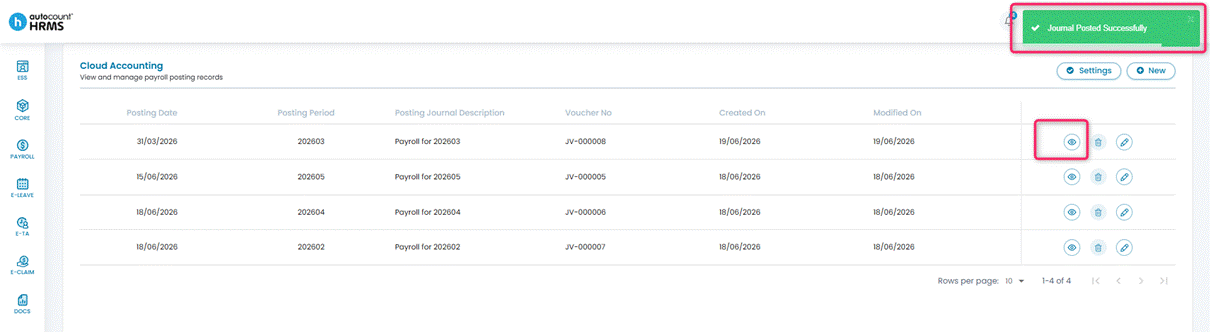
After the journal has been posted successfully, a confirmation message will appear on screen.
1. Click the eye icon next to the posting record to preview the Journal Voucher (JV) directly in Cloud Accounting.
2. Verify that the debit and credit amounts, account codes, and descriptions match your expectations.