Singapore HRMS is available to post the journal to Auto Count V2 Accounting.
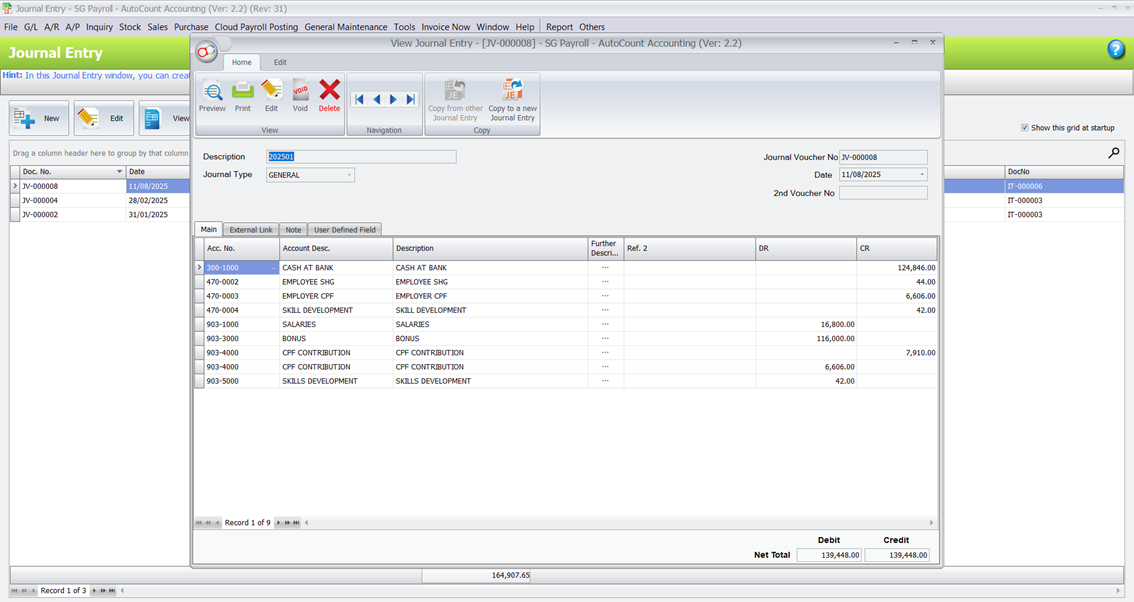
The integration screen in accounting:
This guide will be separated into three parts:
- Part (A): Generate API key – You will need to generate the API key.
- Part (B): Posting Setting – You will need to map the payroll items with the accounting code in V2 accounting.
- Part (C): Monthly payroll posting – You will need to post the journal once the monthly payroll is completed.
ℹ️ Note: The system will be posted all the payroll info to V2 Accounting. There is no branch / department / project grouping available.
Part (A): Generate API Key
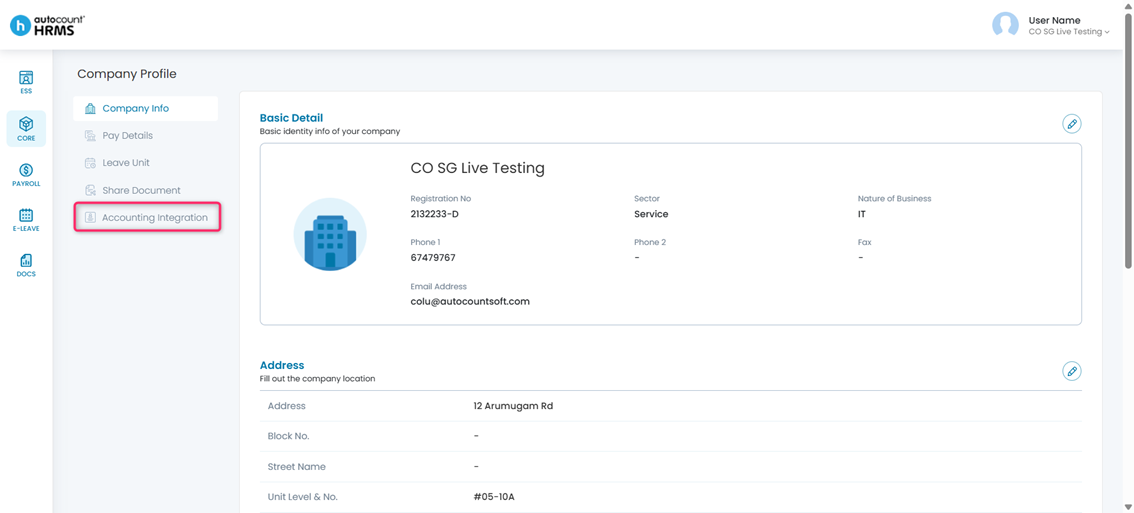
1. Go to Core > Company Profile > Accounting Integration.
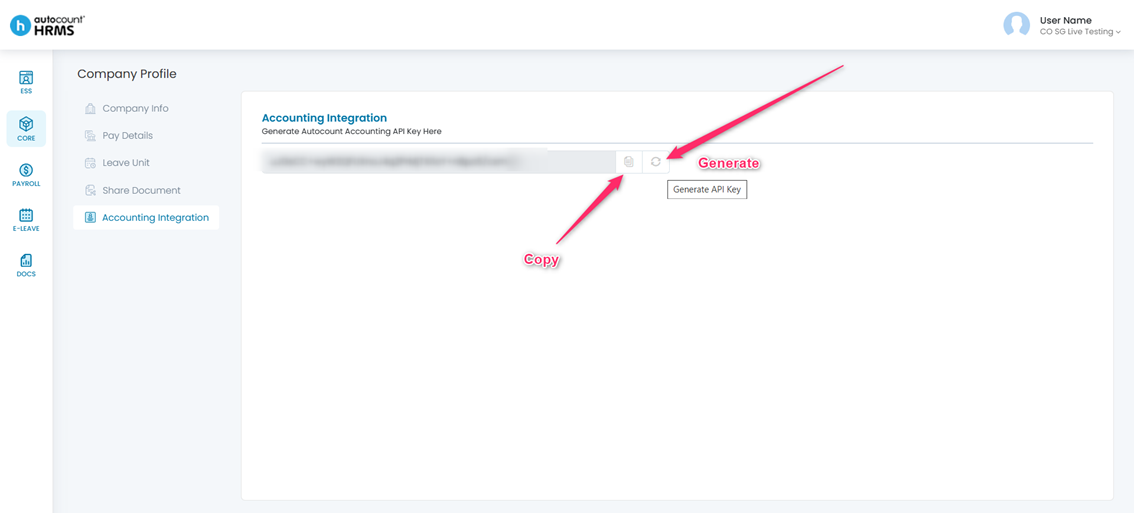
2. Click on generate button to generate API key and click copy the Api Key.
Part (B): Posting Setting – Mapping and Setting in accounting
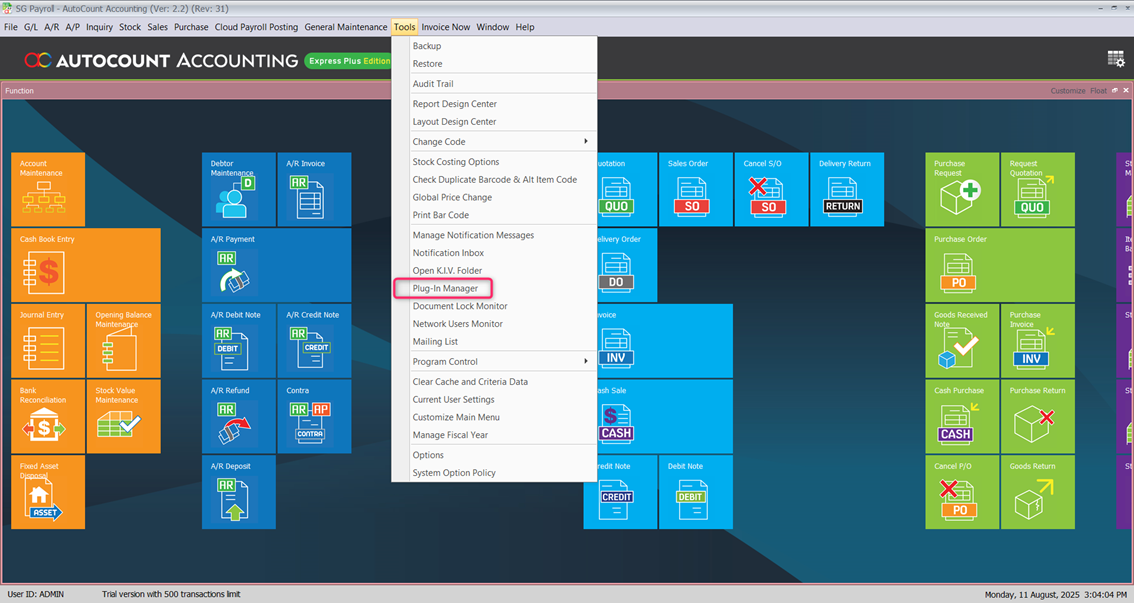
1. Login to V2 Accounting. Go to Tools > Plug-In Manager.
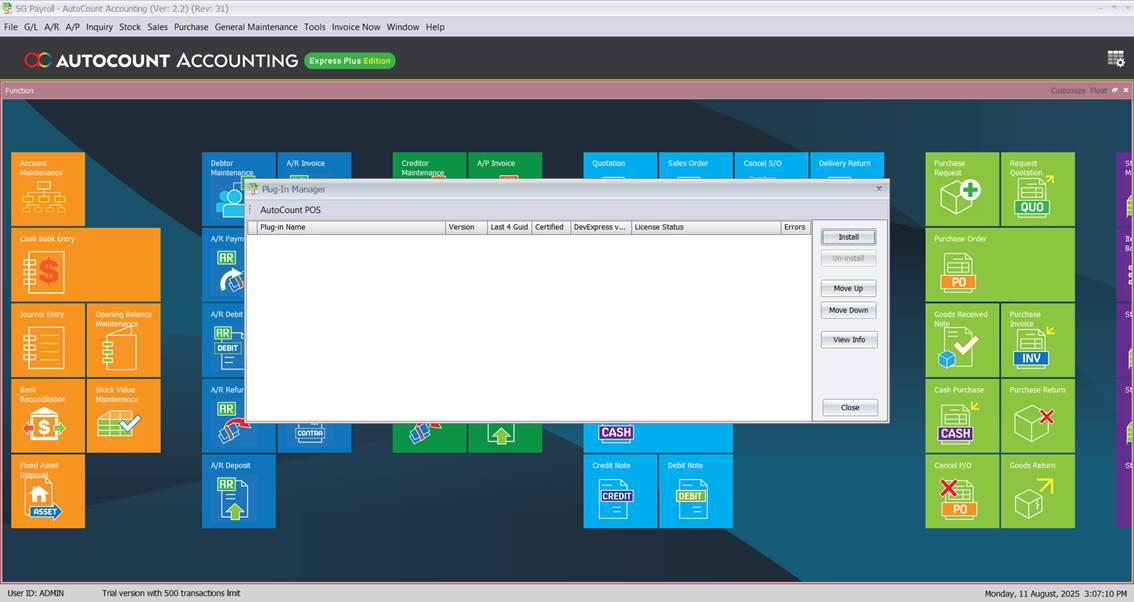
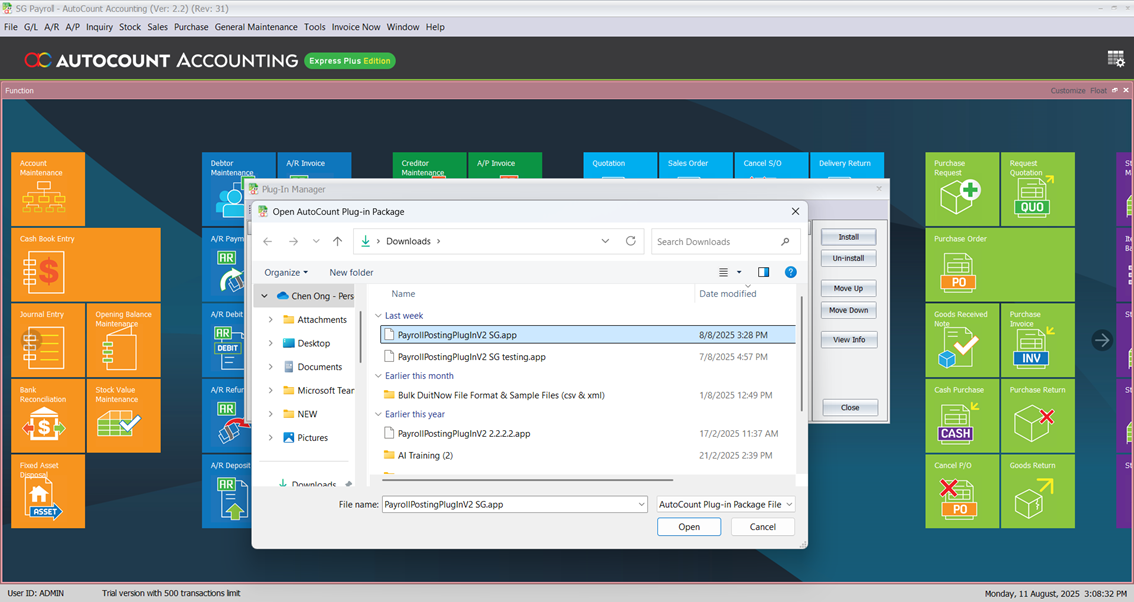
2. Click Install and select the SG Payroll Posting and installed it.
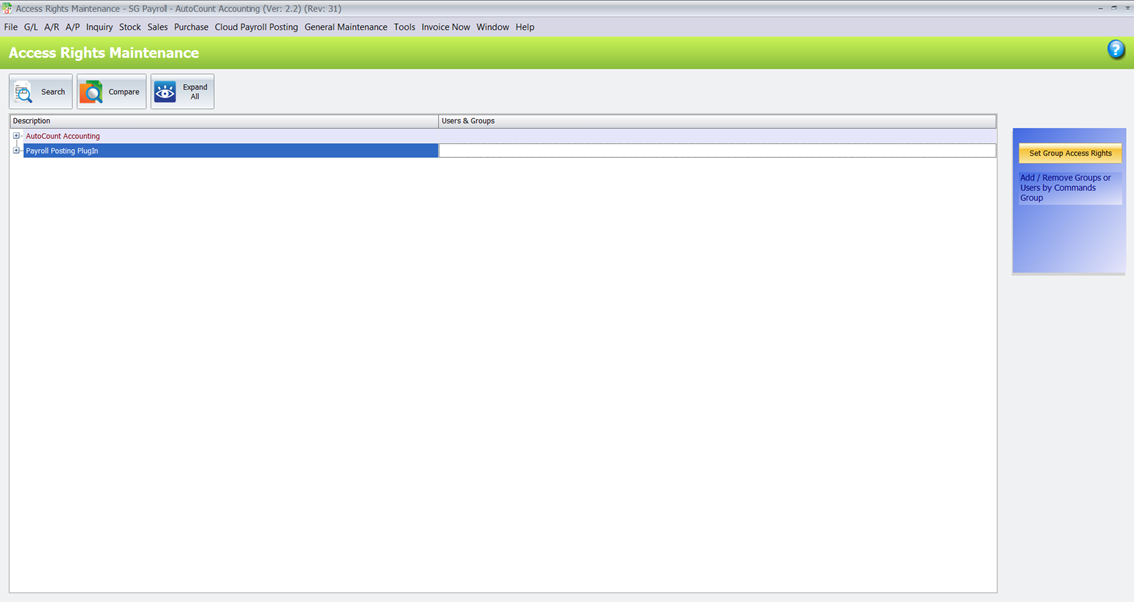
3. Assign access right for the plug in.
i. Go to General Maintenance > Access Right Maintenance.
ii. Select Payroll Posting Plugin and click Set Group Access Rights.
4. Go to Cloud Payroll Posting > Inquiry Template Maintenance.
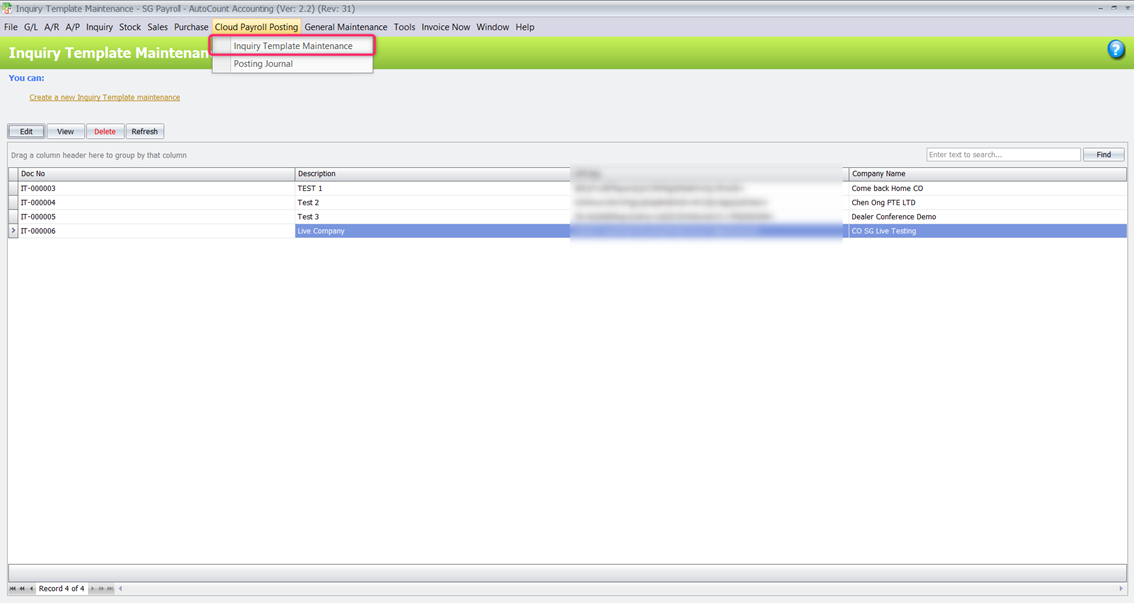
5. Copy and Paste the API key that is generated in API Key column and click login. After login, the Company Name and Company Reg No will be shown.
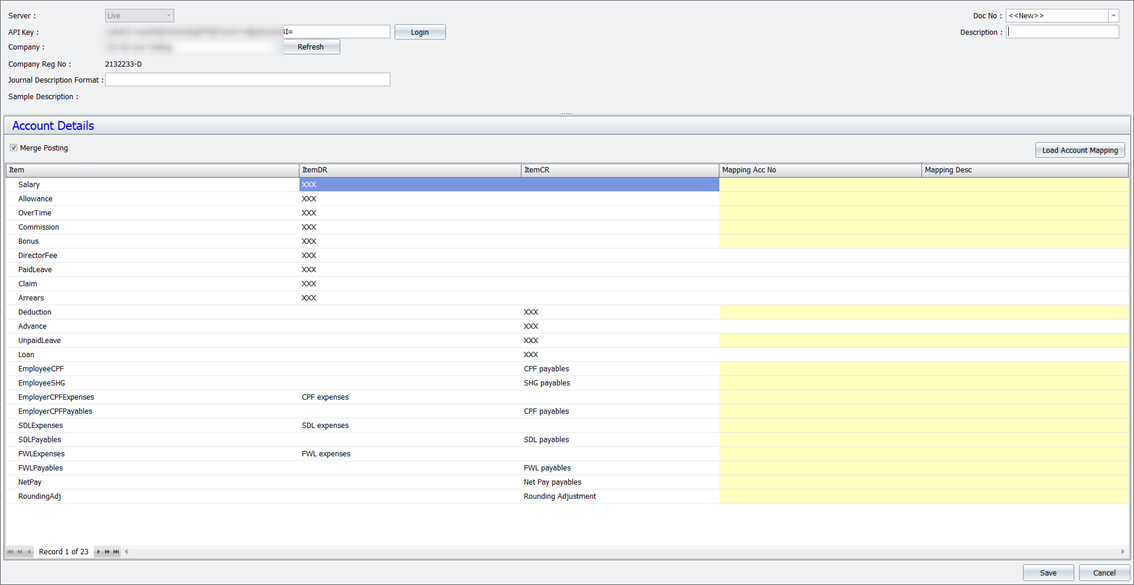
6. Enter each payroll item’s payroll account no. You are allowed to amend the posting description if needed. Once account mapping is completed, click Save.
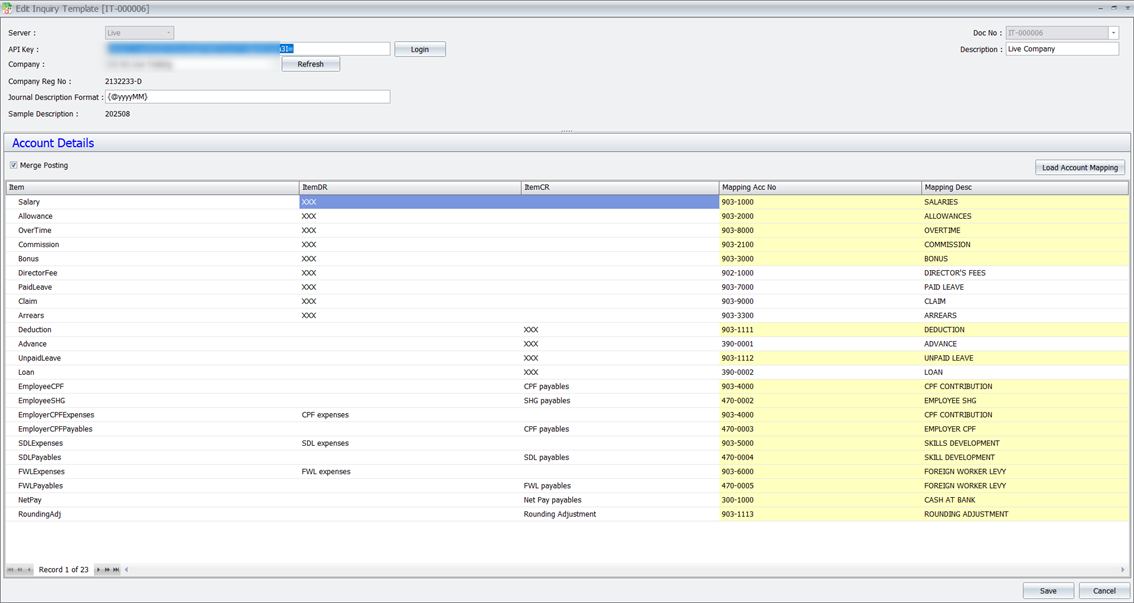
ℹ️ Note: Payroll Account No listing is from V2 Accounting – Account Maintenance. The highlighted rows are compulsory fields.
Part (C): Monthly Payroll Posting
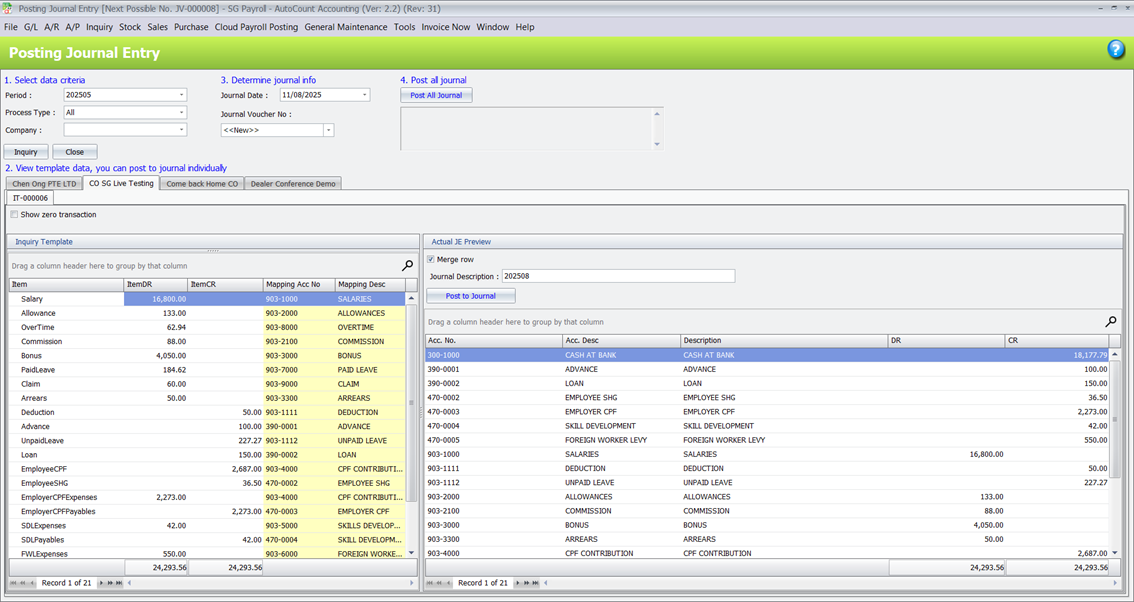
Posting journal entry screen:
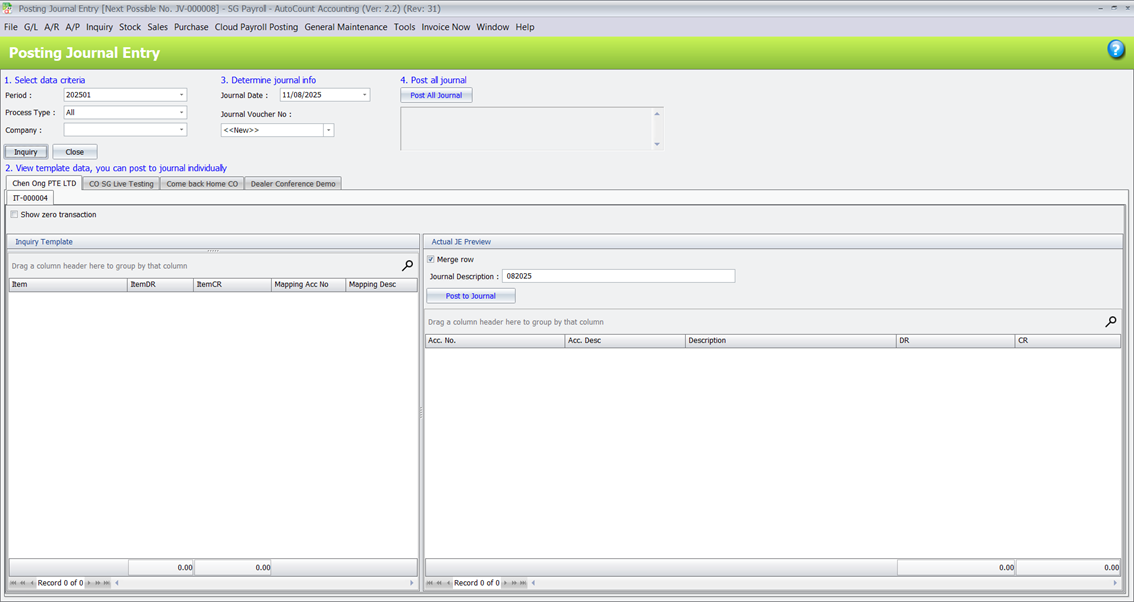
1. Go to Cloud Payroll Posting > Posting Journal.
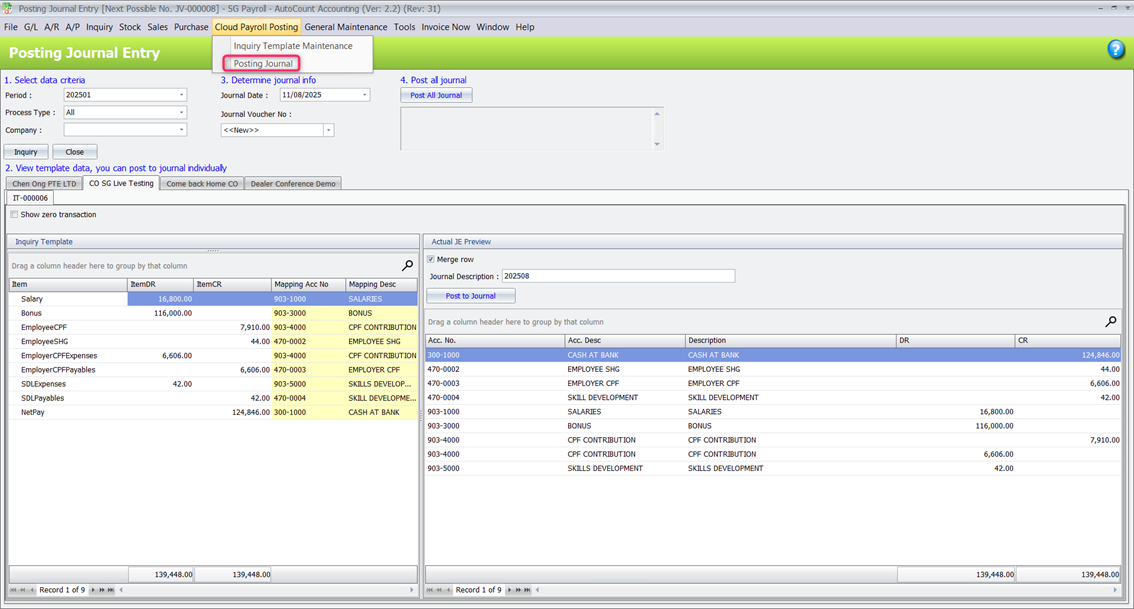
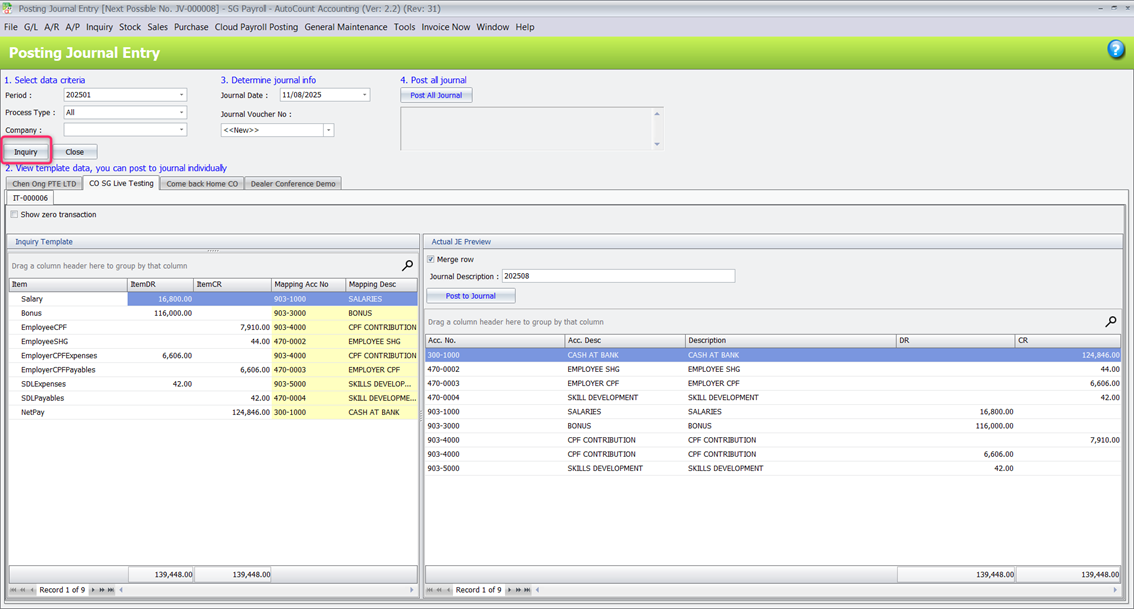
2. Select your period, process type and company then click Inquiry. The info as the screenshot will be shown. The system will list out each month payroll type for your posting.
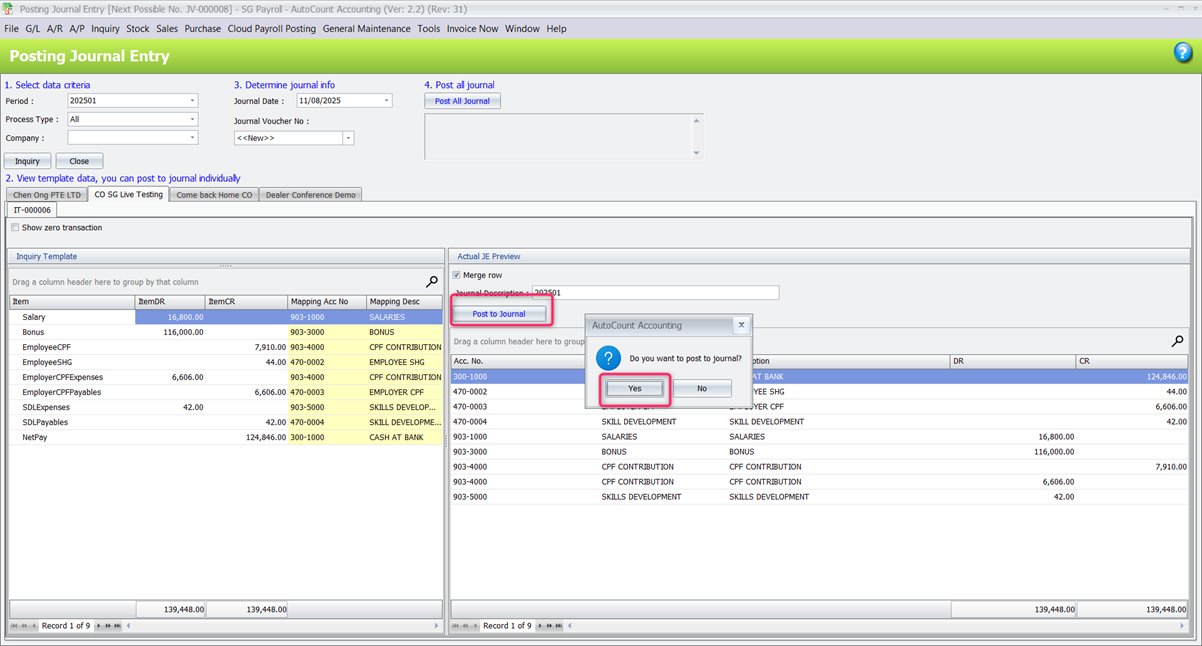
3. Click Post Journal if you would like to proceed. Click Yes to confirm.
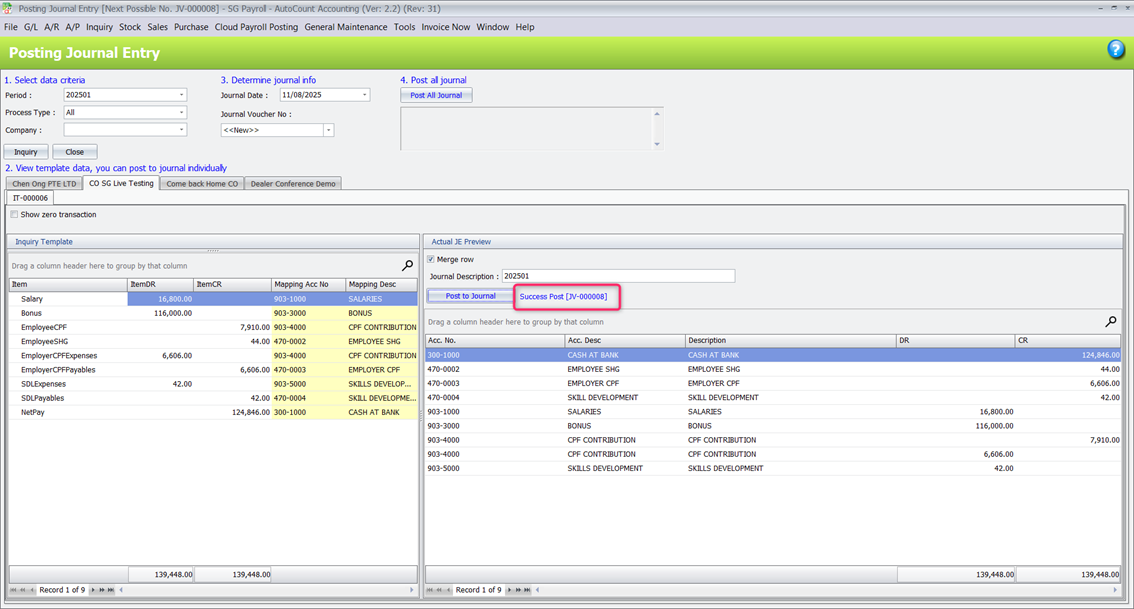
4. Once the payroll posting is completed, the system will show: Success Post [JV-XXXXXXX].
5. You may go to GL > Journal Entry to check the result.