
Before previewing the final report output, employers can review report data in a tabular preview after clicking Apply. The columns shown in this preview can be customised and exported to Excel without affecting the actual report template or structure.
Steps to Customise Data Columns:
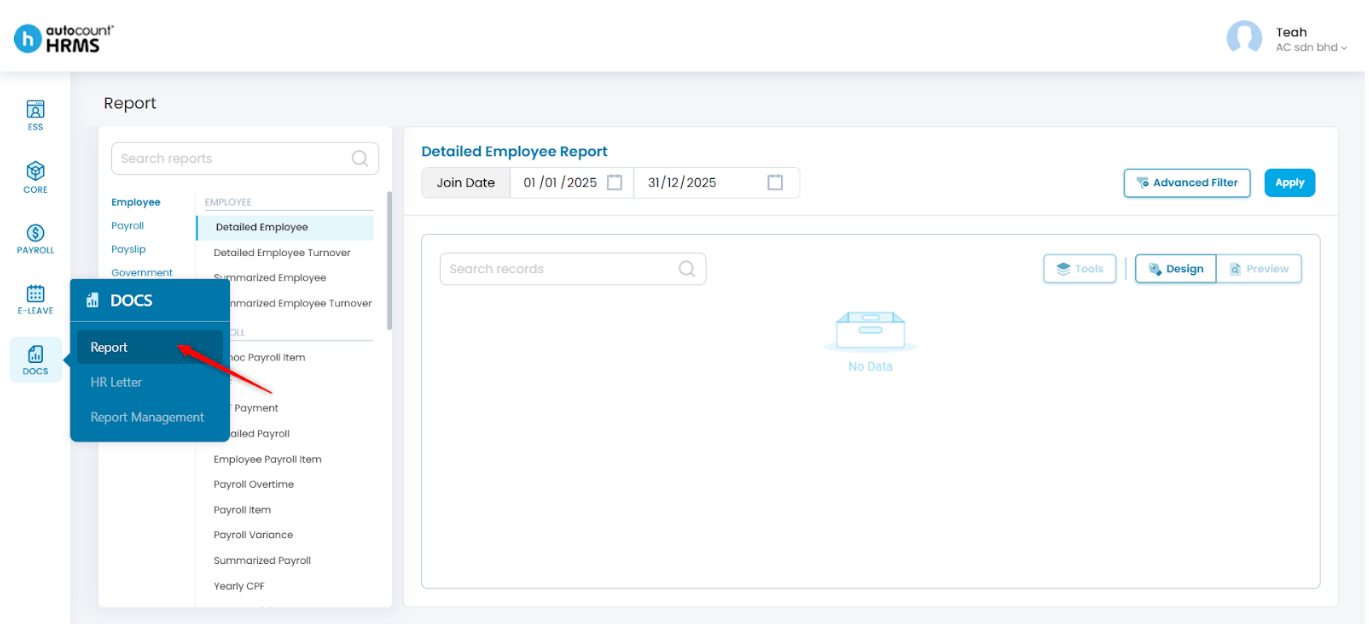
1. Go to Docs > Report.
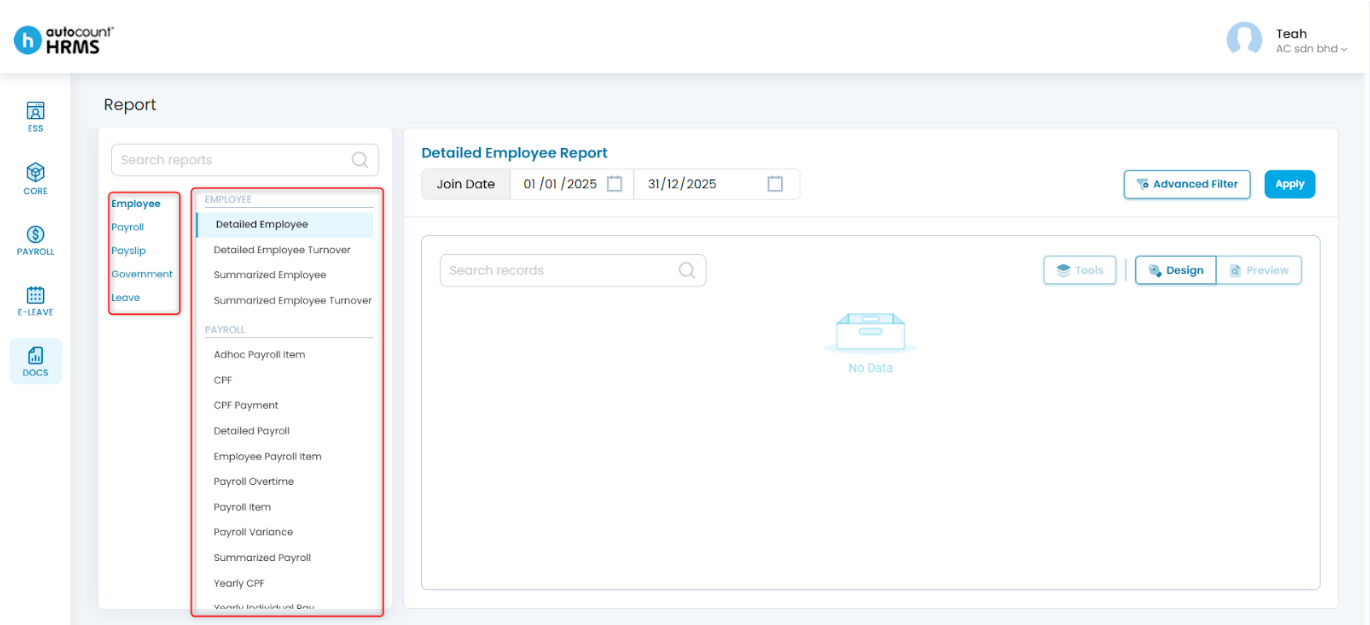
2. From the Report panel on the left, search for and select the required report template.
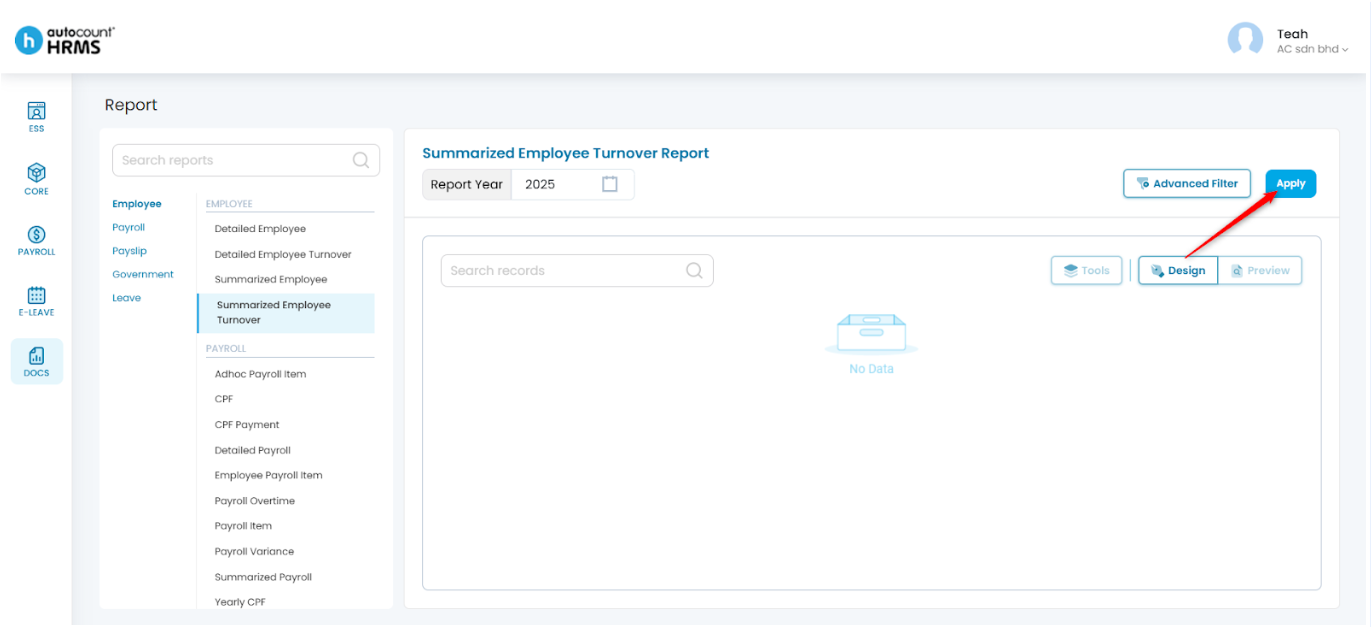
3. Apply the relevant filters, then click Apply. (See Report(s))
4. Click Tools.
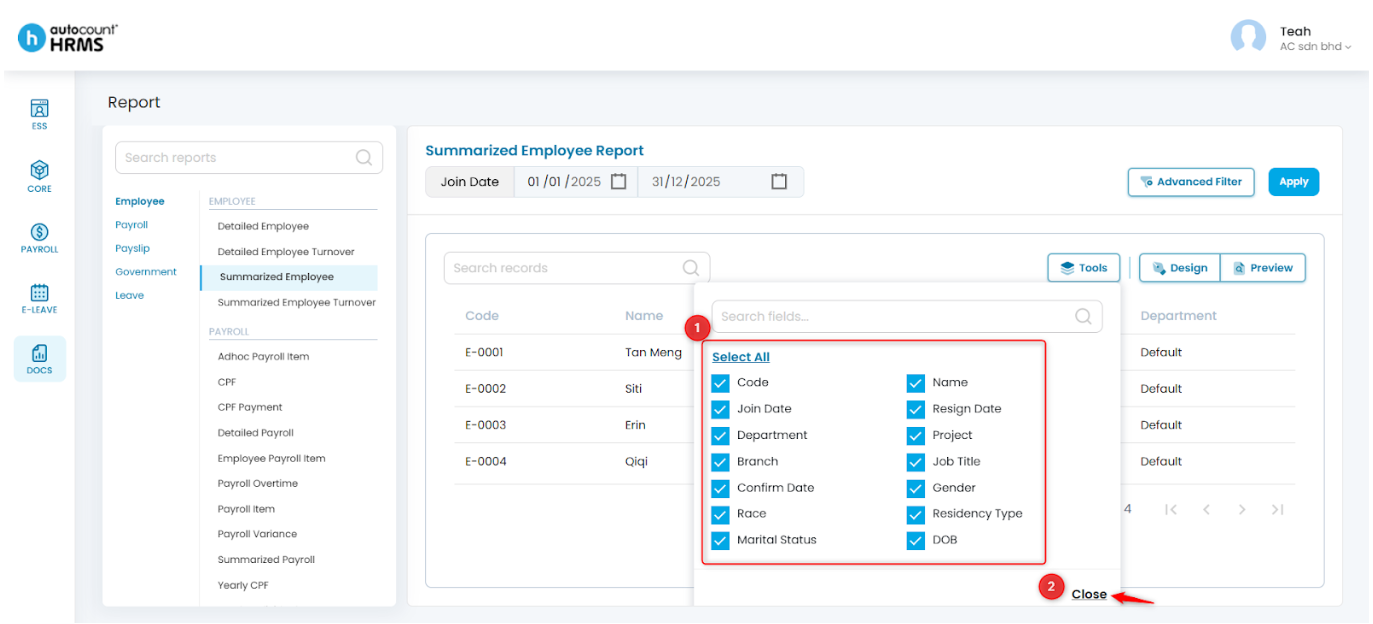
5. Select Column Chooser.
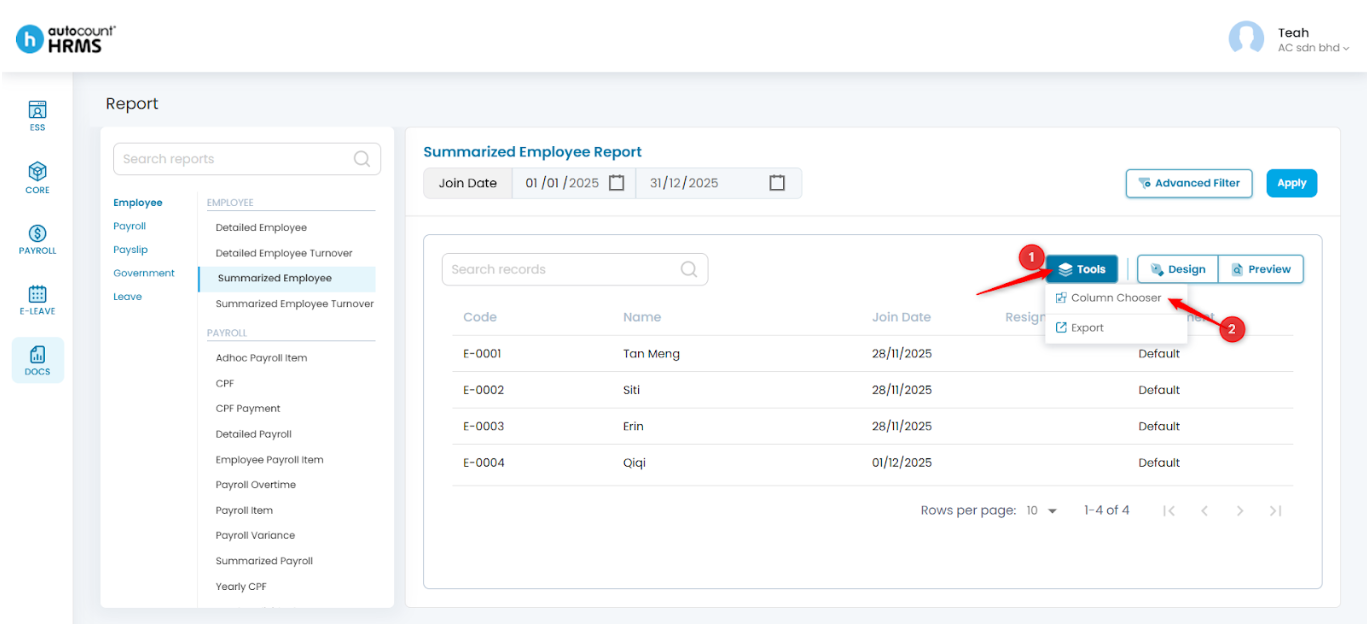
6. Tick the columns you want to display, then click Close.
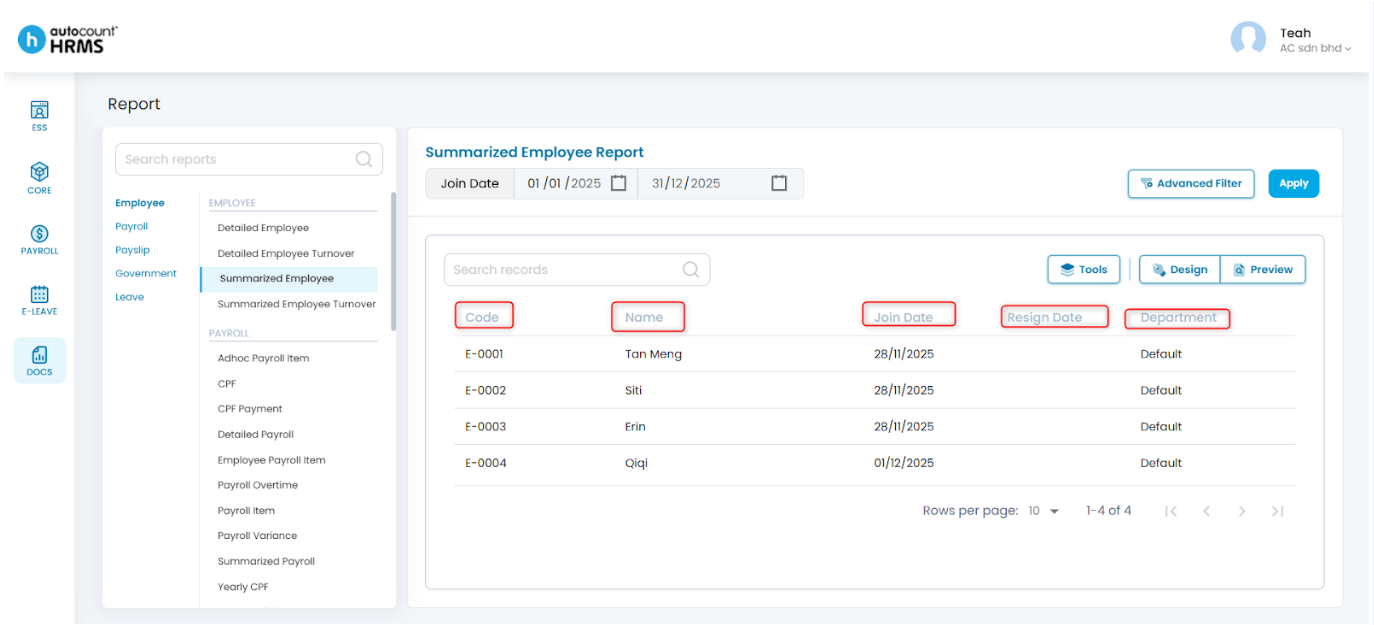
7. The selected columns will appear in the report preview.
Steps to Export a Report Data Preview:
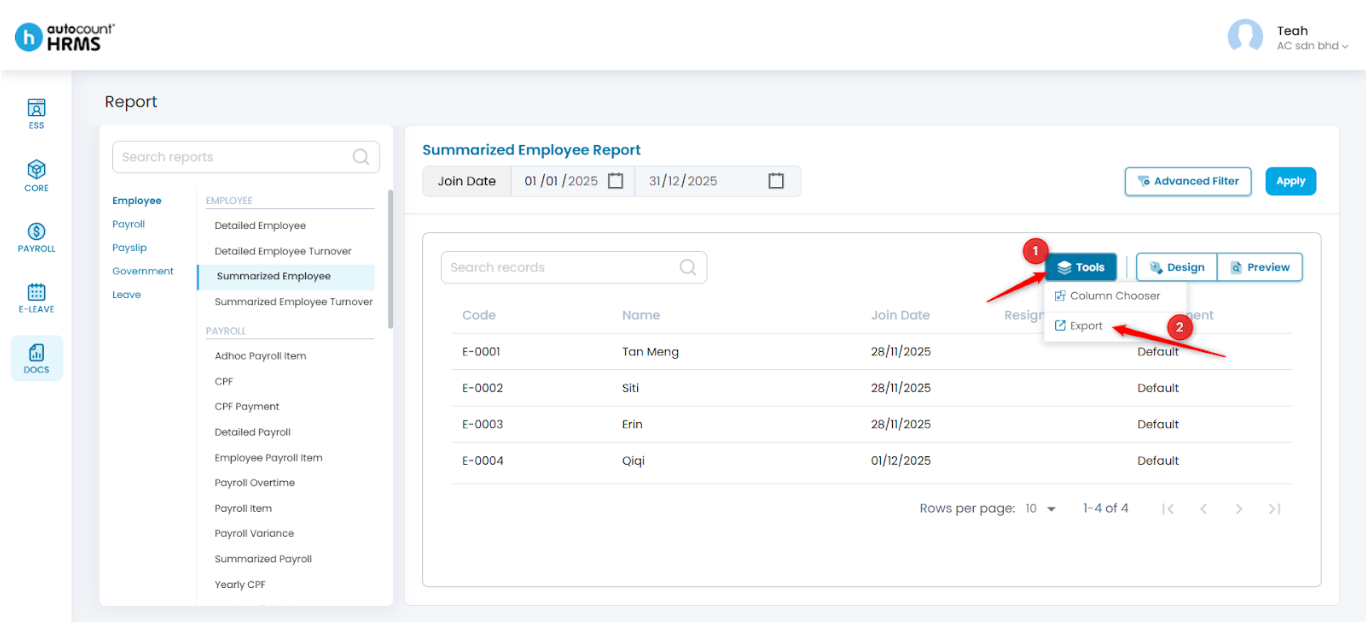
1. Click Tools.
2. Select Export to download the report preview data in Excel (.xlsx) format.
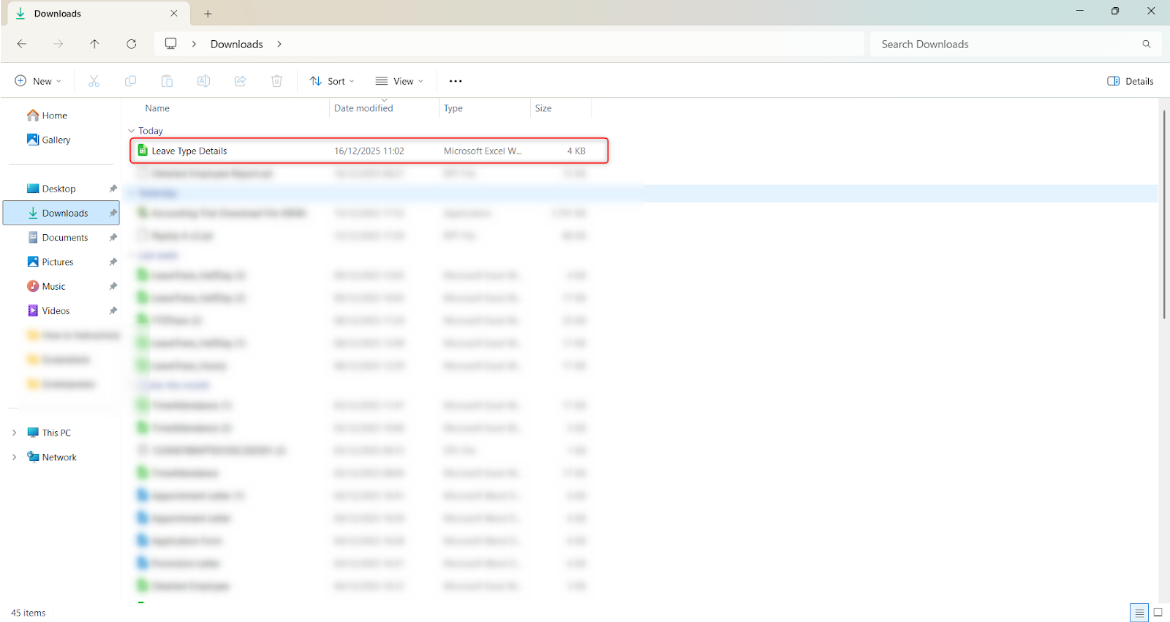
3. The exported file will be saved to your device’s local folder.
Steps to Customise a Report Template:
1. Click Design.
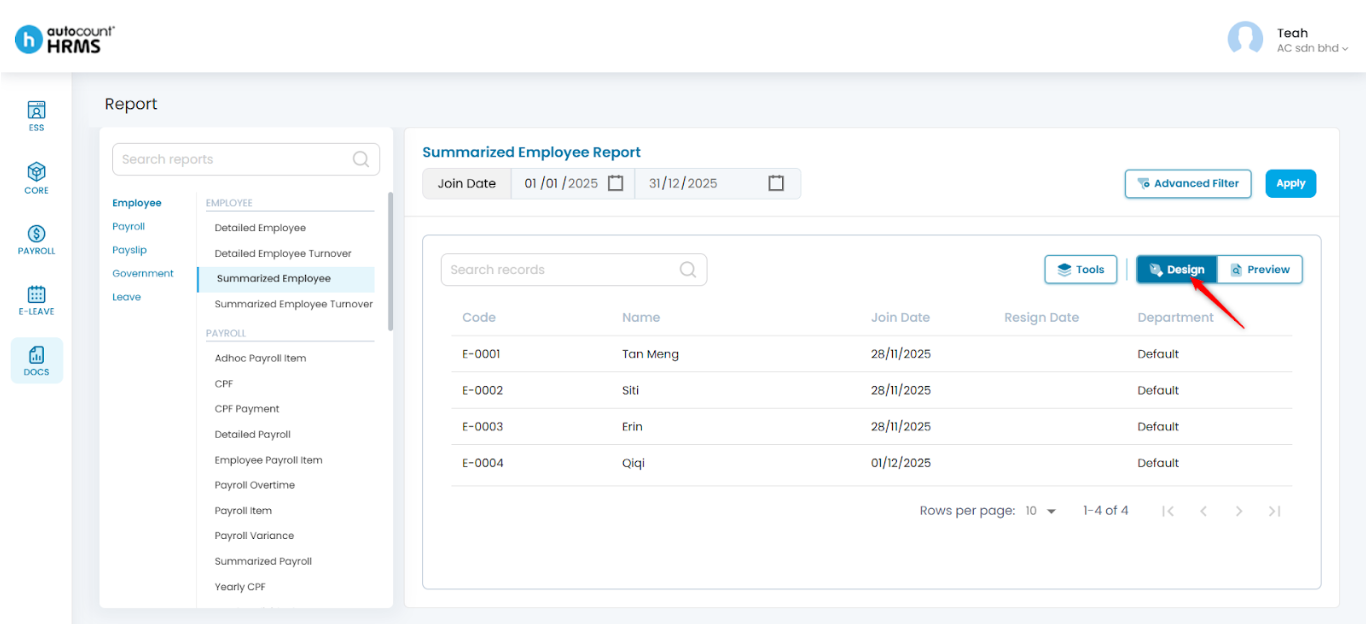
2. You will be redirected to the report design page.
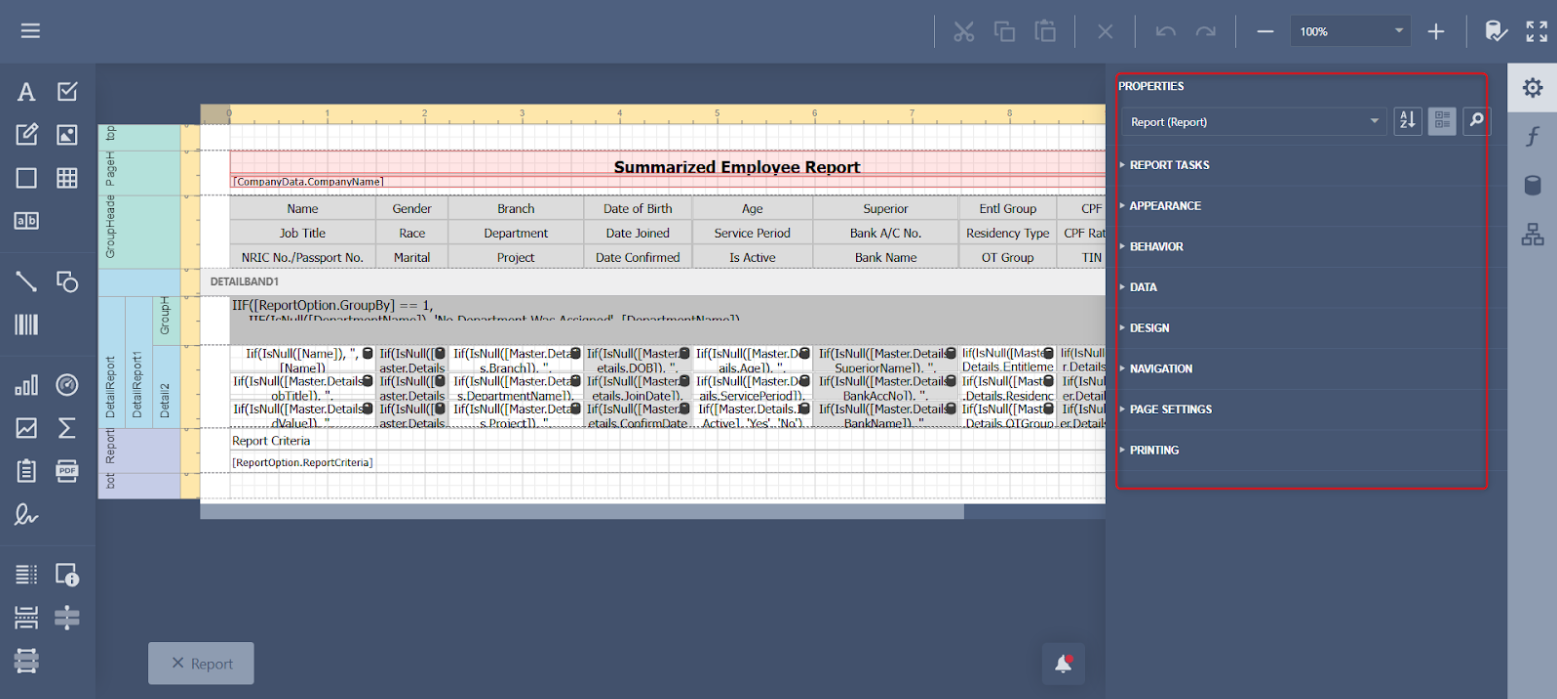
3. Make the required layout or formatting changes.
Written by: Teah Rui Harn (20251217)
Reviewed by: Tek Ee Lin (20251222)