
The Excel Import tool in the Payroll module allows employers to upload year-to-date (YTD) payroll transactional details—such as cumulative salaries, additions, and deductions—for all employees at once.
Steps to Import Payroll Process Details via Excel Import:
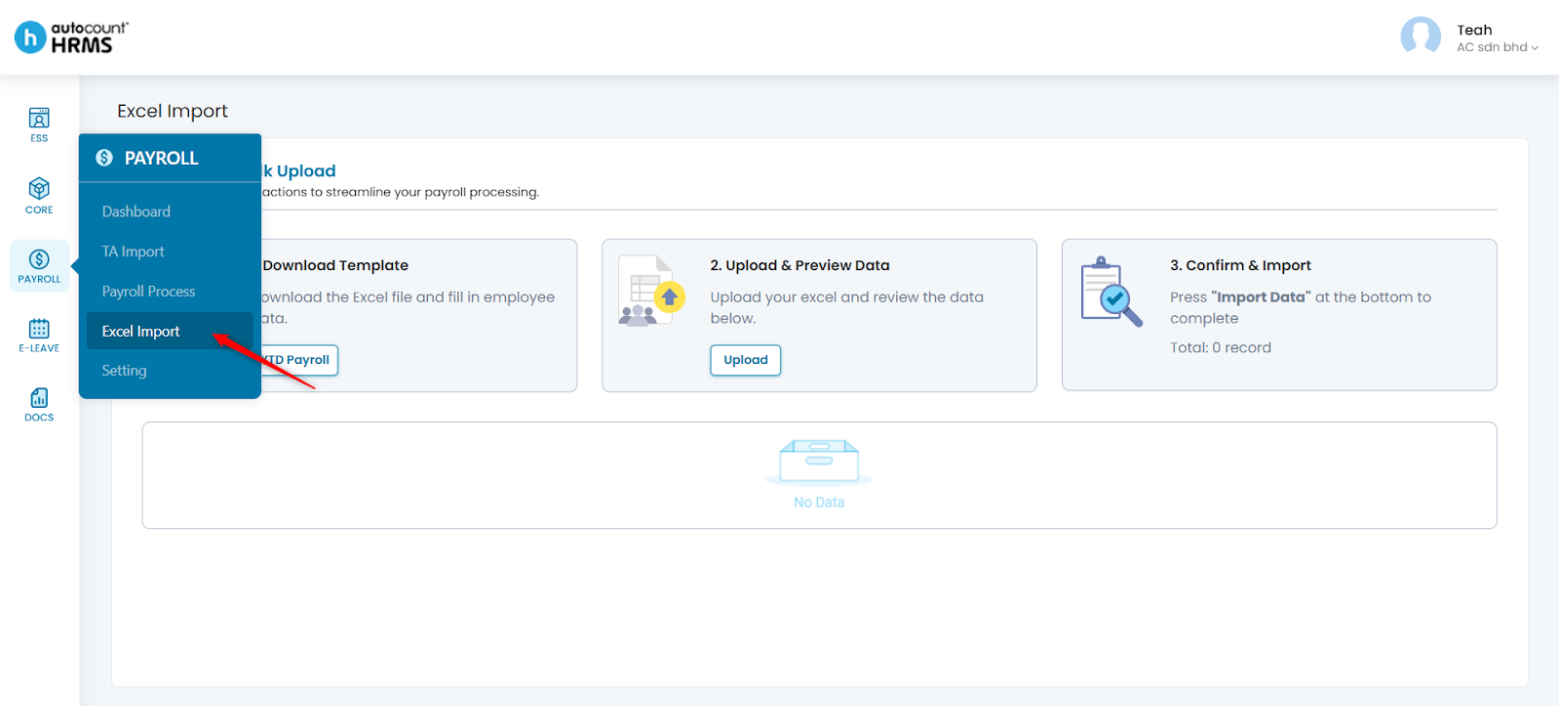
1. Go to Payroll > Excel Import.
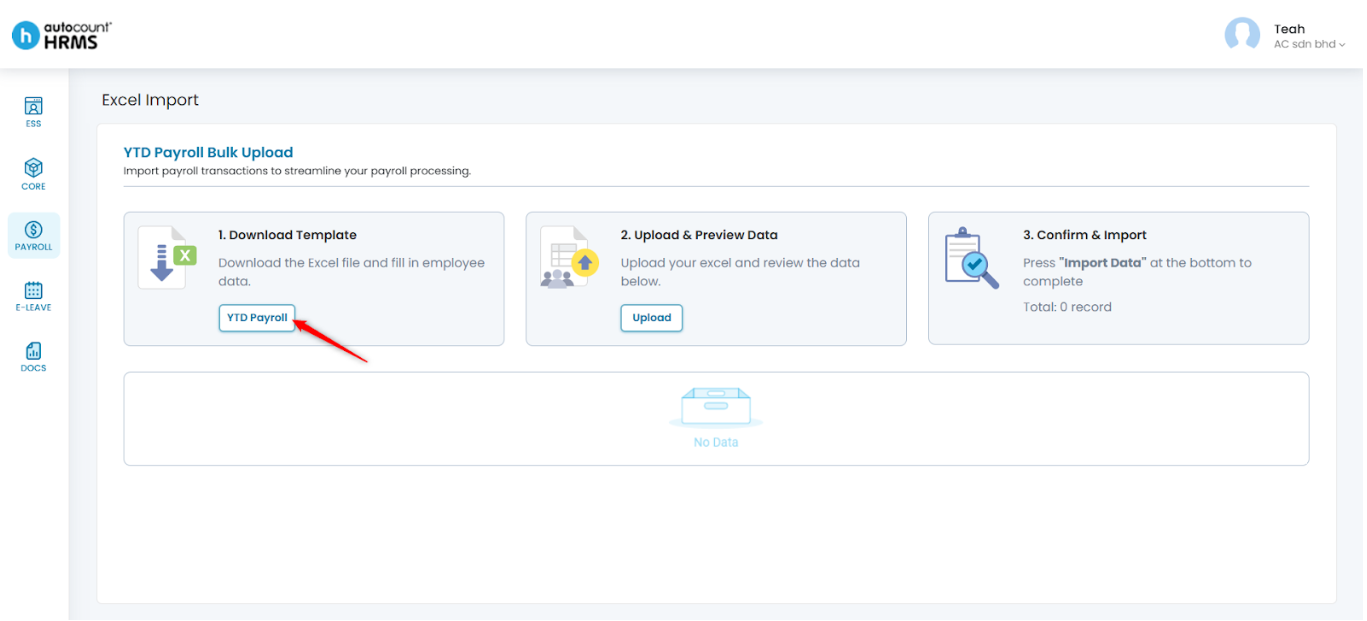
2. Download the YTD Payroll Template by clicking YTD Payroll.
3. Enter the required information into the template. The template contains three sheets:
- YTD PRTrans – Enter employees’ salary, CPF, SDL, and SHG Fund amounts.
- PRItems – Enter payroll item details and amounts.
- PROvertime – Enter overtime item details and amounts.
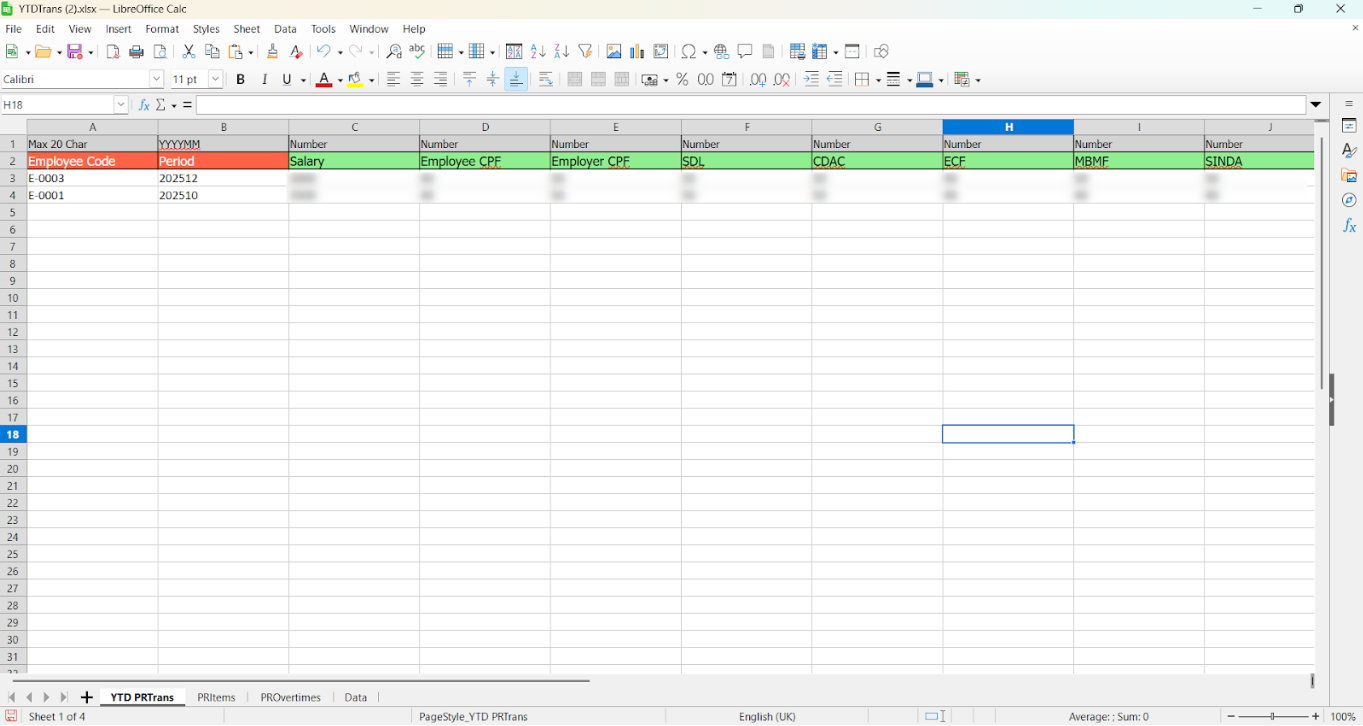
4. Save the completed file in Excel (.xlsx) format.
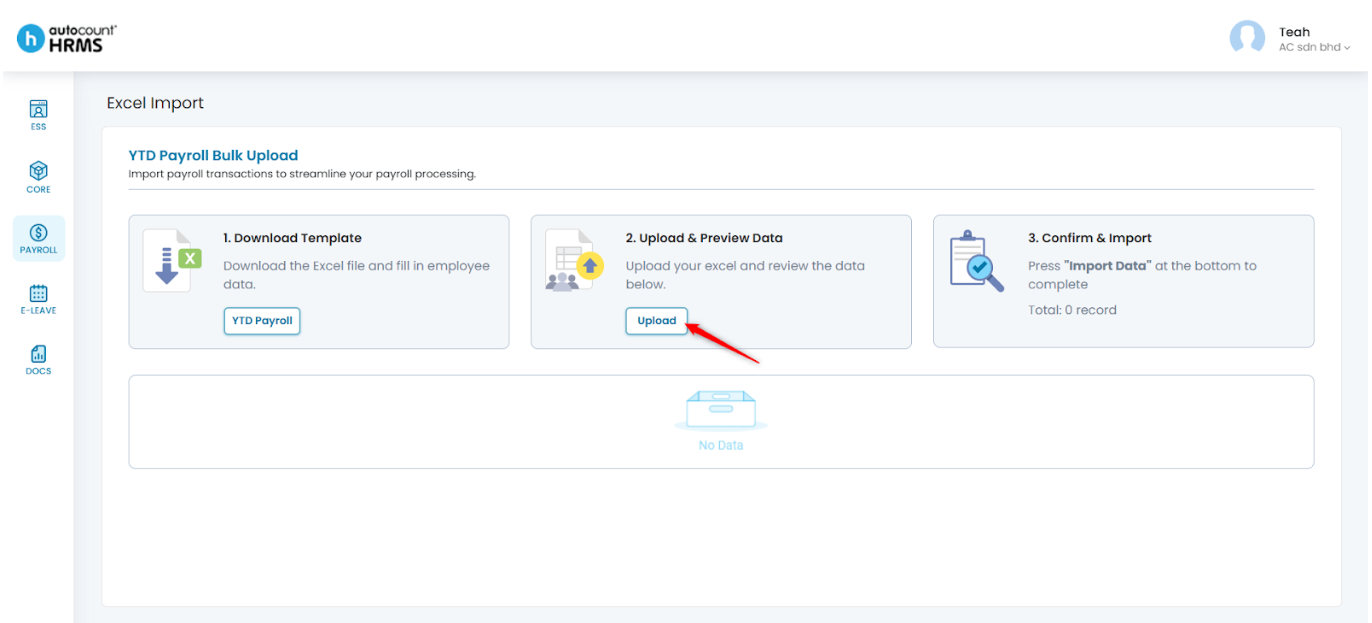
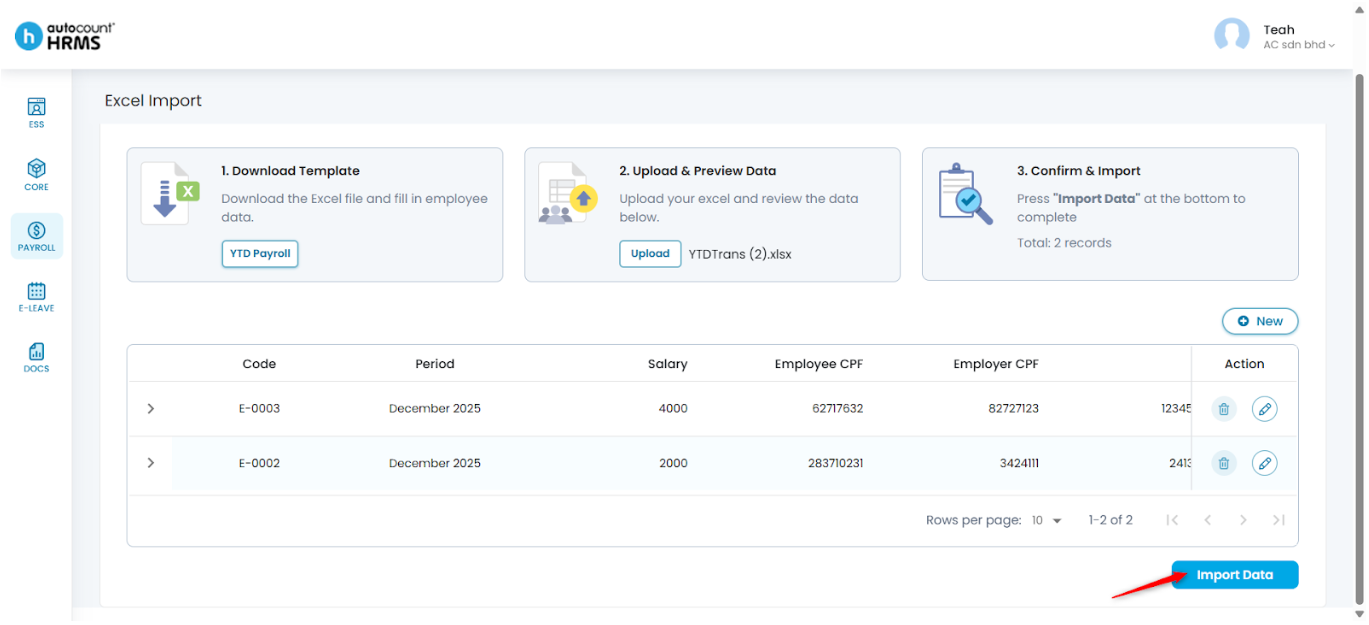
5. Click Upload to upload the YTD Payroll Excel file.
6. Click Import Data.
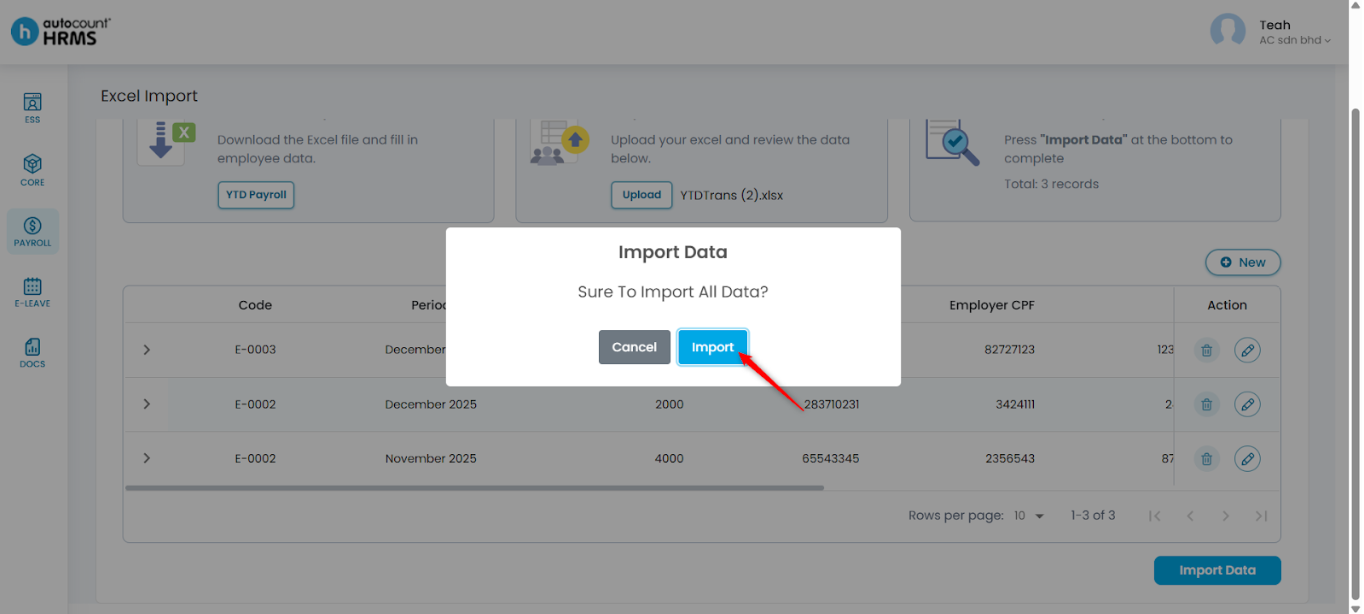
7. Click Import again to confirm.
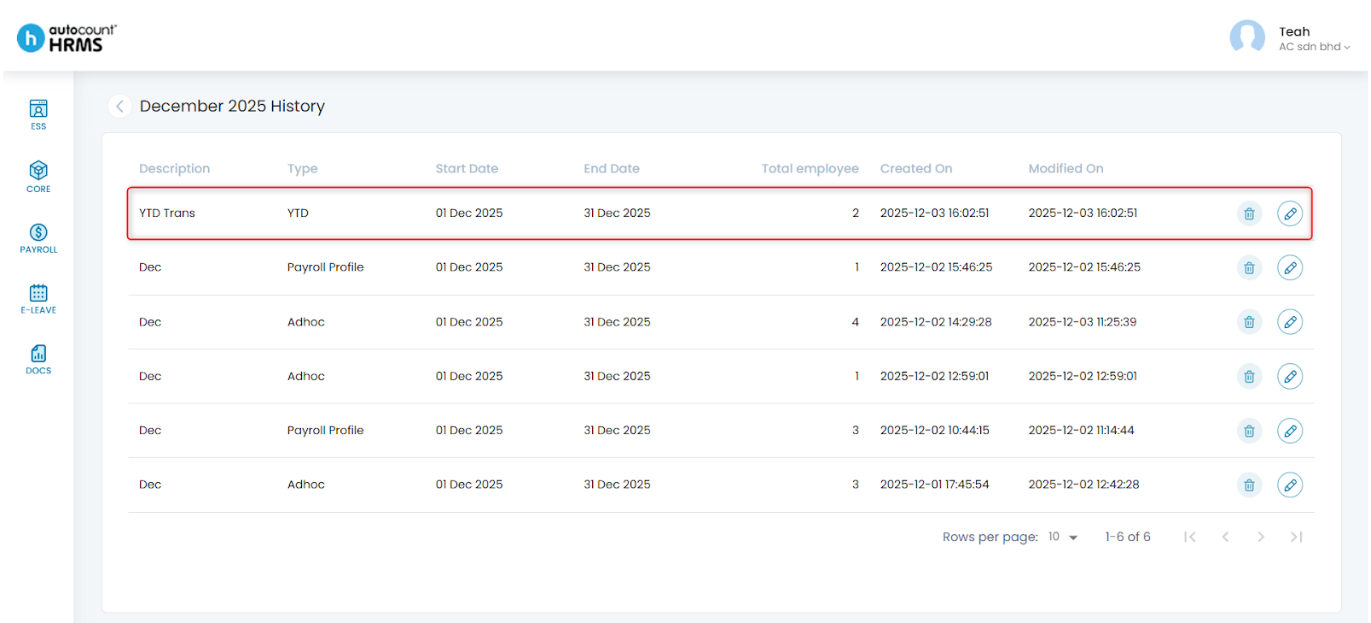
8. You may view and edit the imported data under Month Overview’s Month History (See Month overview).
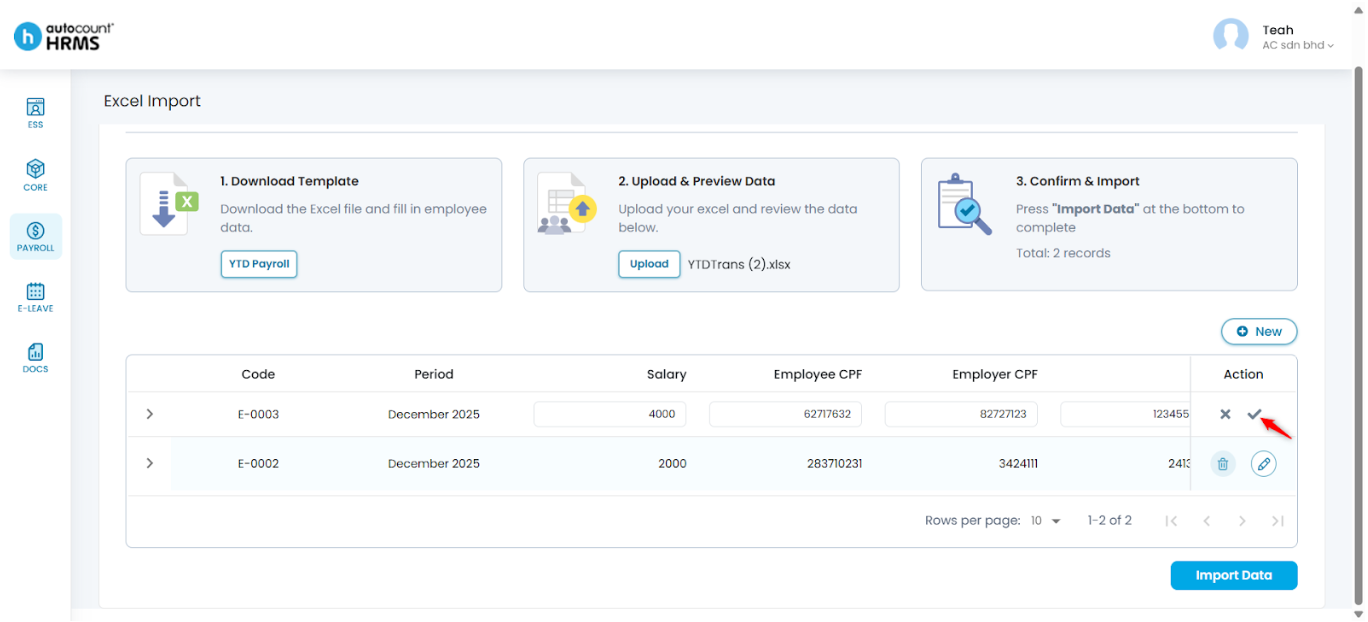
Steps to Edit Employees’ Payroll Details before Importing:
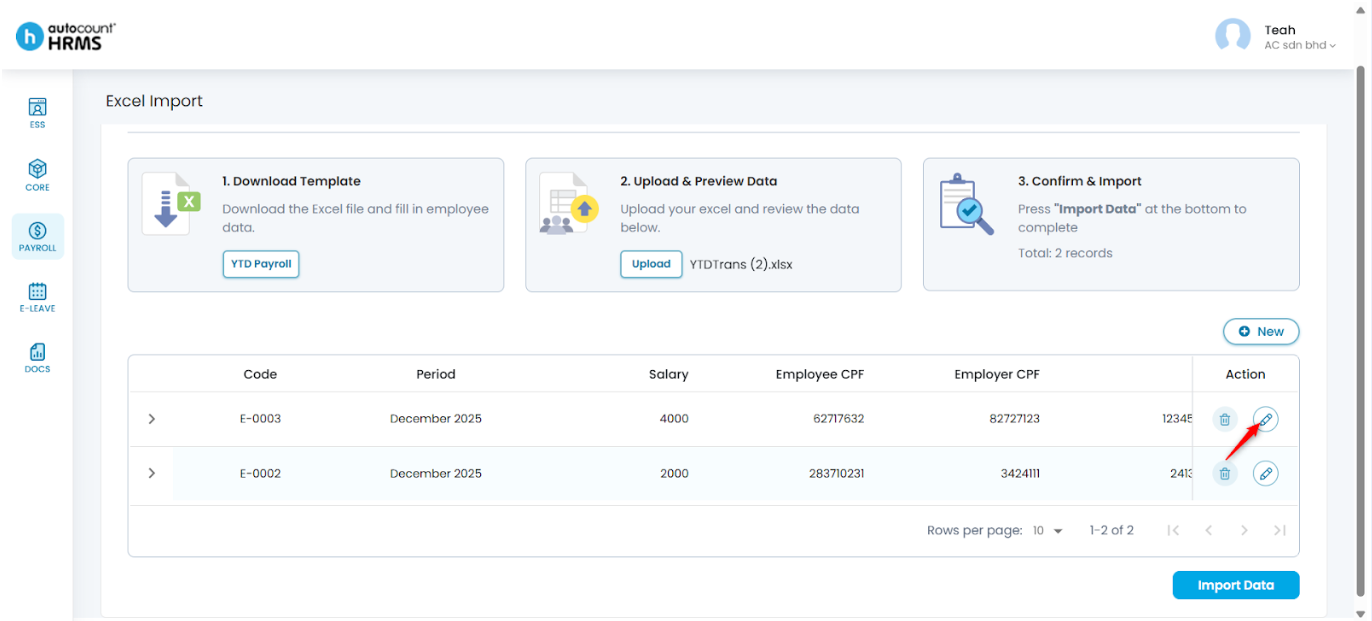
1. Click the pencil icon next to the item you wish to edit.
2. Make the necessary changes, then click the Tick icon to save.
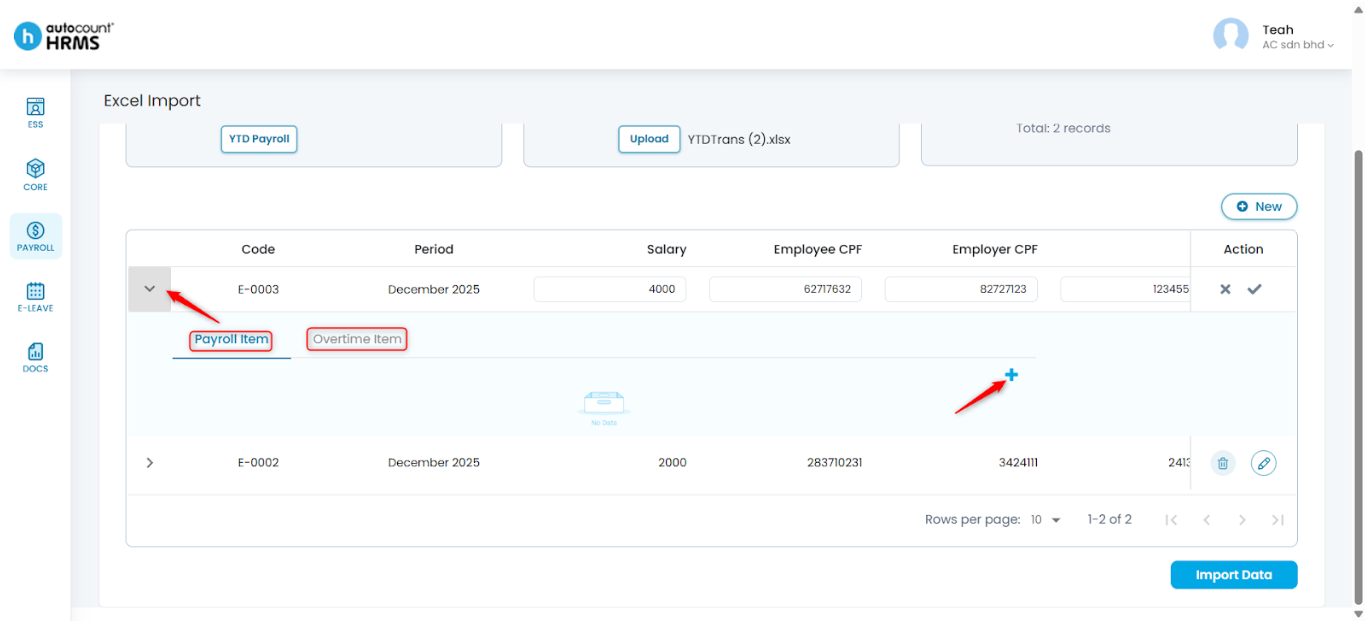
Steps to Add an Item for Specific Employee(s) Before Importing:
1. Click the > icon next to the employee code. Choose whether to add a Payroll Item or an Overtime Item, then click the Add (+) icon.
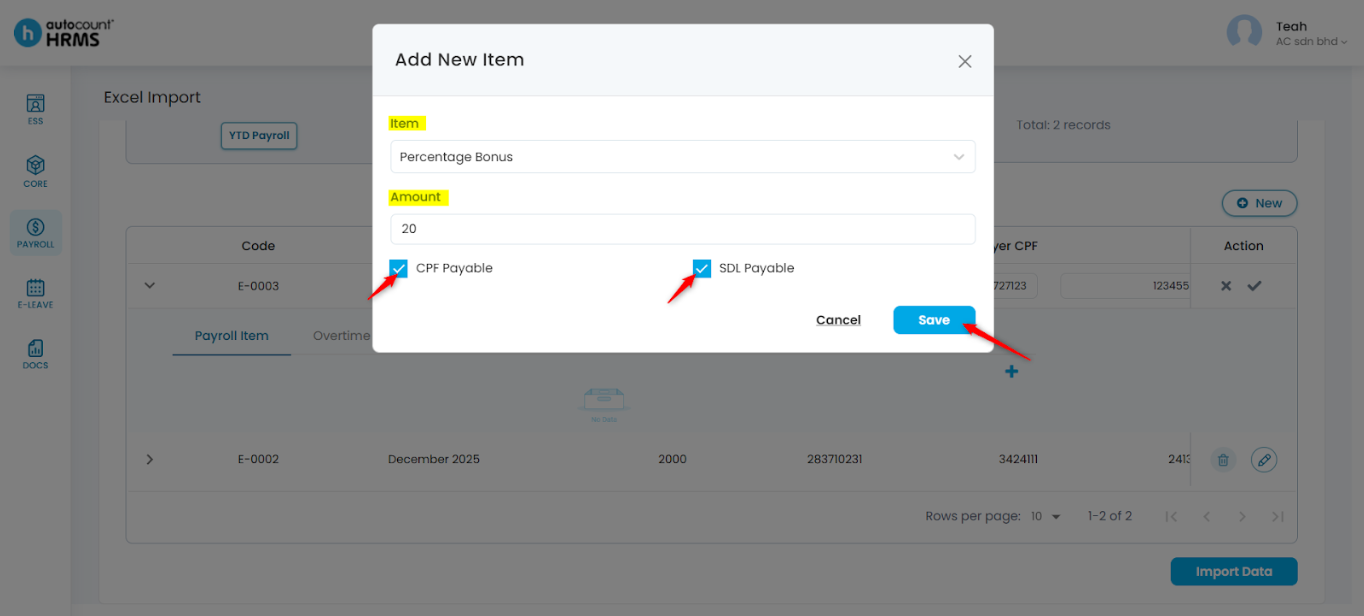
2. Fill in the required details and click Save.
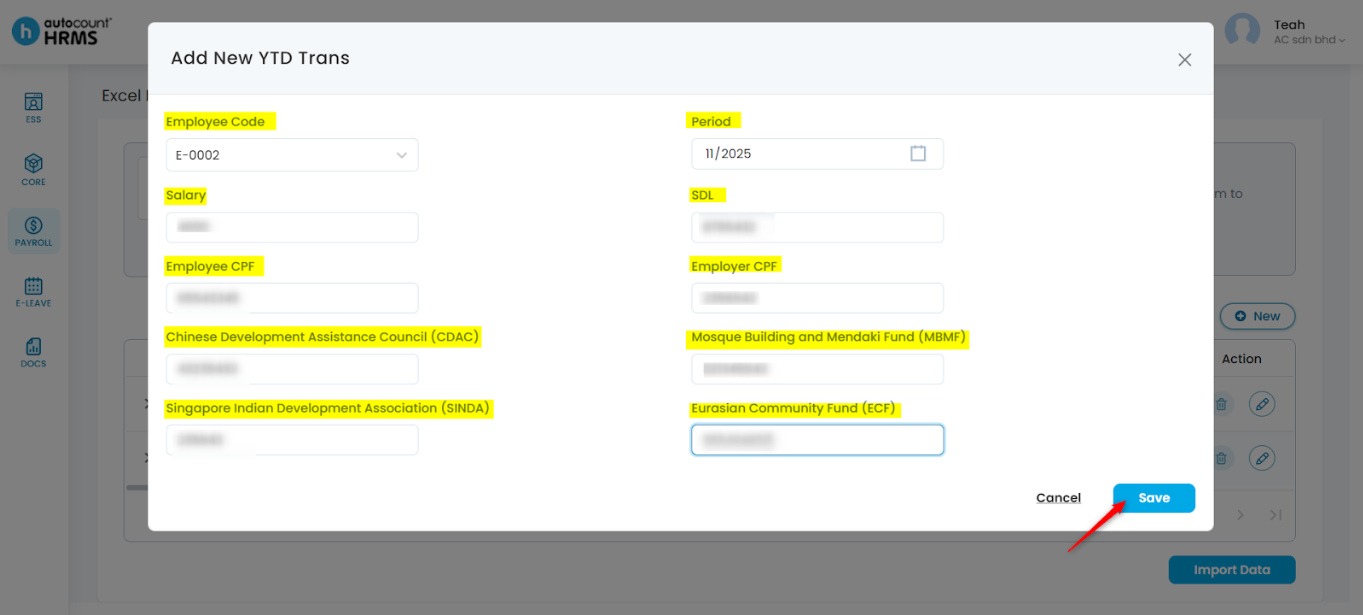
Steps to Add a New YTD Trans before Importing:
1. Click New.
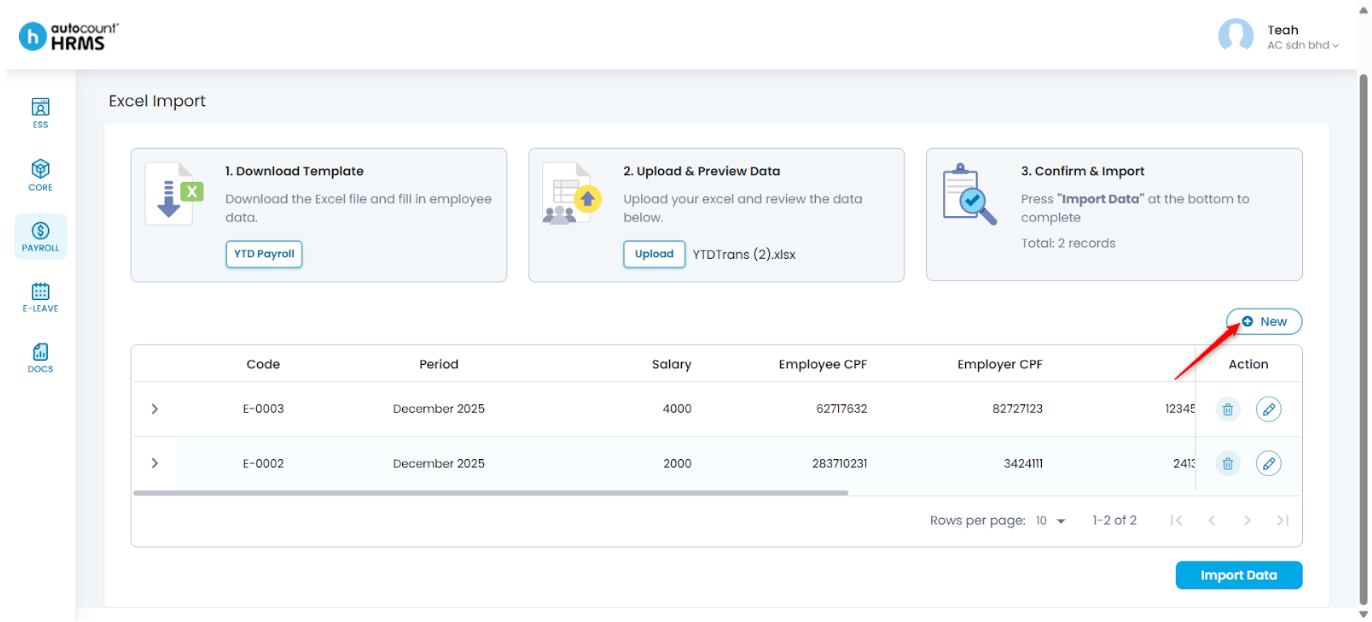
2. In the Add New YTD Trans panel, fill in all required details. Then, click Save.
Written by: Teah Rui Harn (20251202)
Reviewed by: Tek Ee Lin (20251205)