
The Excel Import tool in the E-Leave module allows employers to upload Leave Transaction details—such as Leave Type, Leave Dates, and Reasons—for multiple employees at once. These streamlines leave administration and reduce manual data entry.
Steps to Import Leave Transaction Details via Excel Import:
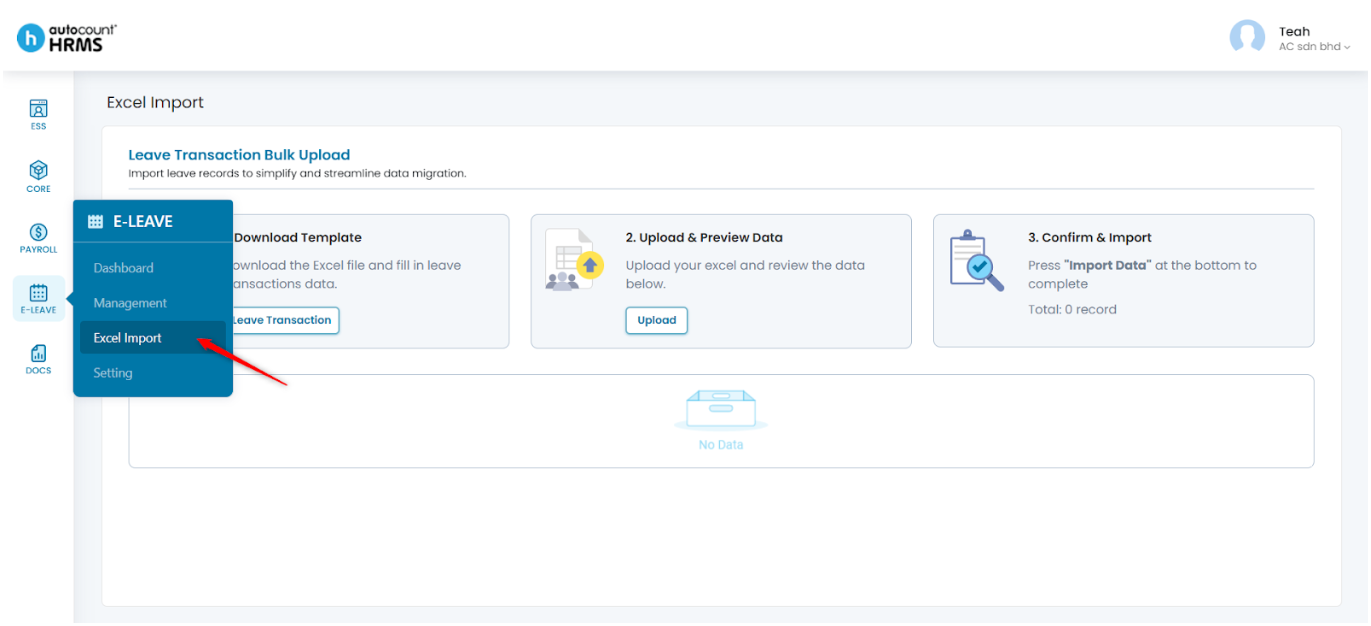
1. Go to E-Leave > Excel Import.
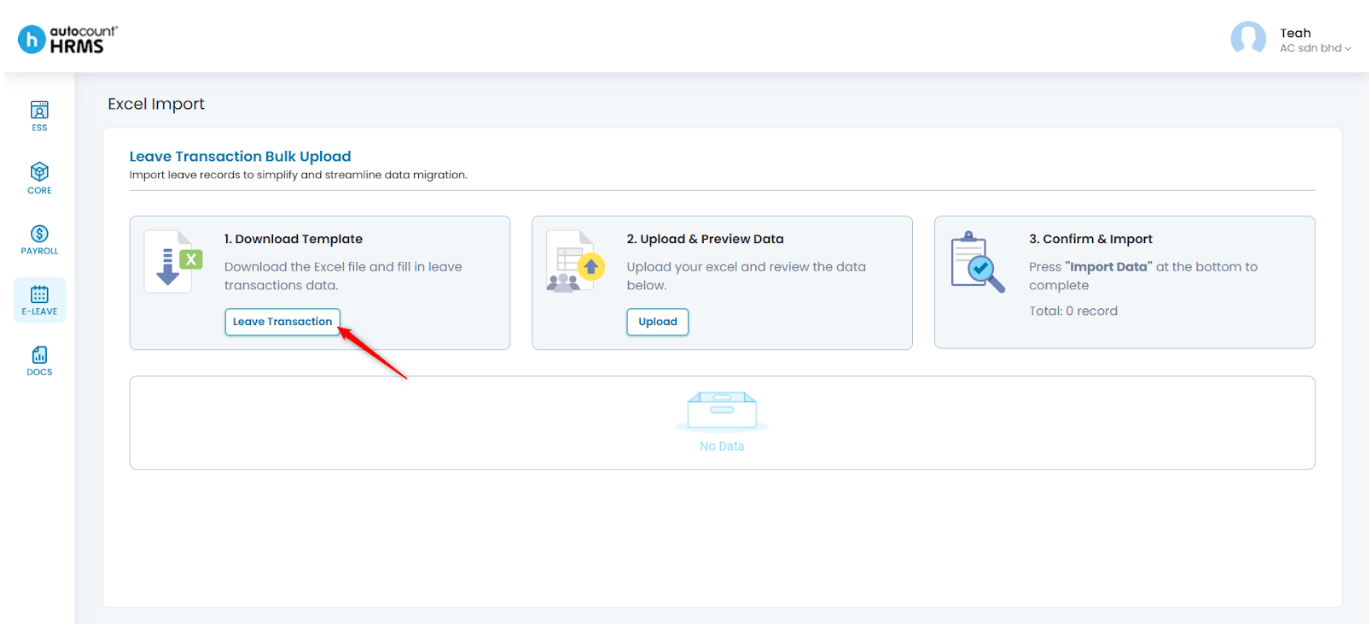
2. Click Leave Transaction to download the Excel template.
3. Fill in the required Leave Transaction details in the template.
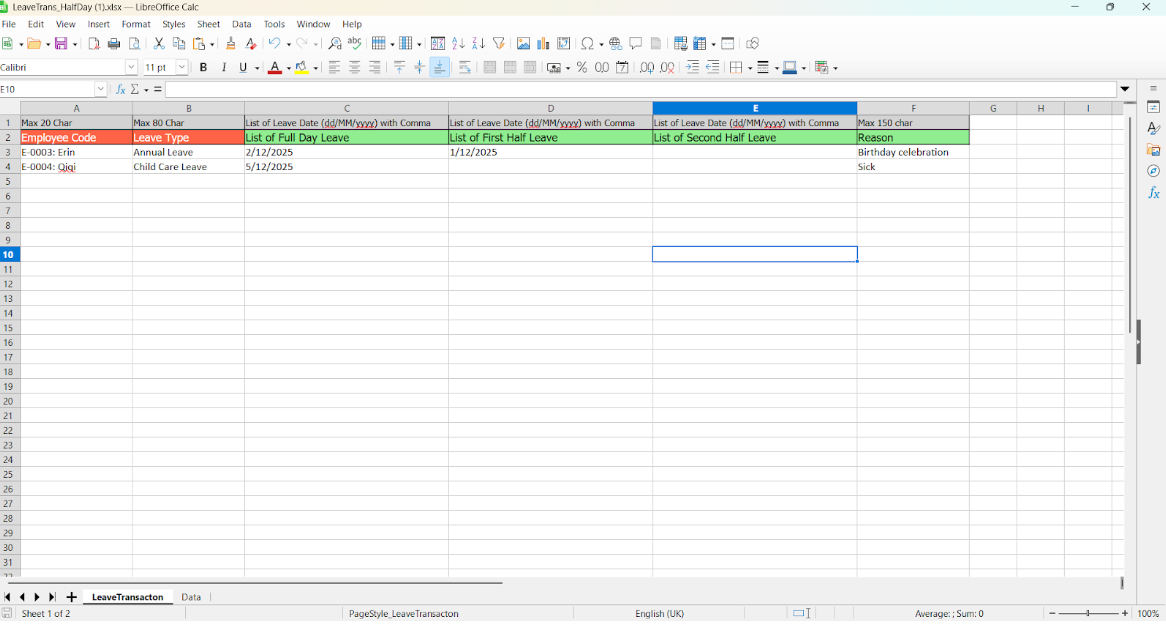
4. Save the completed file in Excel (.xlsx) format.
5. Click Upload to upload the Leave Transaction Excel file.
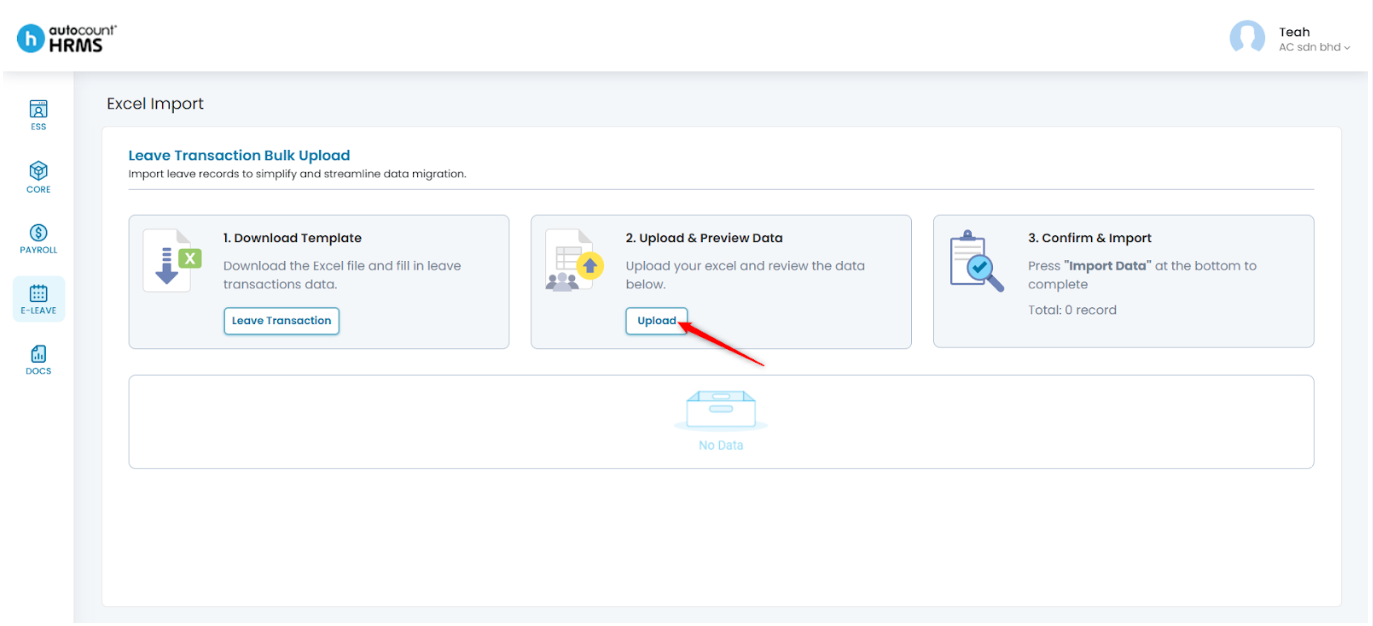
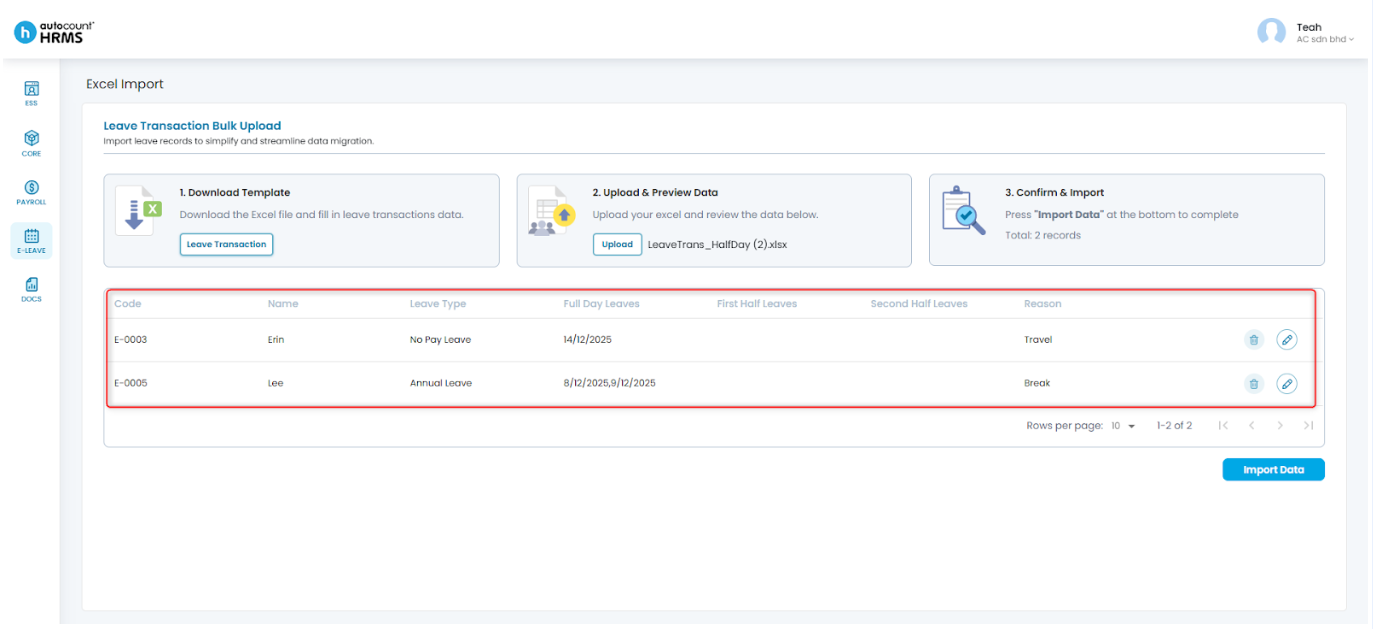
6. Review the uploaded data.
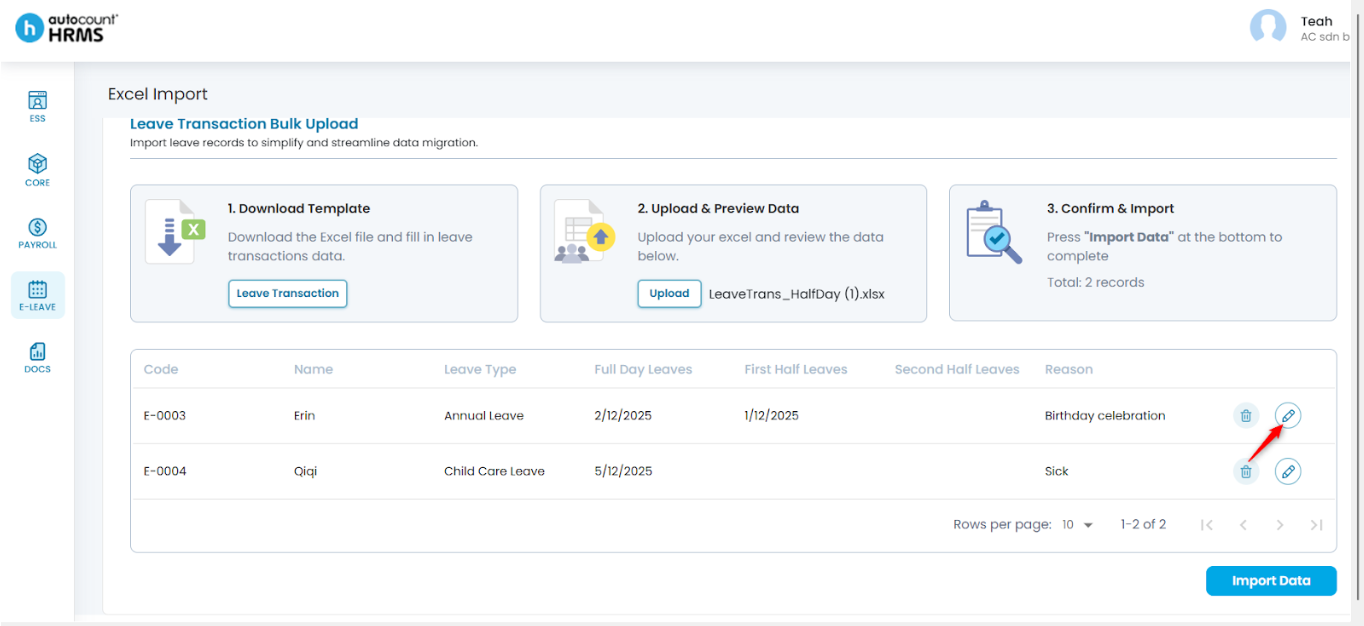
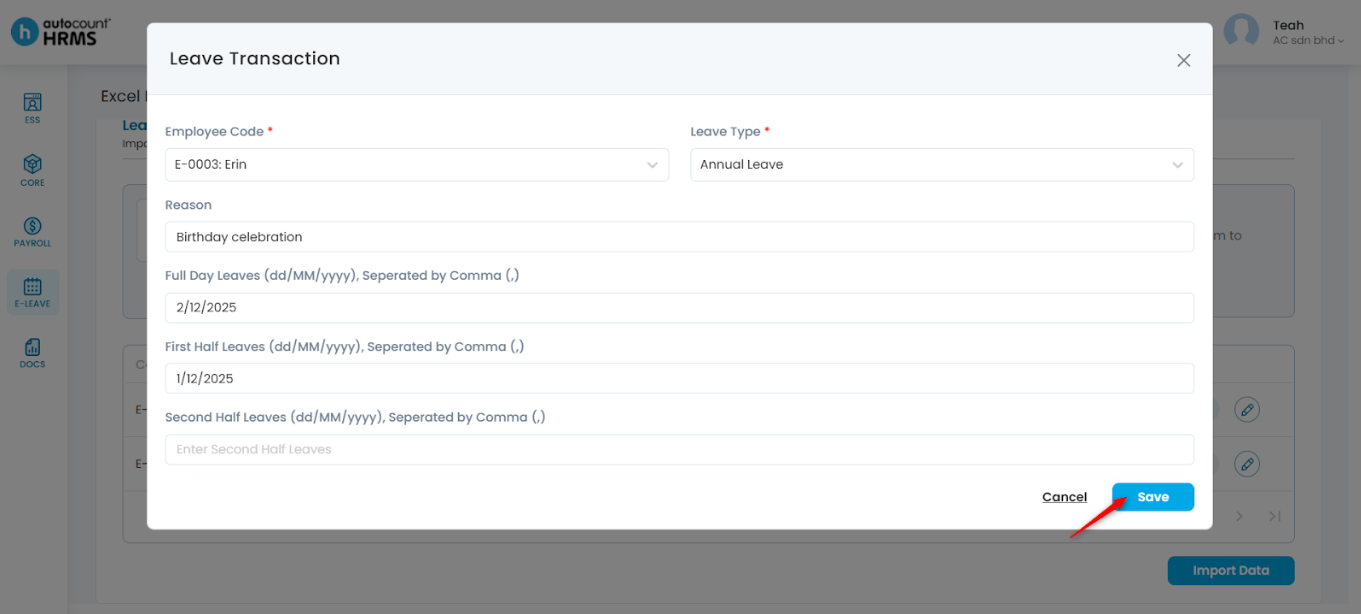
7. To edit a record, click the pencil icon, make the necessary changes, and click Save.
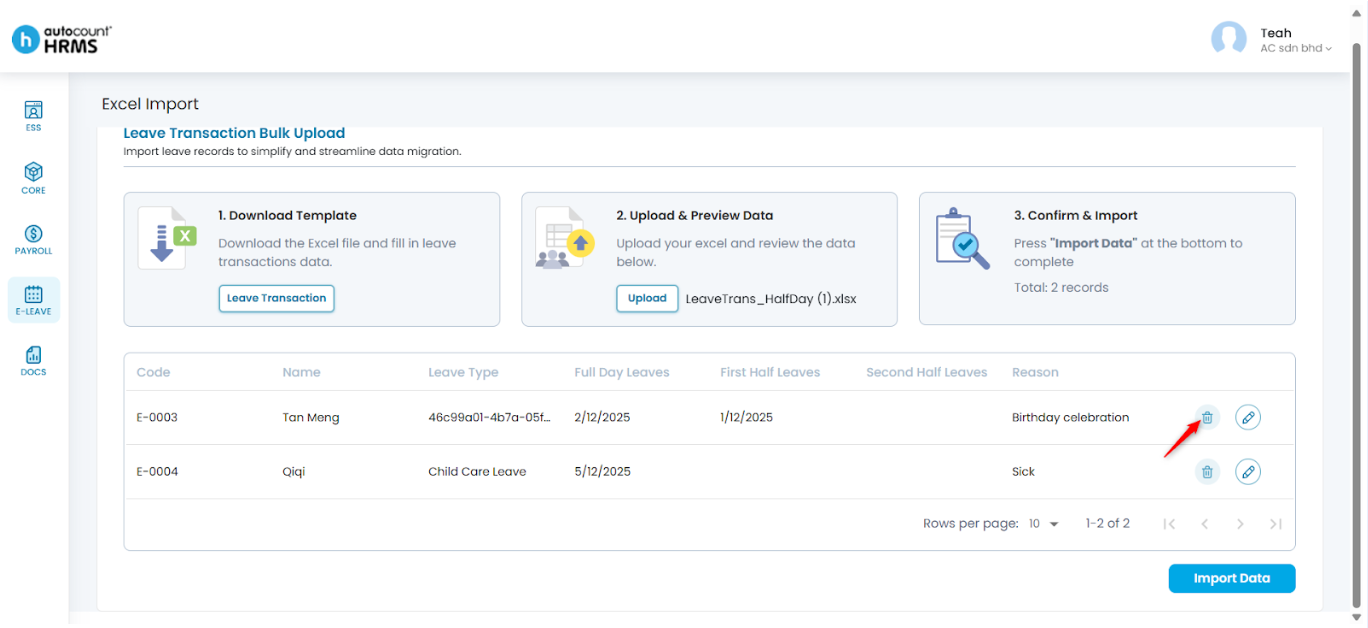
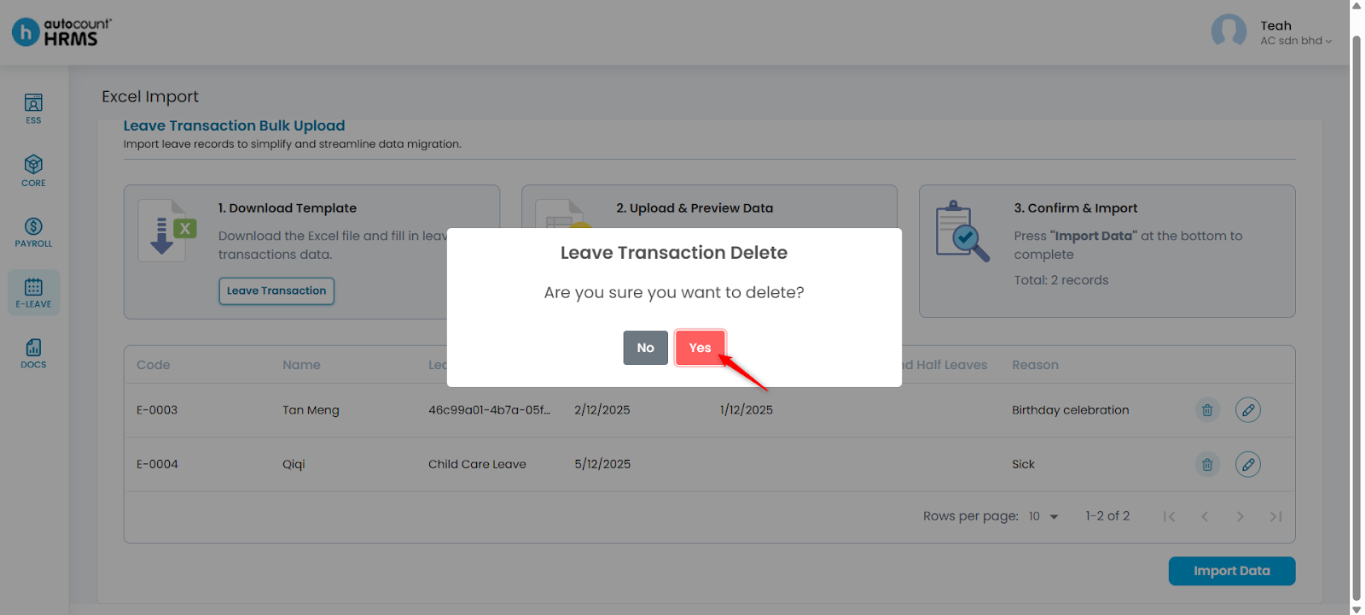
8. To delete a record, click the trash bin icon, then click Yes to confirm.
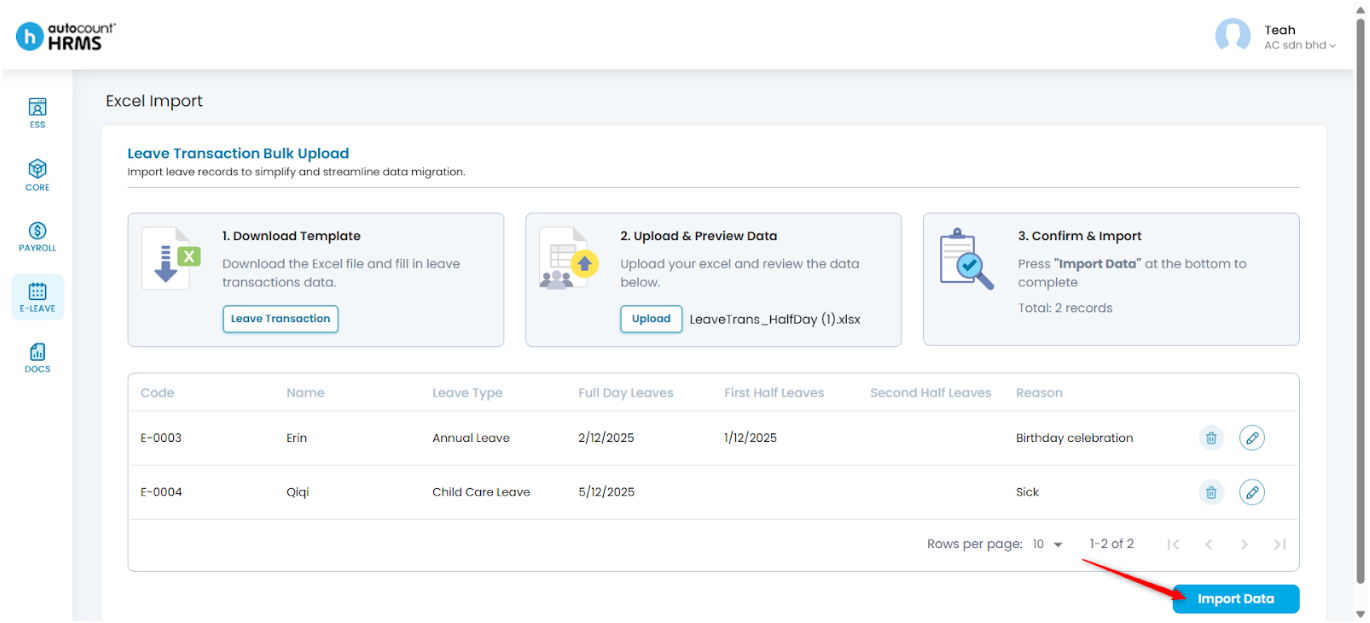
9. Click Import Data to import the transactions.
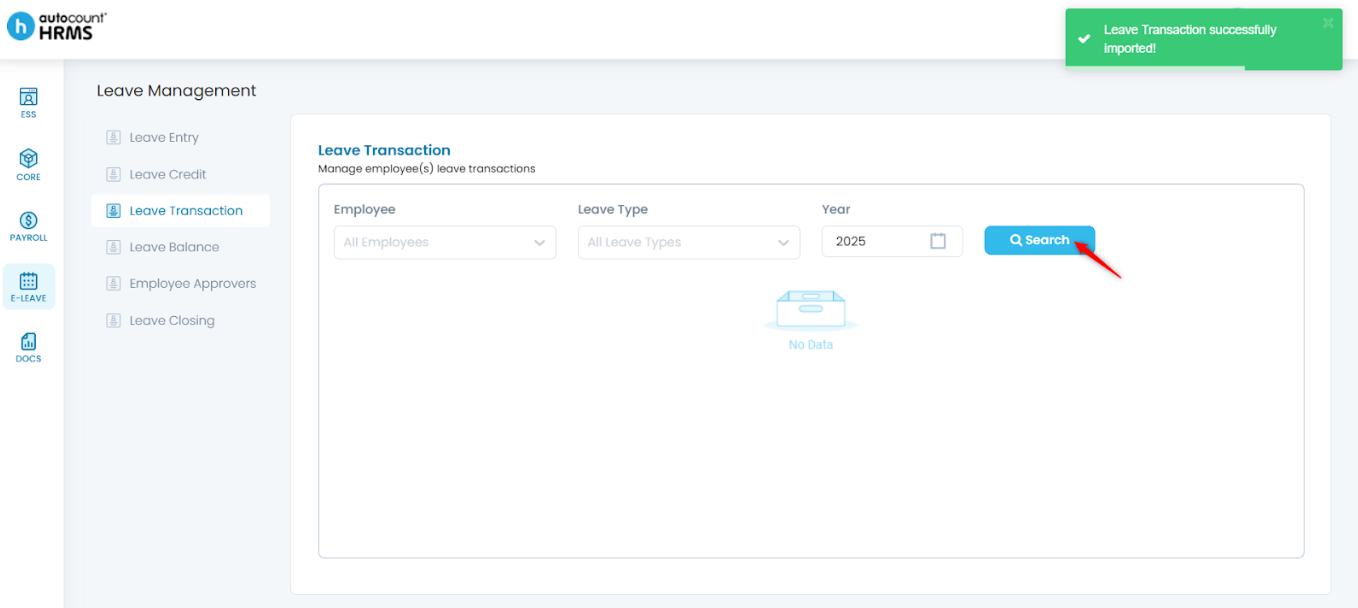
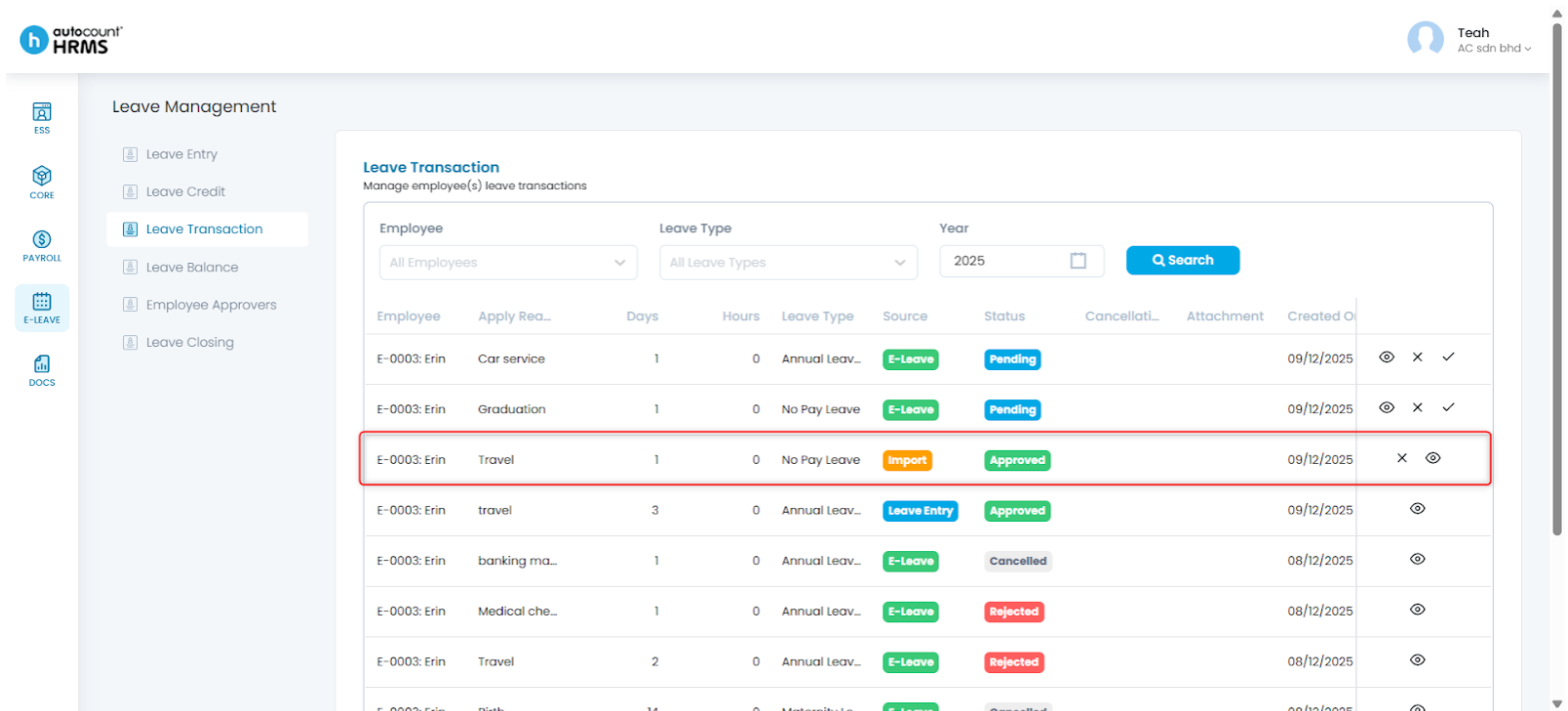
10. You will be redirected to the Leave Transaction page. Click Search to view the imported records.
Written by: Teah Rui Harn (20251208)
Reviewed by: Tek Ee Lin (20251209)