
The HR Letter Writer allows HR users to generate, customise, and send official letters to employees directly through HRMS. It will also be kept within the employee's profile once it has been acknowledged by the employee themselves.
Steps to Utilise the HR Letter Writer:
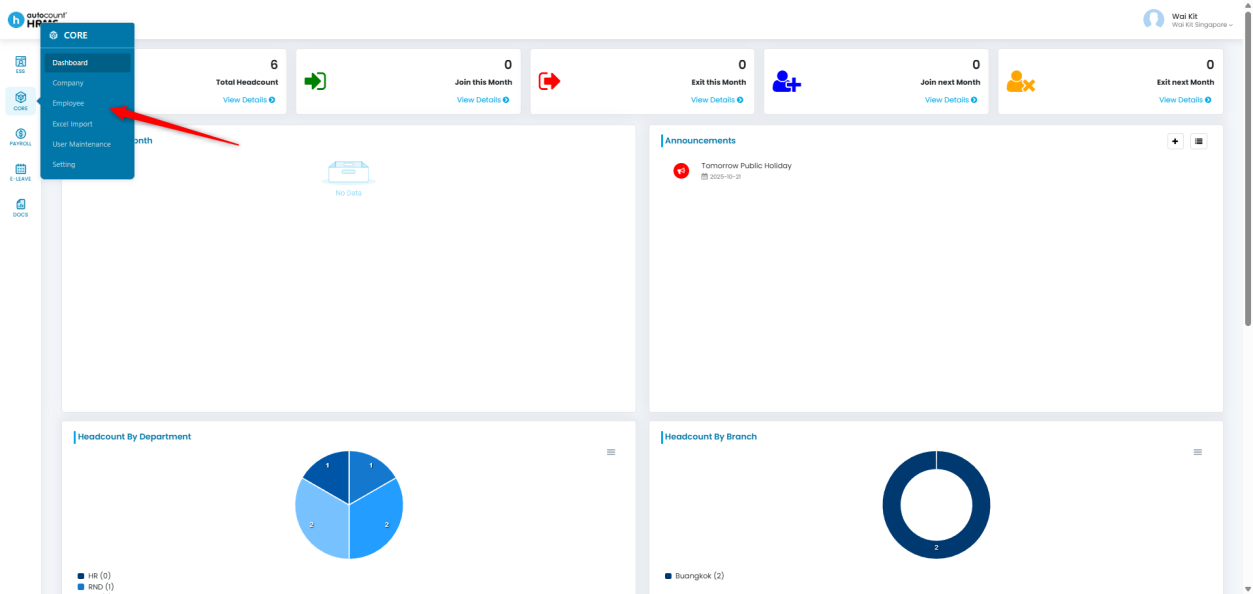
1. Go to Core > Employee.
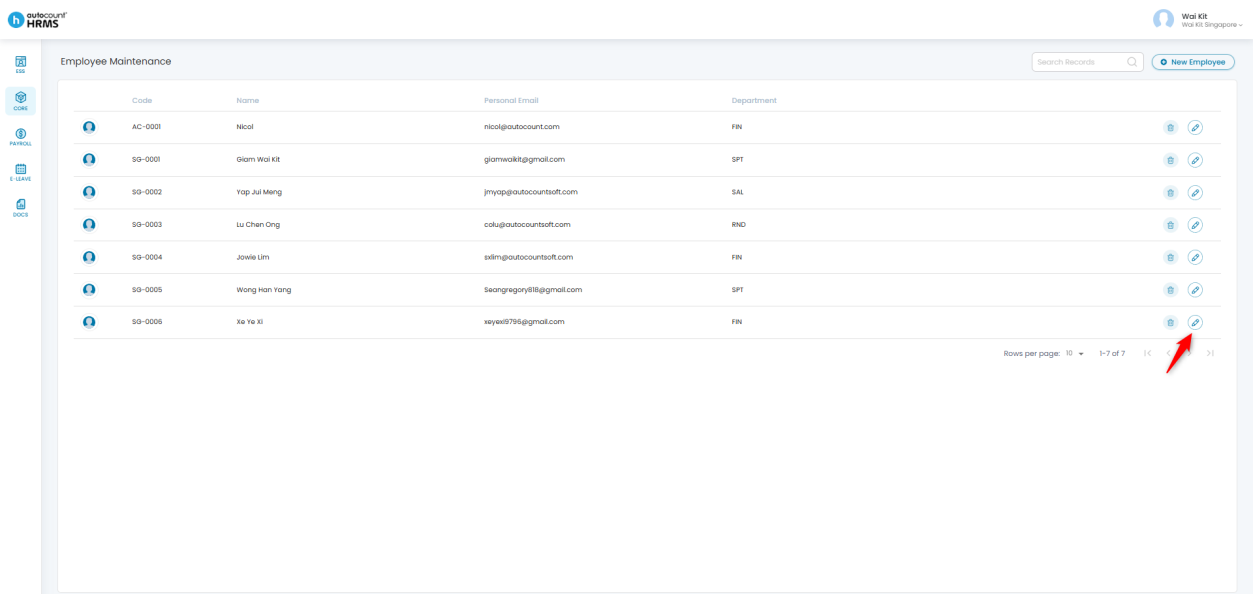
2. Locate the employee you wish to prepare the letter for and click the pencil icon.
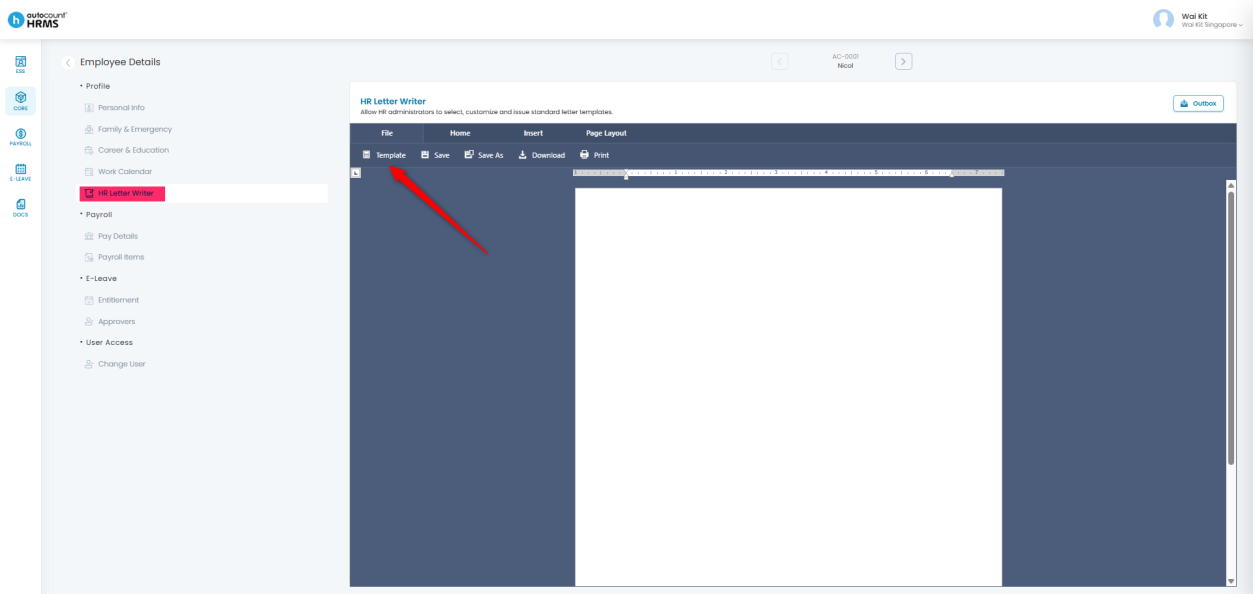
3. Go to the HR Letter Writer section and click Template.
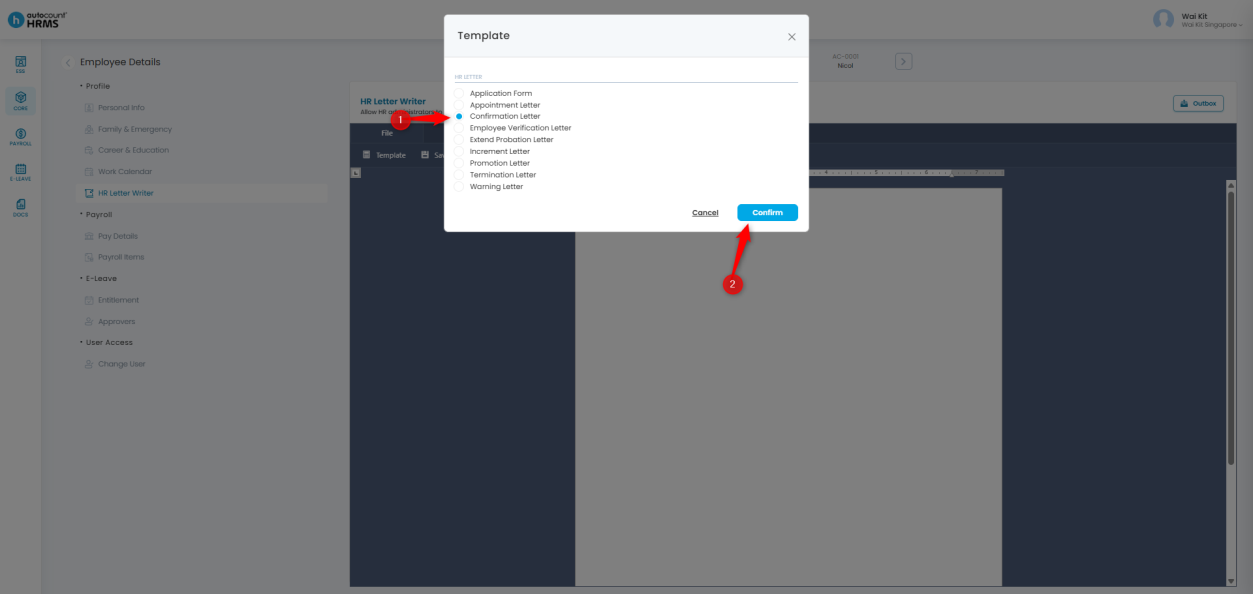
4. A template selection panel will appear. Select your preferred template and click Confirm to generate the letter.
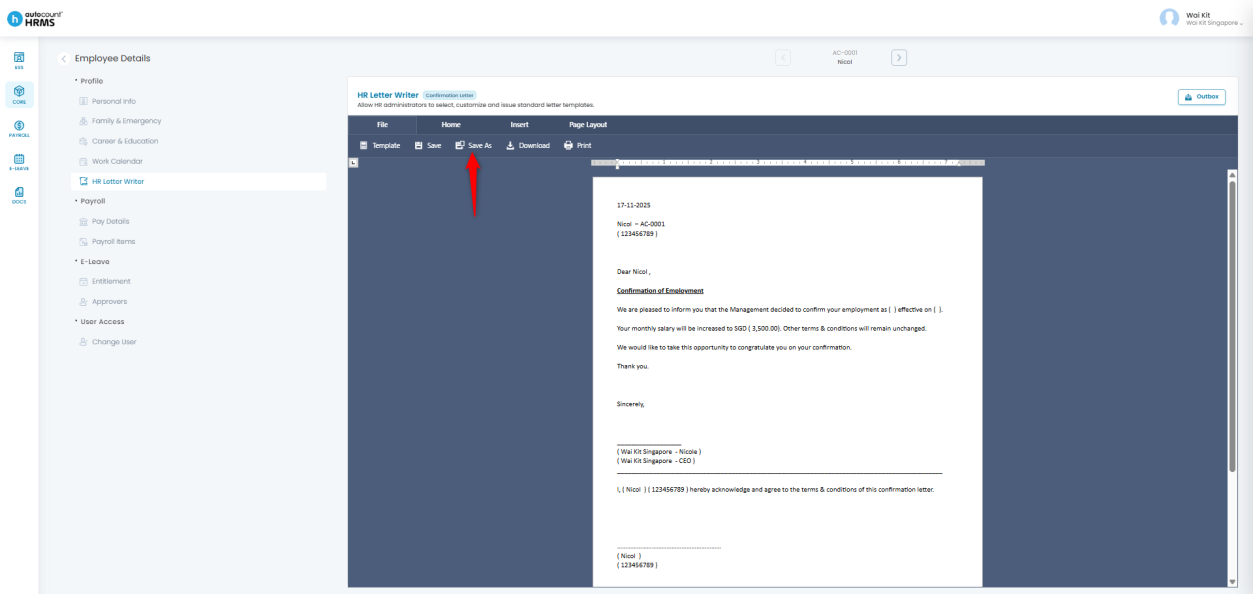
5. Review the generated letter and make any required edits. When done, click Save As.
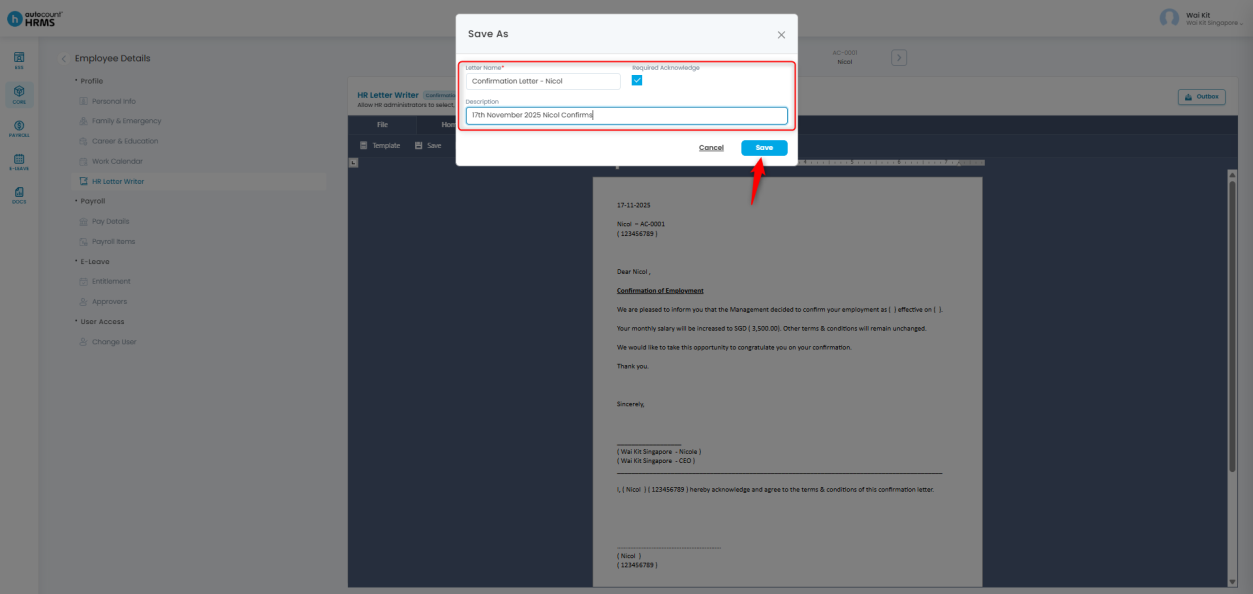
6. A Save As panel will appear. Enter the necessary details:
- Letter Name
- Description
- Required Acknowledge (tick if employee acknowledgement is needed)
Click Save.
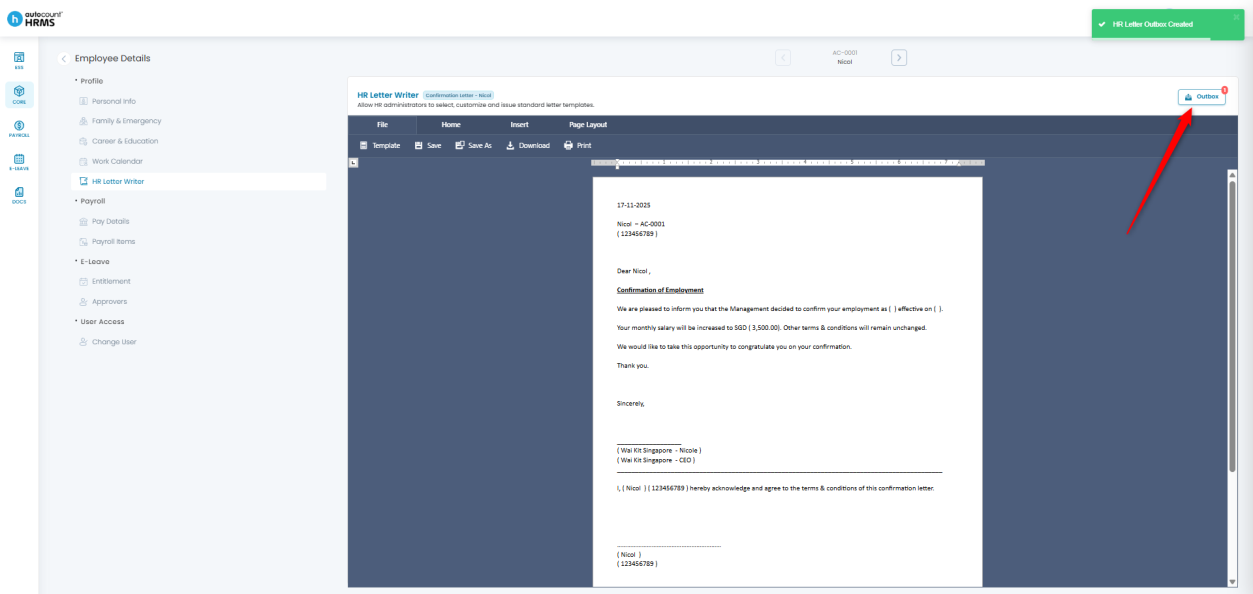
7. The letter will be generated and stored in the Outbox.
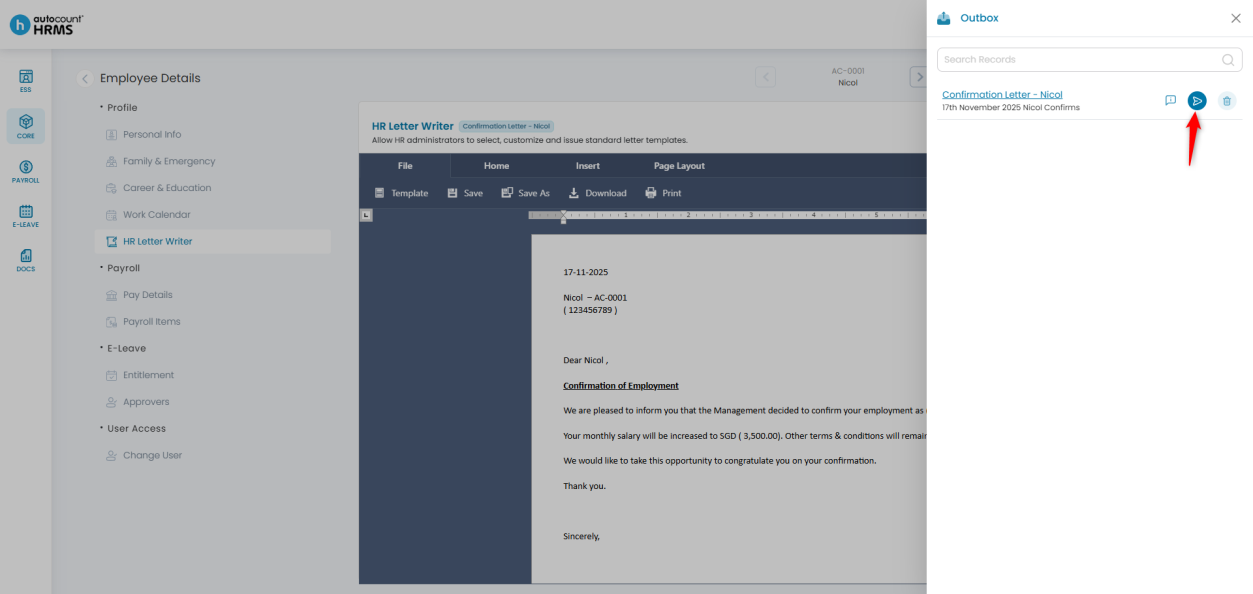
8. Go to Outbox and click the arrow icon to send the letter to the employee.
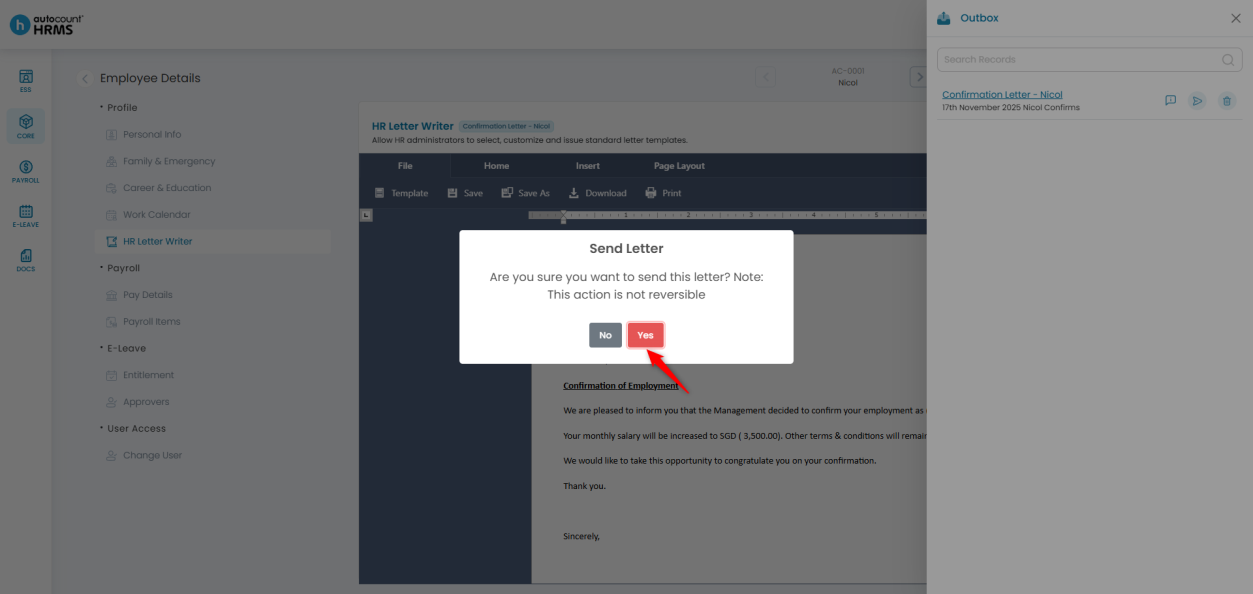
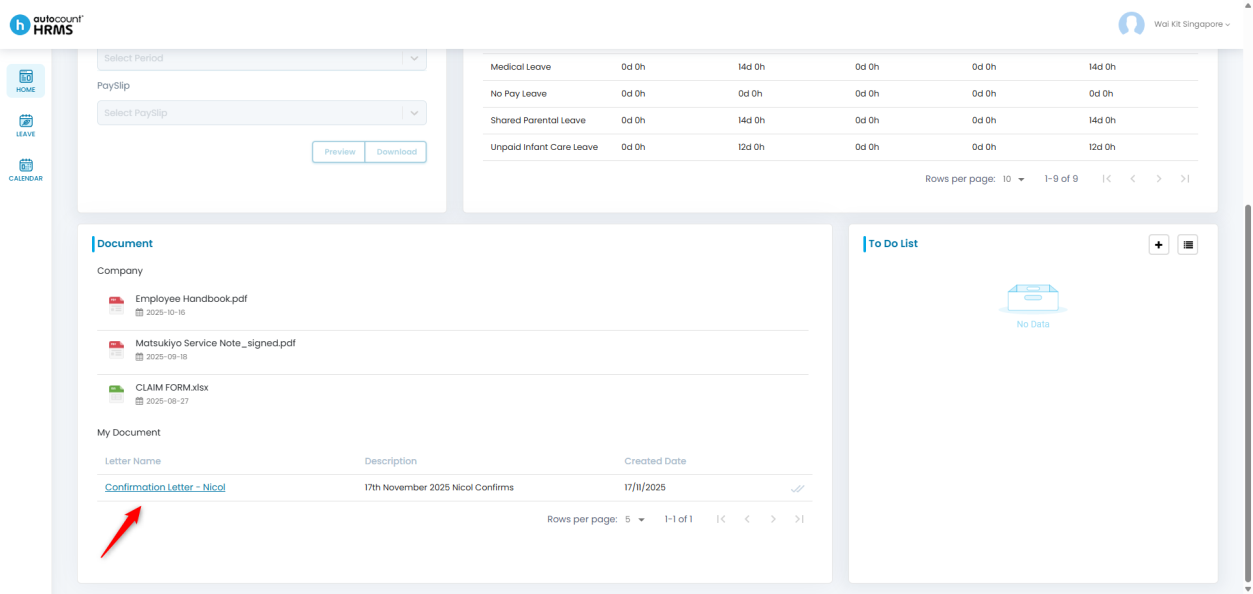
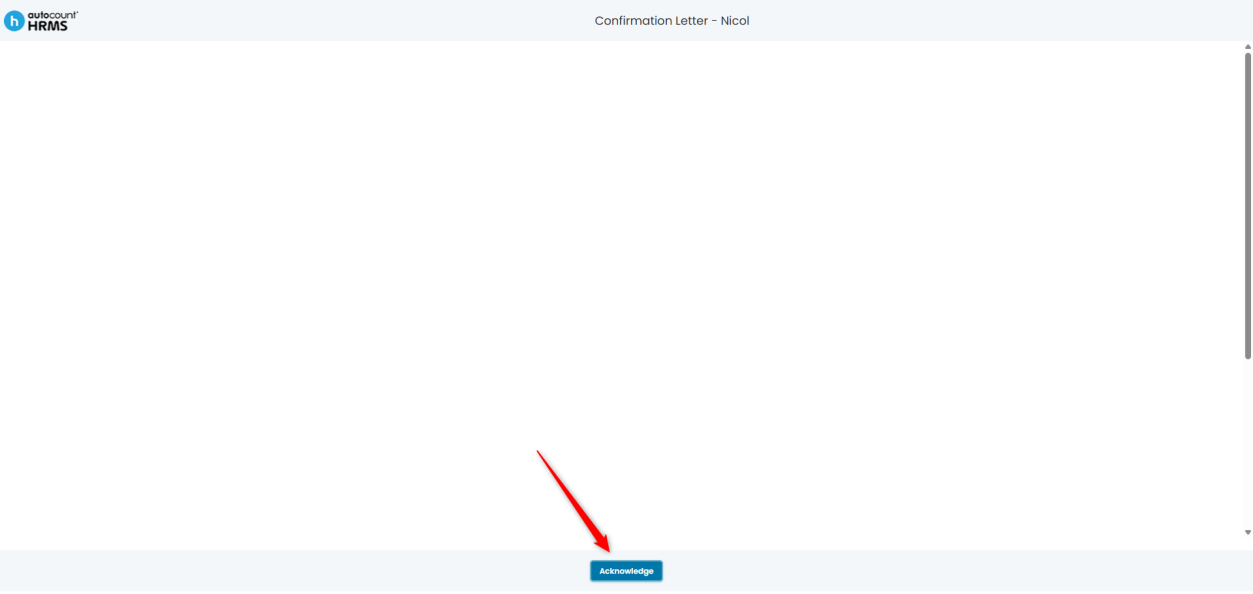
9. The employee can view the letter under Home > My Document, click the letter and then click Acknowledge to acknowledge receipt.
Written by: Giam Wai Kit (20251117)
Reviewed by Tek Ee Lin (20251119)